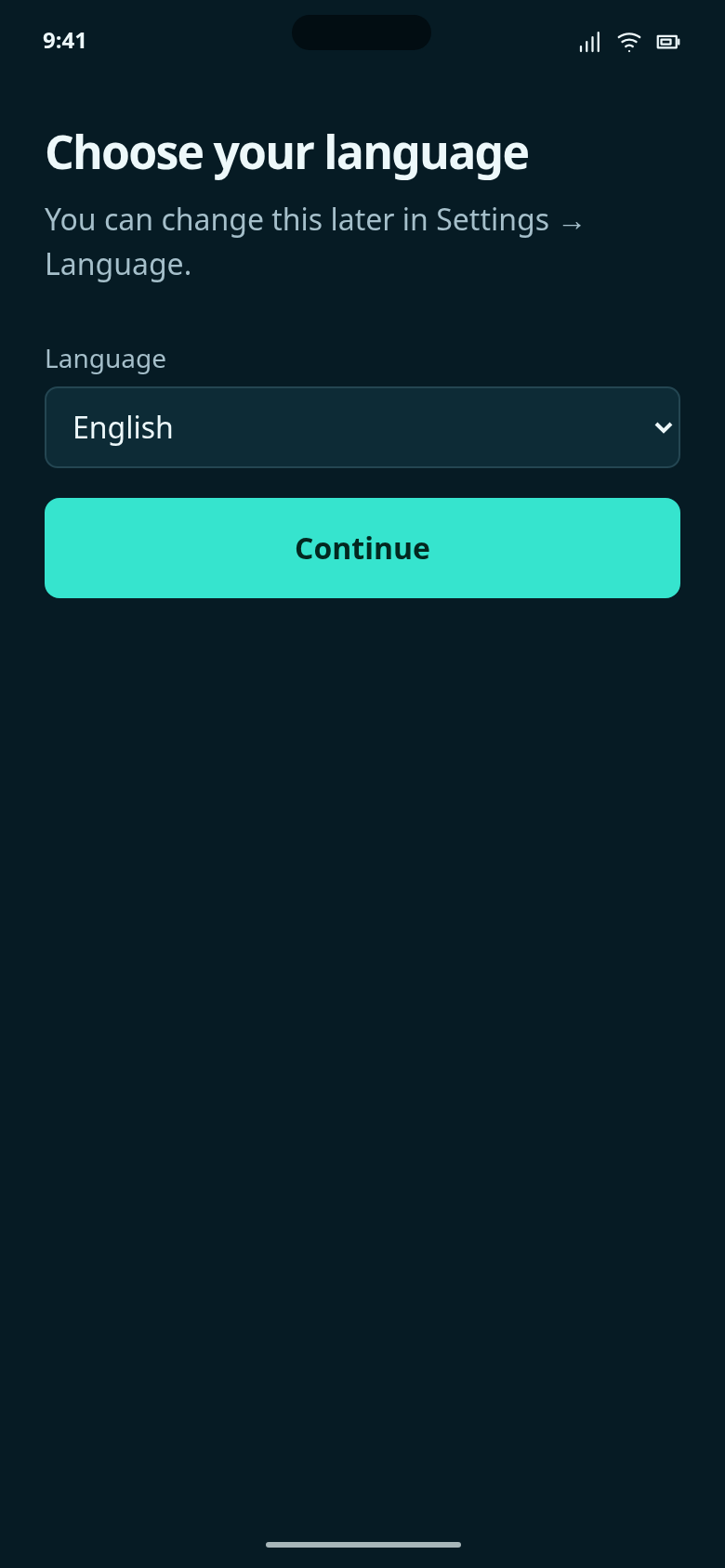
Choose your language
Choose a language before phone permissions. English illustrates the device-language preselection; the walkthrough itself remains in English.
K9Link / Mobile app
The screen is on the left; its title, short description and hidden menu choices are on the right.
Fictional example data. These are design concepts, not a live collar connection. No recording, telemetry or upload takes place here.
Choose a language before phone permissions. English illustrates the device-language preselection; the walkthrough itself remains in English.
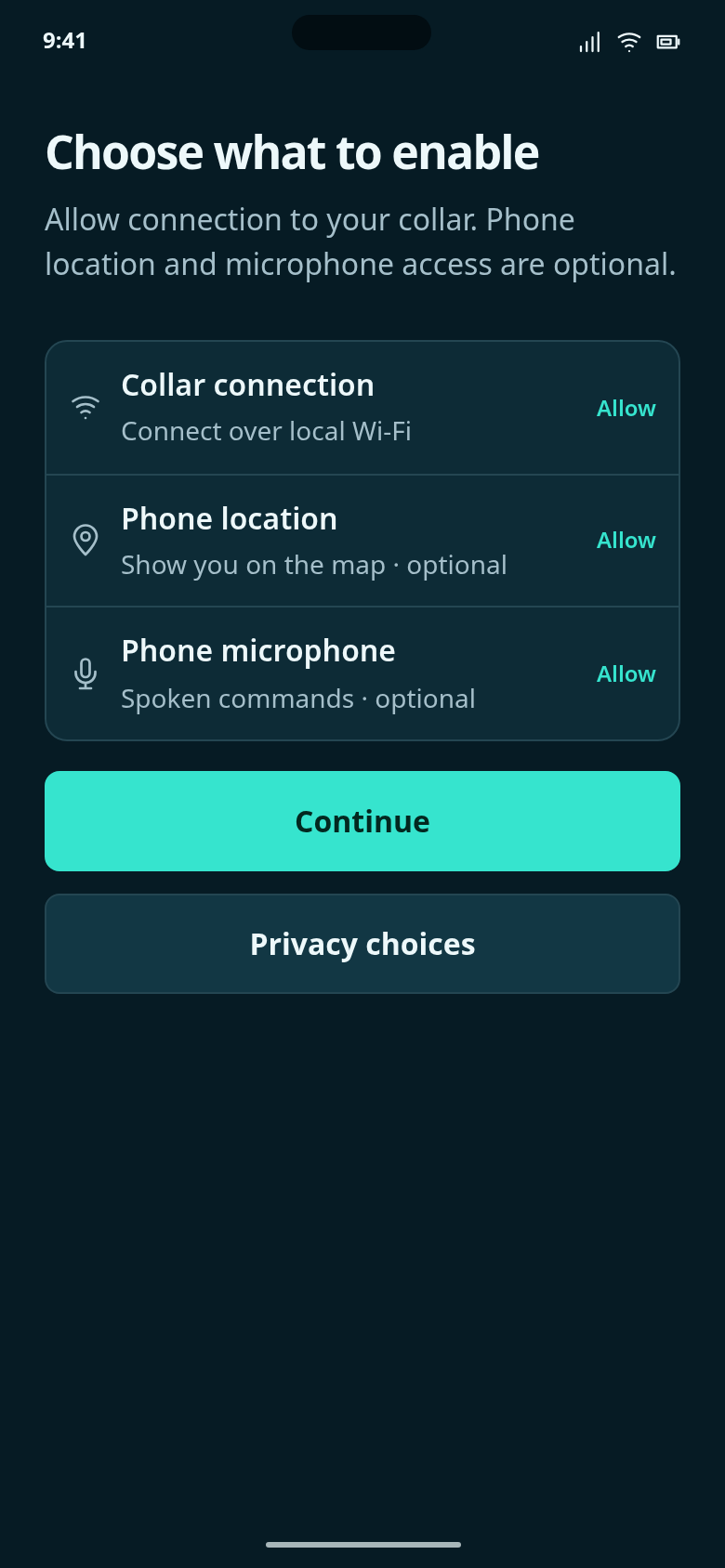
After choosing the app language, review which phone permissions K9Link uses. No account or Internet connection is needed.
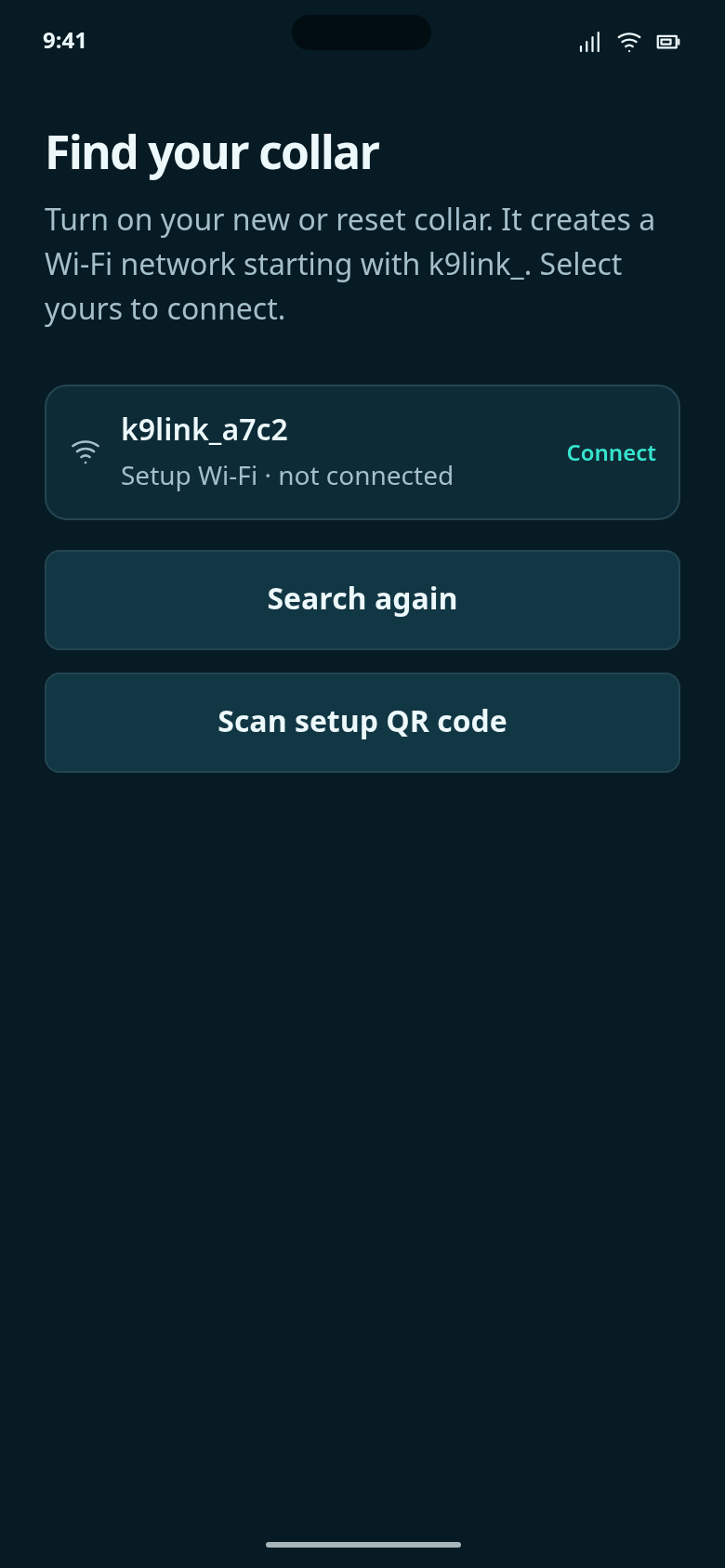
Look for nearby collar setup networks with names starting with k9link_. No Bluetooth, home Wi-Fi or Internet is needed.
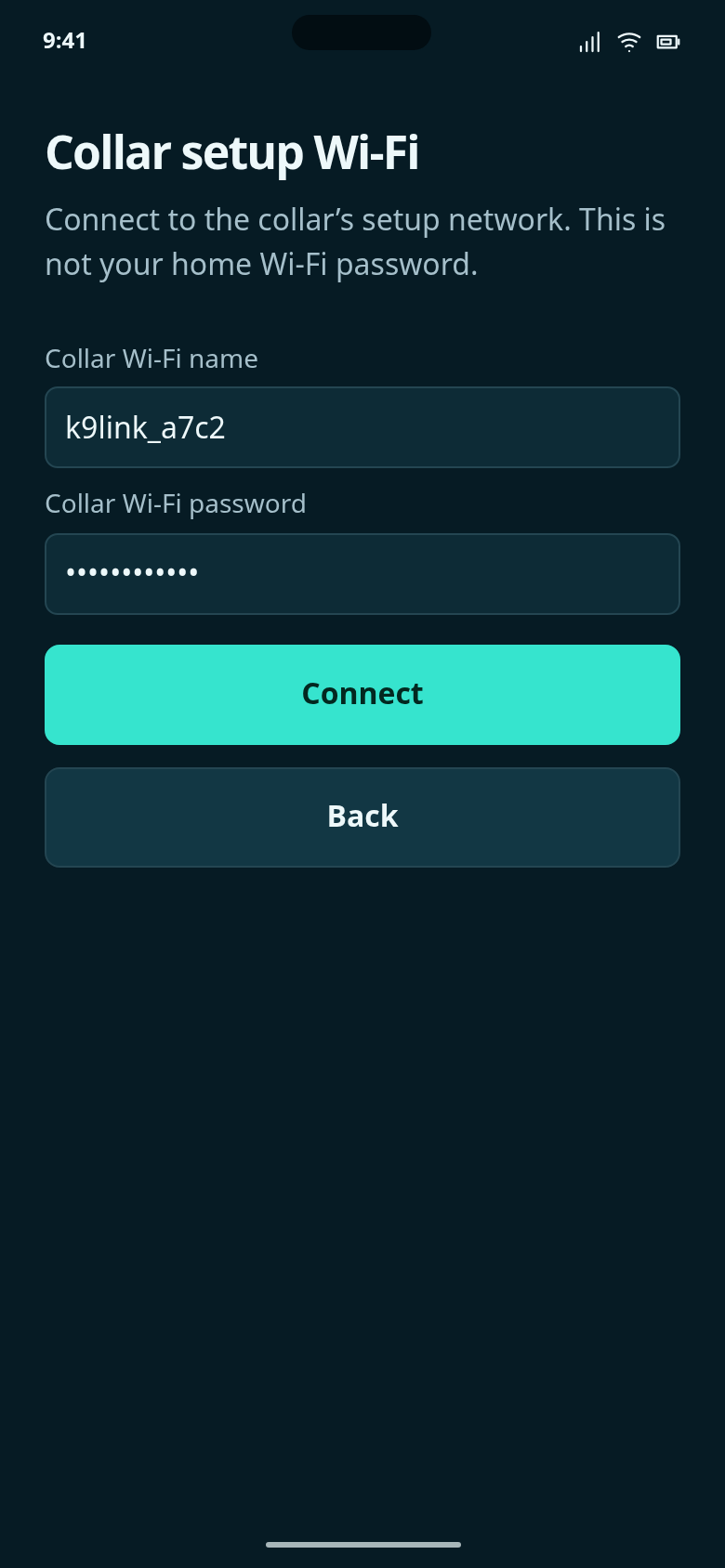
Supply the setup credentials for the selected collar, then approve joining its Wi-Fi.
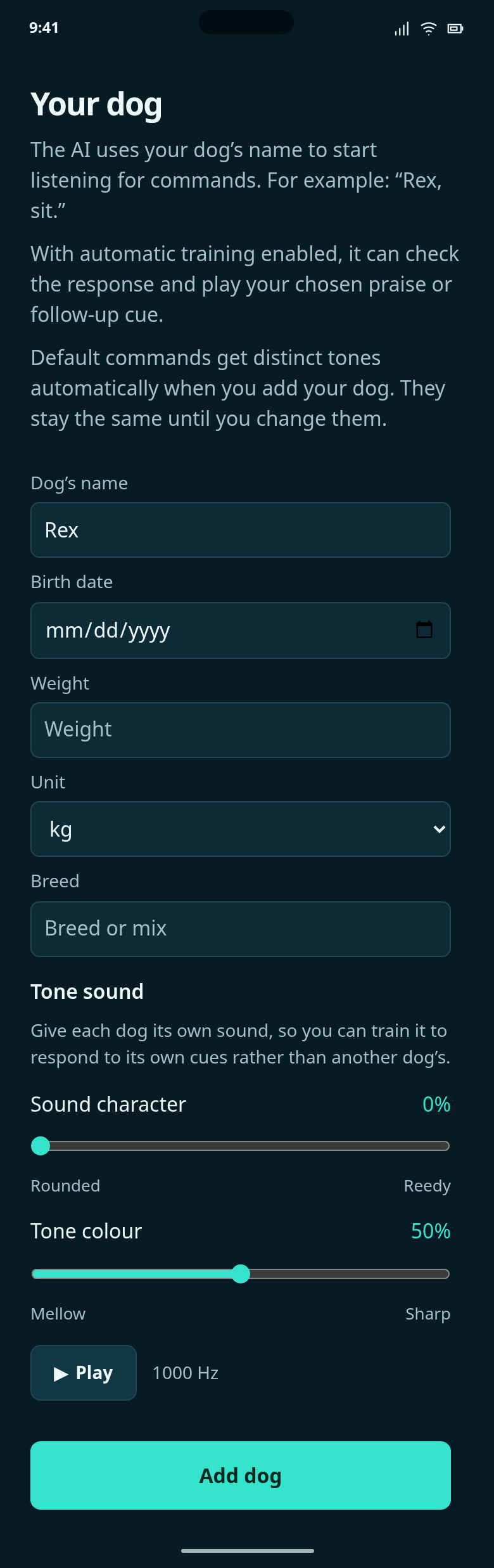
Add your dog’s details and shape its sound. Default command tones are assigned automatically once per dog.
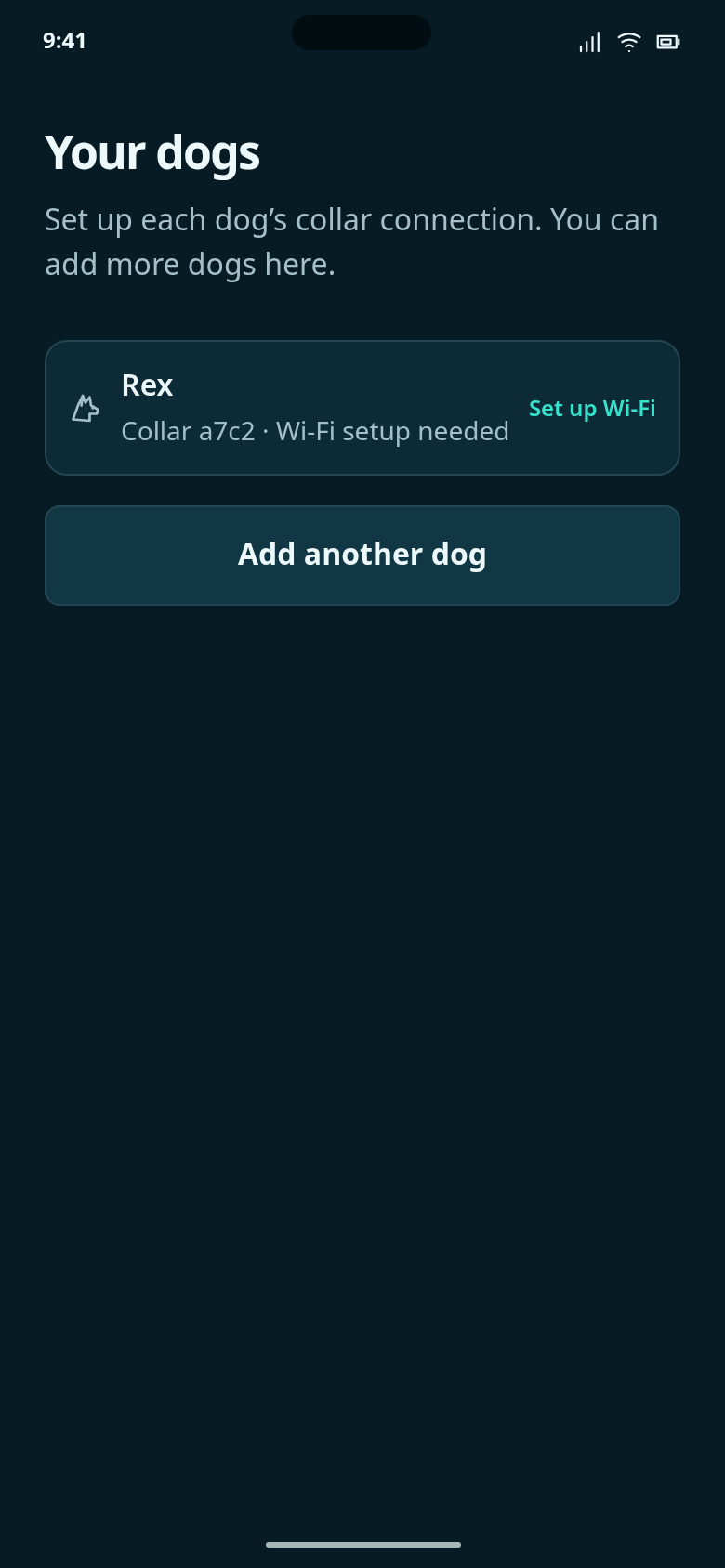
See your dogs and finish configuring their collars. Adding a dog includes connecting its collar.
See collar status and open Controls to change recording, listening, AI and audio.
The OS row shows your phone’s time, network and battery. Compact icons on the left of the K9Link bar show collar status and open Controls. Two separate arrows at the far right switch profile screens directly.
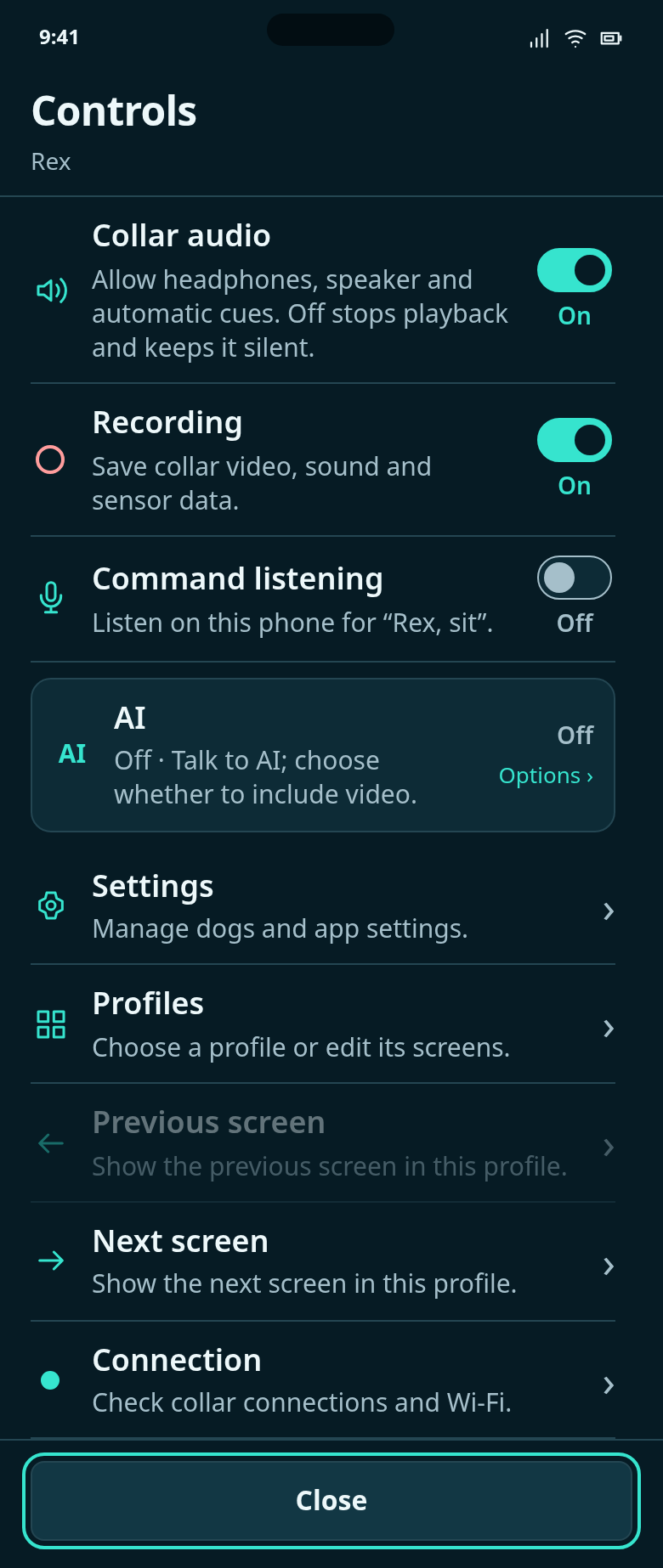
Switch Collar audio, Recording or Command listening on or off, or open another view. Close returns to your screen.
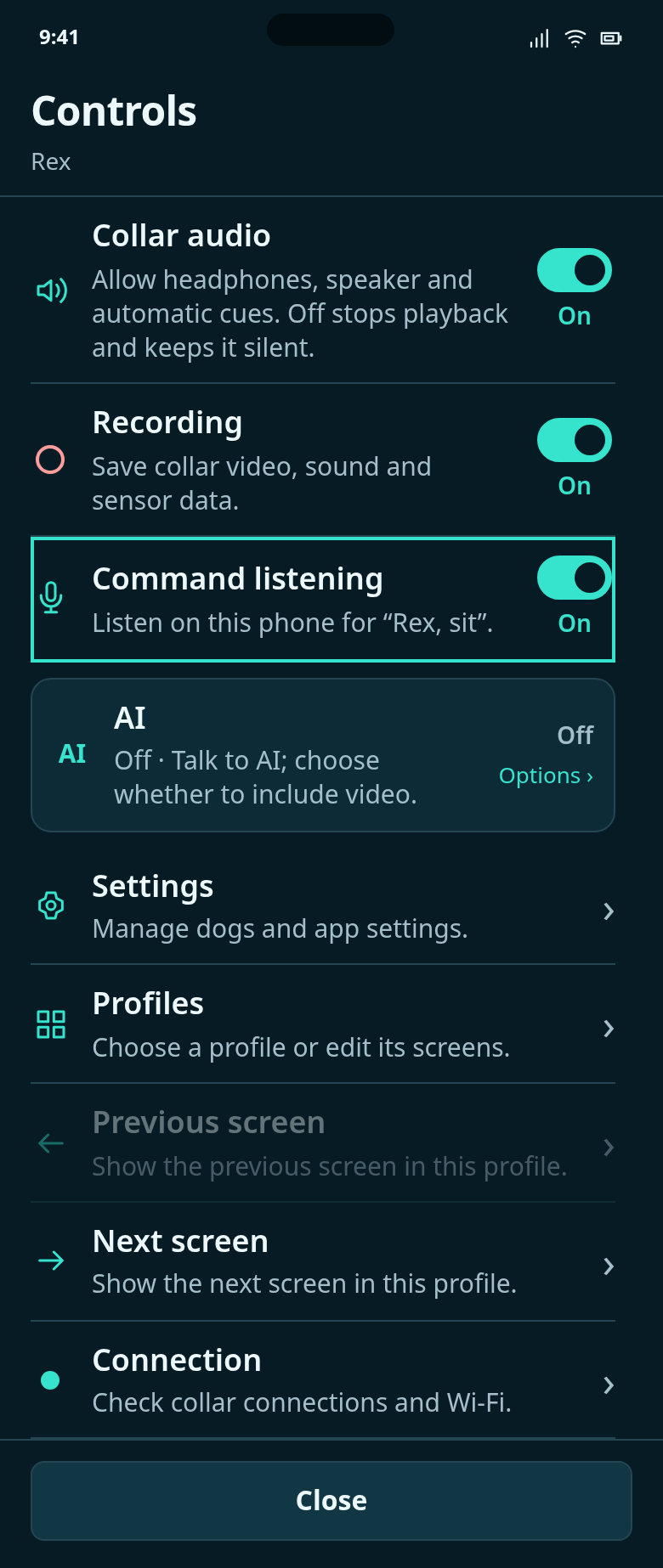
In Controls, turn phone listening for “Rex, sit” on or off without an extra confirmation.
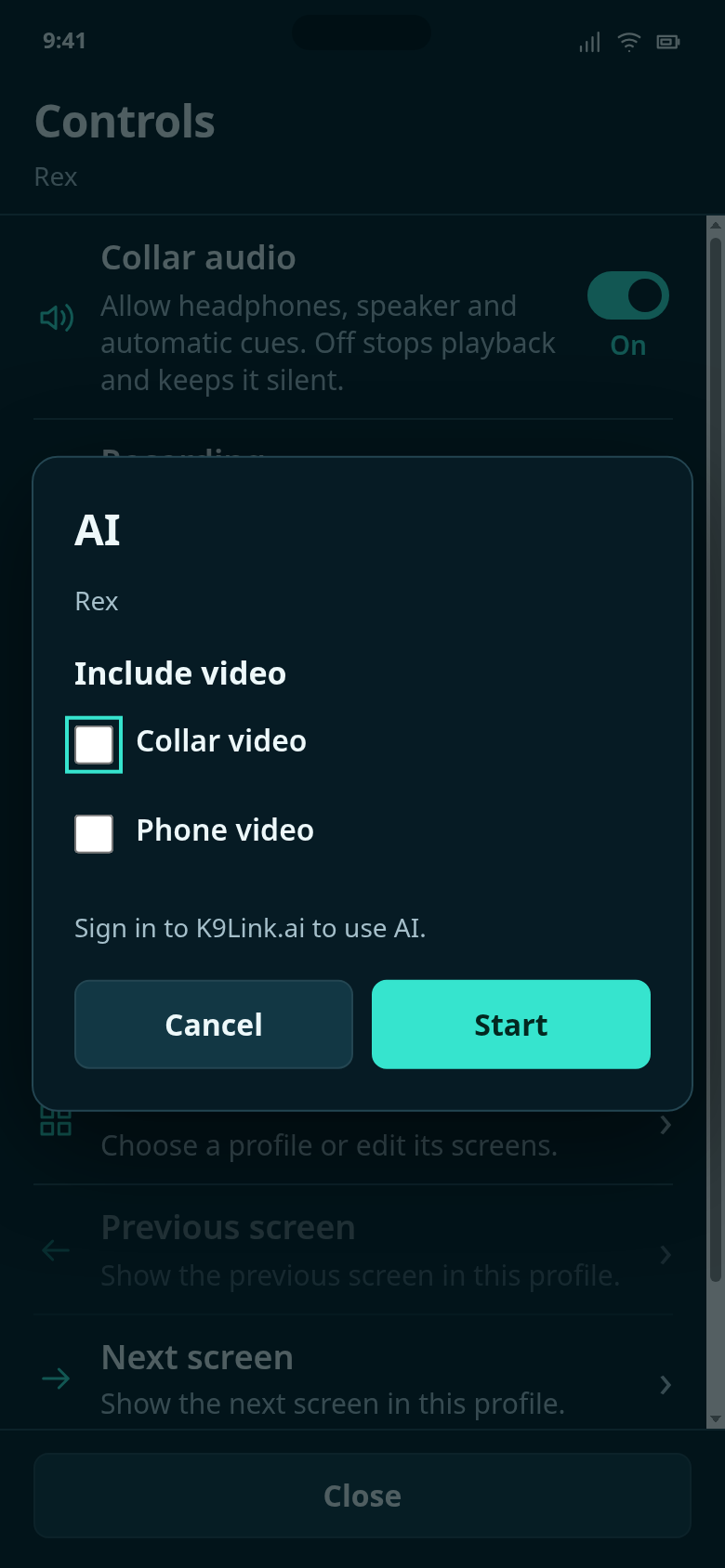
In Controls, choose AI, optionally include collar or phone video, then press Start.

Open everyday tools, customize your screens, or manage dogs, storage, appearance, networks and app preferences.
Open your diary, recordings or AI assistant.
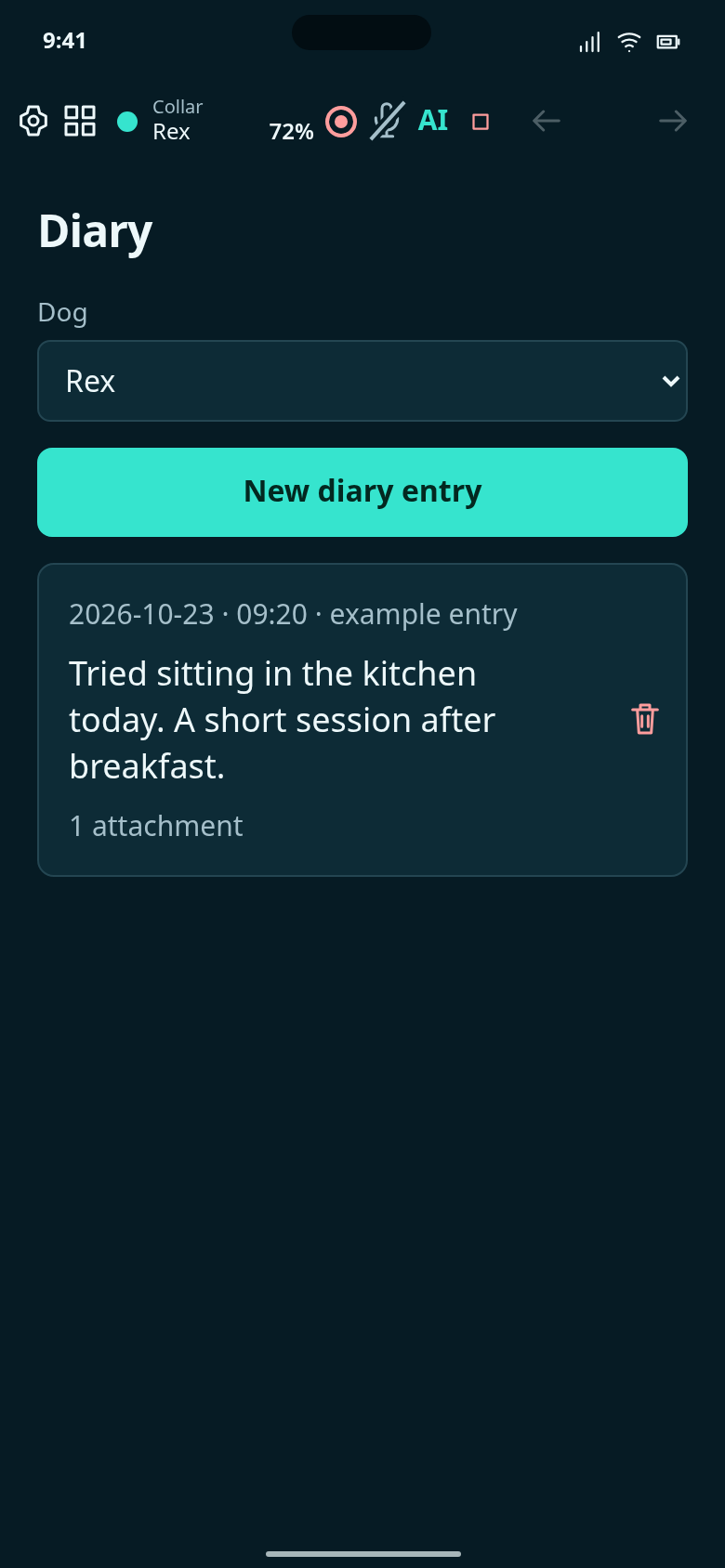
Read past entries or add a note, phone media or a saved collar-camera clip for the selected dog.
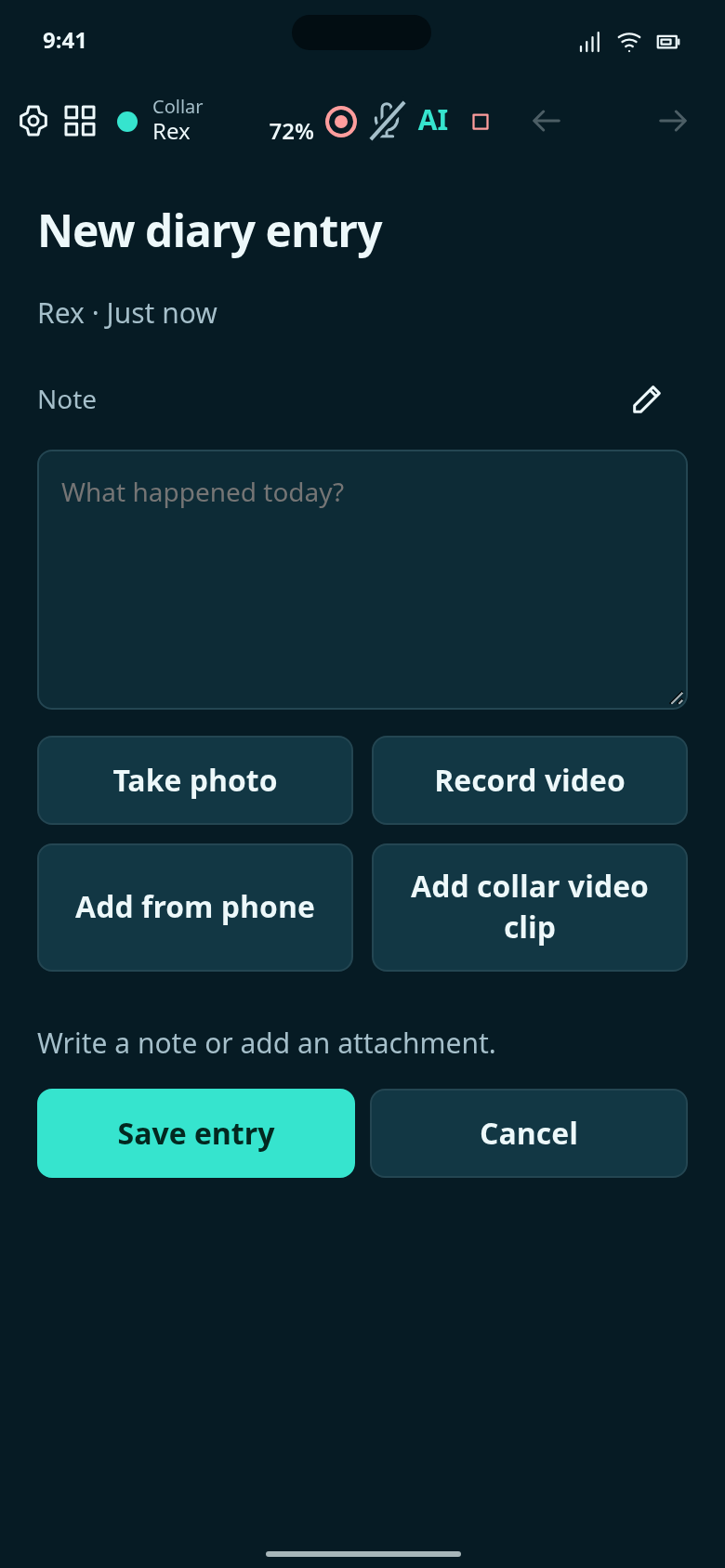
Write a note and attach phone media or a saved collar video clip. New entries are dated automatically.
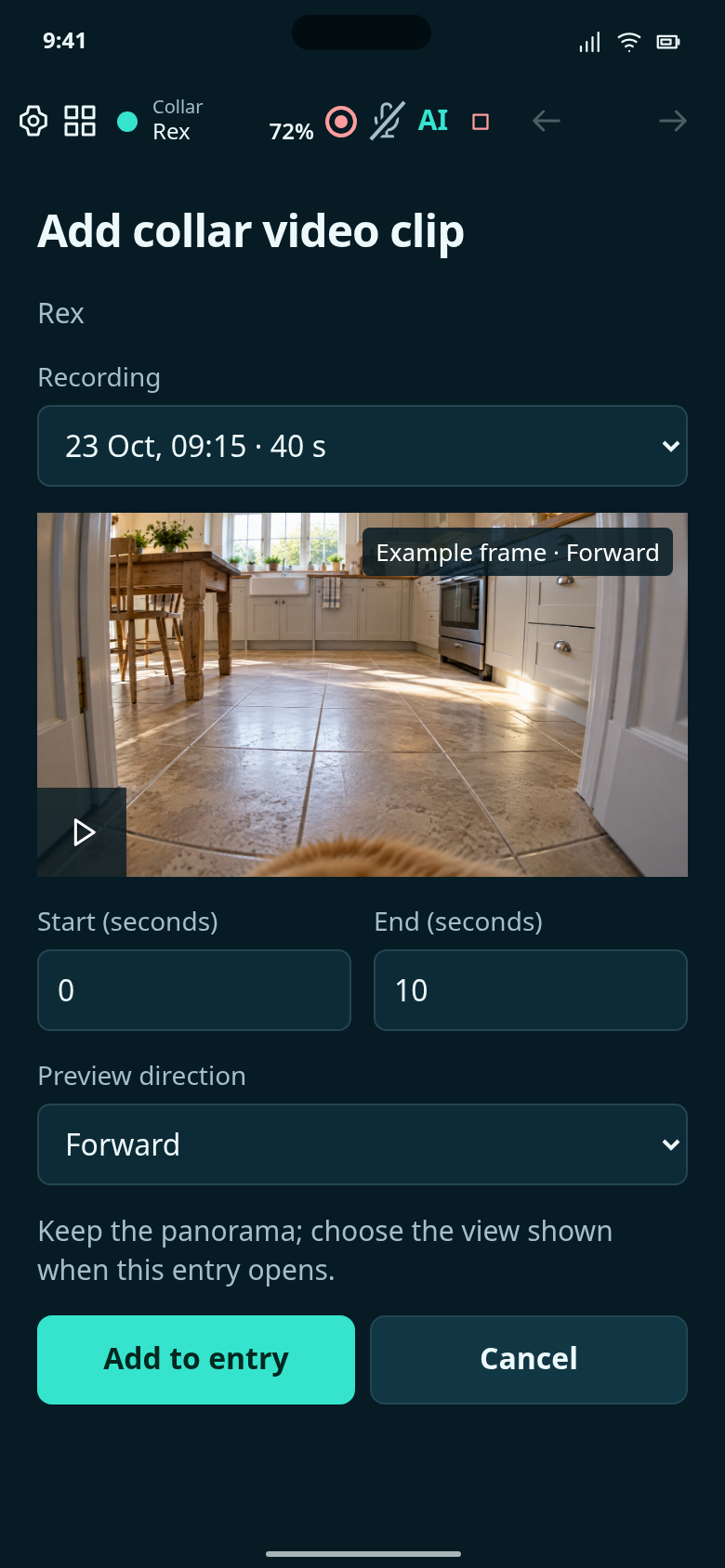
Choose a saved recording, mark the interval and choose which direction its diary preview faces.
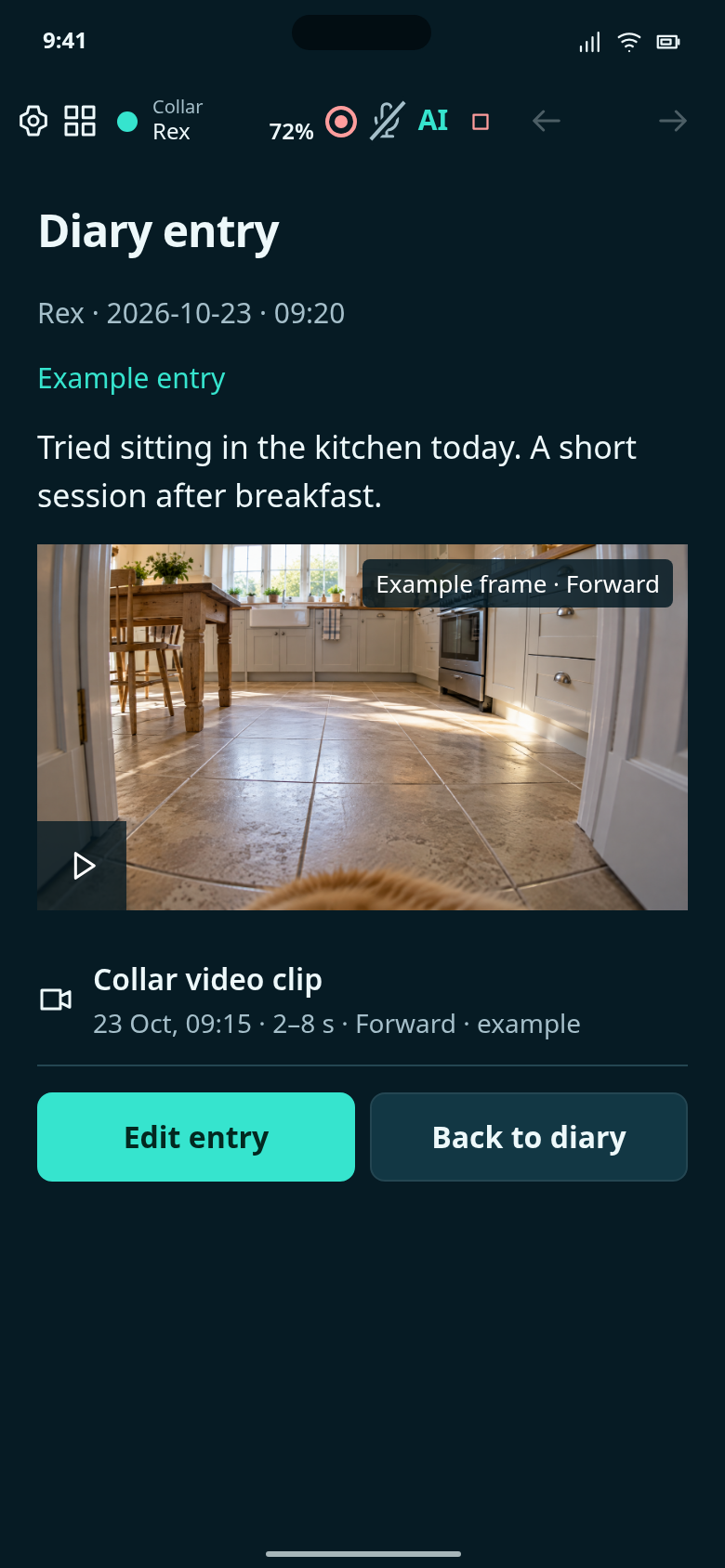
Read an existing diary entry with its phone attachments and saved collar-camera interval.
Add a note and a trimmed collar video clip, then read the saved entry.
Write a note, choose a collar recording, trim it and save the entry with its video clip.
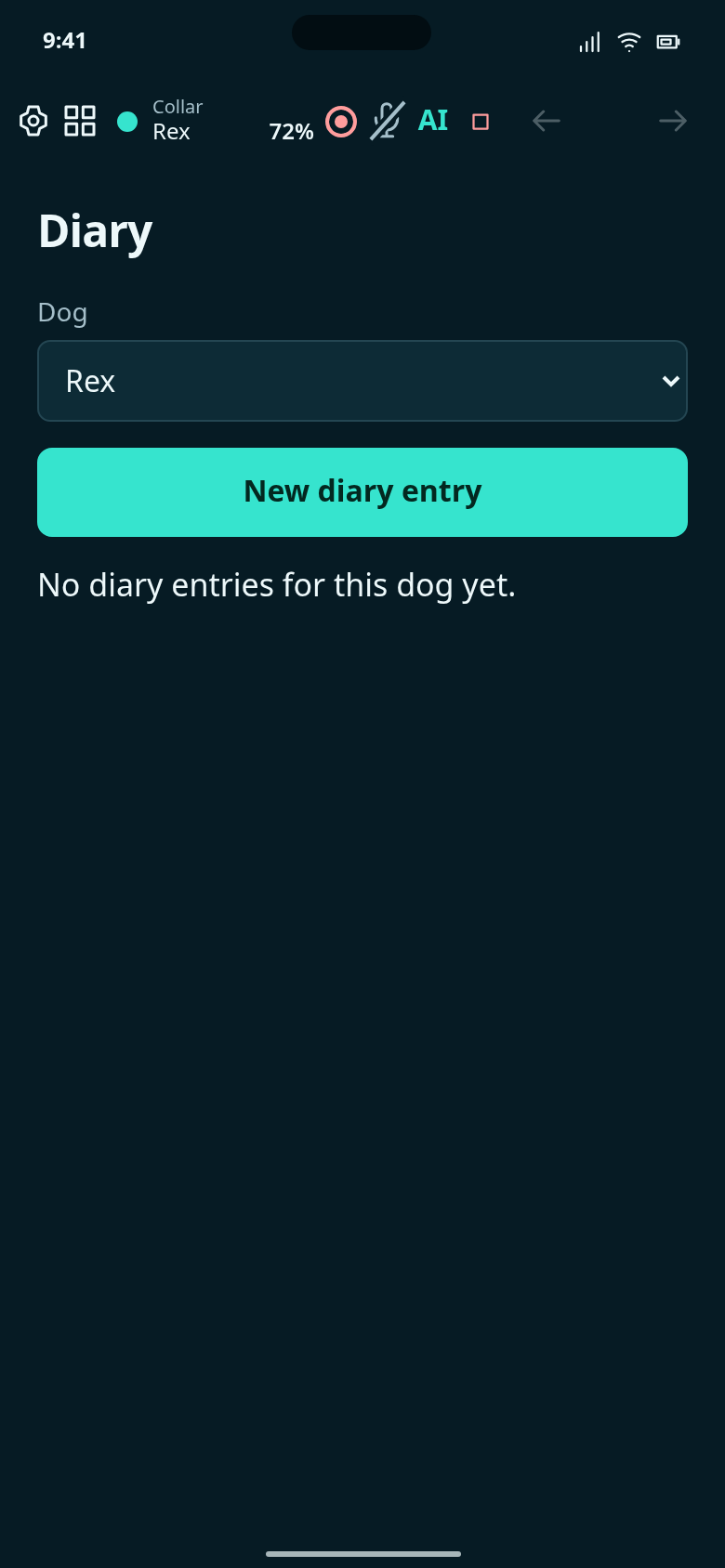
Rex’s diary starts empty. Create an entry to add a note and a collar video clip.
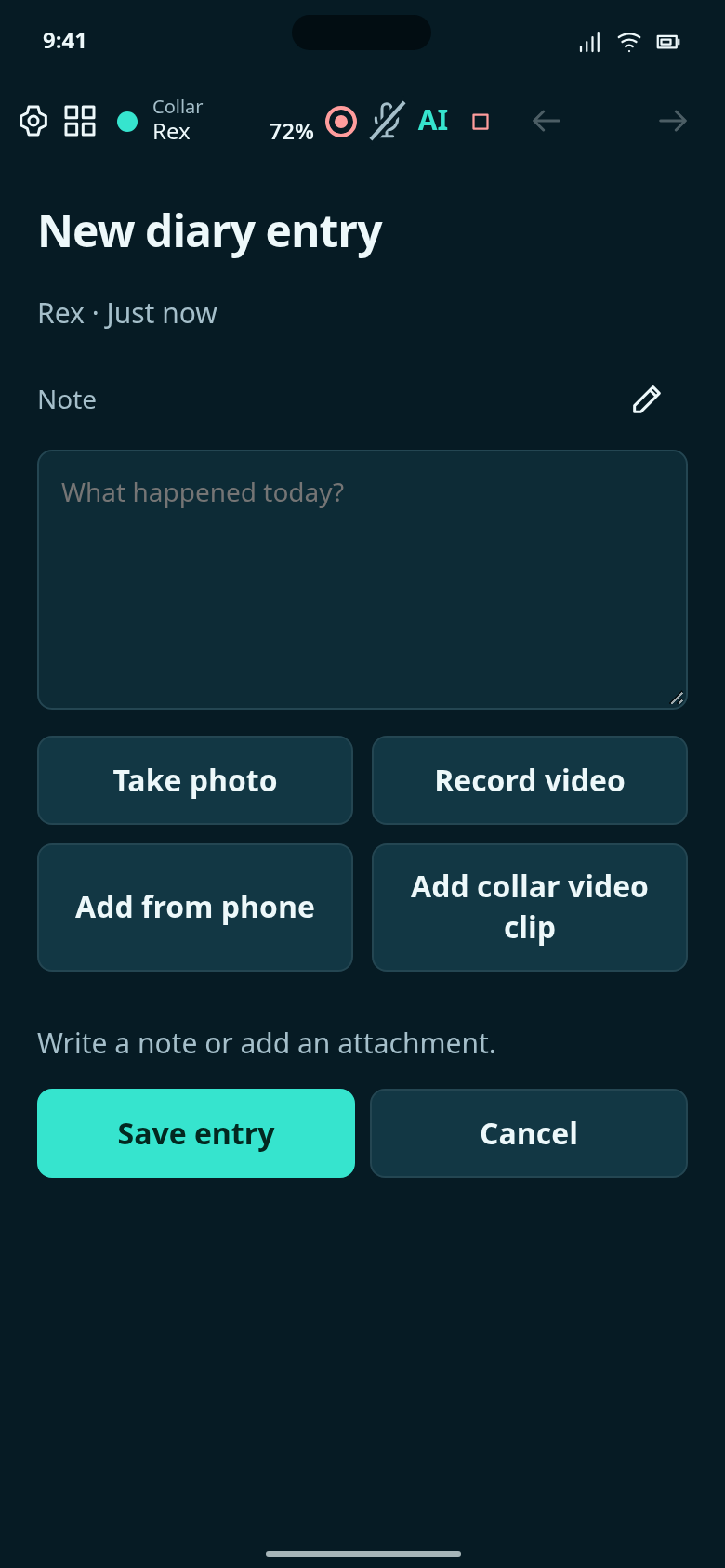
Start a new entry for Rex: write the note first, then add a saved collar video clip.
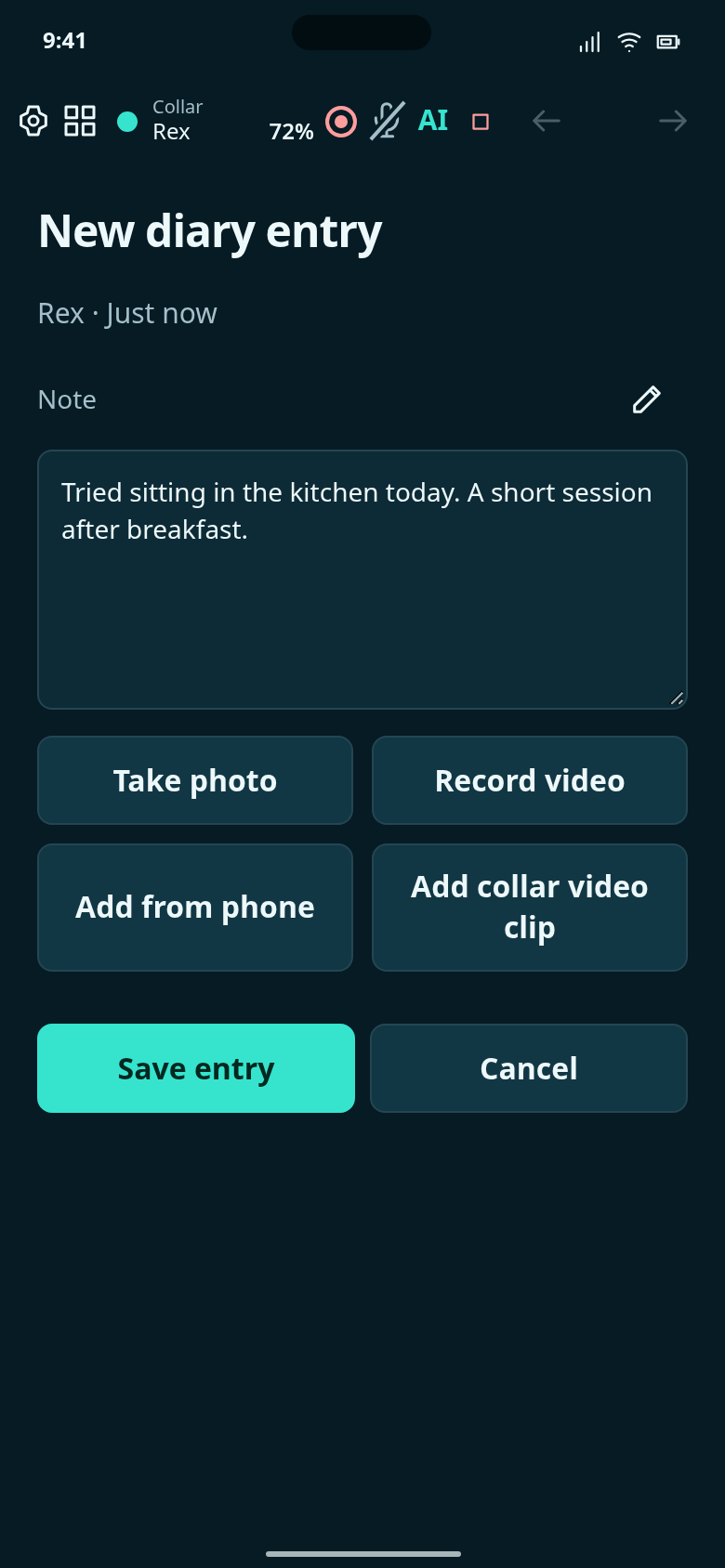
Rex’s note is written but not saved. Choose Add collar video clip to attach a moment from his recording.
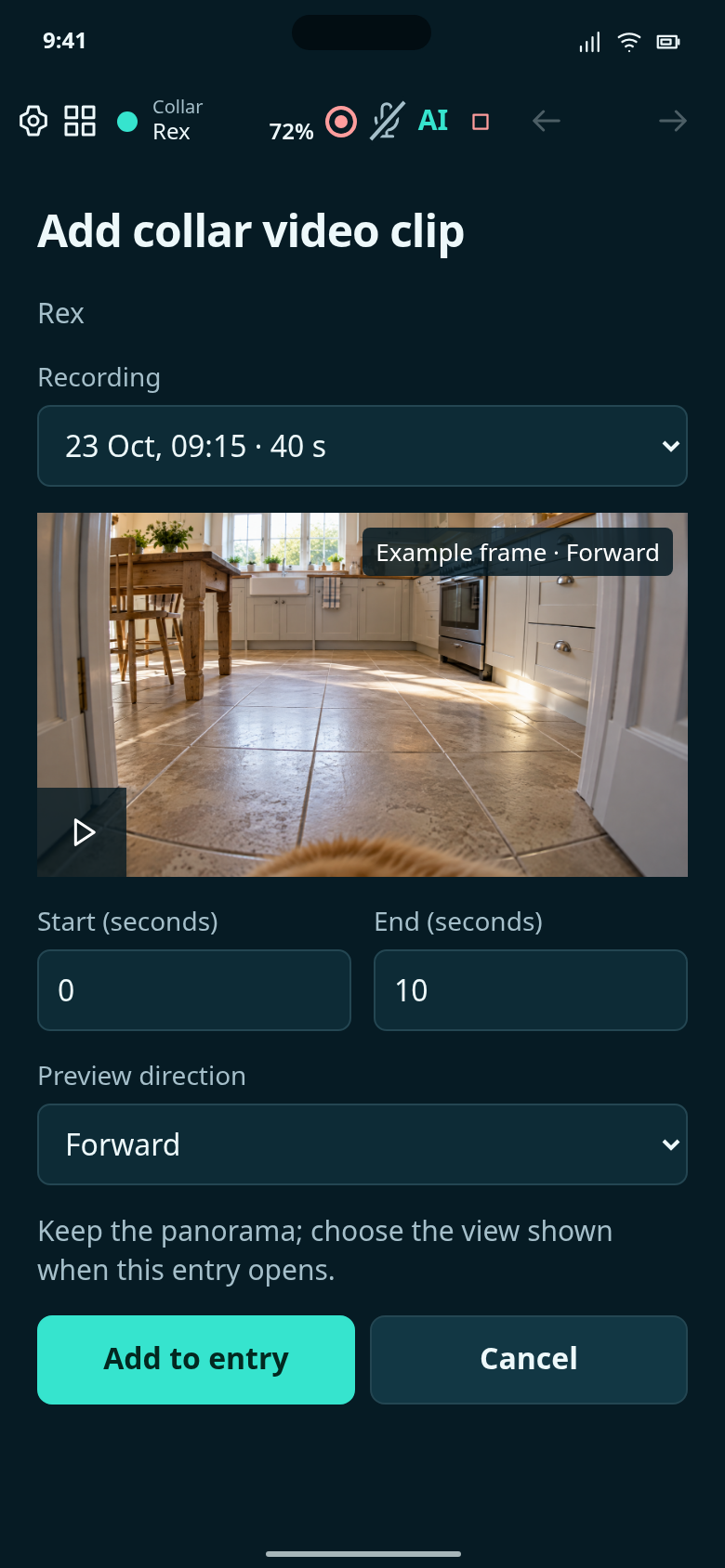
Choose Rex’s 23 Oct, 09:15 collar recording, then set the clip’s start and end times.
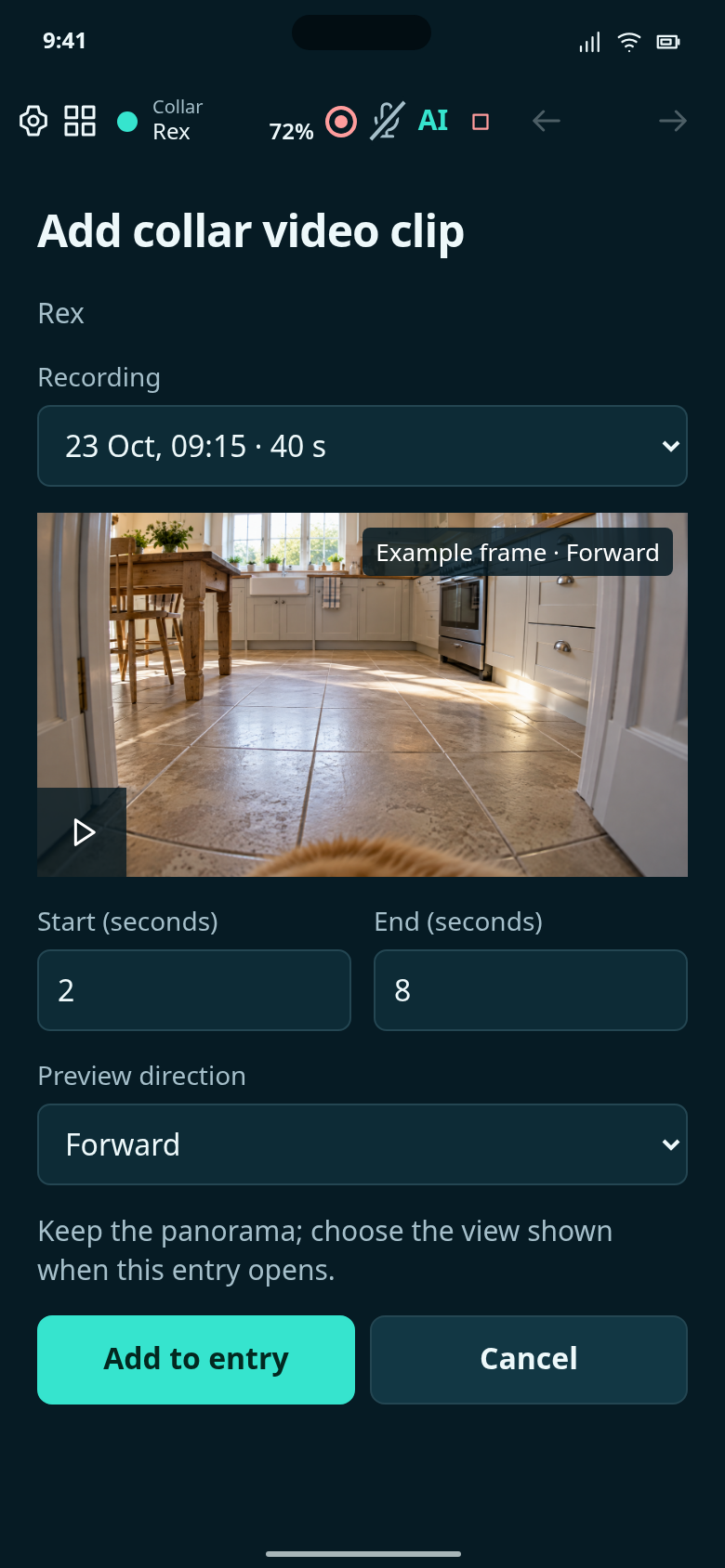
Keep 2–8 seconds and choose Forward for the preview. The original 40-second panorama stays unchanged.
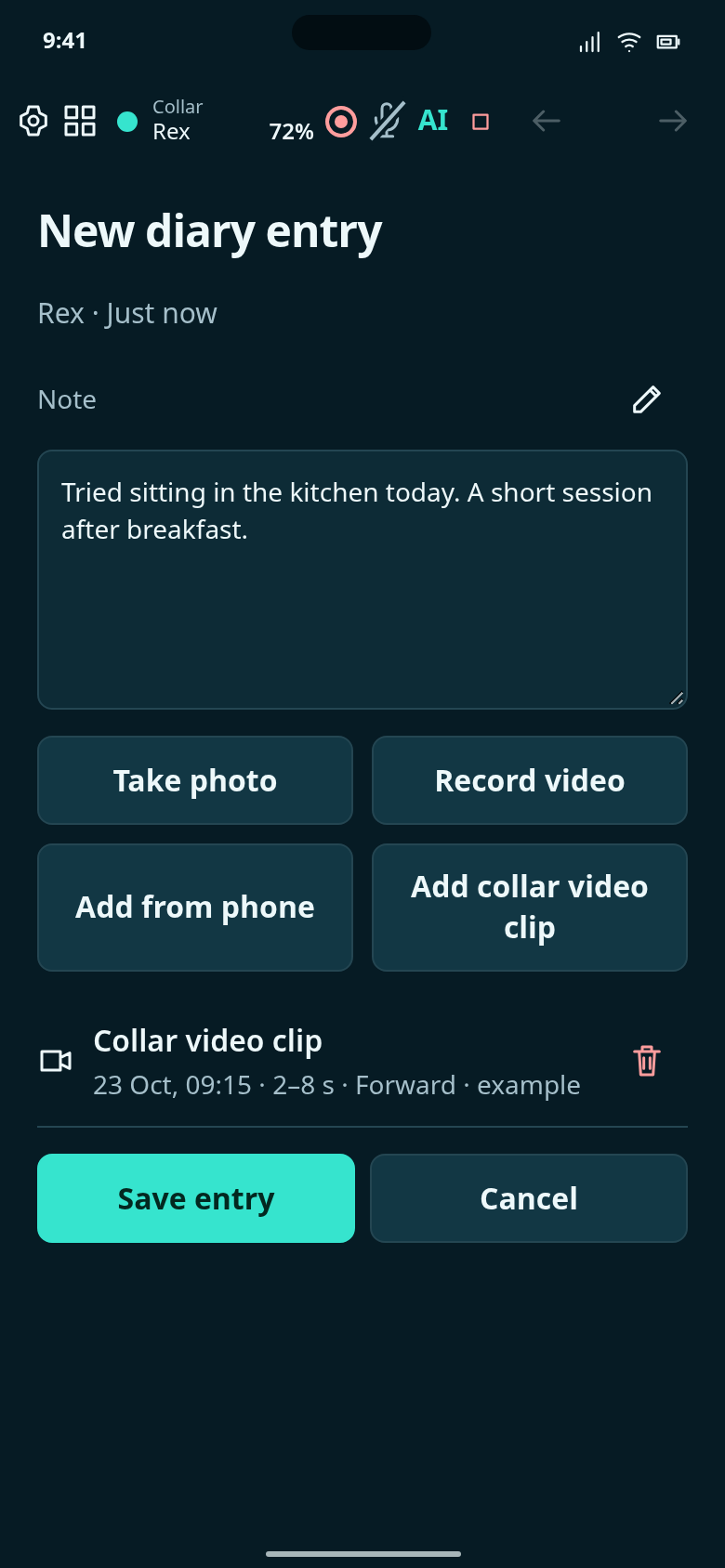
The 2–8 second collar clip is attached to Rex’s note; save the entry to keep them together.
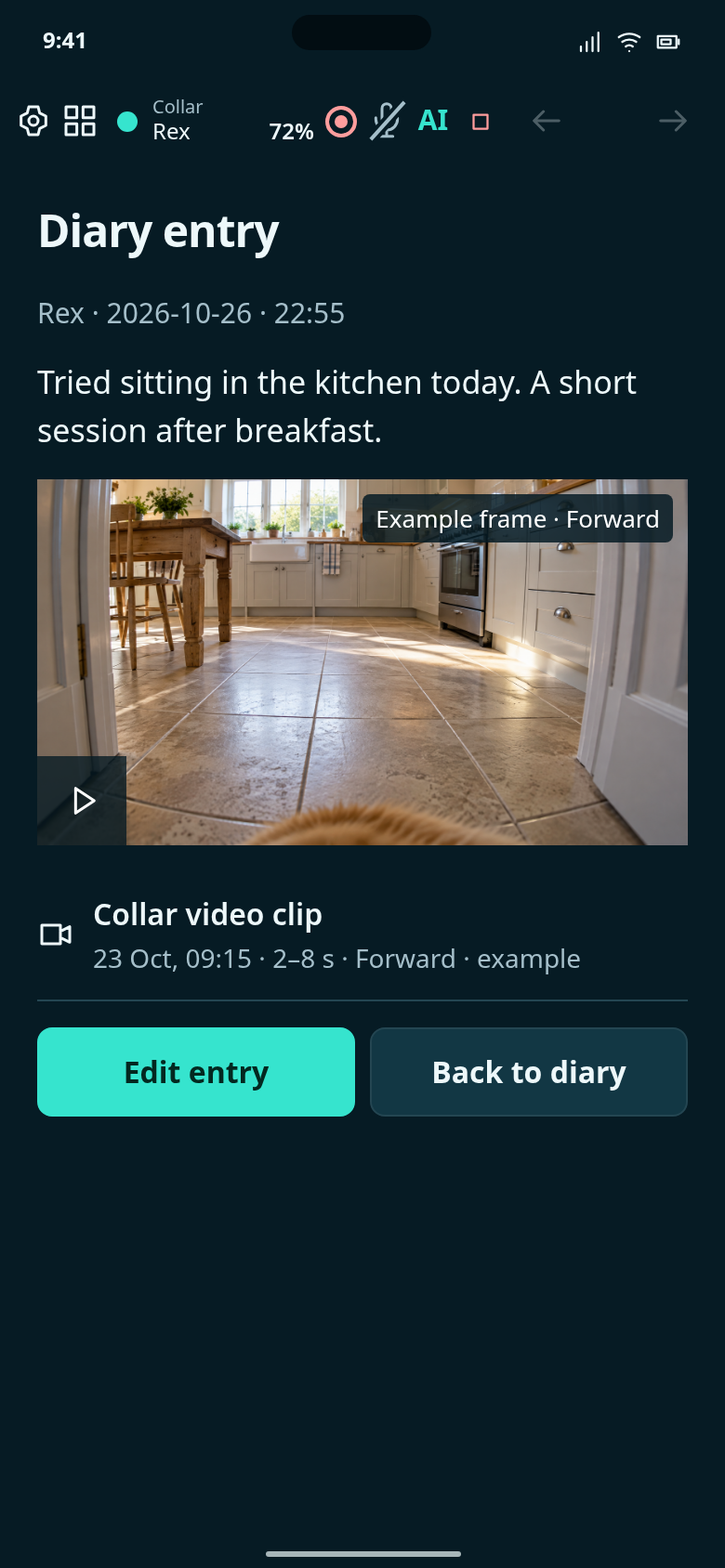
The saved entry shows Rex’s note and the 2–8 second collar clip, with Forward as its preview direction.
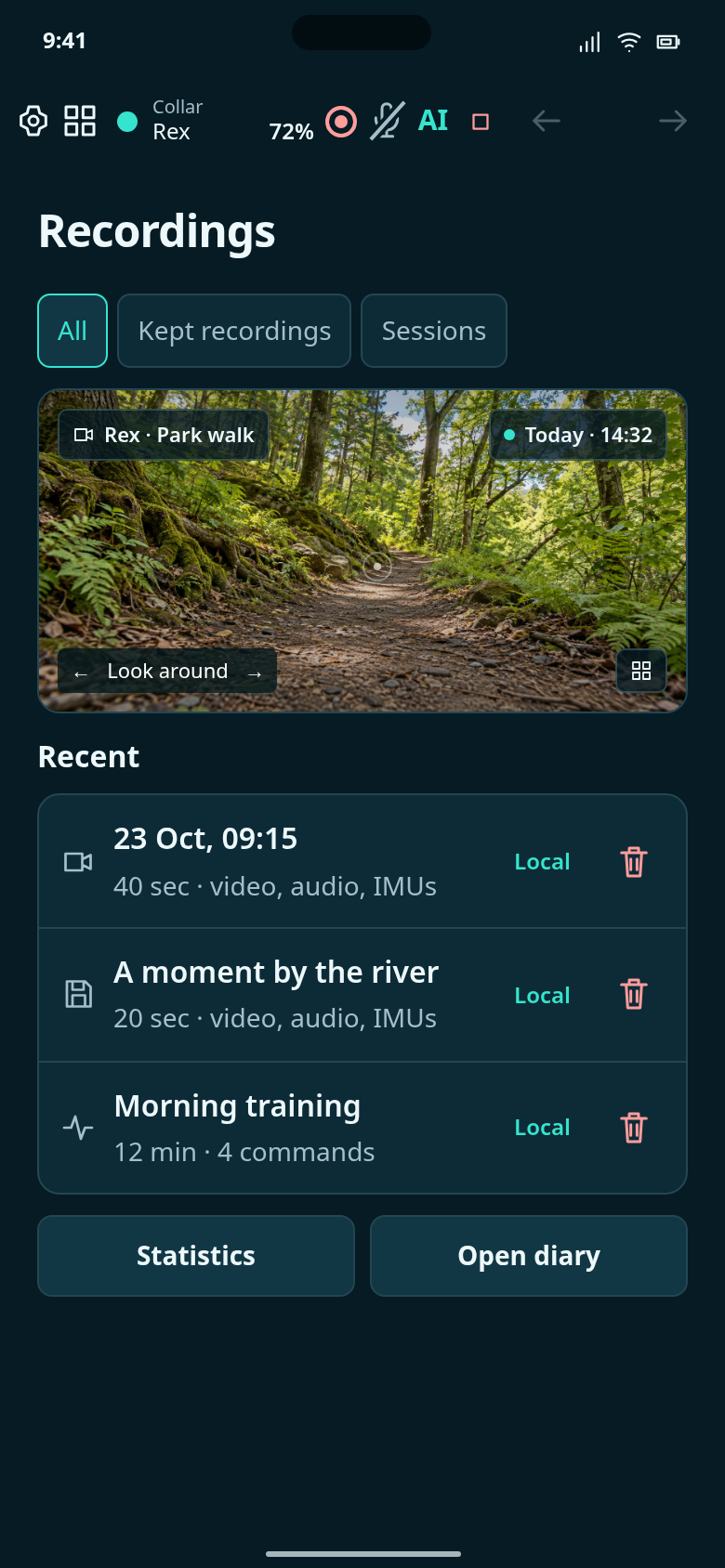
Review automatically recorded footage and choose what to keep.
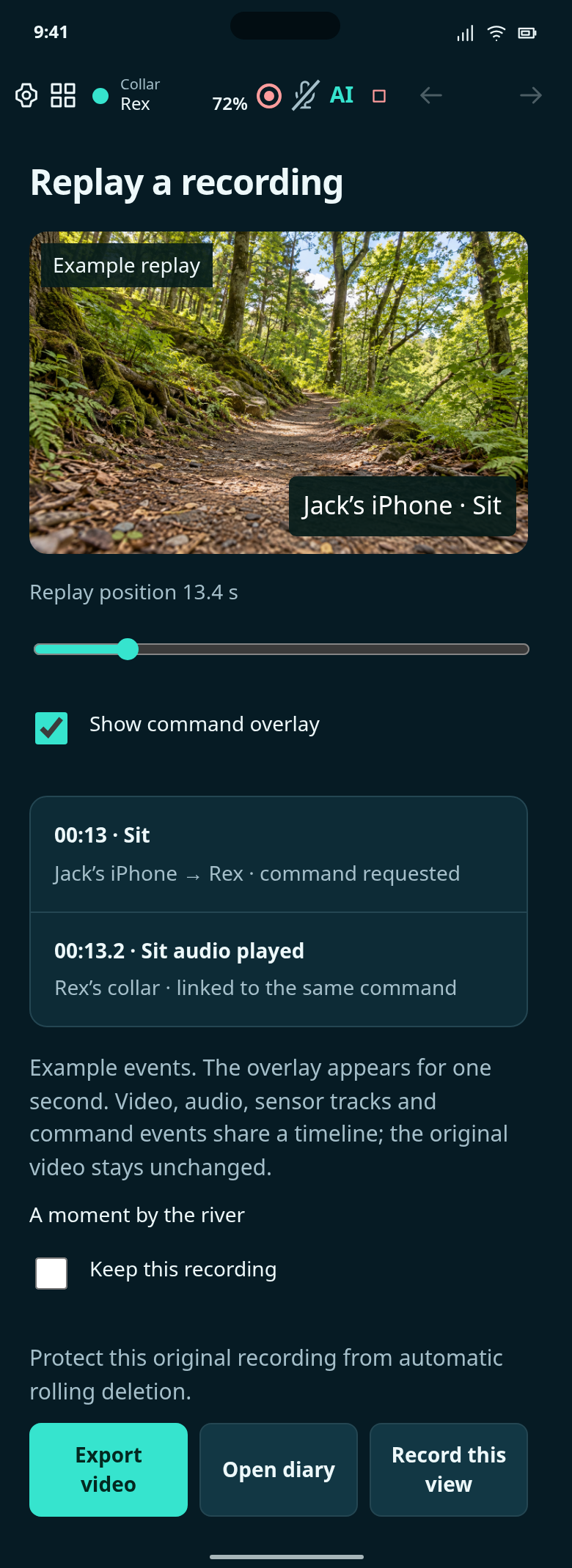
Replay commands alongside the footage, keep the recording, or record the view you choose.
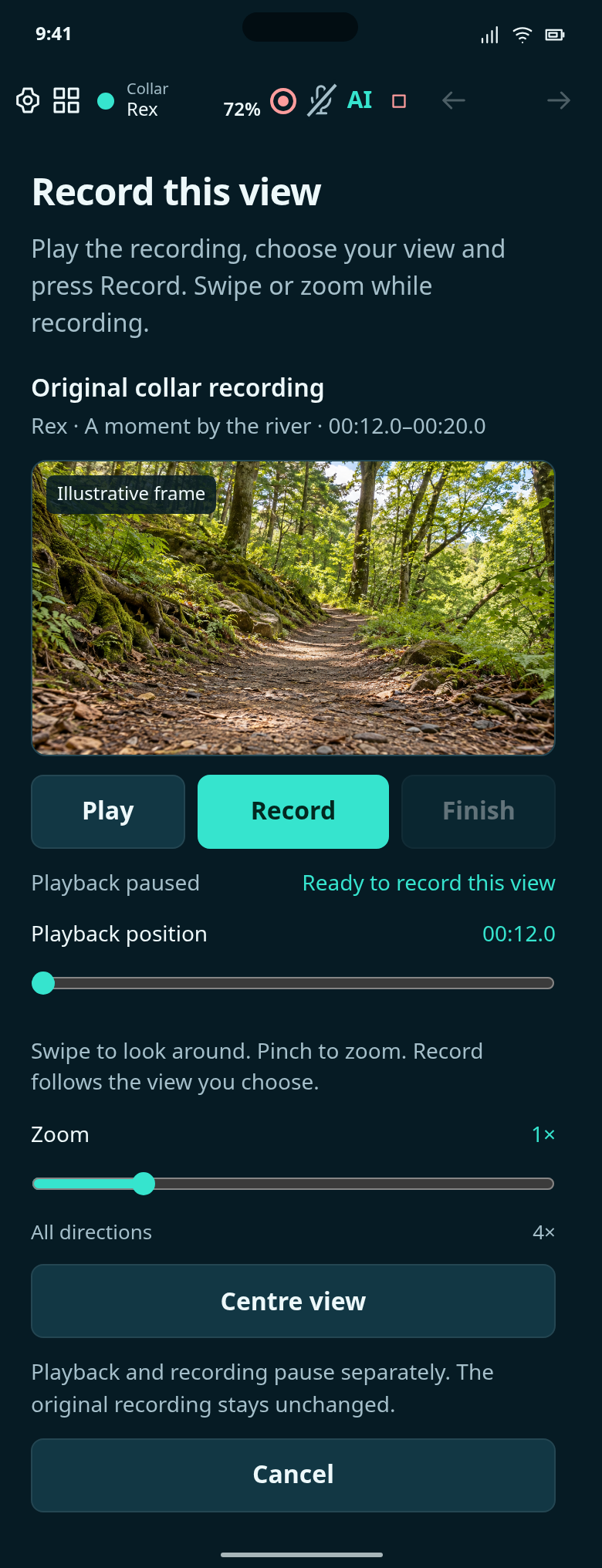
Swipe to look around, pinch to zoom, and record the view you are watching.
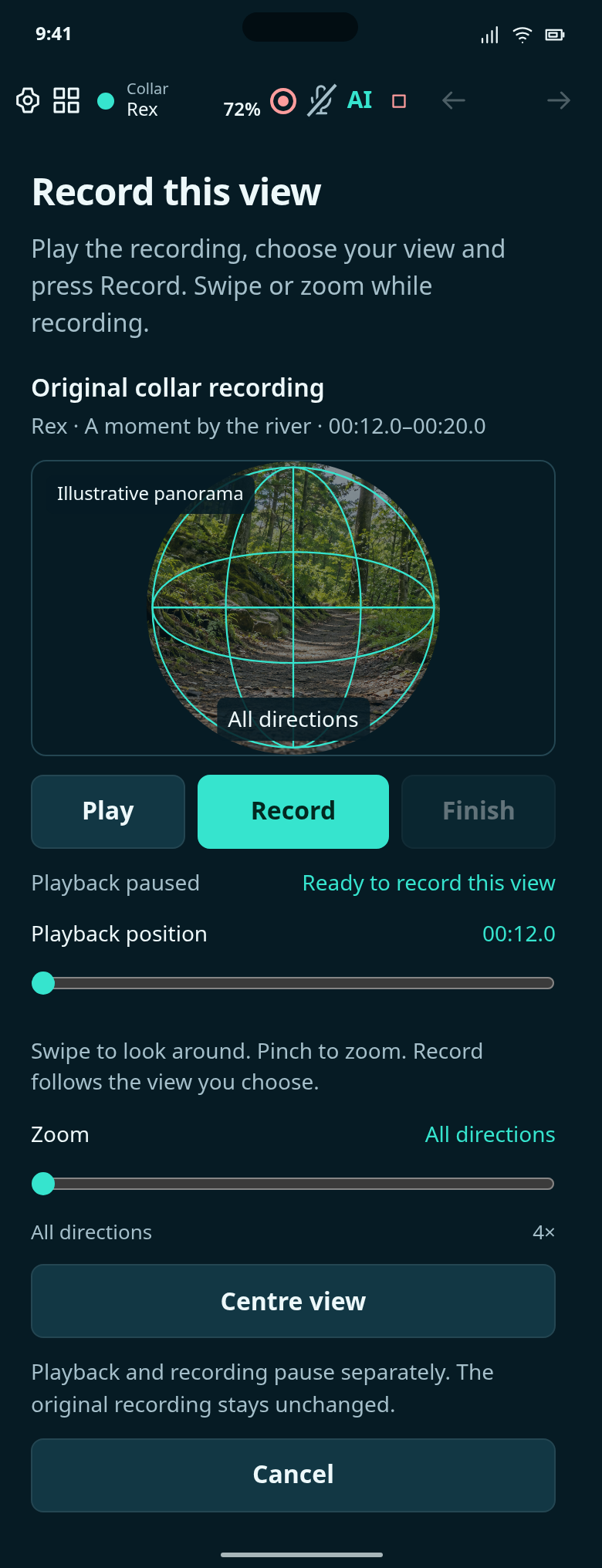
Zoom fully out to see the all-directions bubble, then zoom back into your chosen view.
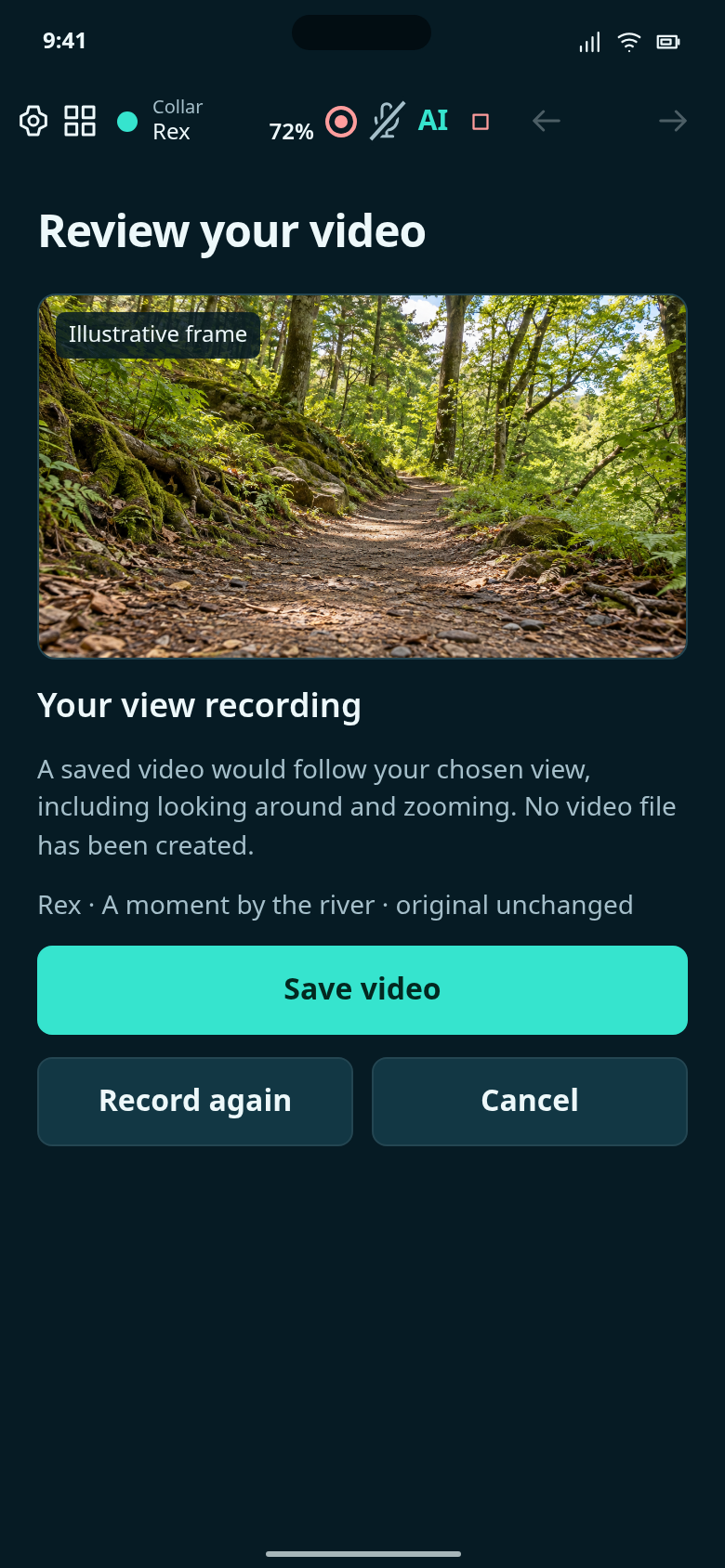
Review the chosen view and save it separately from the original panorama.
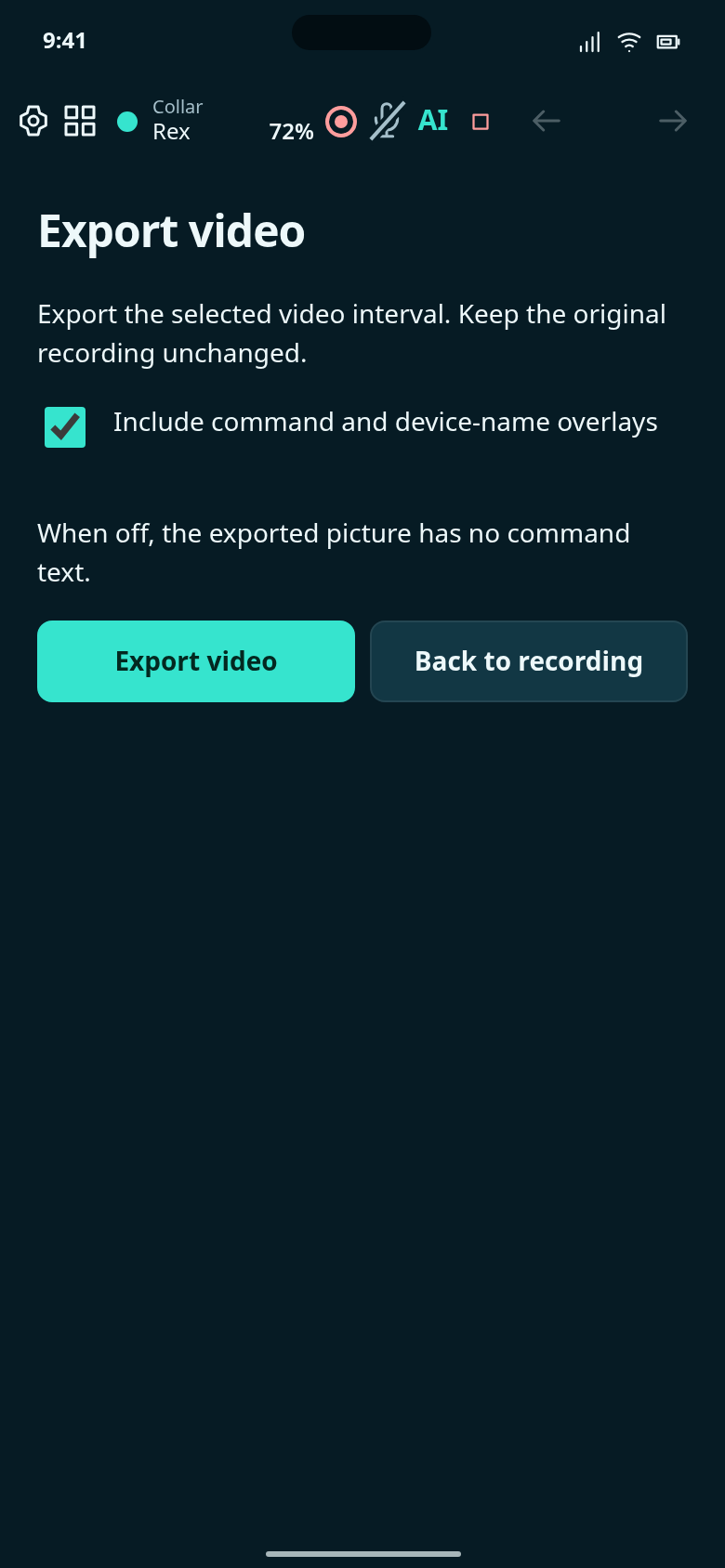
Choose whether command and source-device overlays appear in the exported clip.
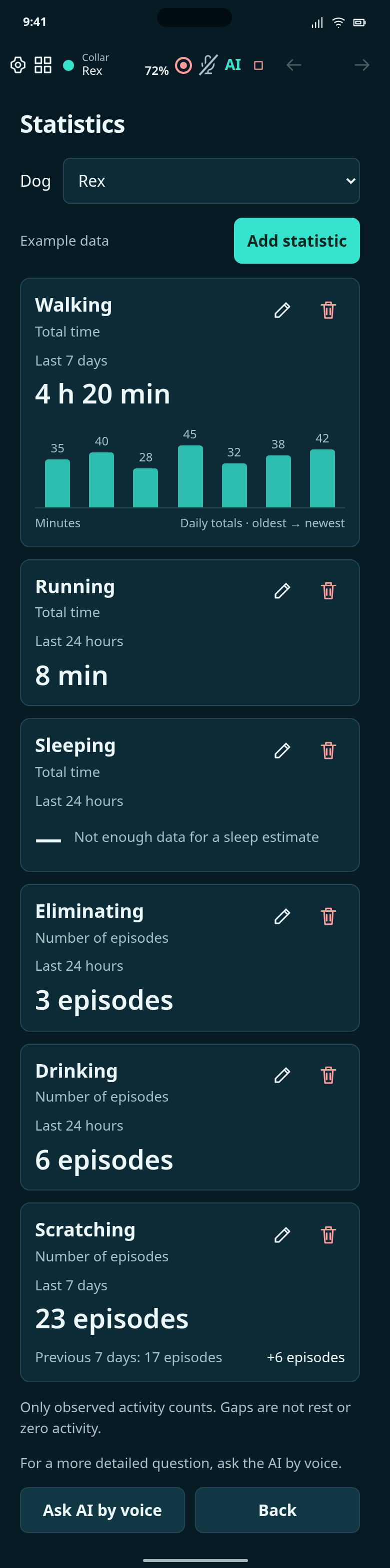
Simple state statistics: edit the default cards, add your own, or ask the AI by voice.
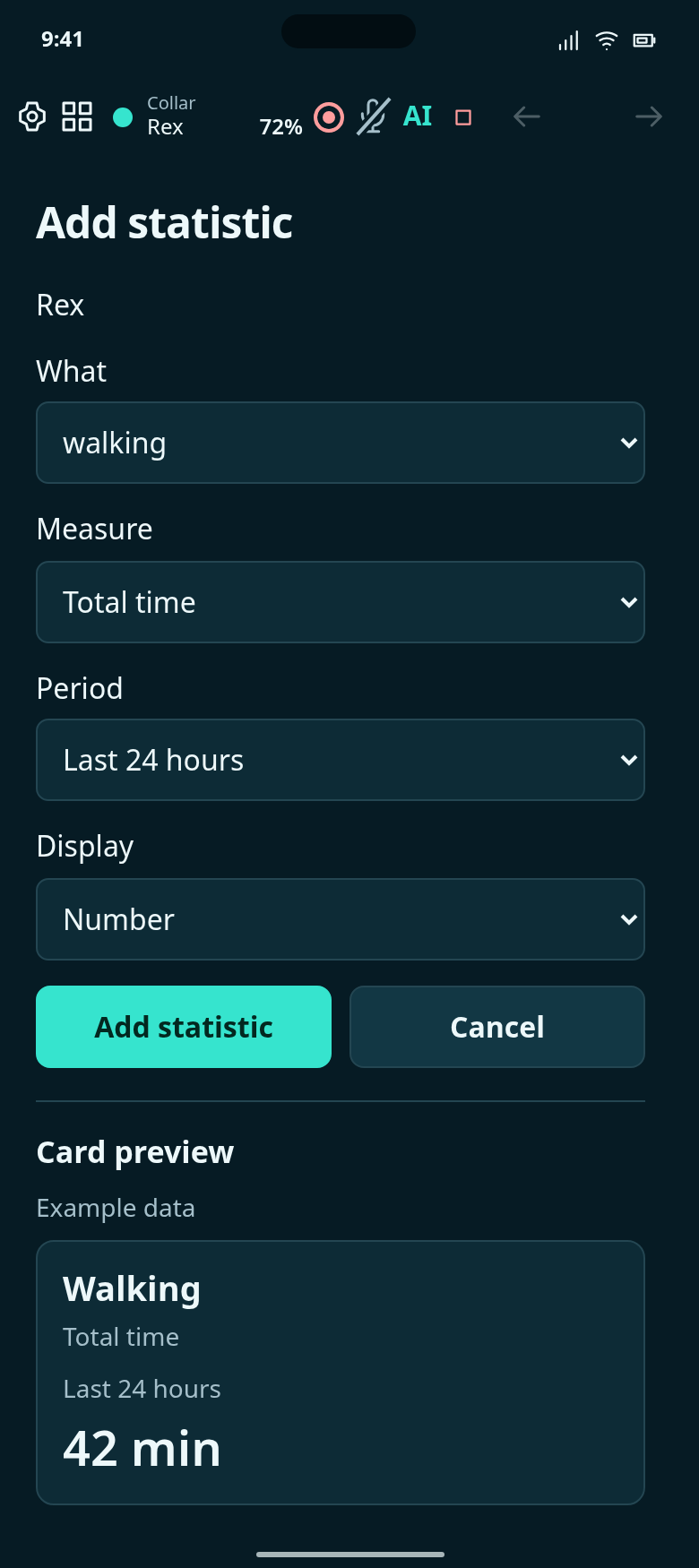
Choose a state, measure, period and display for a new card.
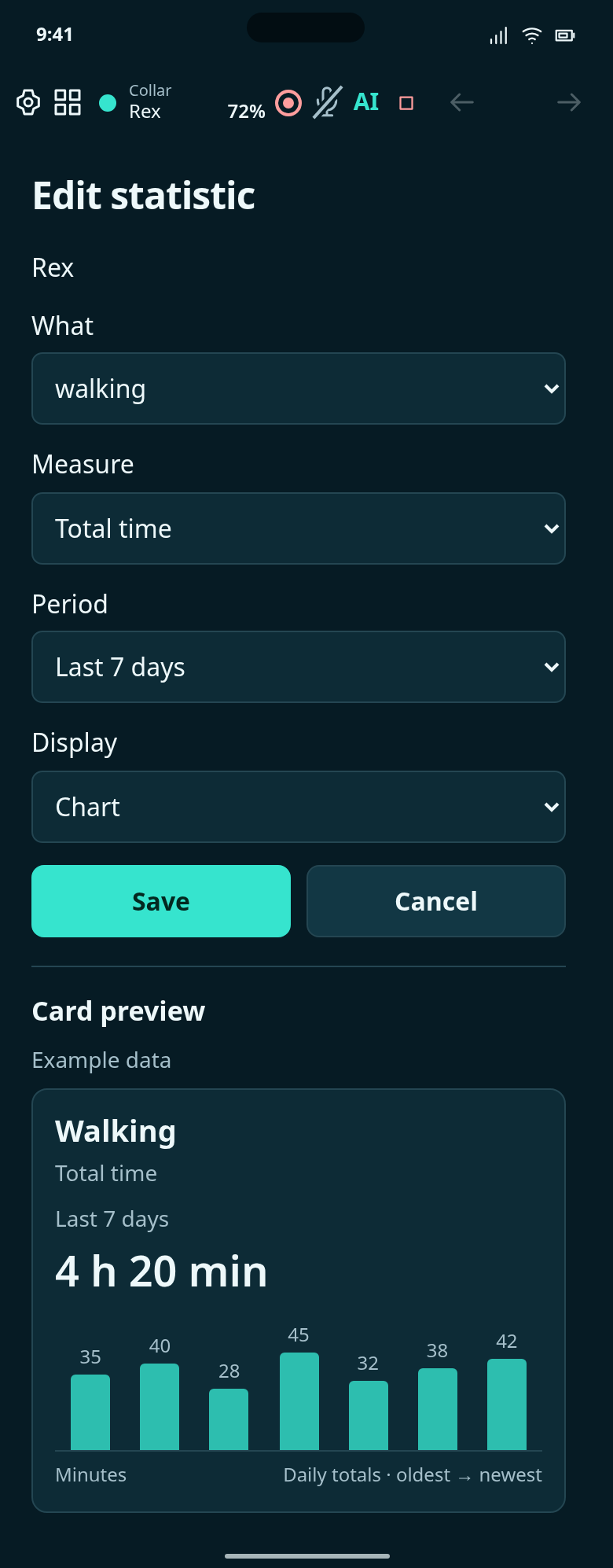
Change one card without affecting the other statistics or its underlying state.
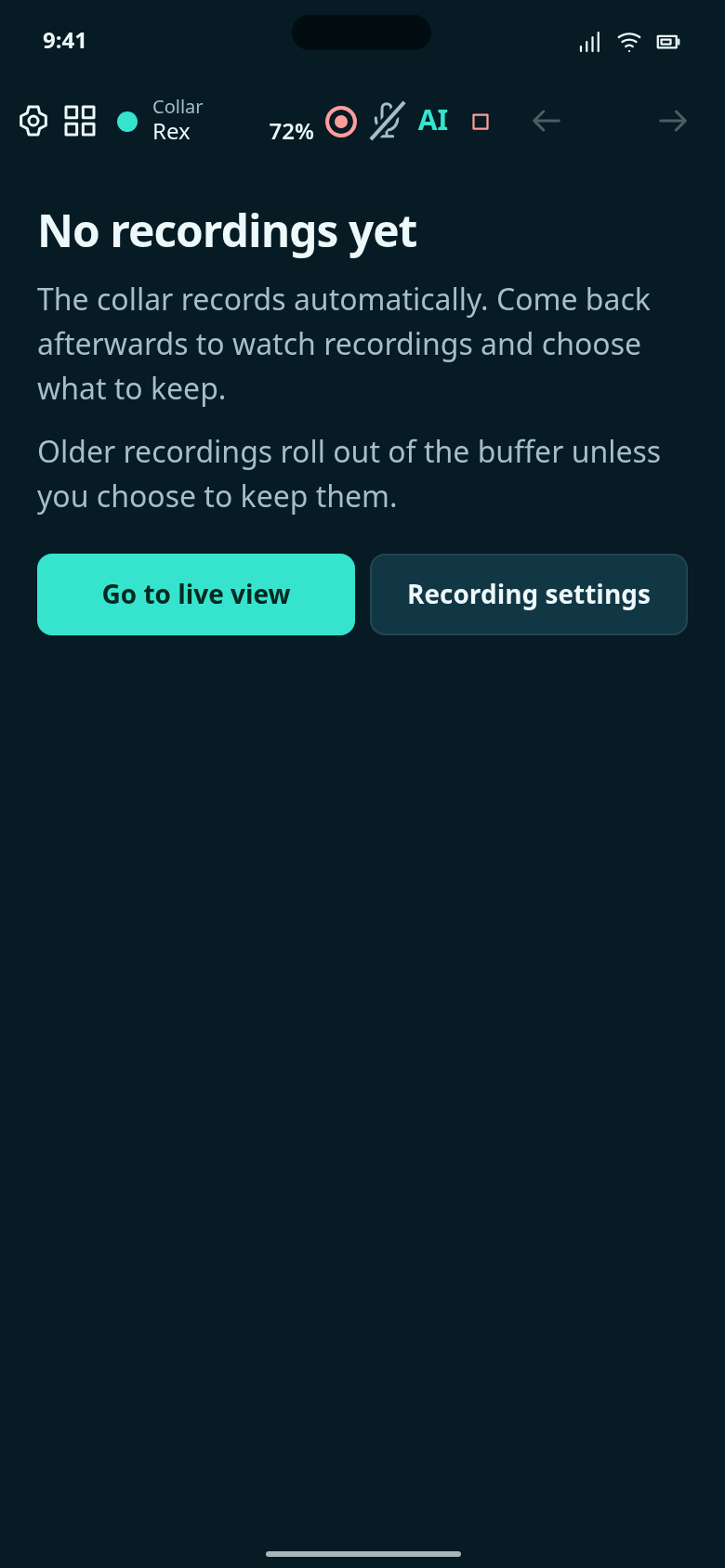
Recordings appear here automatically when the collar records.
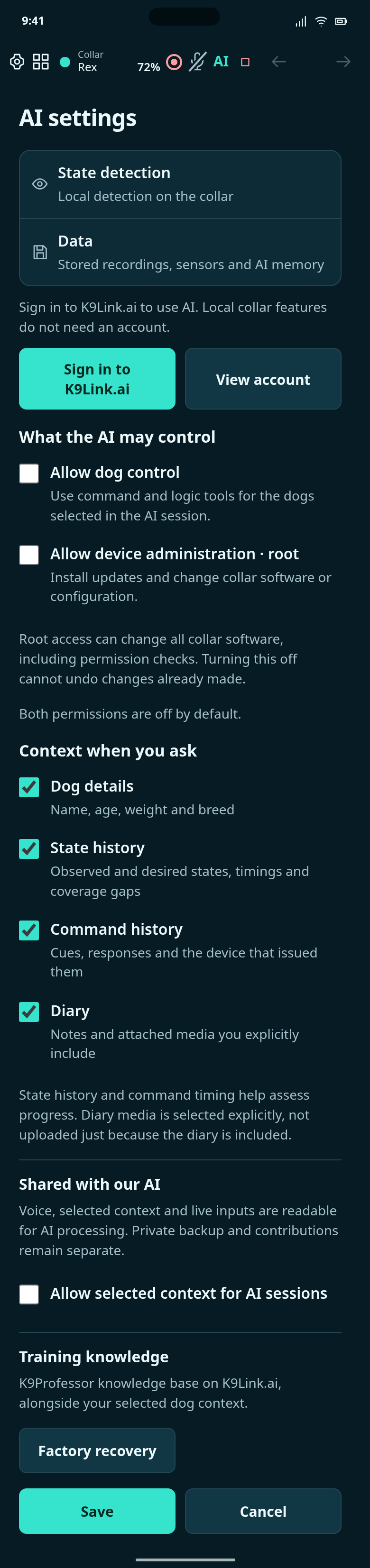
Choose shared context and separately enable dog control or collar administration.
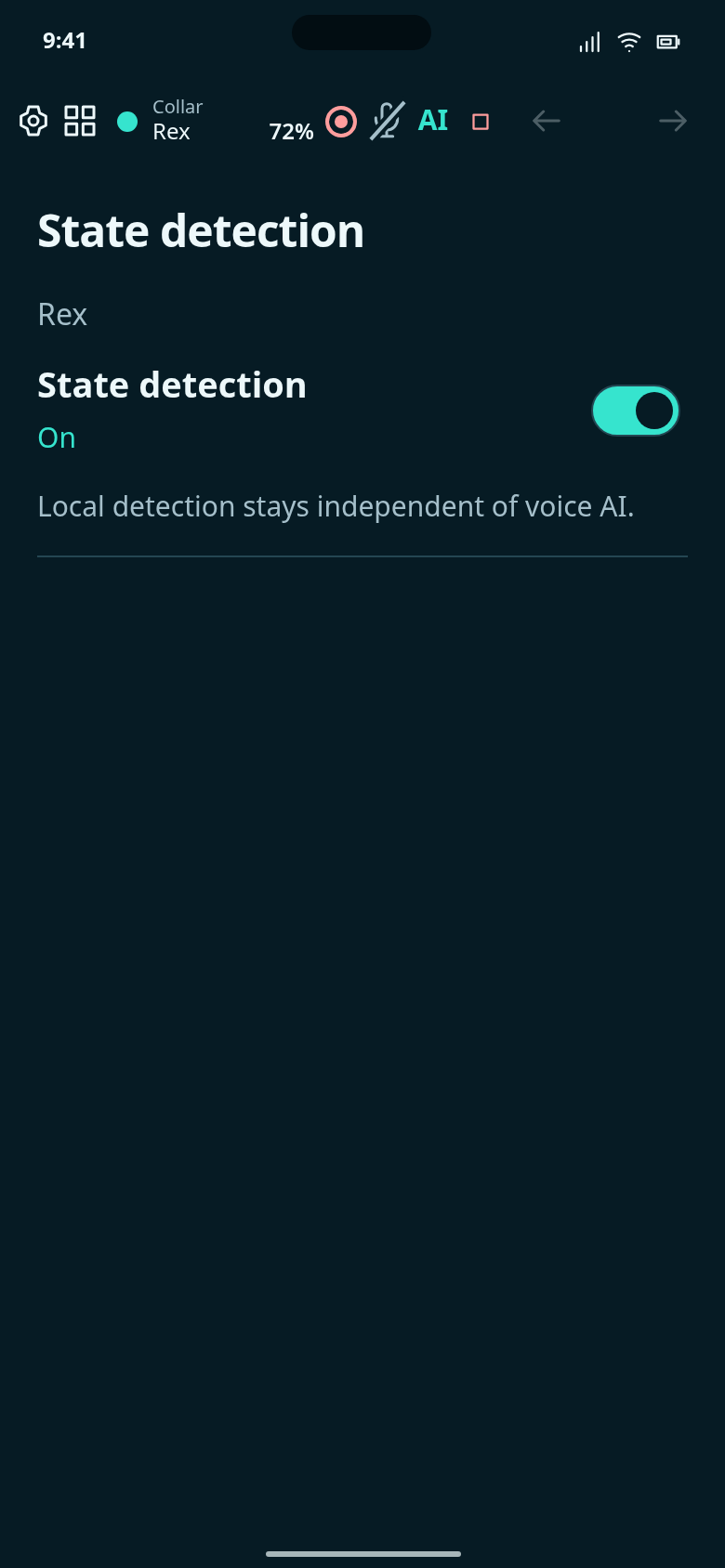
Local state detection is independent of the voice AI session.
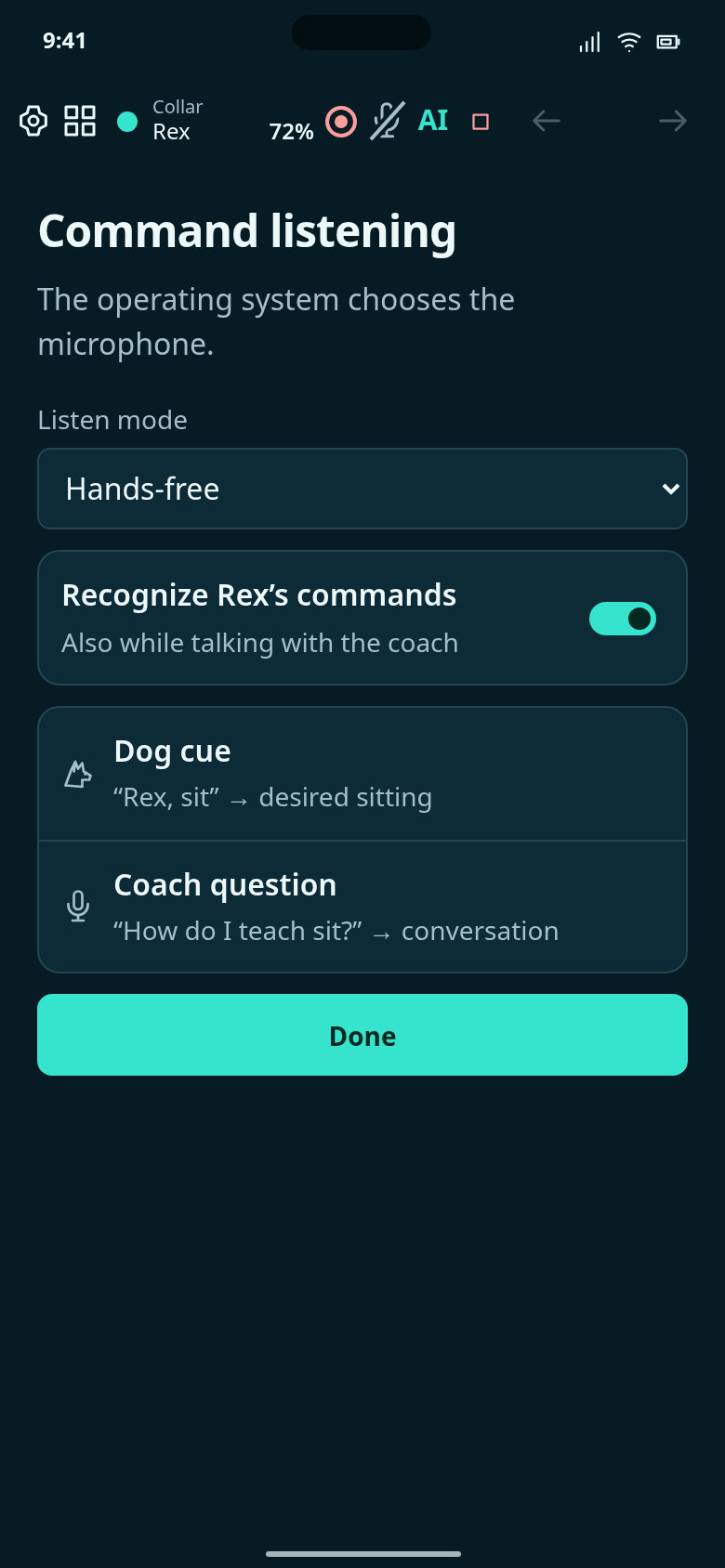
Configure listening and recognize dog commands separately from AI conversation.
Start a voice session with optional video, then stop without leaving your profile.
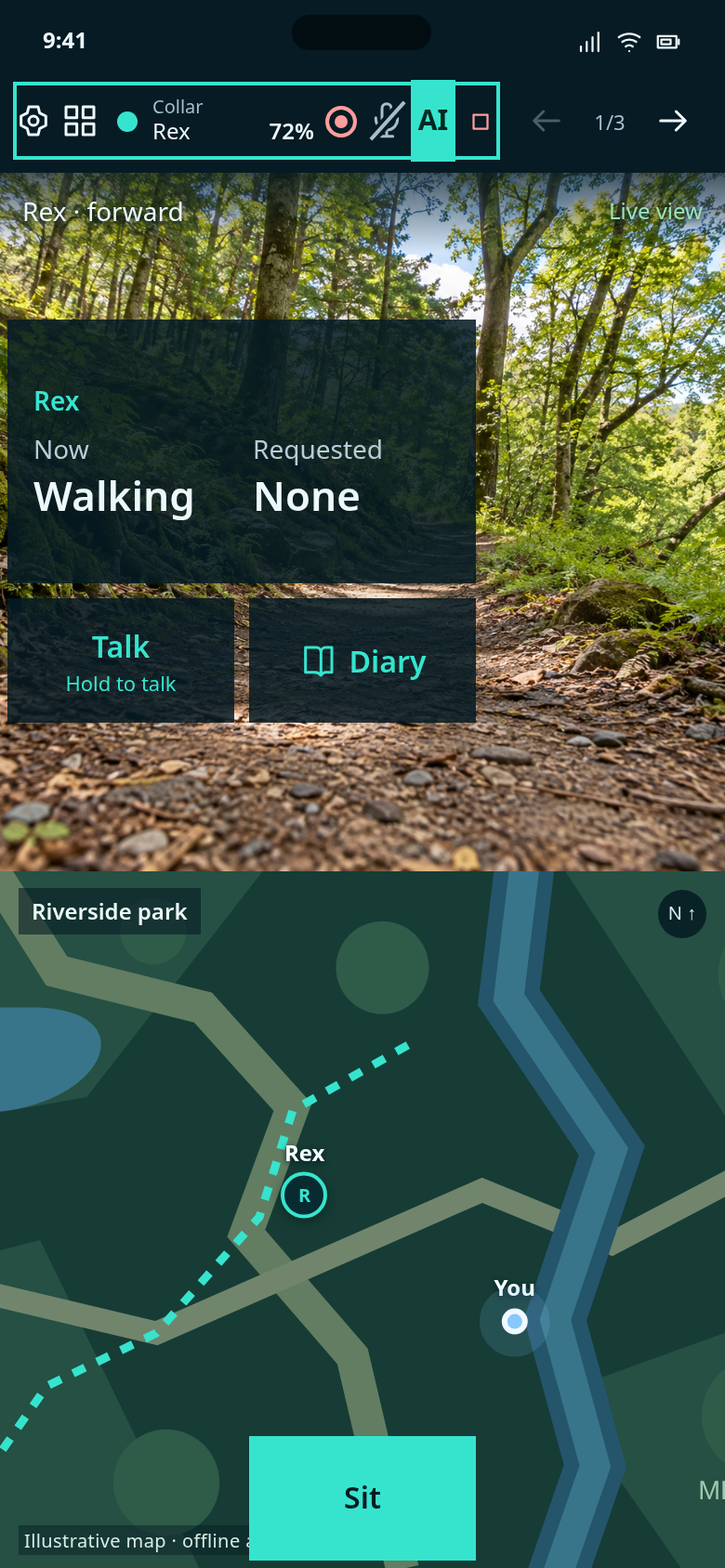
Talk to the AI without leaving your screen. Open the bar menu to change video inputs or stop AI.
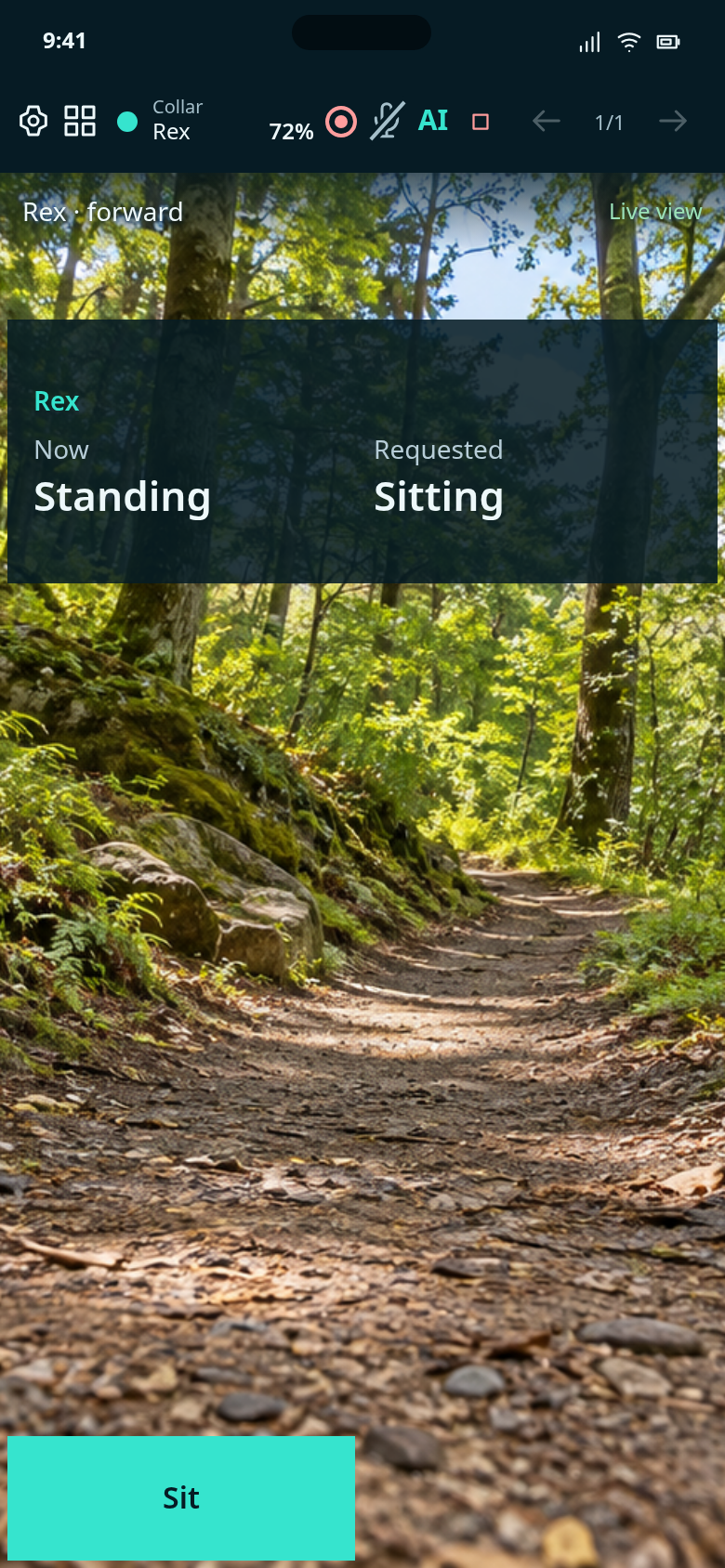
After stopping AI, local commands, detection and recording continue independently.
Arrange screens, configure logic and define states.
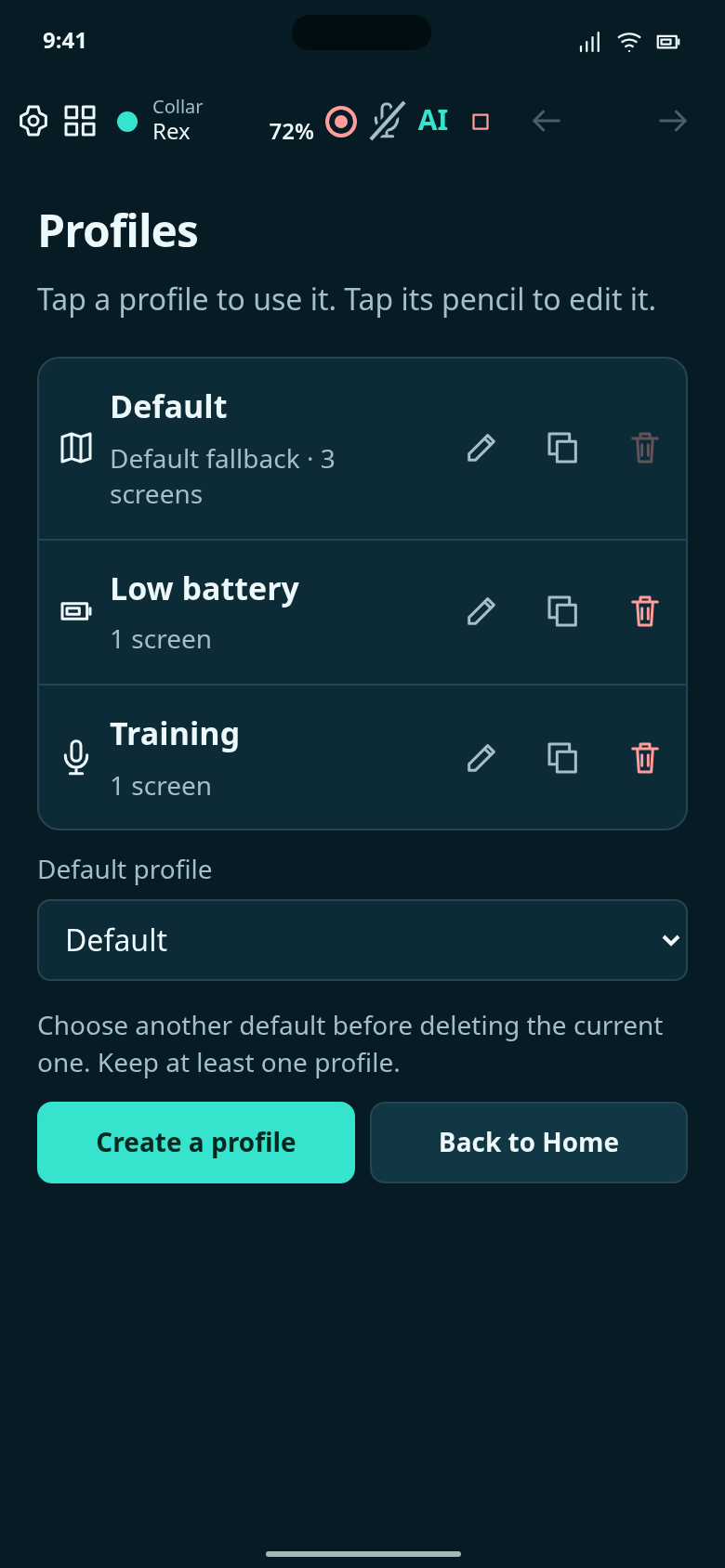
Use a profile, edit its screens, copy it or confirm deletion.
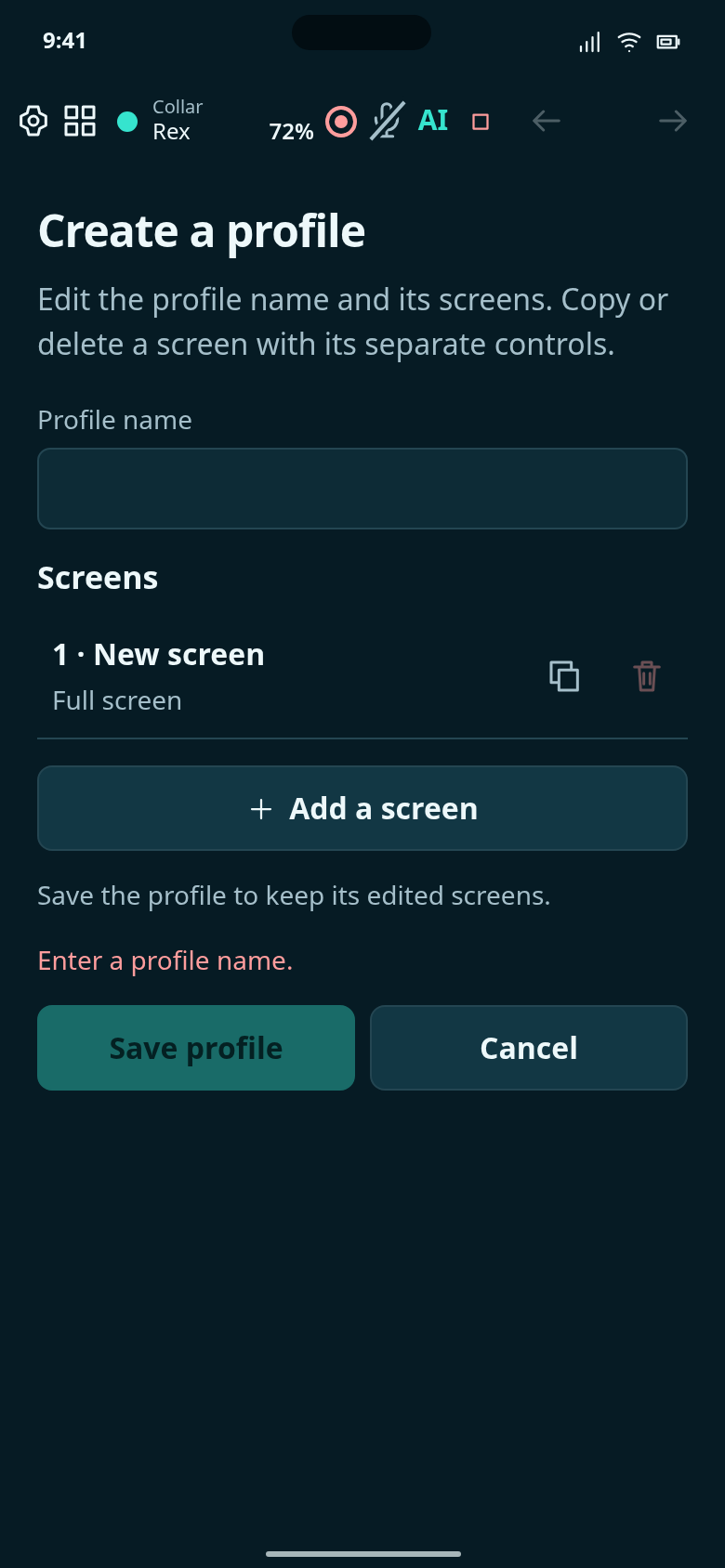
Name a profile, then add the screens it contains. Every profile has one or more screens.
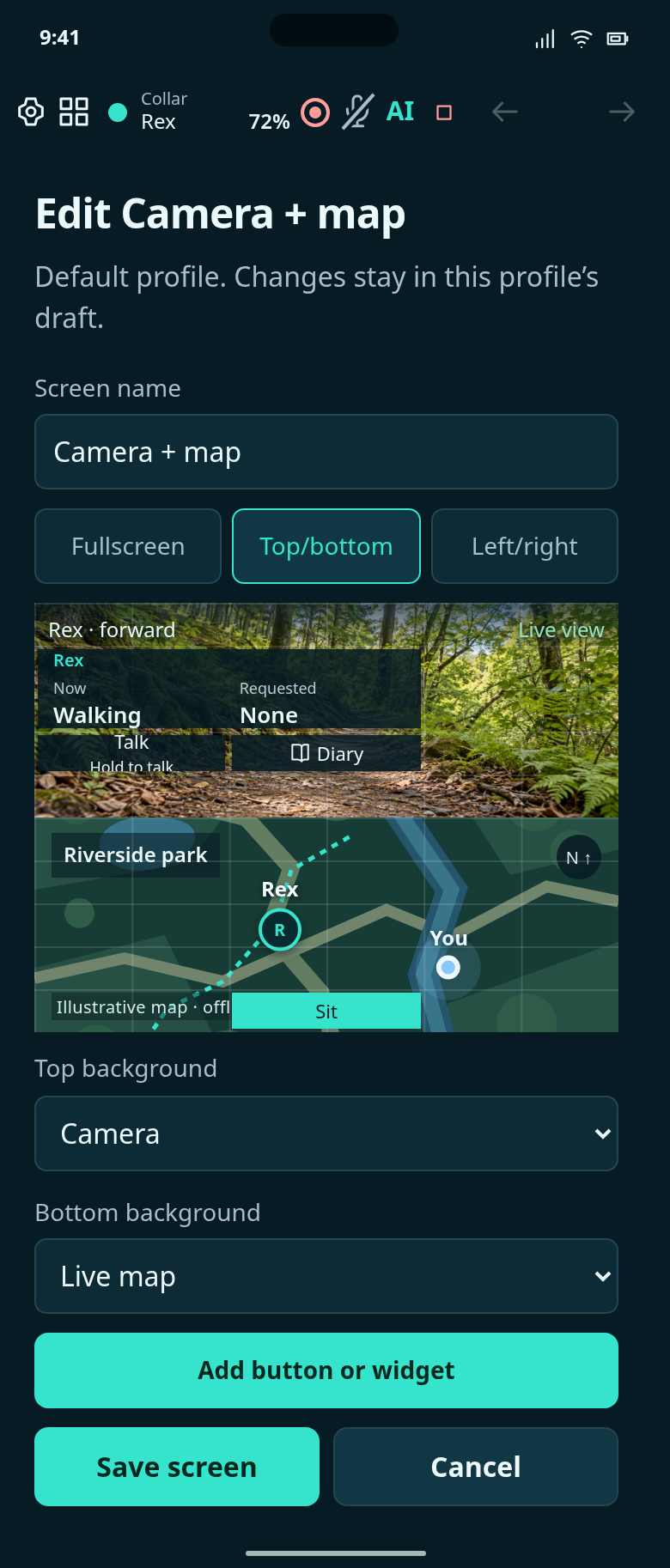
Configure one screen inside the current profile: its background layout, buttons and widgets.
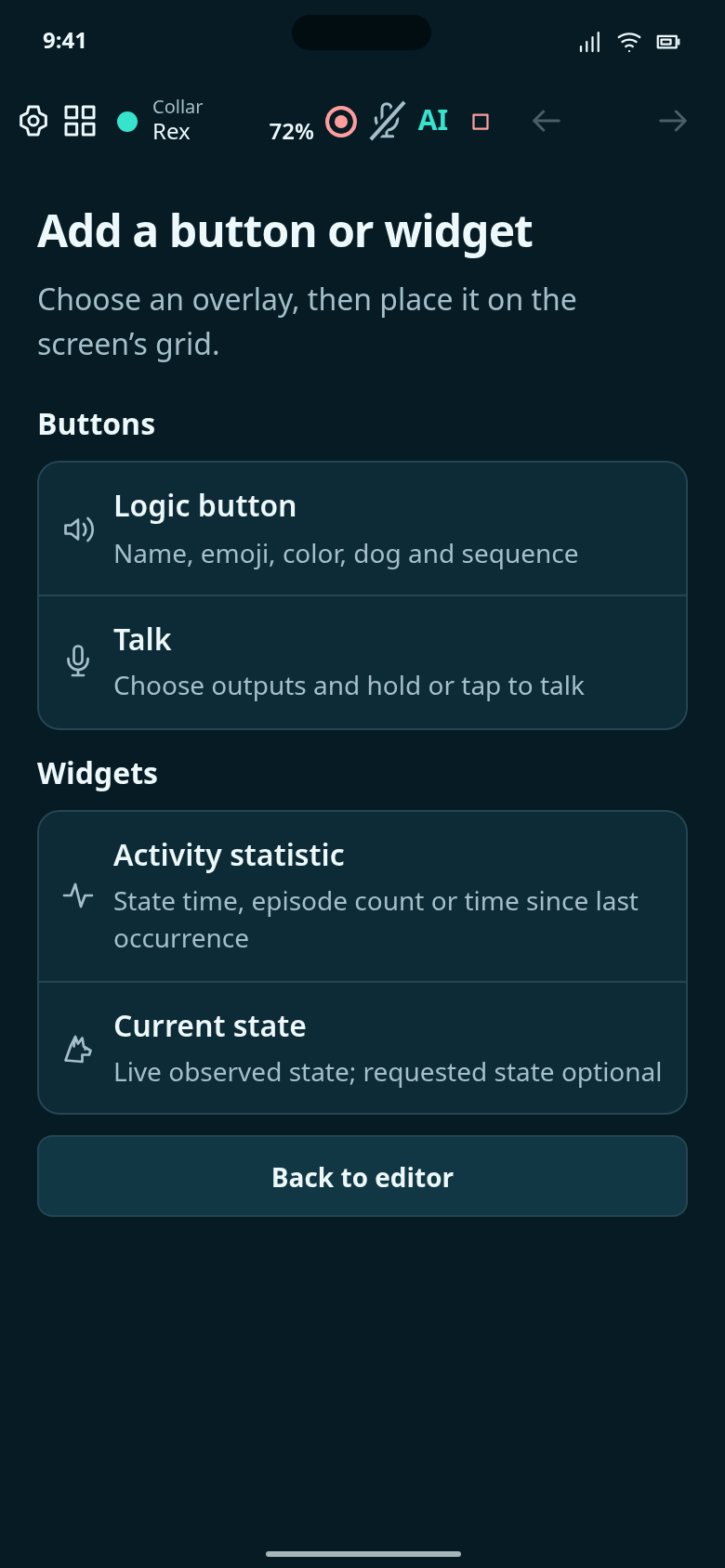
Tap a button or widget to configure it, then place it on the screen.
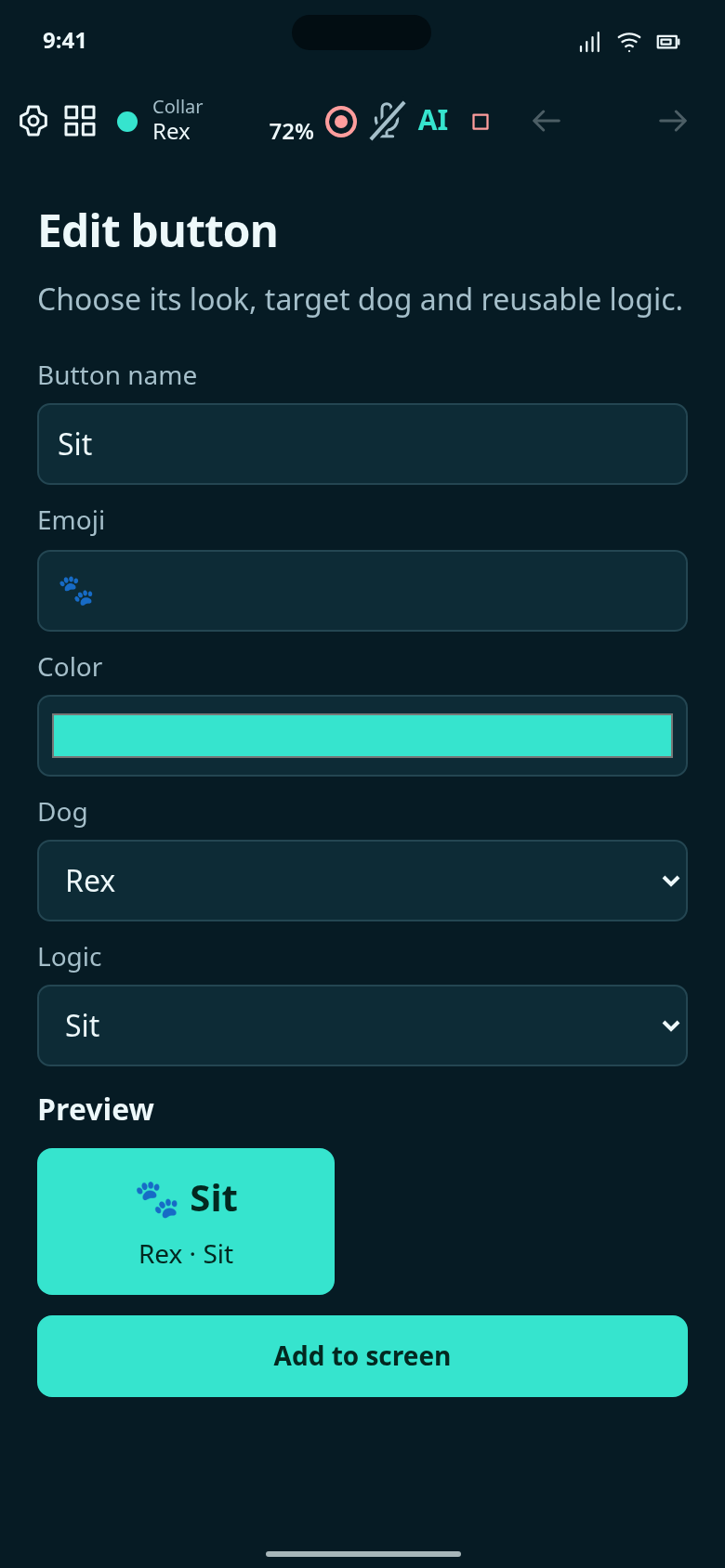
A screen button is a configurable trigger for a shared sequence, not a second copy of that sequence.
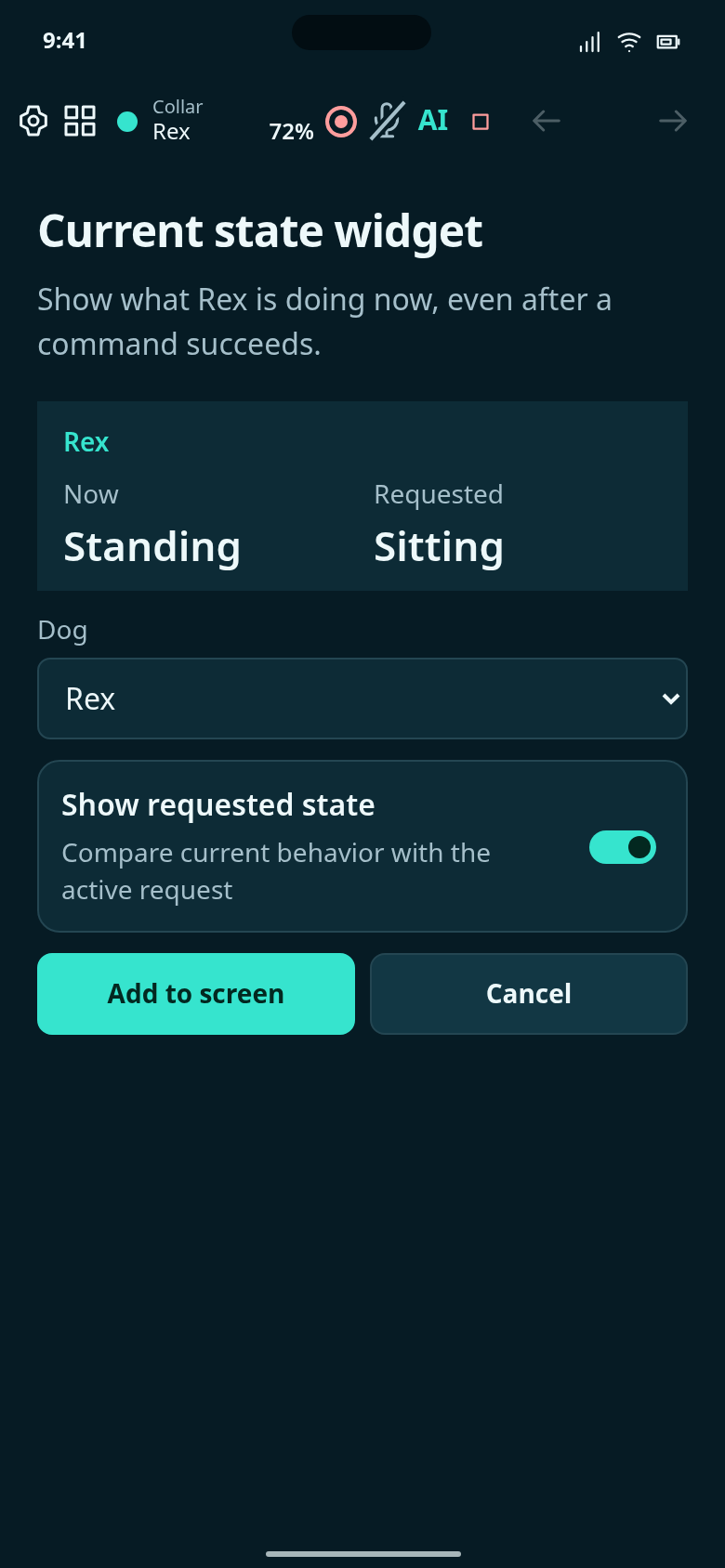
Configure a live observed-state widget independently of command-button feedback.
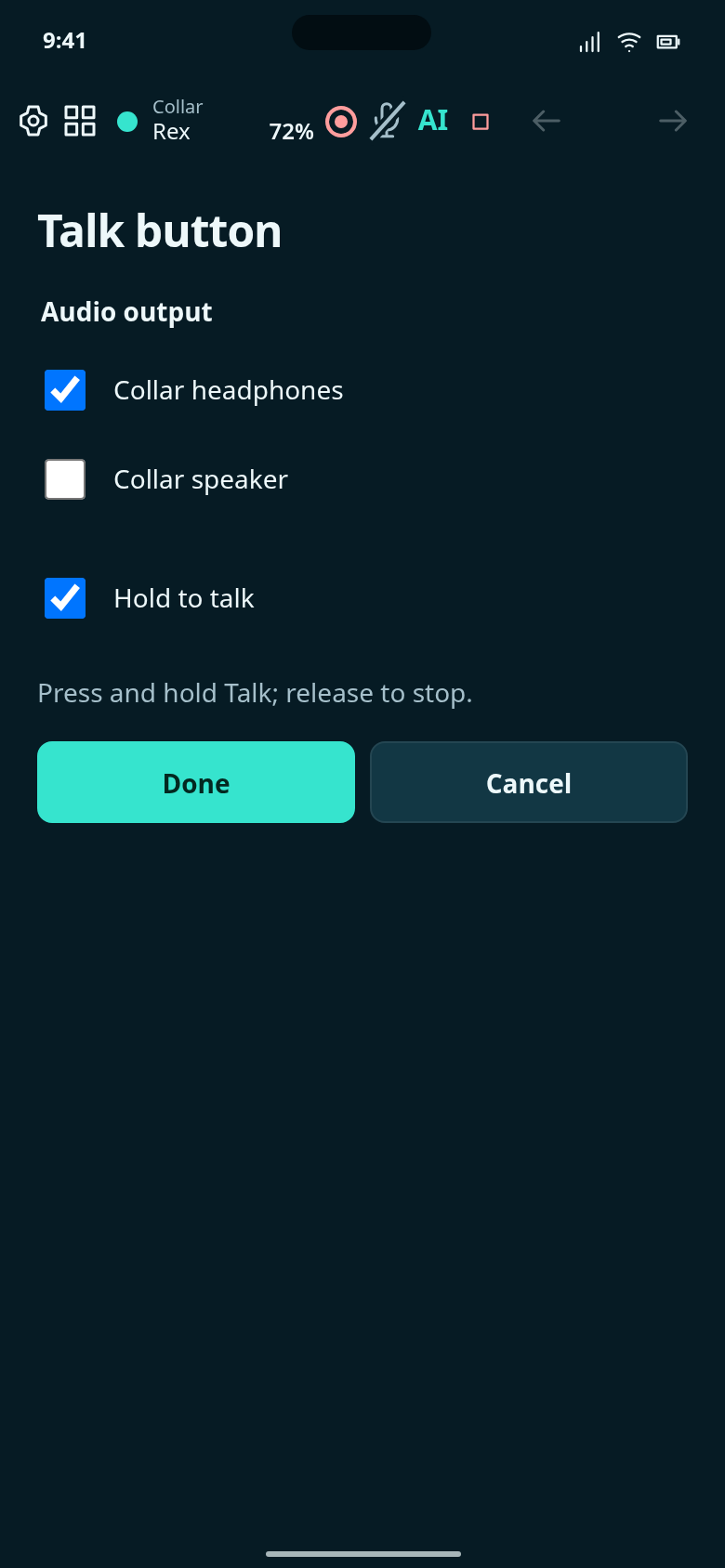
Choose how your Talk button works and where the dog hears you.
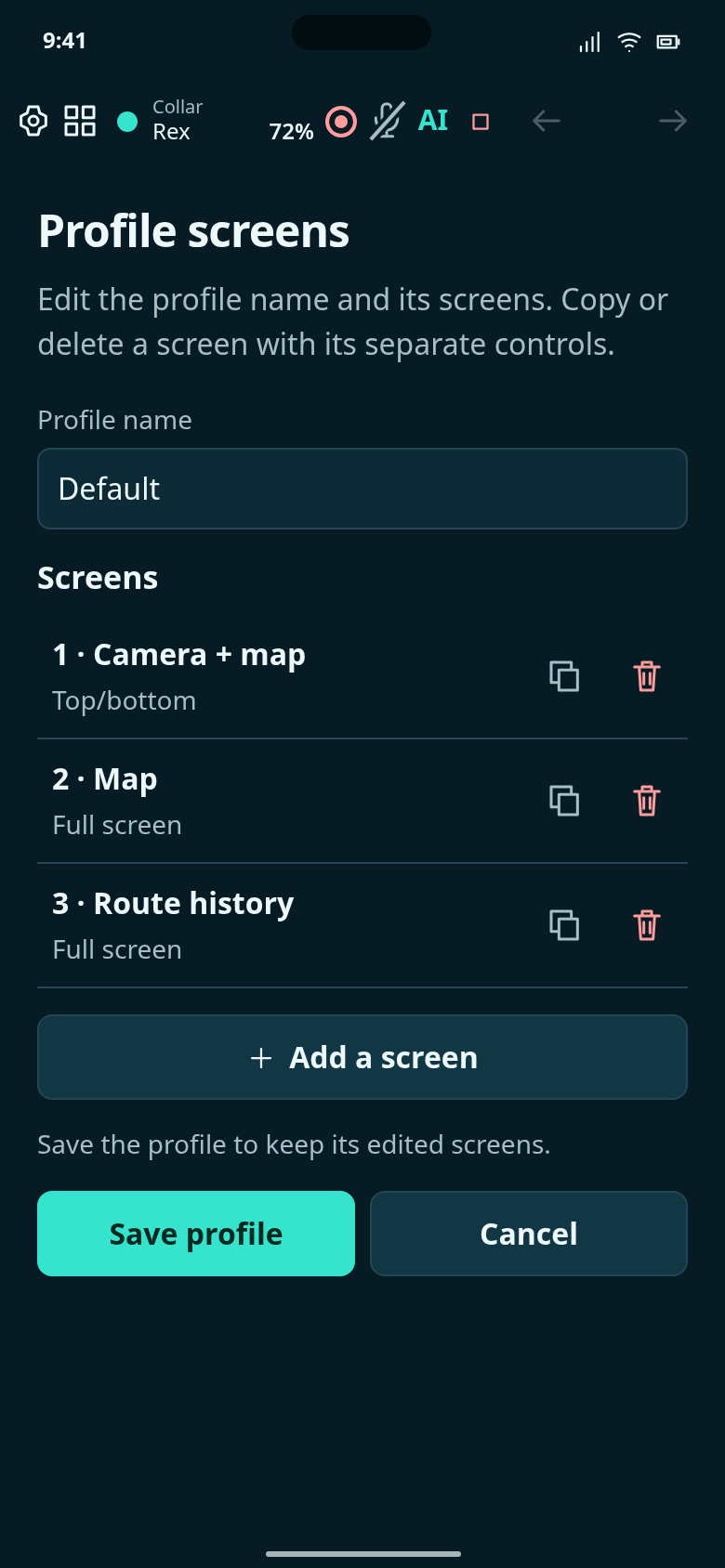
Edit, copy or remove screens within this profile.
Create a profile, then compare completed phone and tablet layouts.
Follow the empty starting point, each setup step and the completed result.
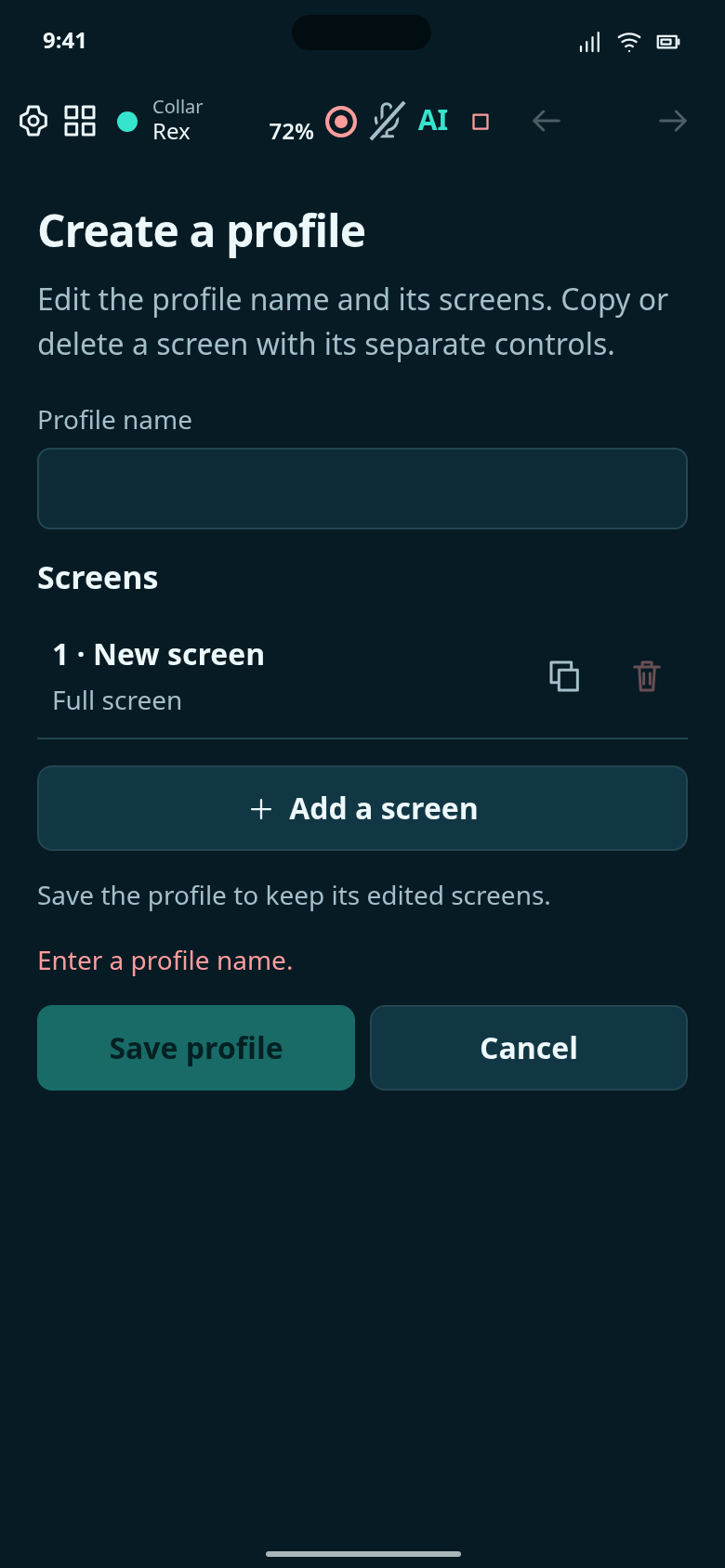
Start with an unnamed profile and one blank screen. The existing Default profile stays unchanged.
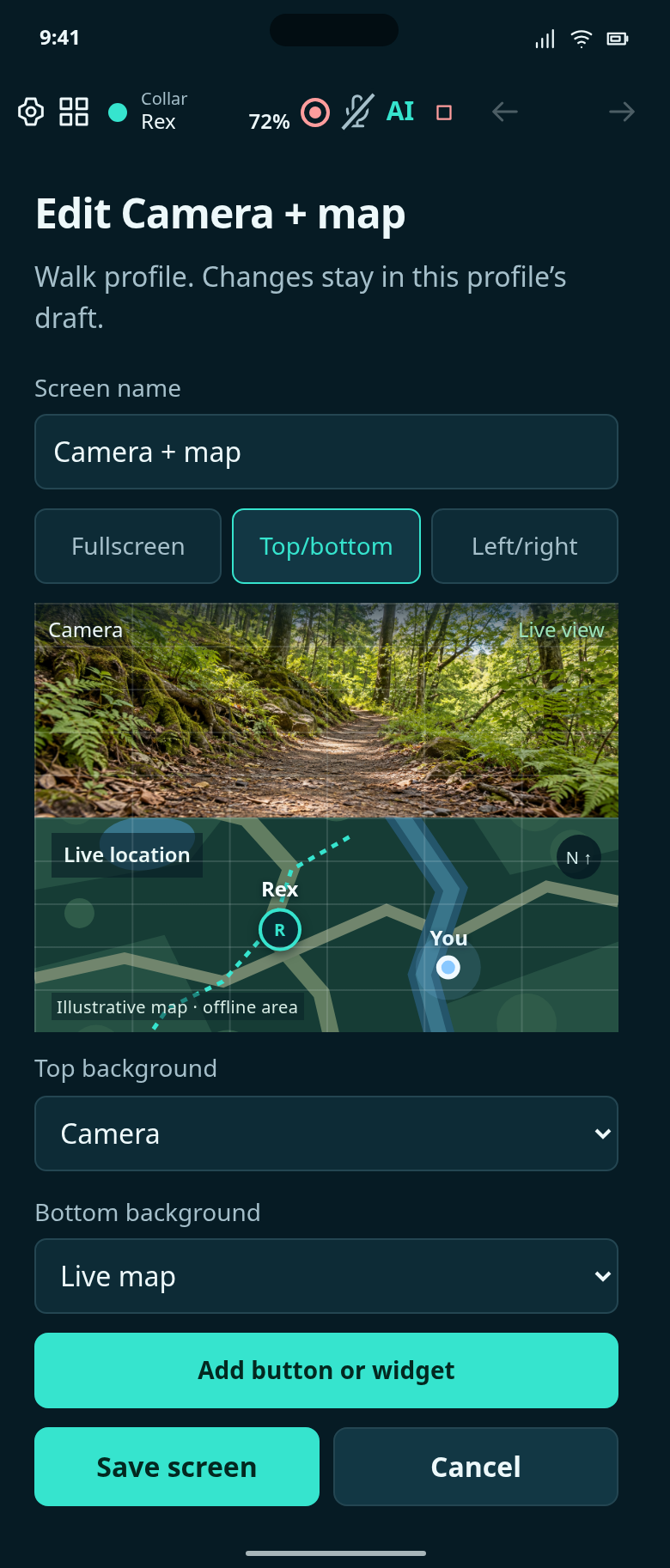
Name the profile Walk and its first screen Camera + map, then choose the existing top/bottom camera-and-map layout.
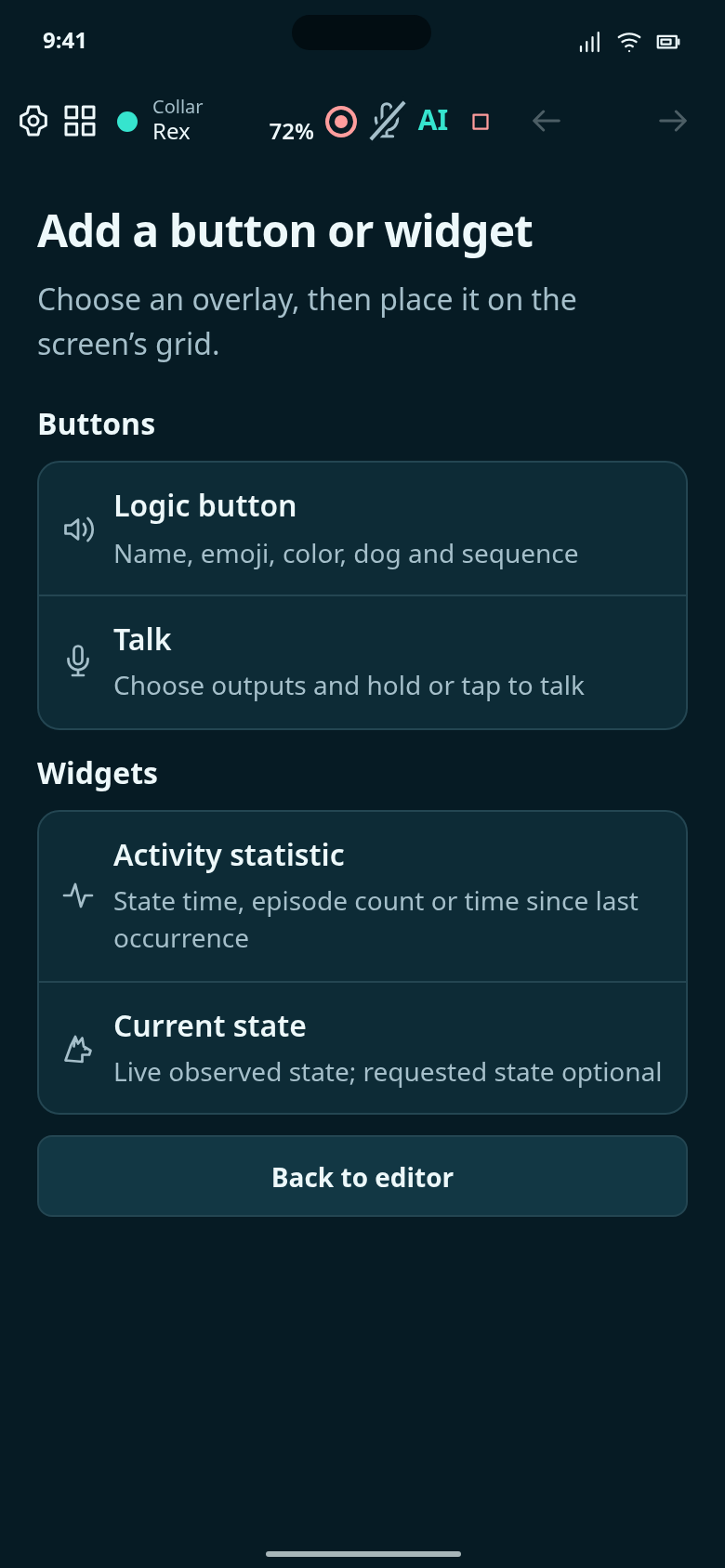
Open the existing widget picker from Walk’s Camera + map screen.
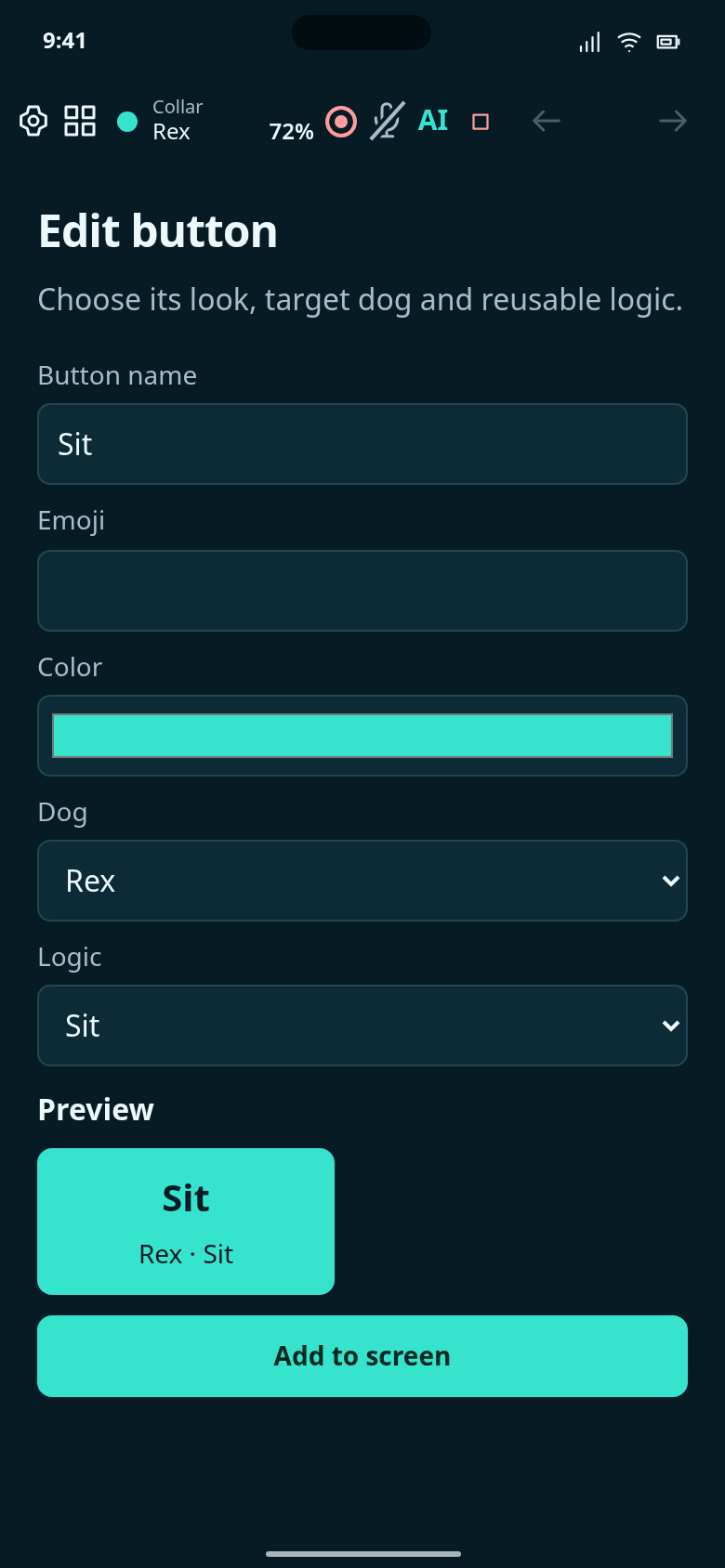
Configure the existing Sit logic button for Rex before adding it to Walk’s screen.
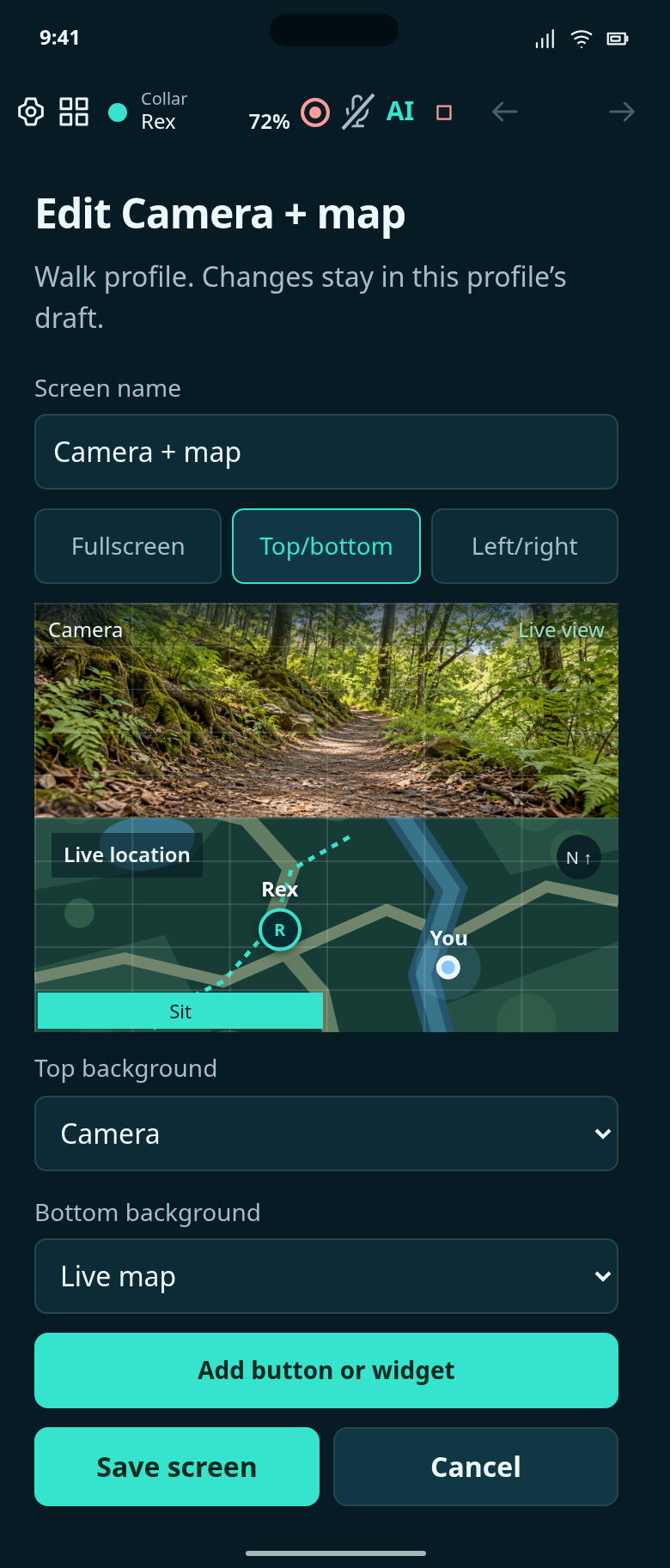
Add Sit to the first free bottom-row grid space. The camera and map still share the background equally.
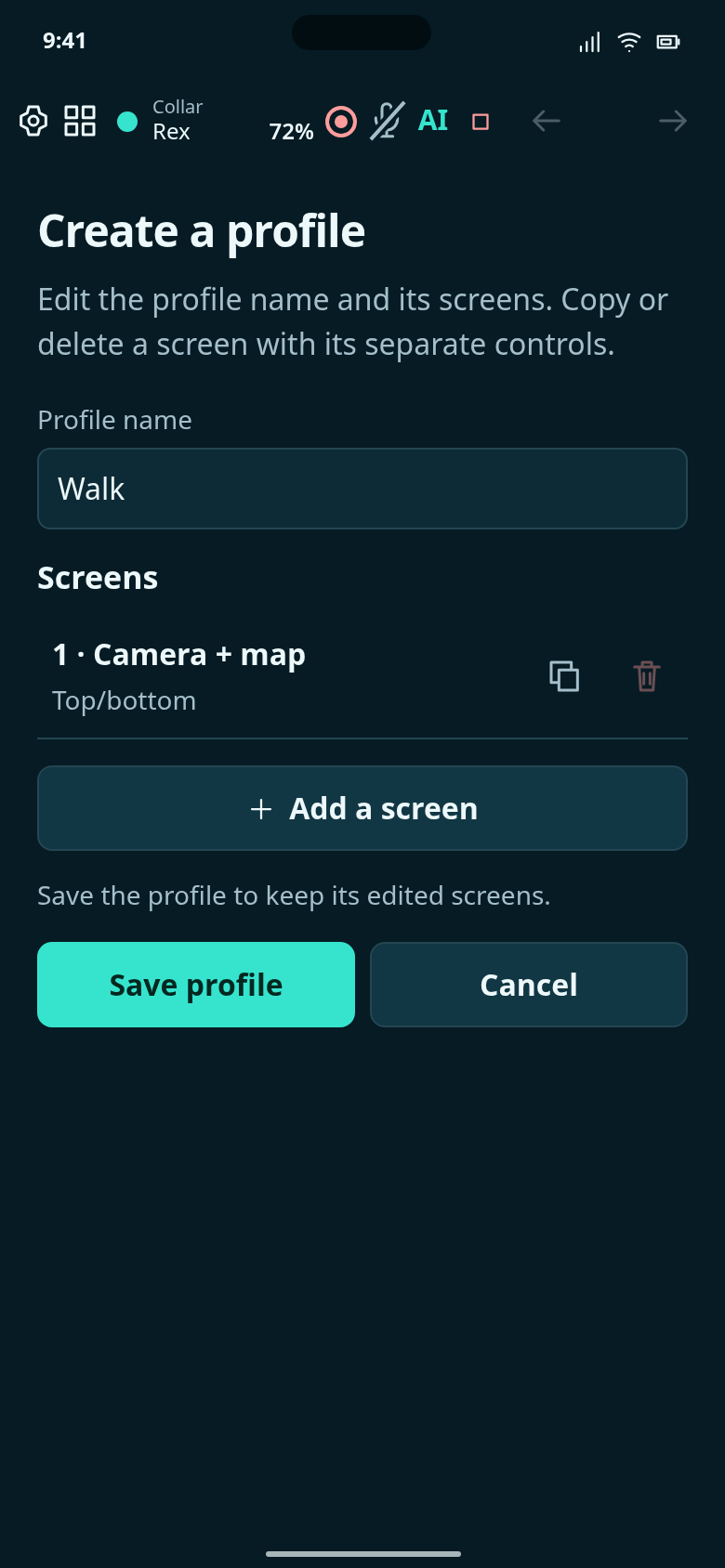
The profile editor now contains the saved Camera + map screen. Save the profile to keep it in the list.
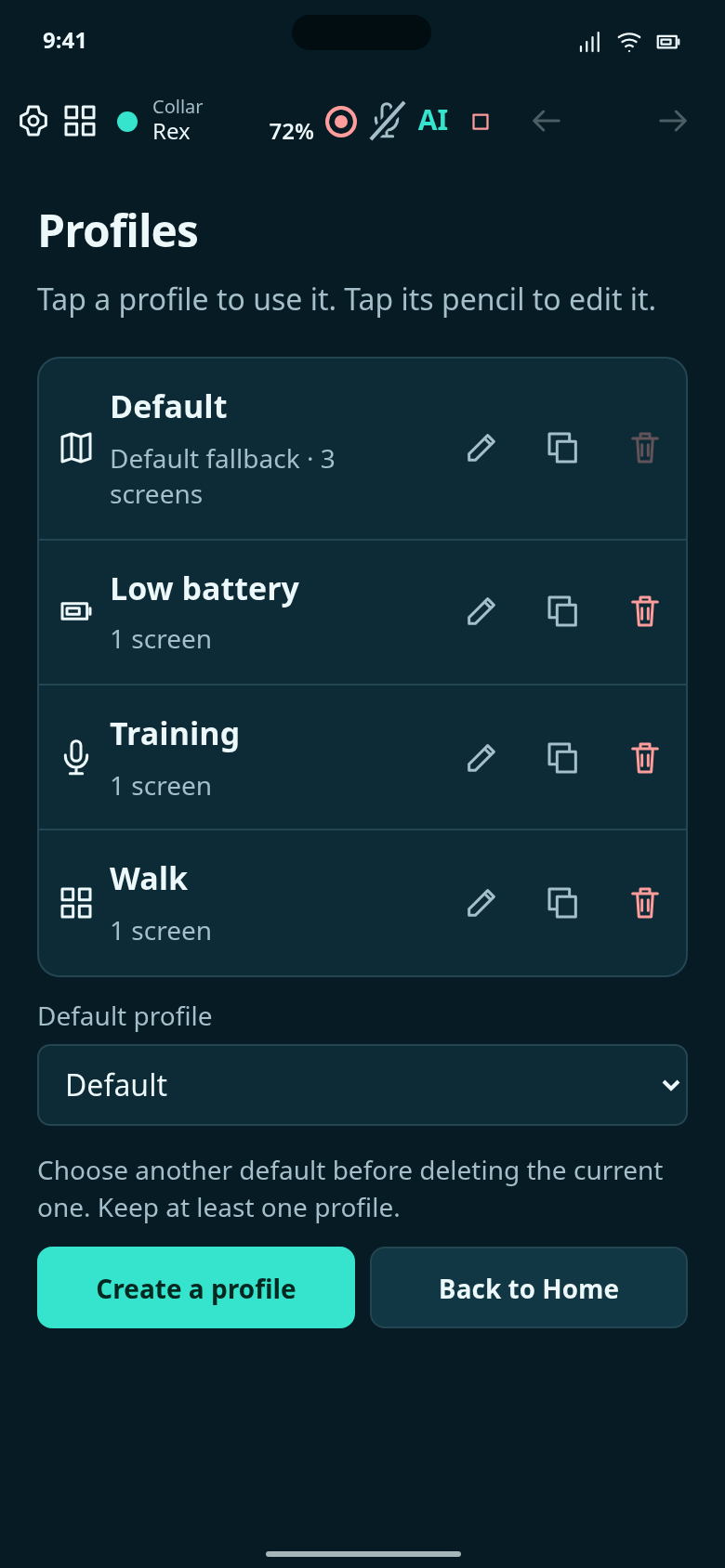
Walk appears in the normal Profiles list with its edit, copy and remove controls. Default remains the fallback.
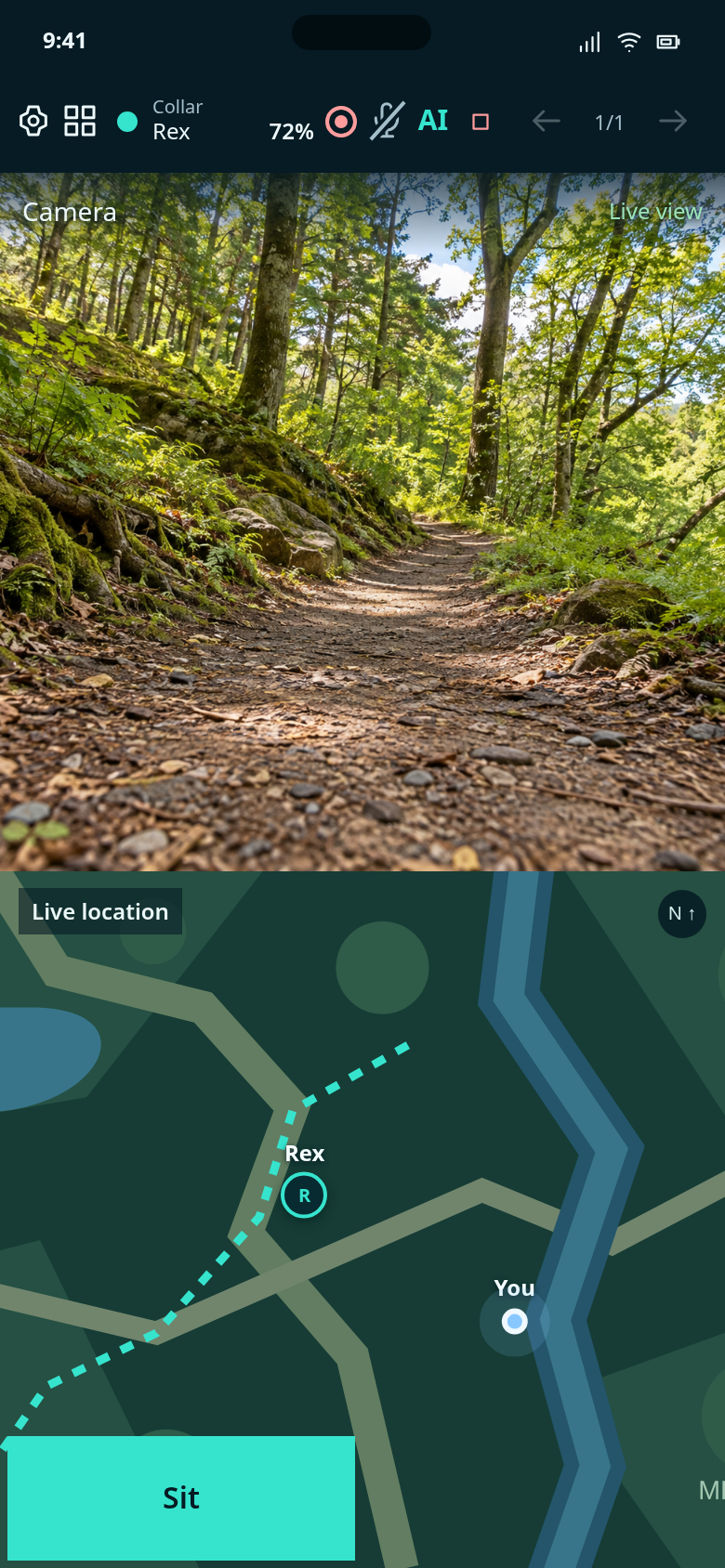
Select Walk to open the exact camera-and-map screen and Sit button saved through the profile editor.
Compare finished profile screens for everyday walks, training and low-battery use.
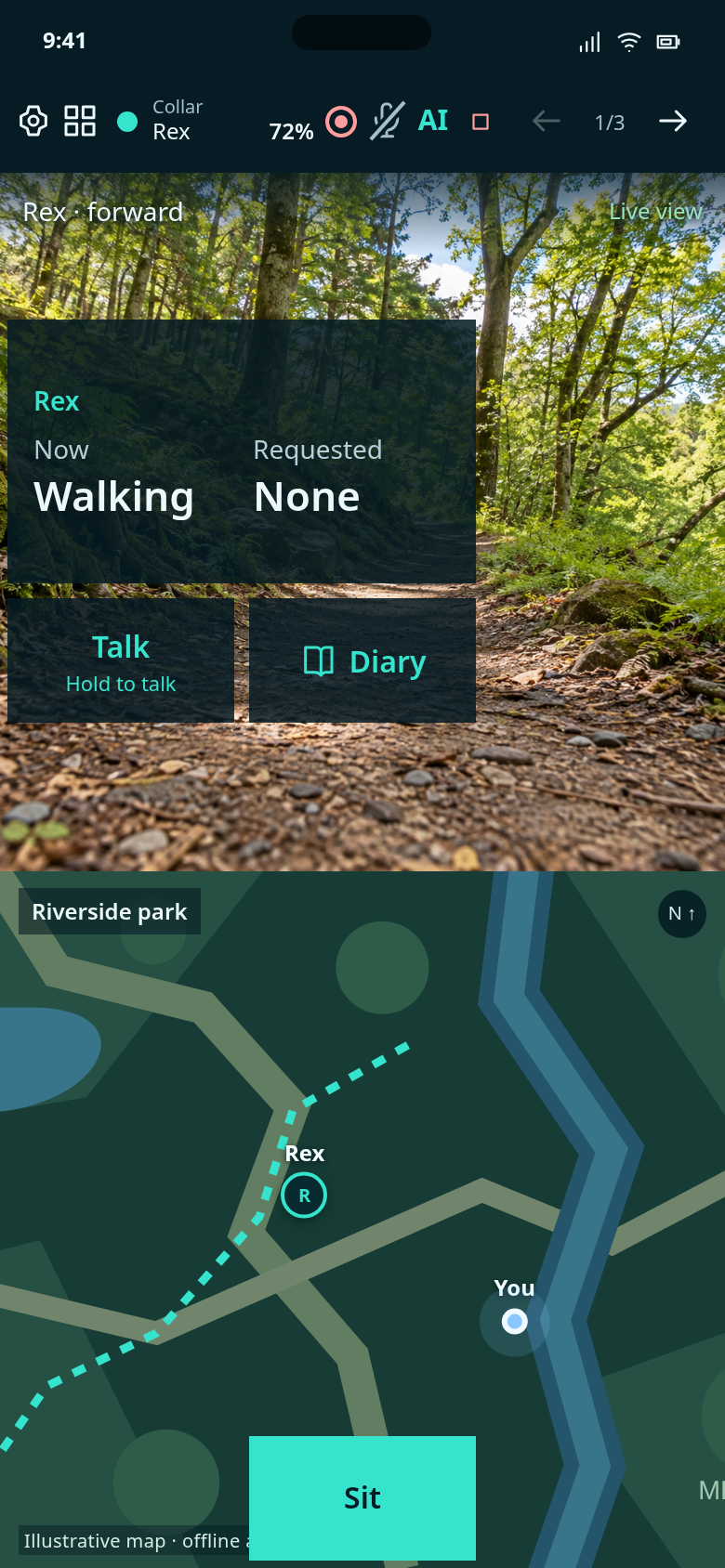
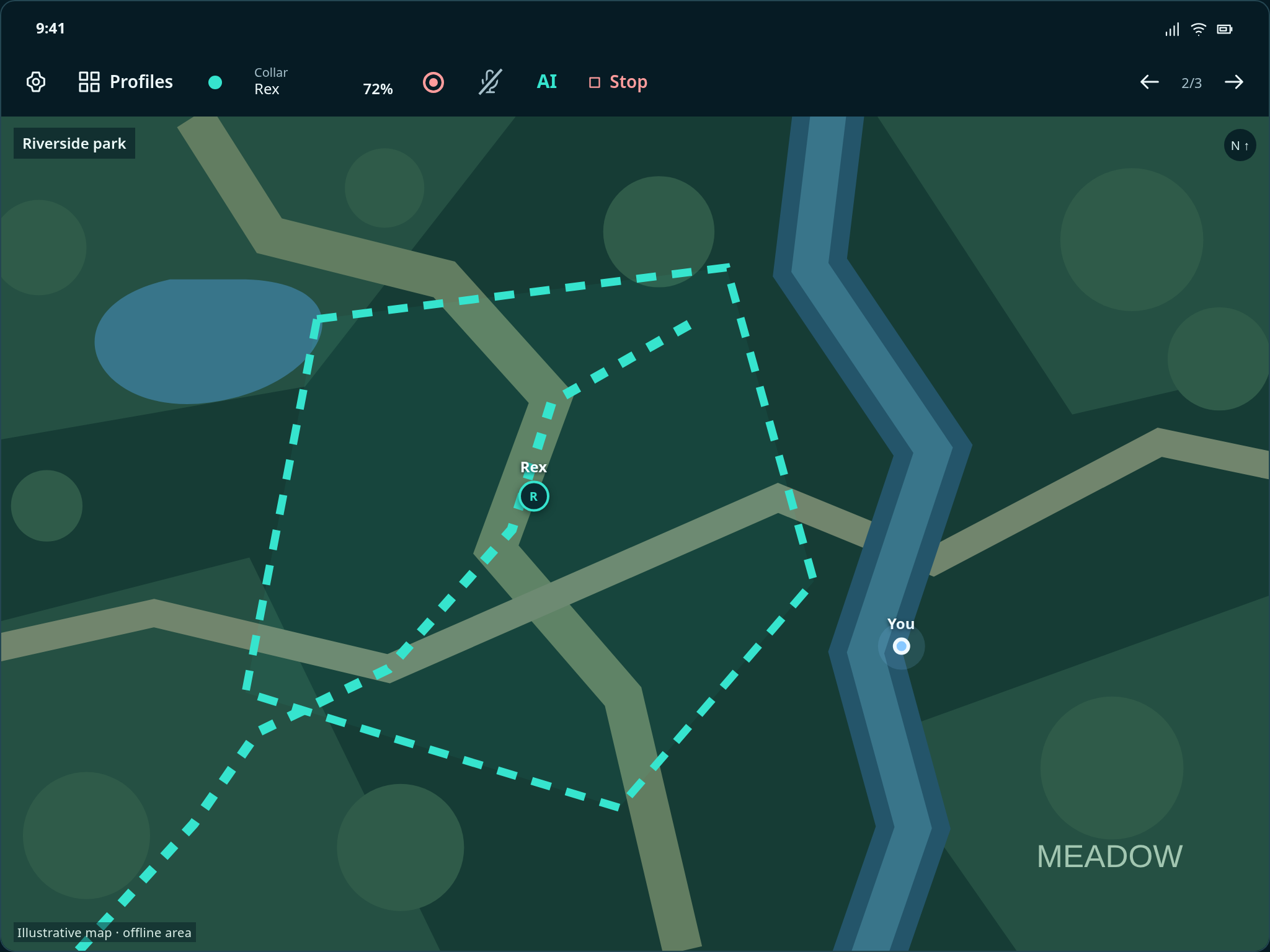
Default profile, screen 1 of 3: camera above, map below, with controls placed over the view.
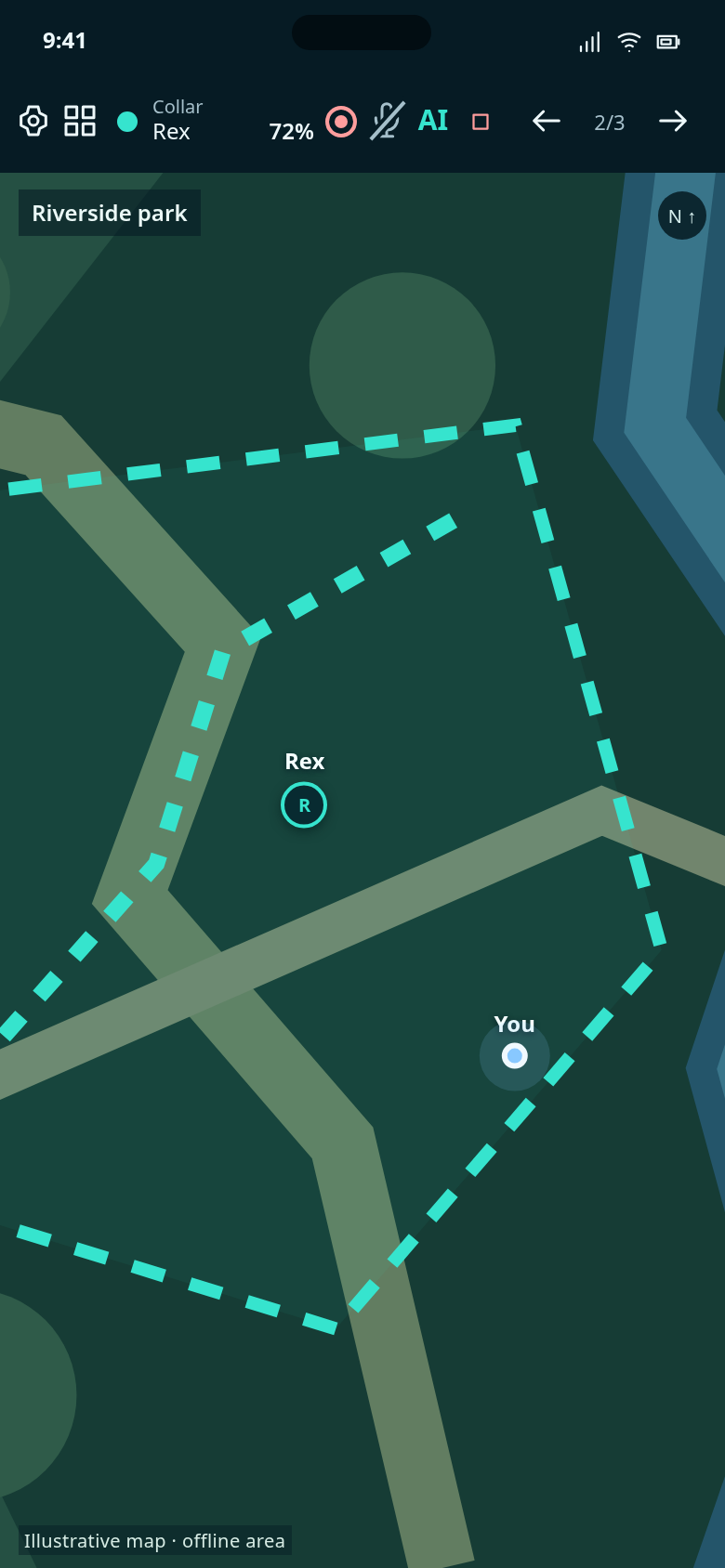
Tap a dog’s map pin for Open in maps and Copy GPS coordinates. The map stays clear until you need those actions.
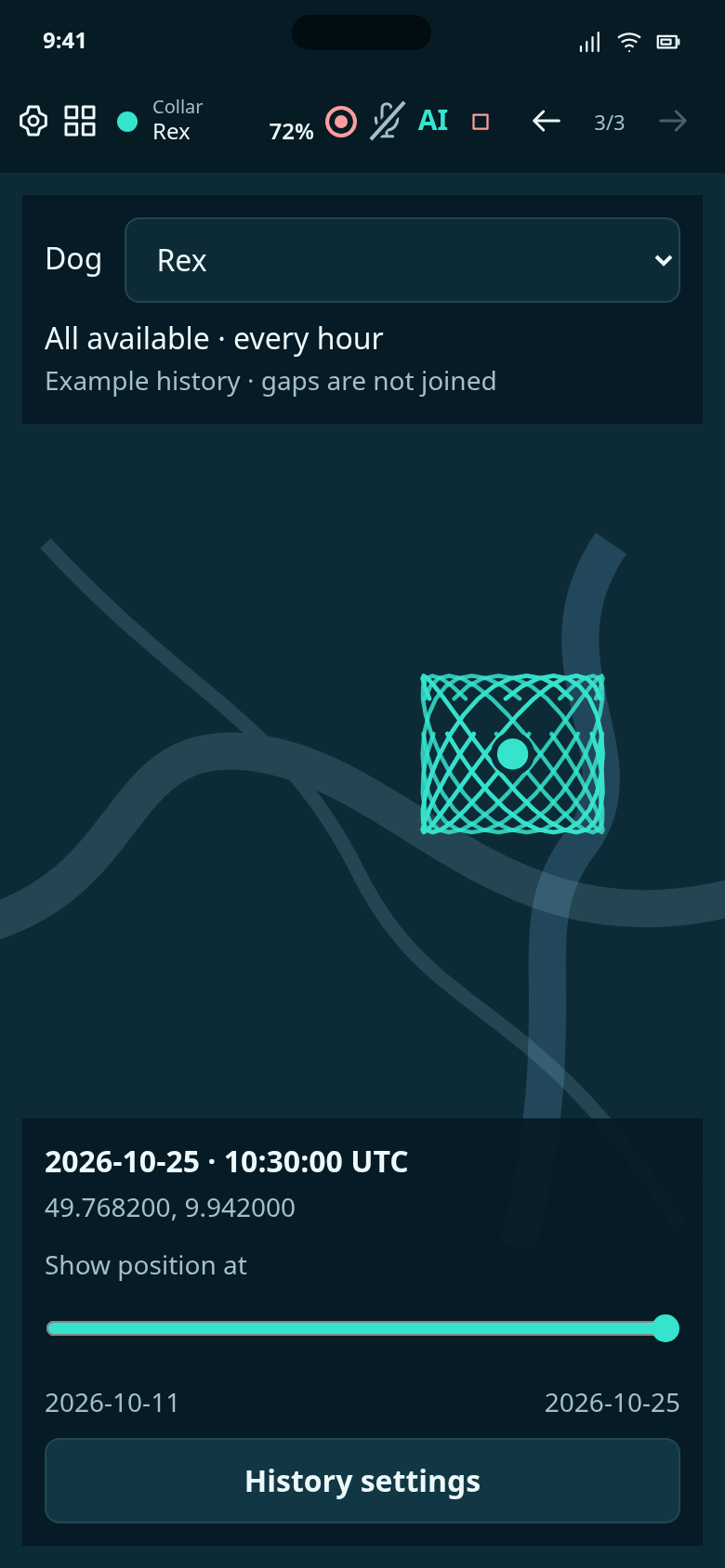
A profile screen showing the selected dog’s recorded route. Choose the timeframe and display detail from its settings button.
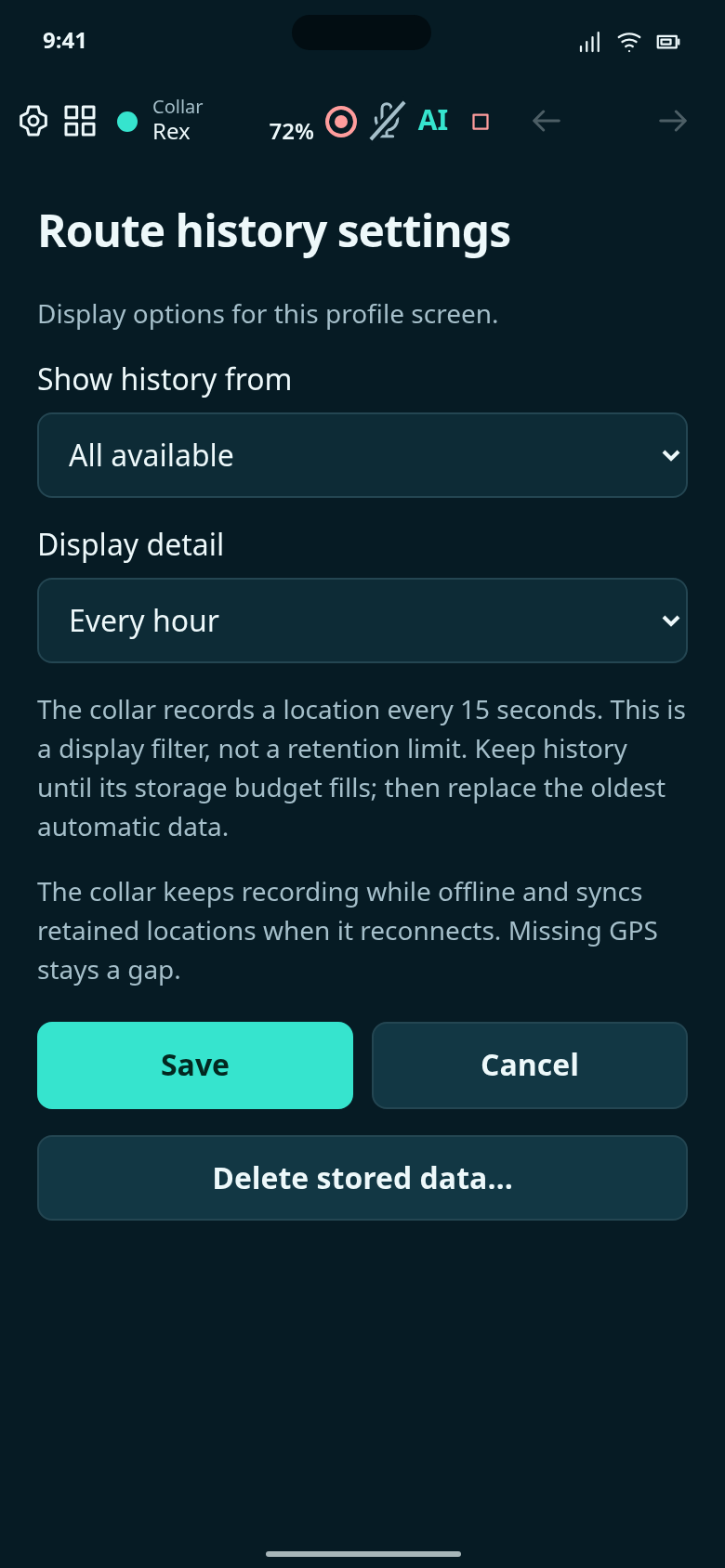
Filter the history you see; stored history remains until its space budget is full or you delete it.
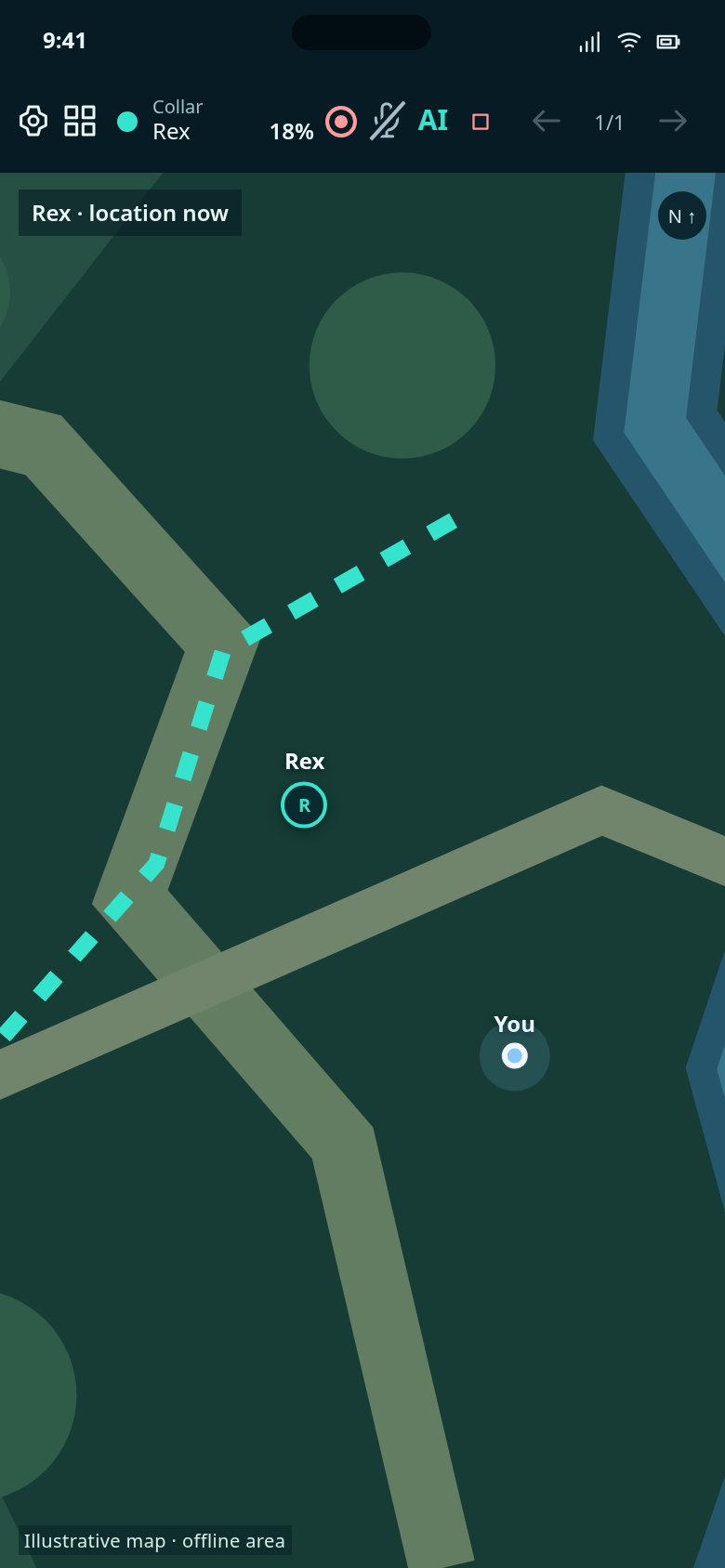
The Low battery profile uses a full-screen map without extra widgets.
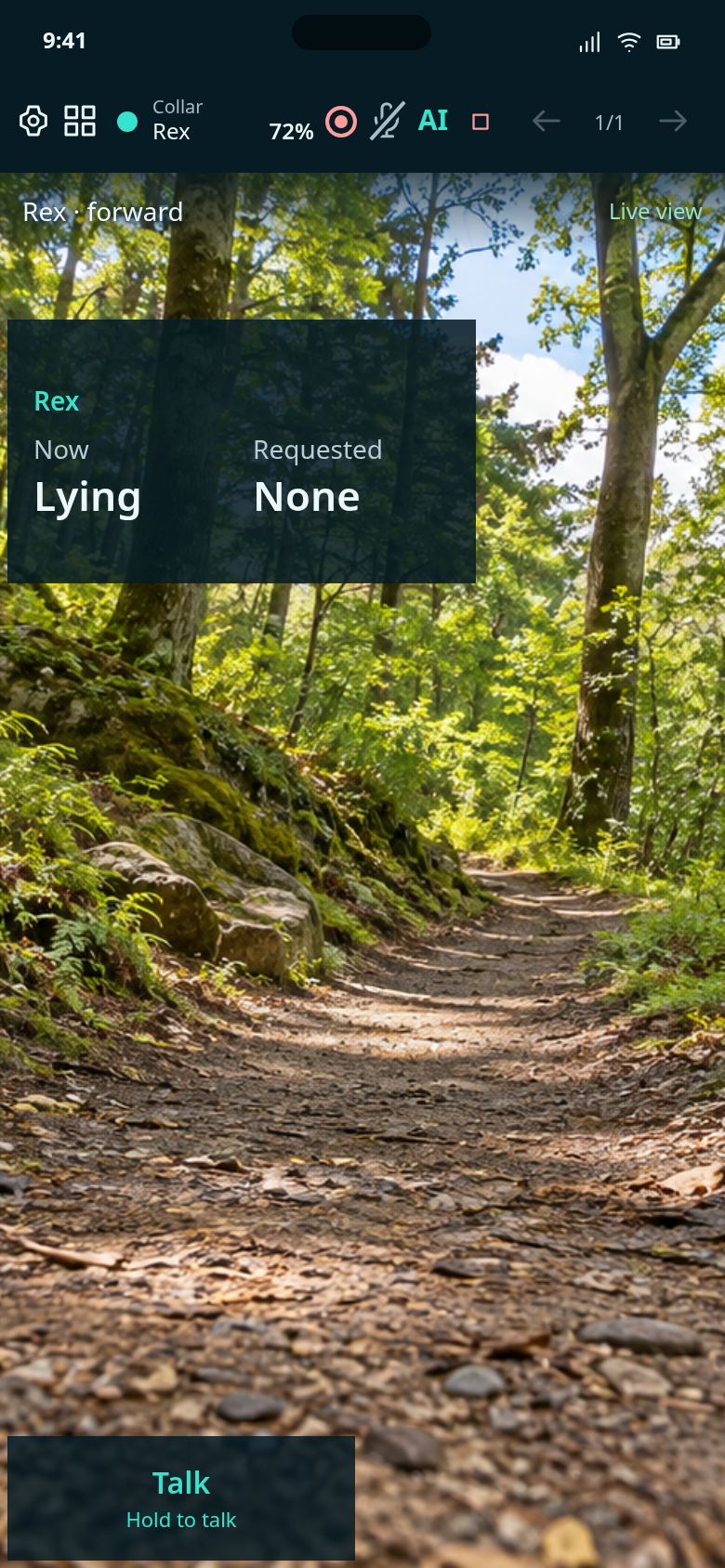
A custom full-camera screen with the existing Current state and Talk widgets.
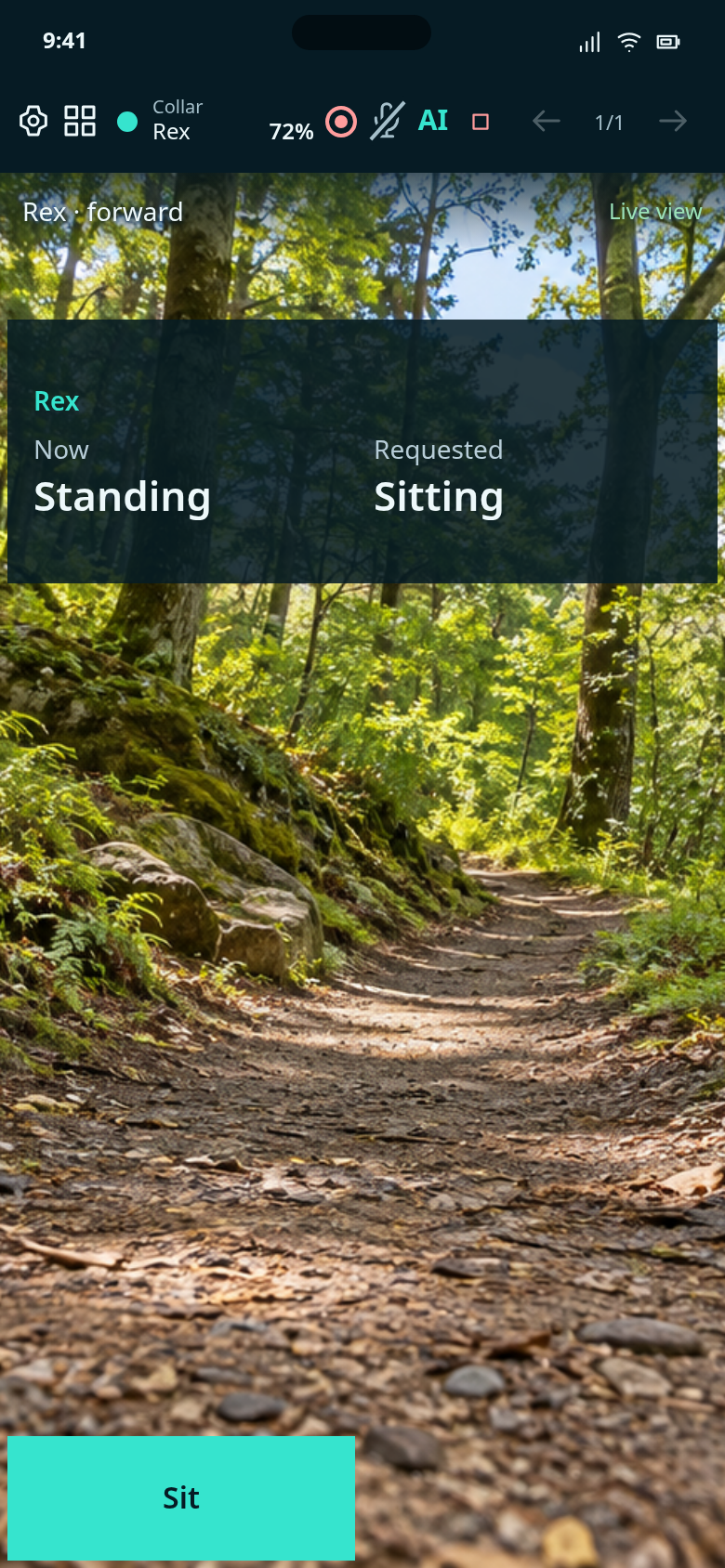
Use the toolbar AI button to speak with the coach and optionally share video.
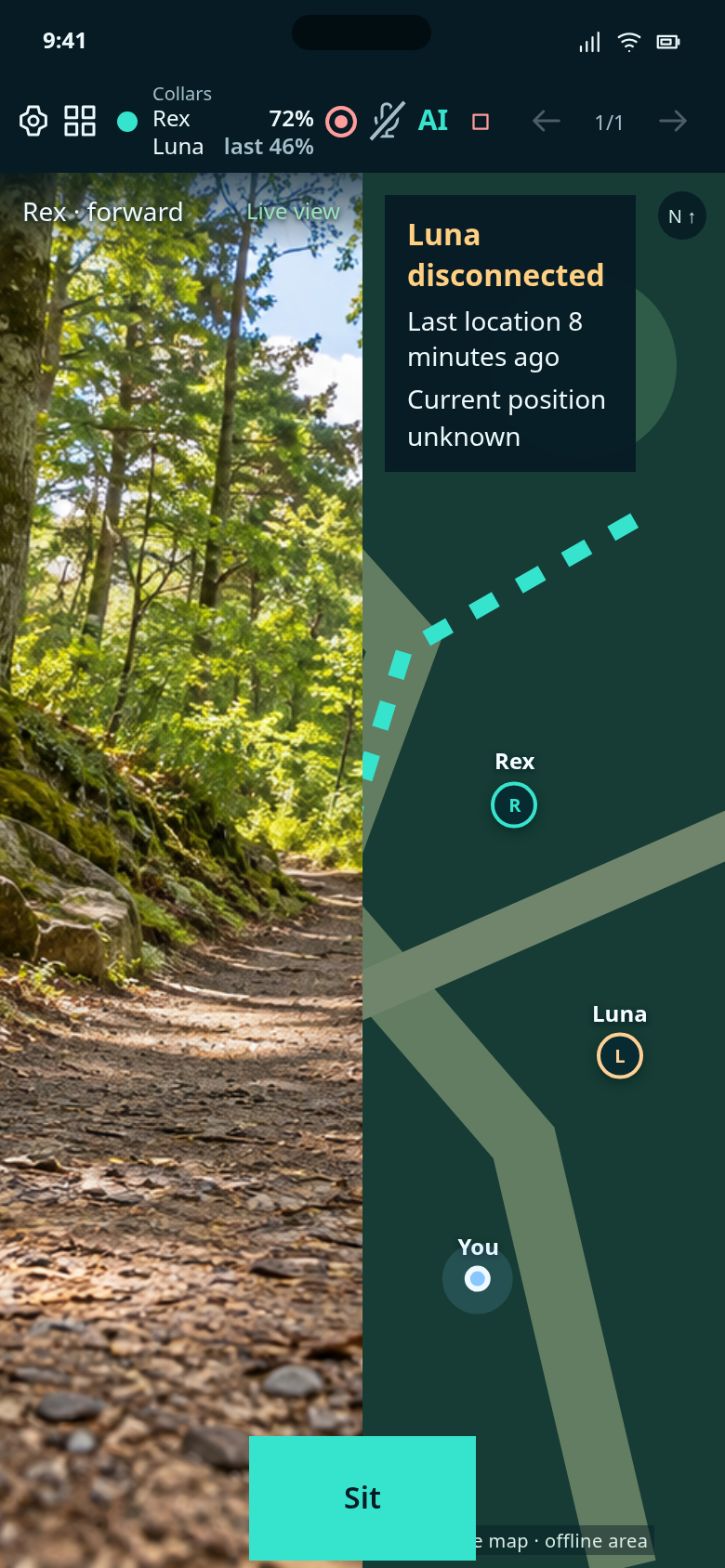
A custom screen with camera and map side by side, both dog pins, and the existing Sit button for Rex.
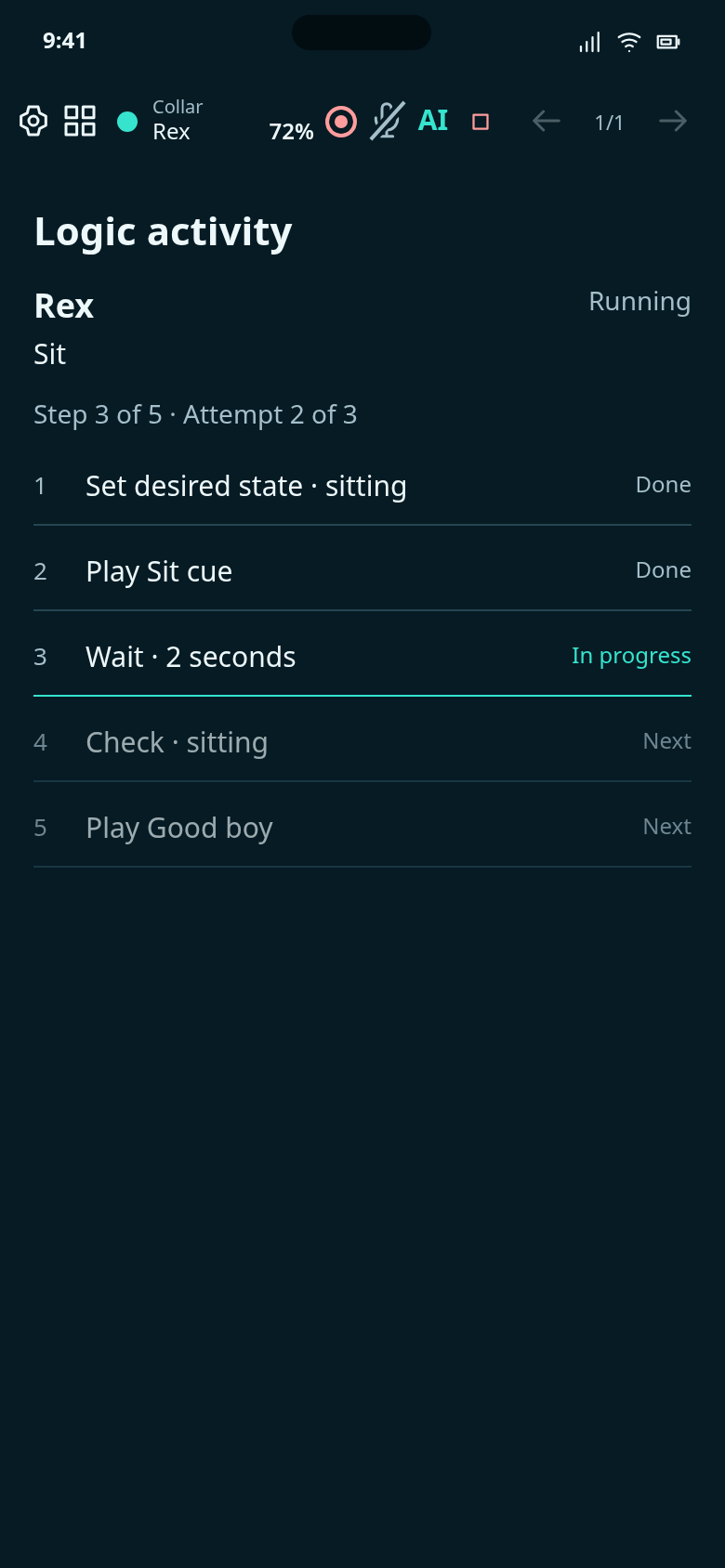
See each step and retry attempt without leaving your chosen profile layout.
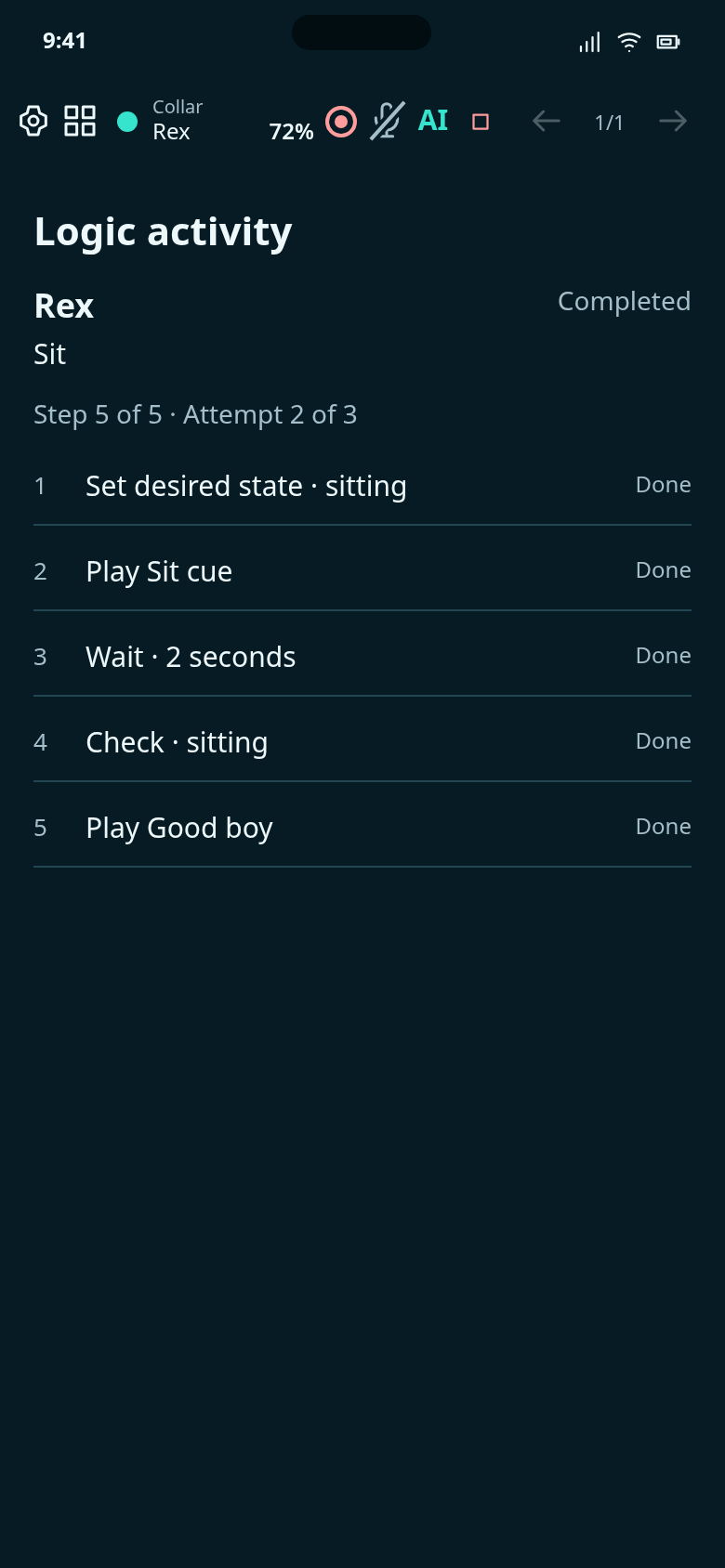
The completed run shows its results; the command button returns to its chosen colour.
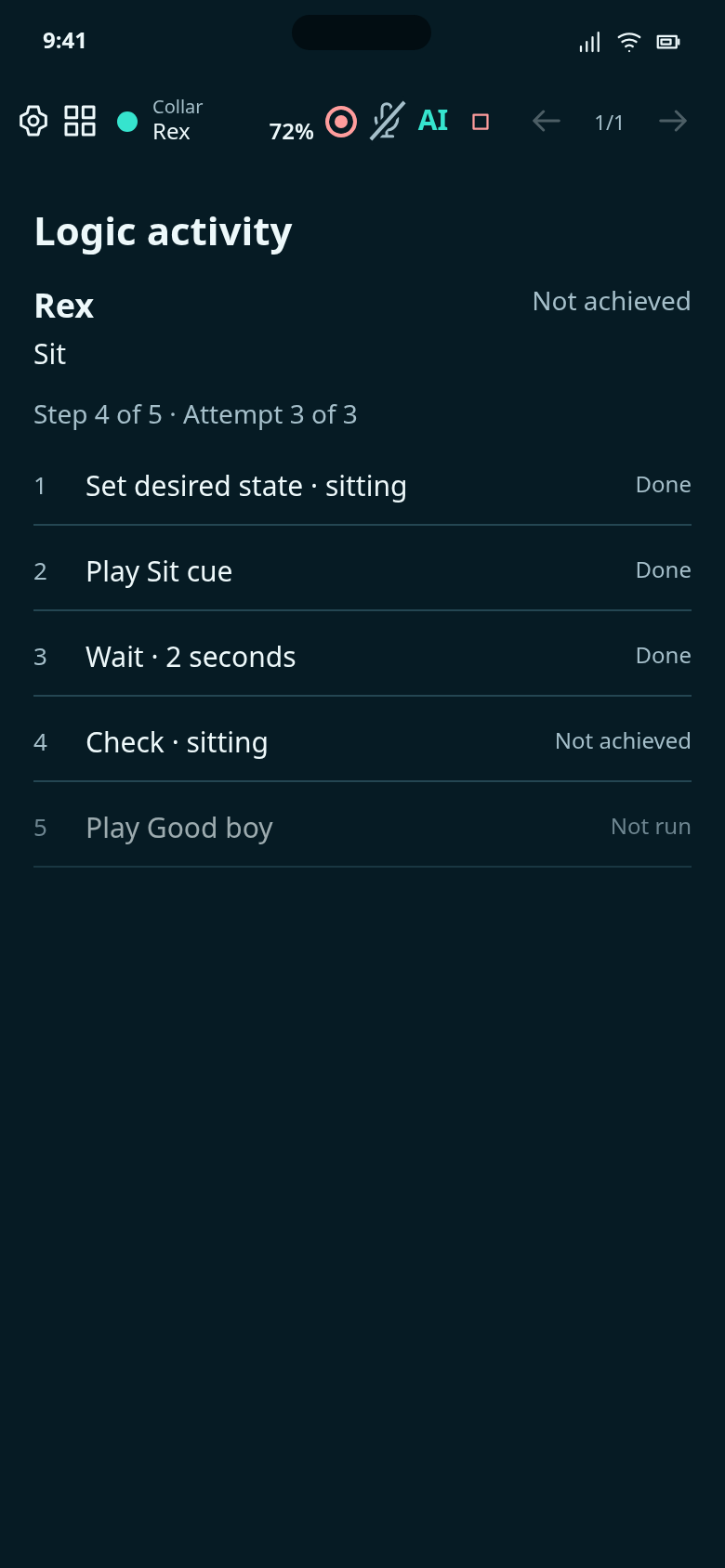
The result stays explicit when the configured attempts finish without success.
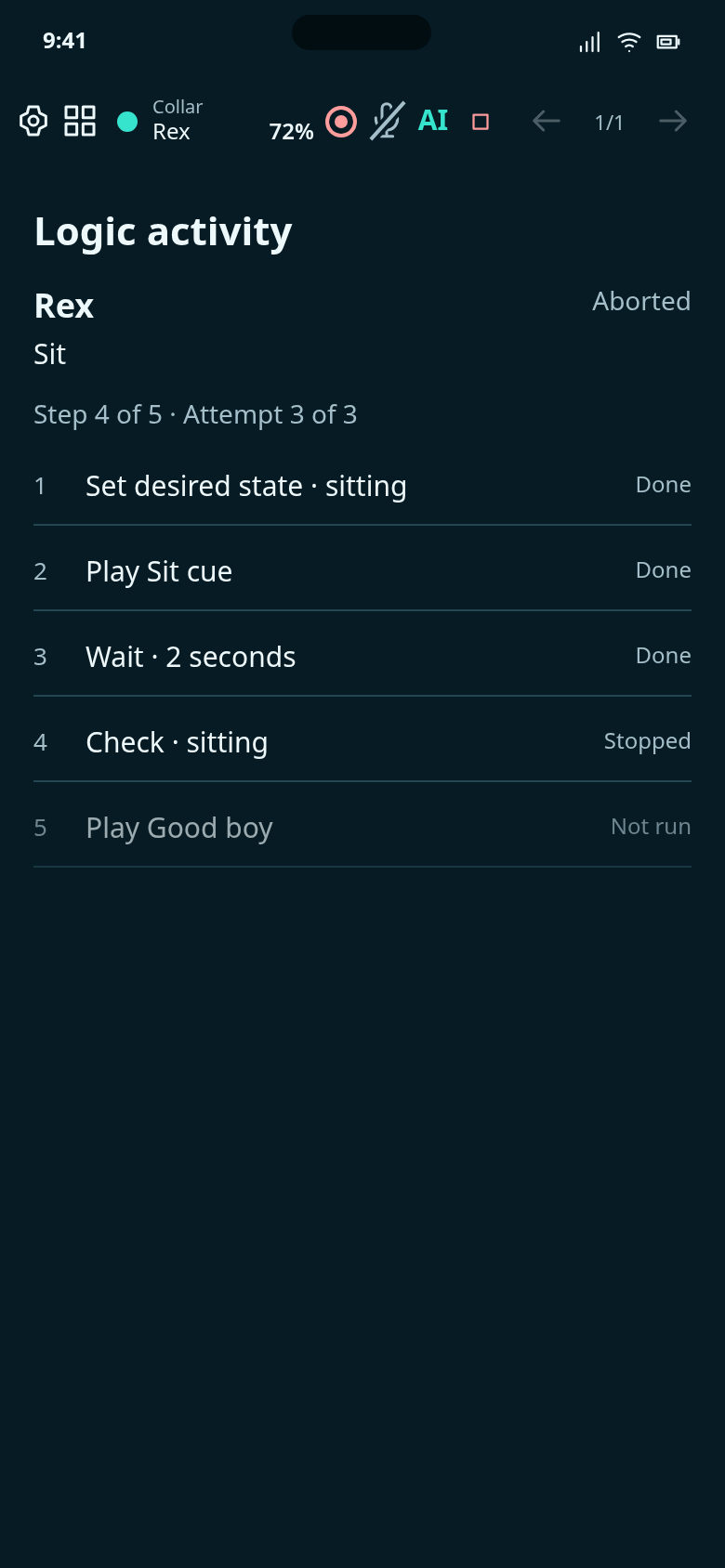
A state-detection timeout aborts the run without issuing correction or pretending success.
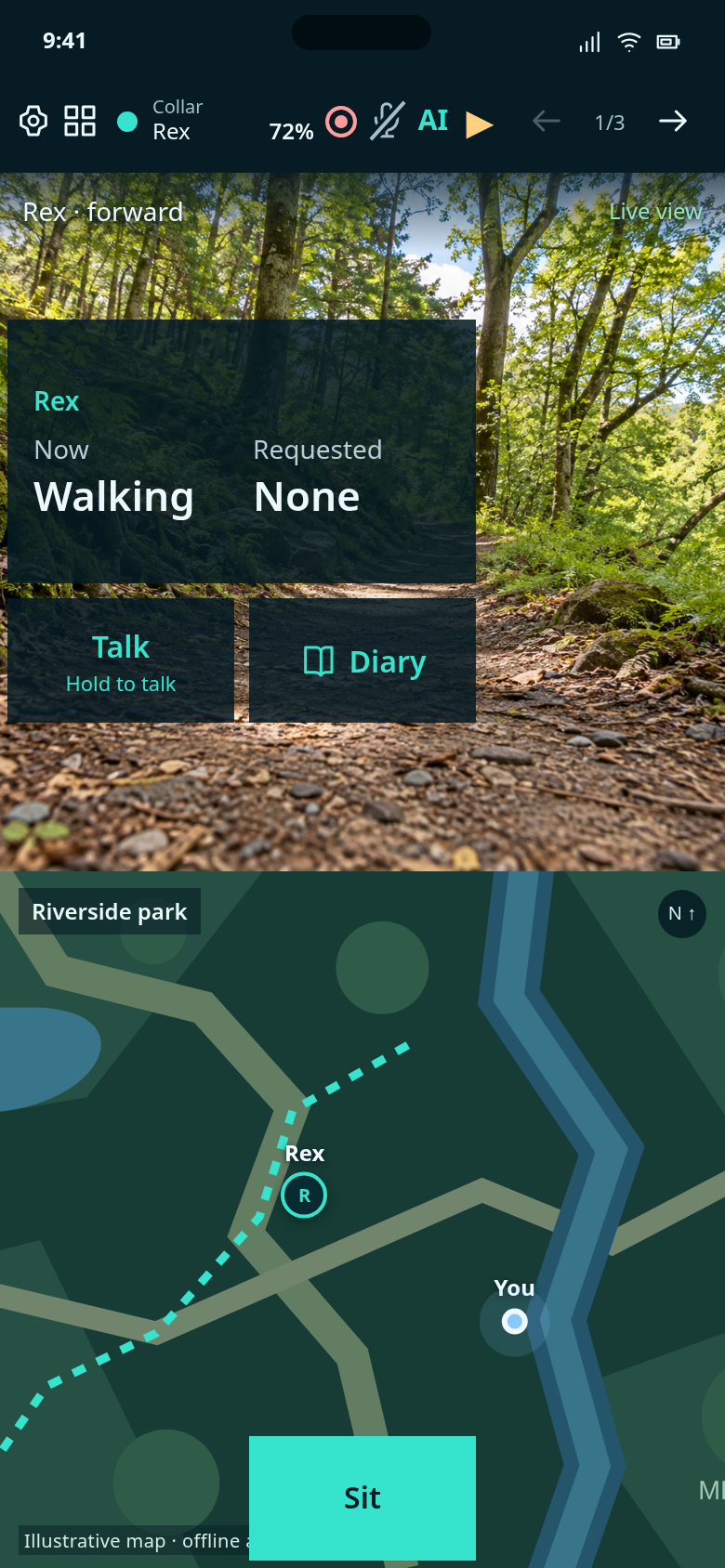
Collar audio is paused while the current view stays visible. Open Controls to resume it.
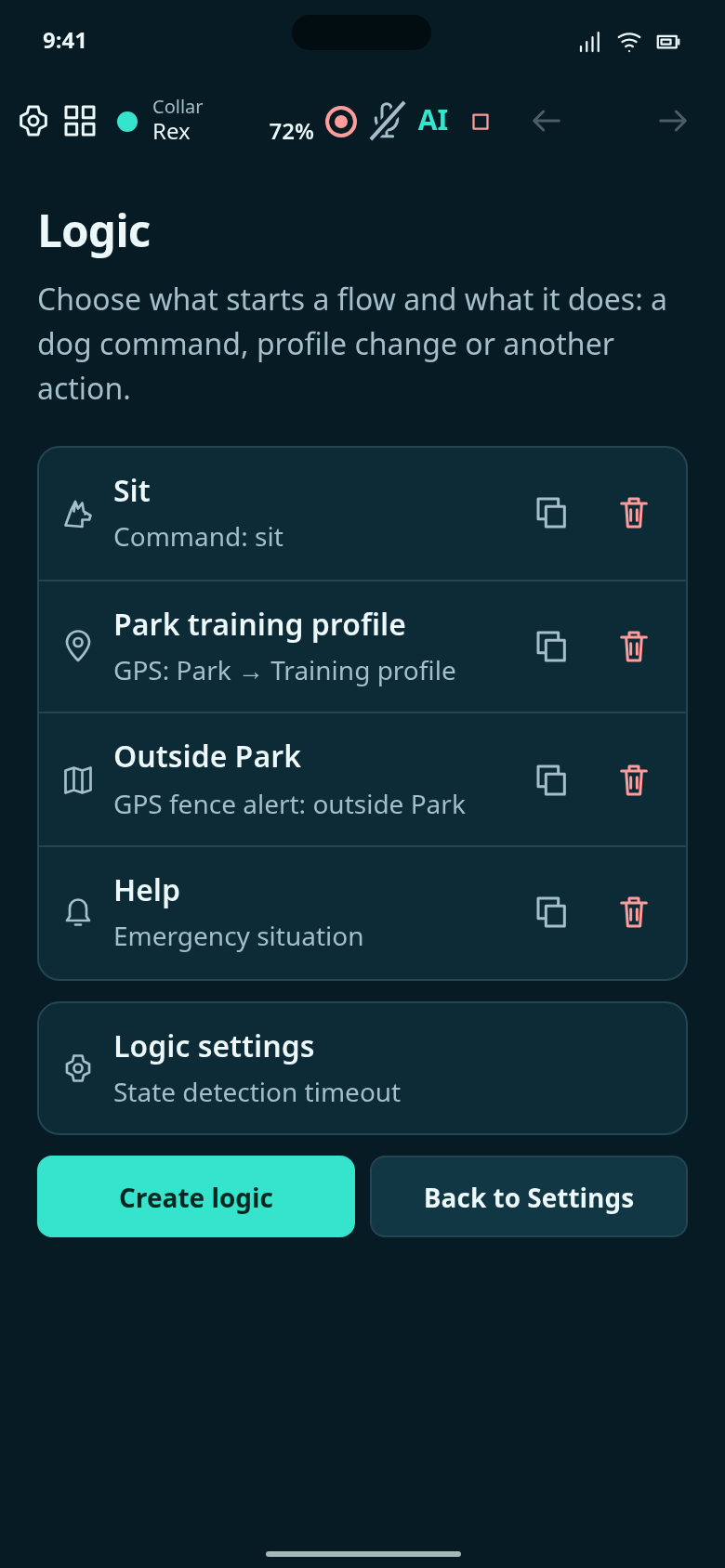
Tap a card to edit its logic. Copy makes a separate logic; the trash button asks before deleting.
Create a logic, edit its triggers and steps, copy it or remove it.
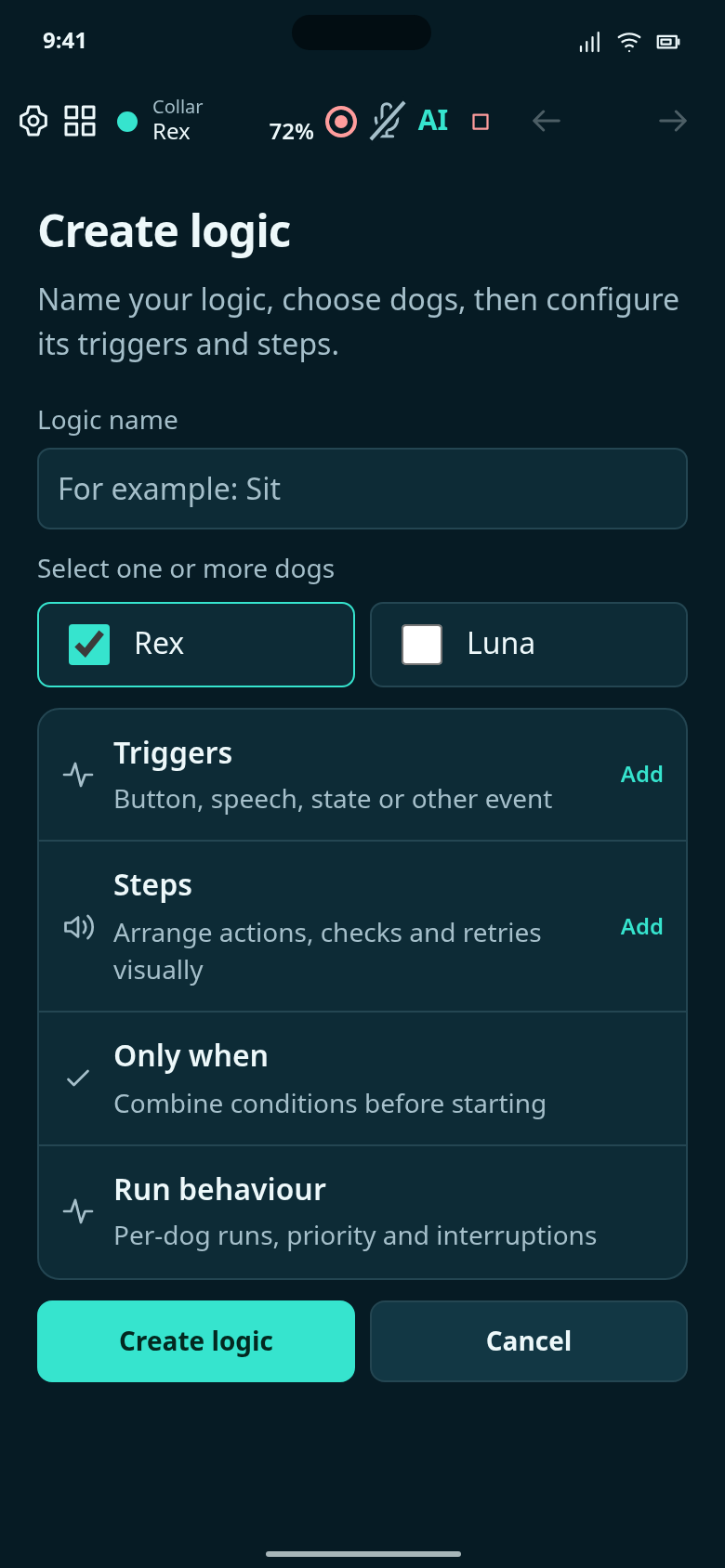
Start empty, use editable command steps, or copy an existing logic.
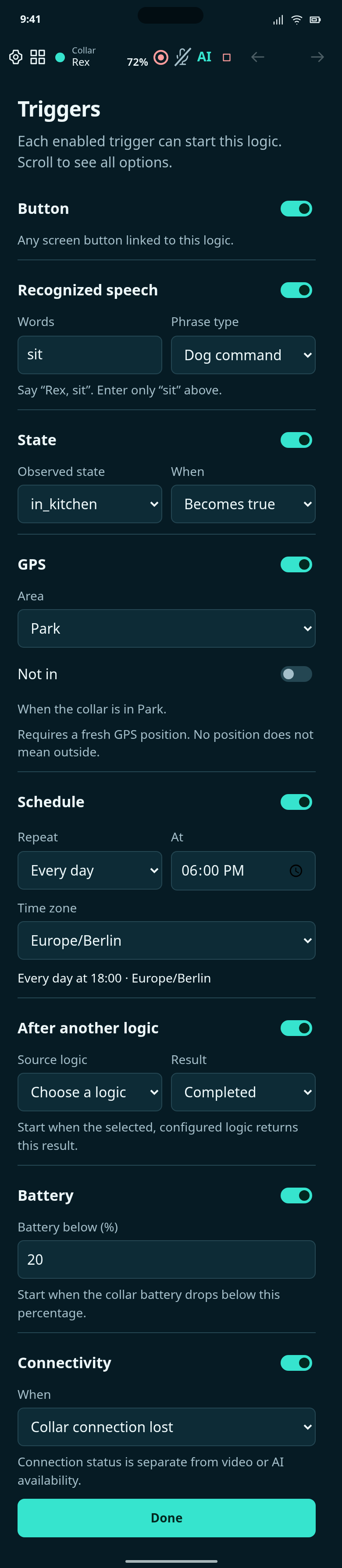
Choose triggers and configure their options in the same scrolling menu.
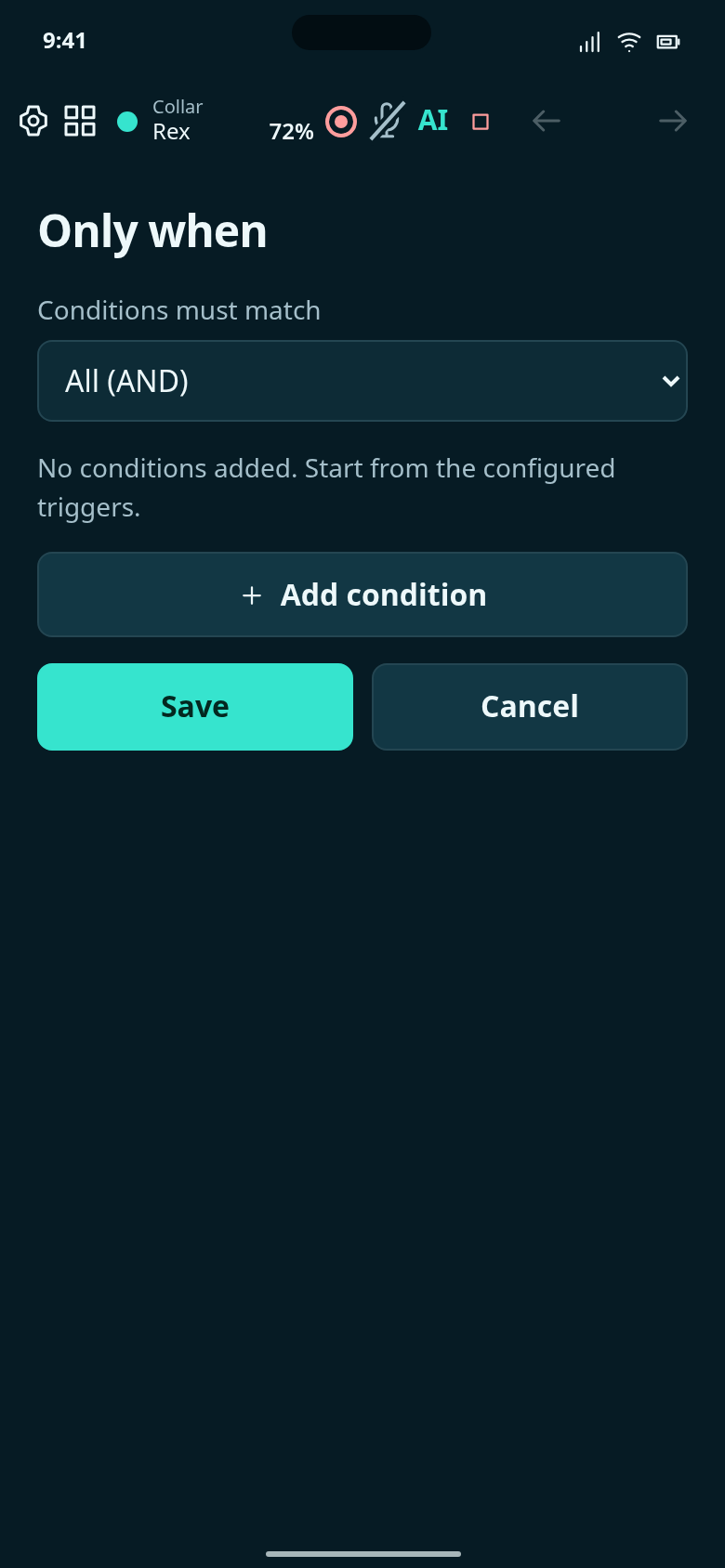
Start a logic only when its configured conditions match.
See combined time and location conditions and a condition based on state history.
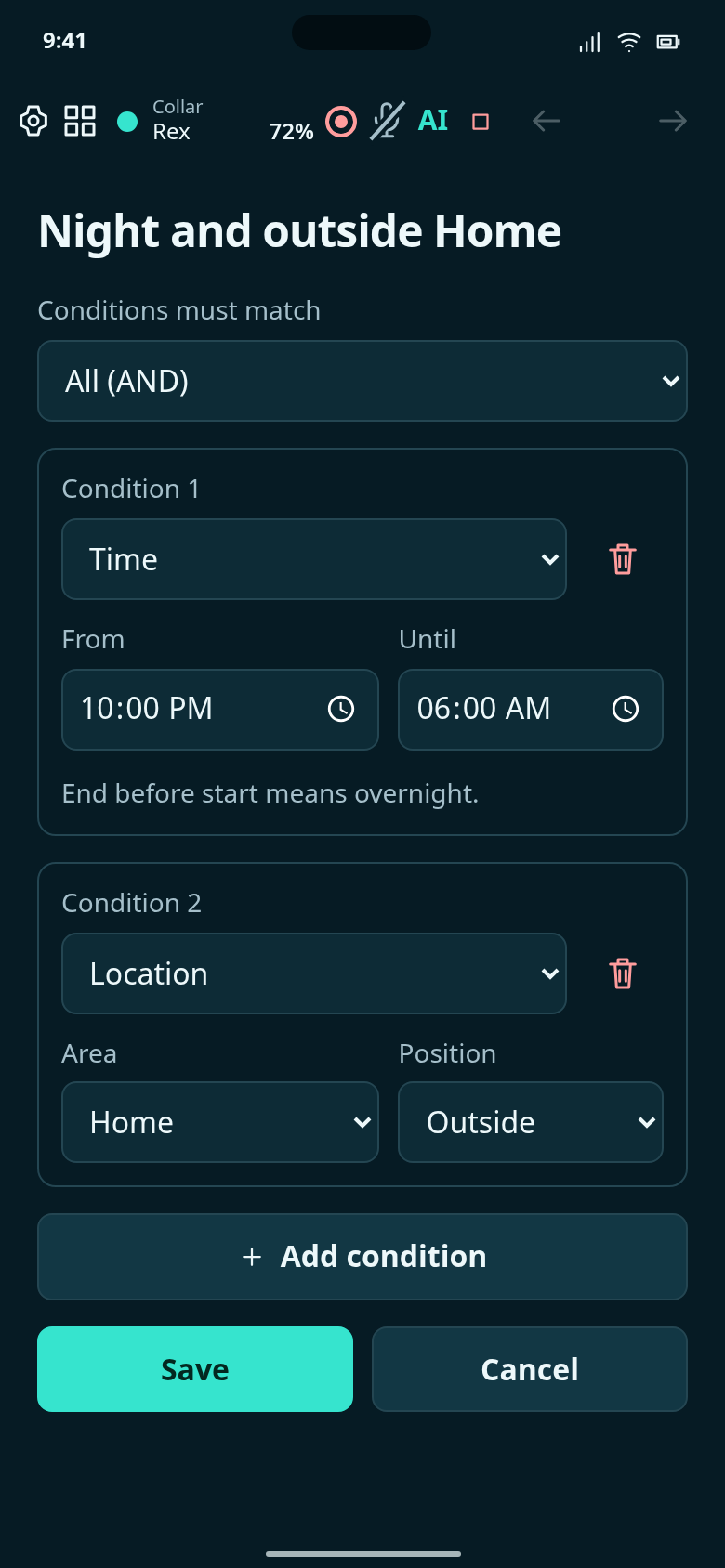
An example requiring both the overnight time window and a position outside Home.
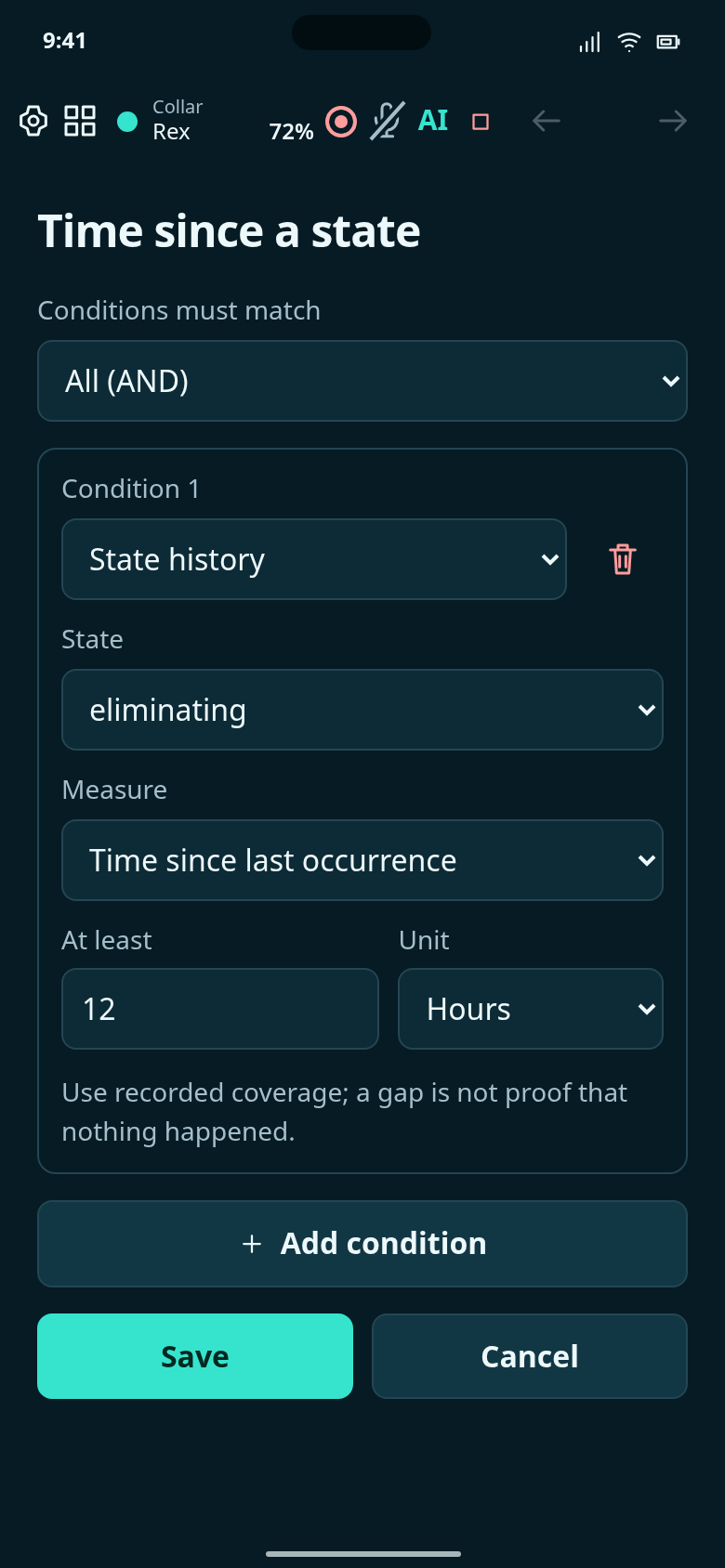
An editable example: eliminating has not been observed for more than 12 hours.
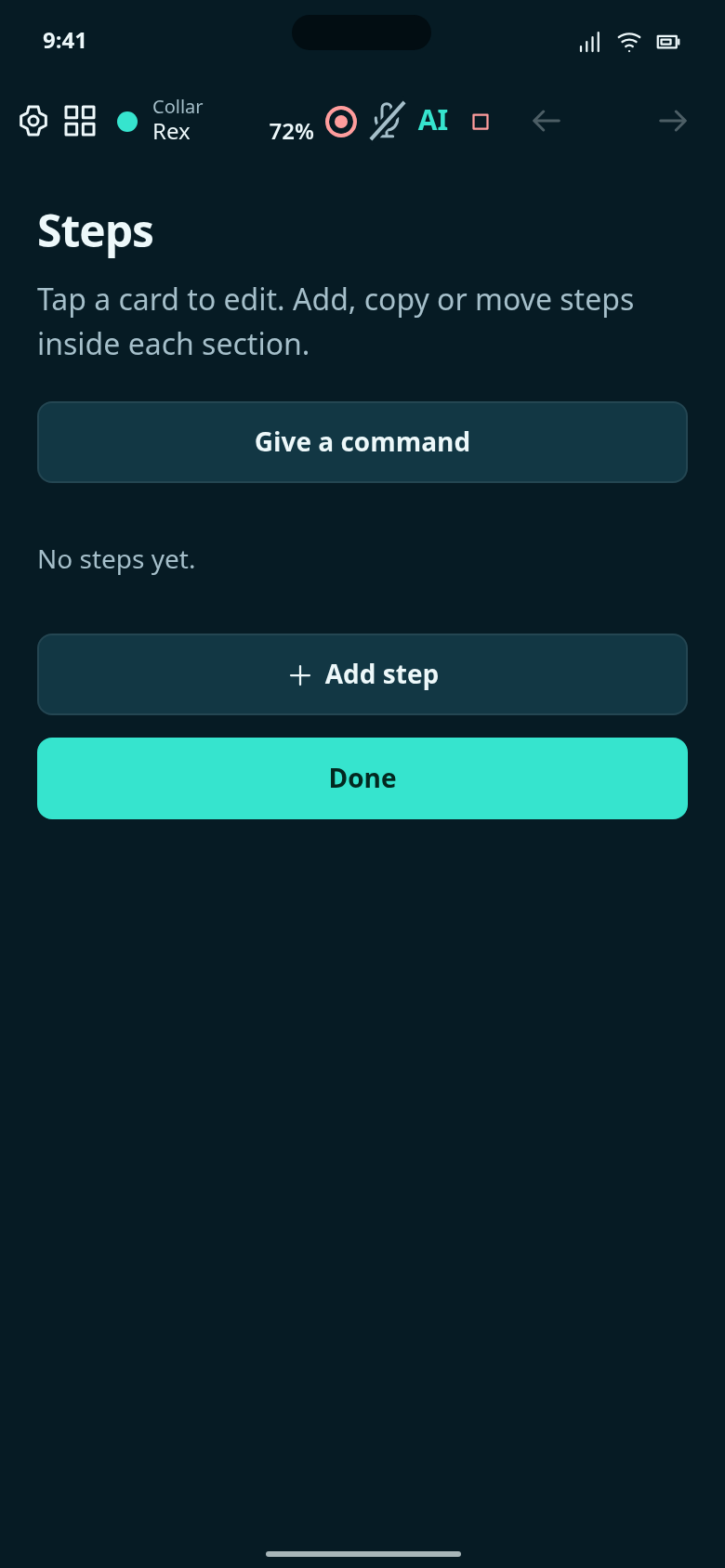
Connected steps: actions connect automatically, and retry blocks show their attempts and outcomes inline.
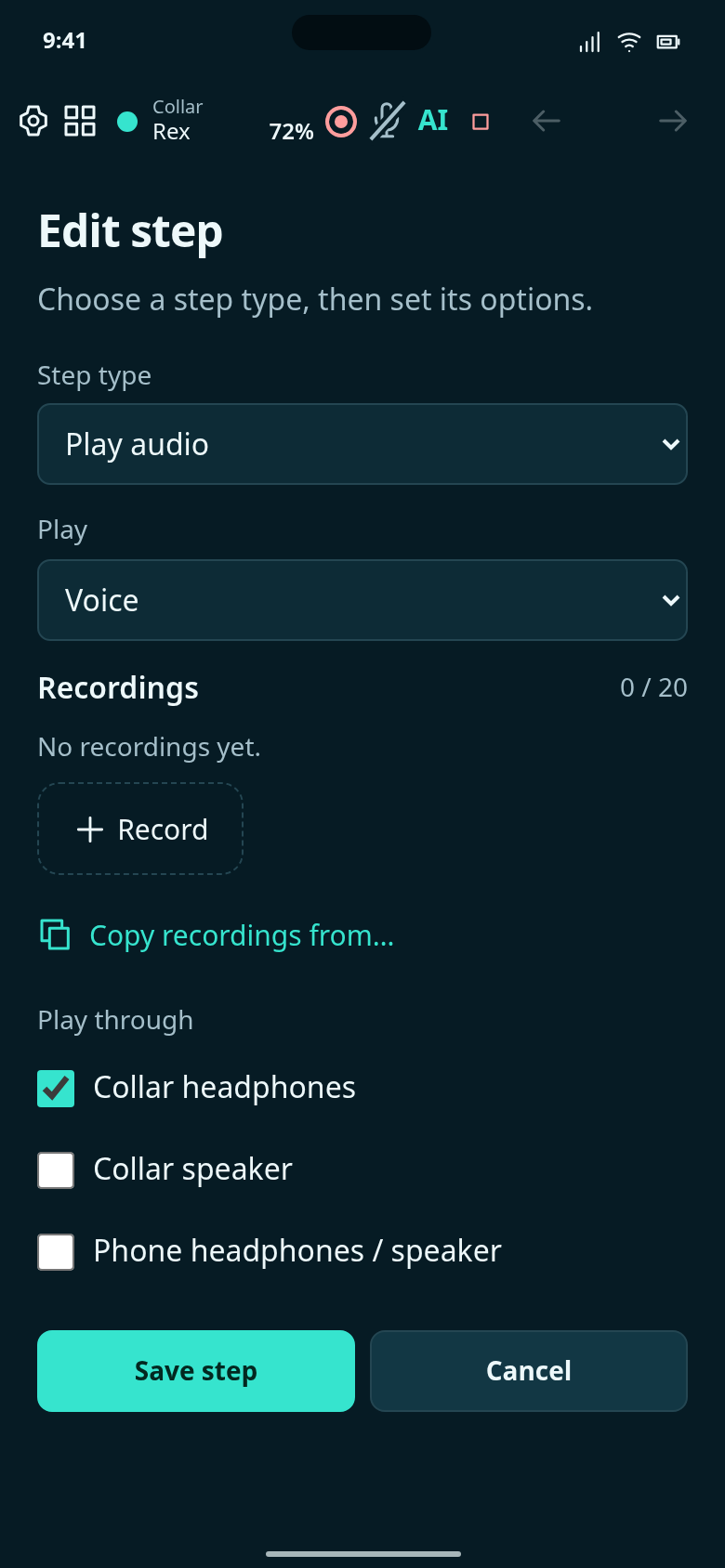
Choose voice, a frequency, or both. Recordings belong to this step and appear as individual play/delete tiles.
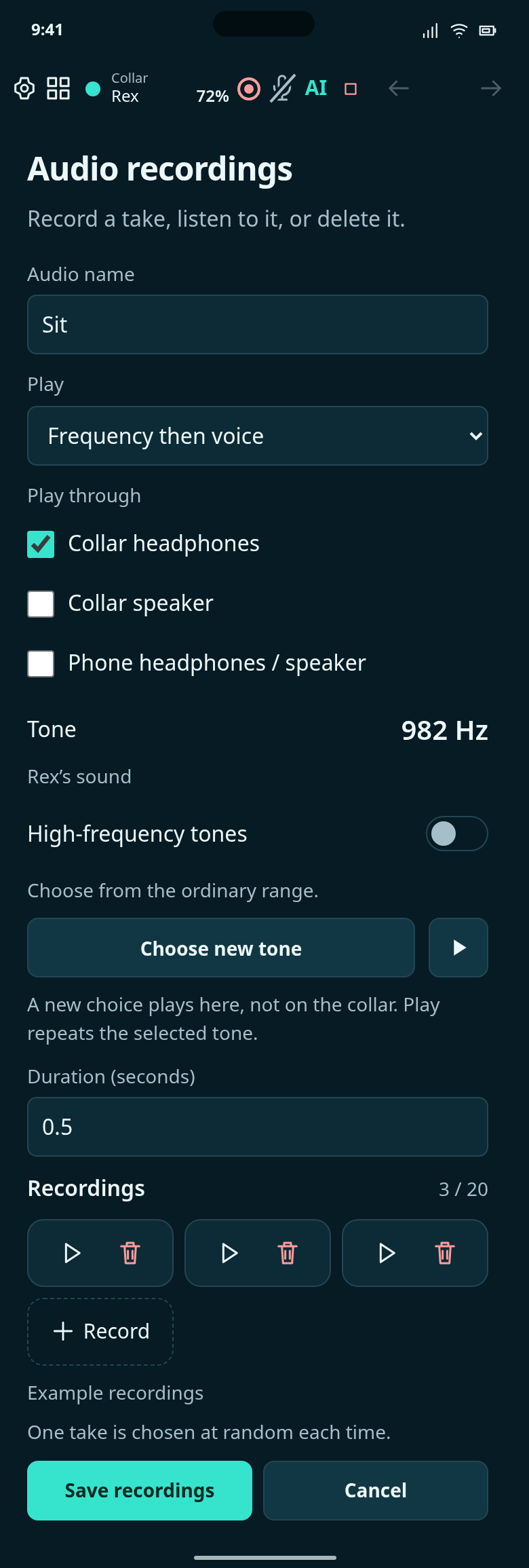
Set this step’s recordings, frequency and playback order.
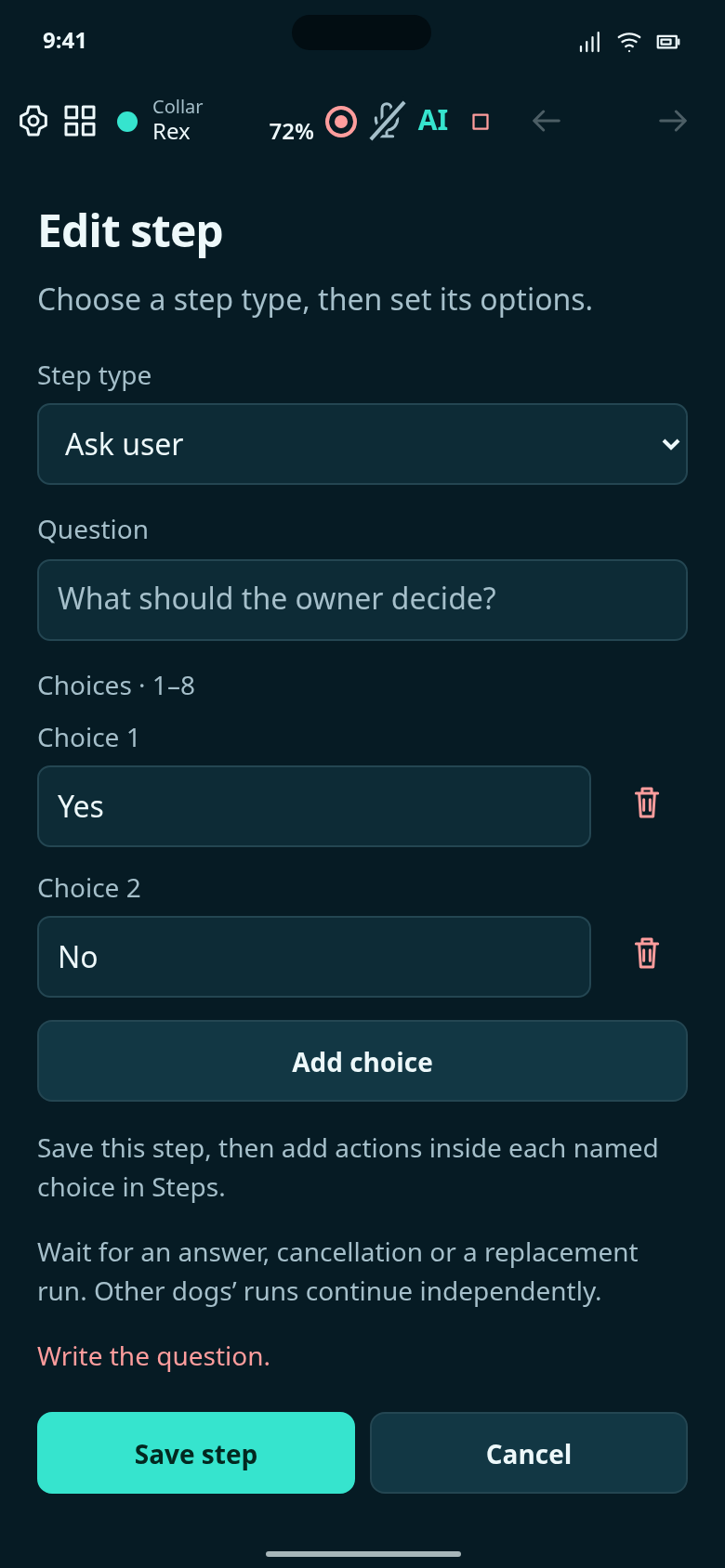
Write a question and up to eight answer labels. Each answer has its own steps.
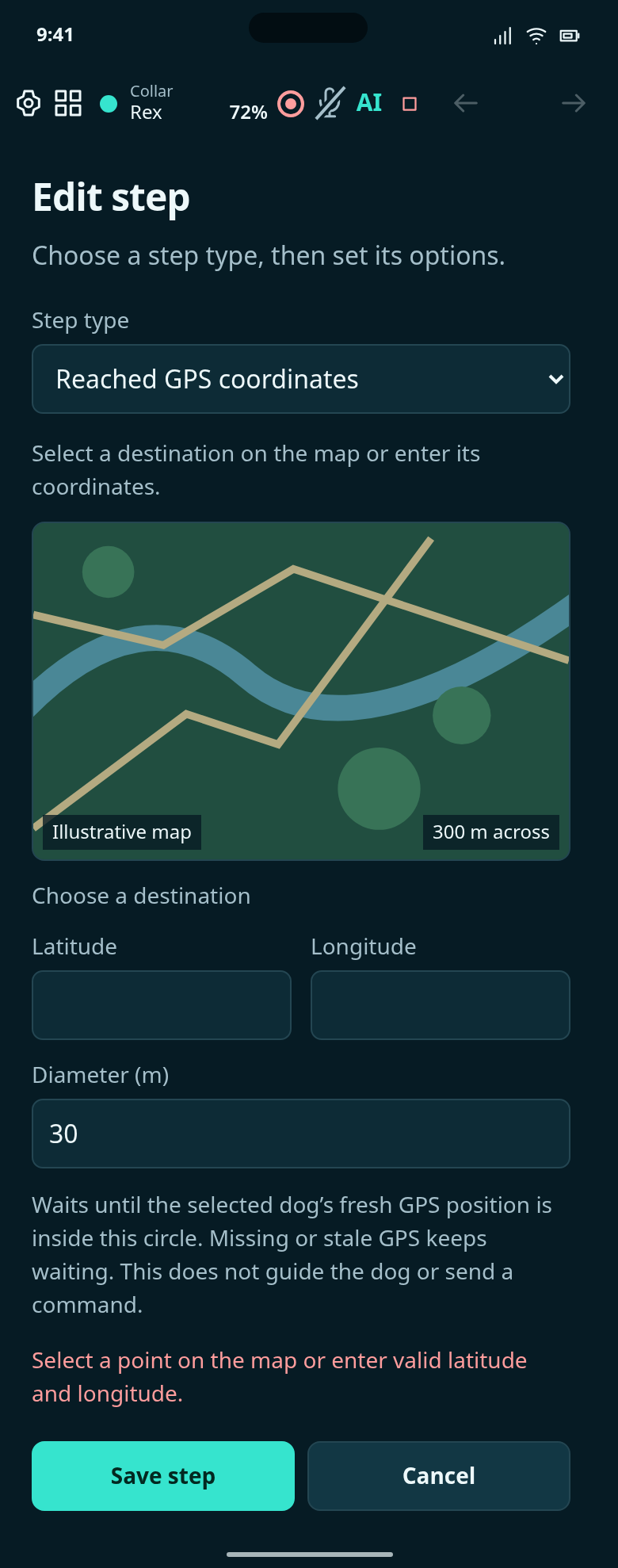
Choose a destination and its diameter in meters. This step waits for the selected dog to reach the circle.
Choose a map point and a 30-metre target diameter.
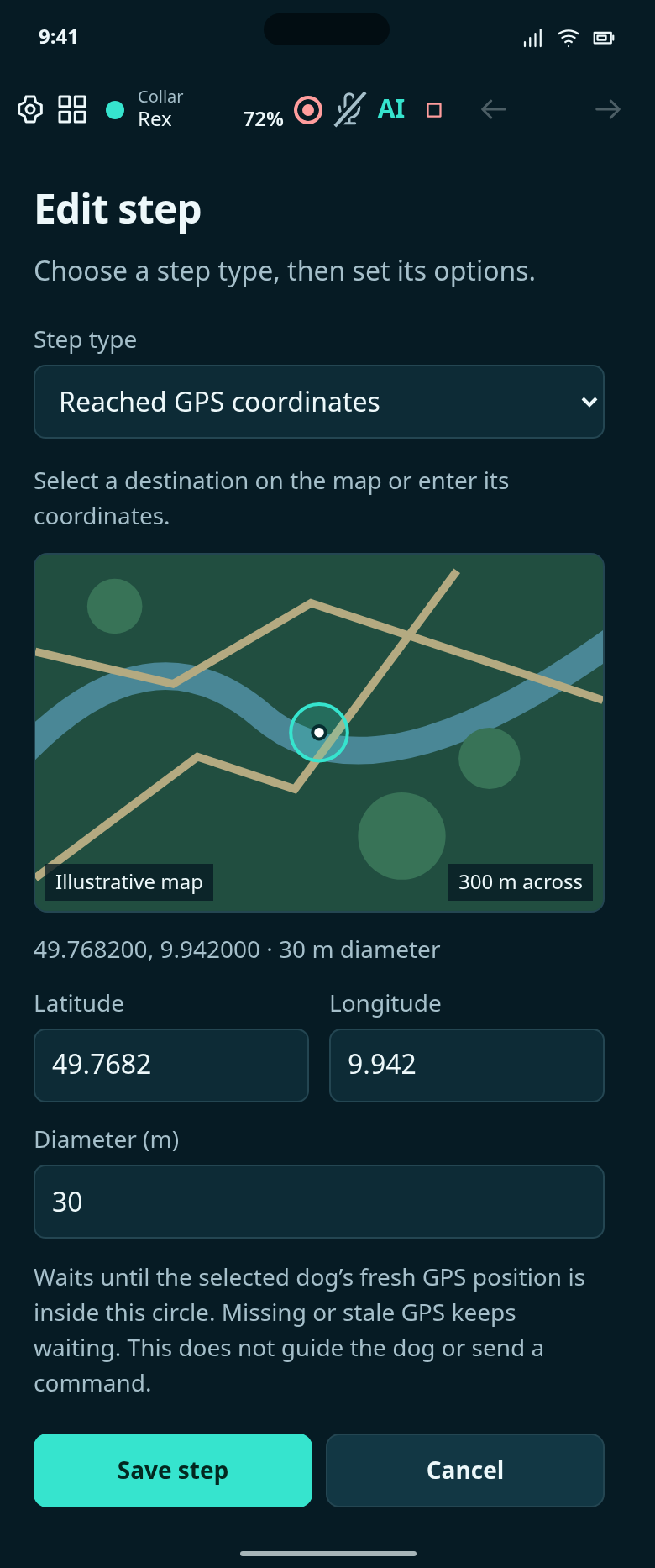
The selected Park-map point has a 30-meter diameter. Save step keeps this target; Cancel discards the draft.
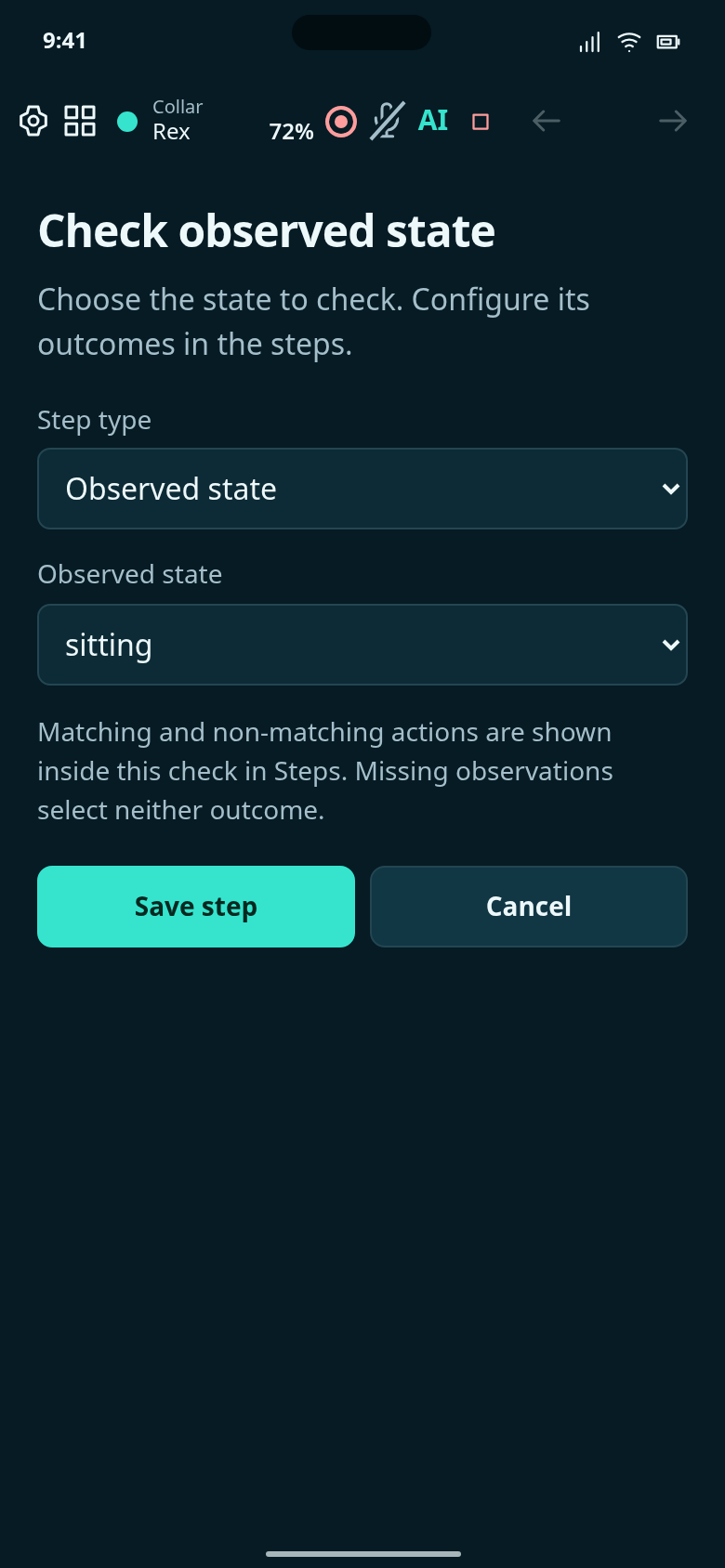
A check owns visible match and no-match sections, not links to numbered steps.
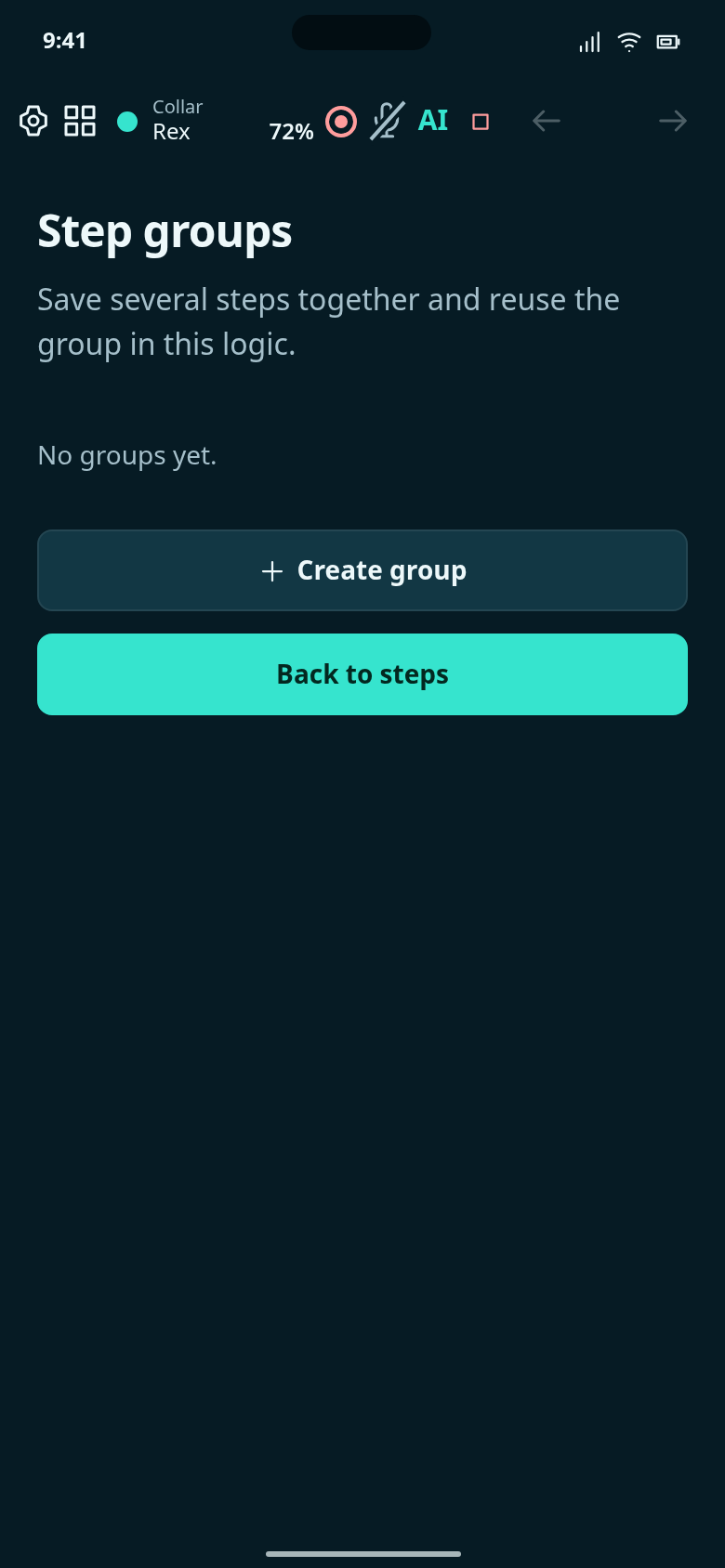
Optional reusable groups contain ordinary step cards; they are not required for retries.
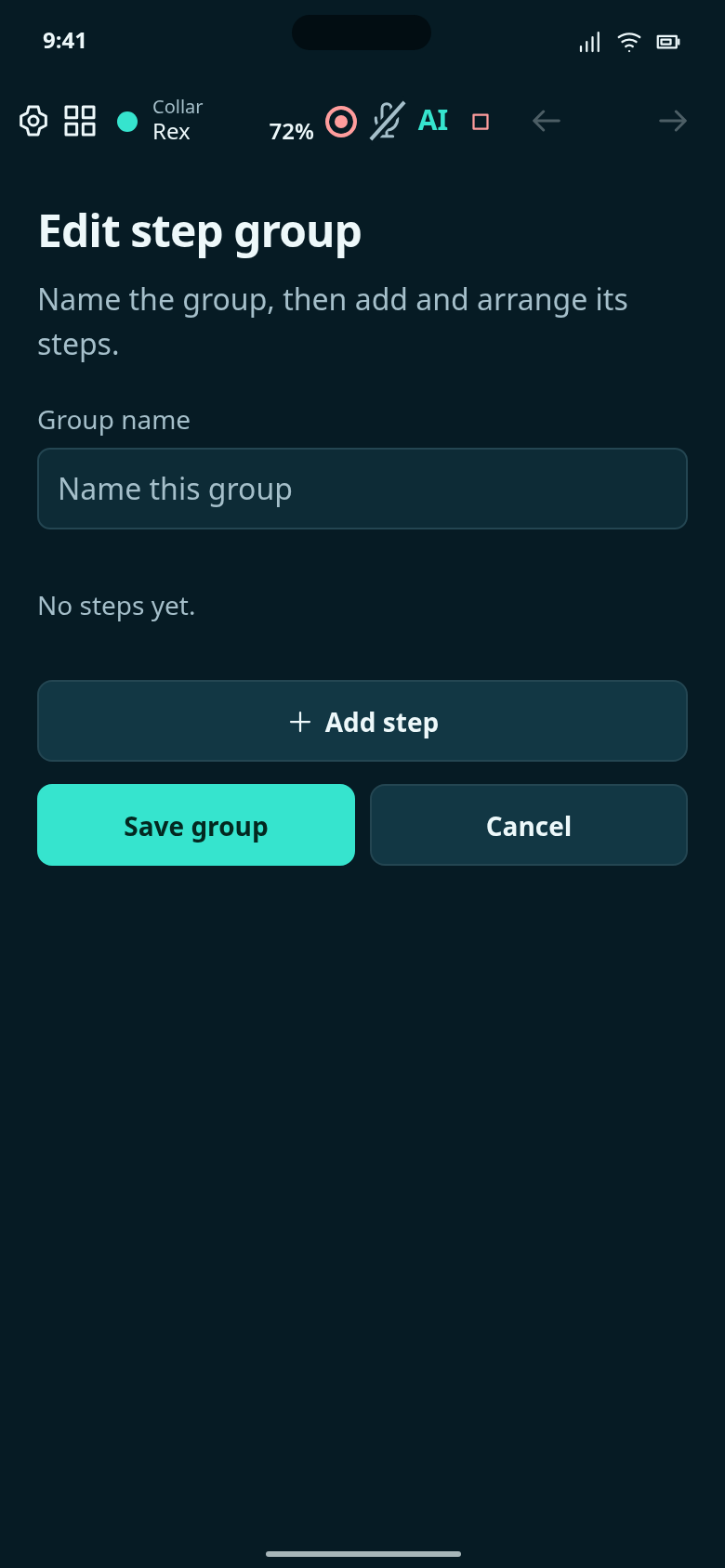
Name an optional group and arrange its step cards.
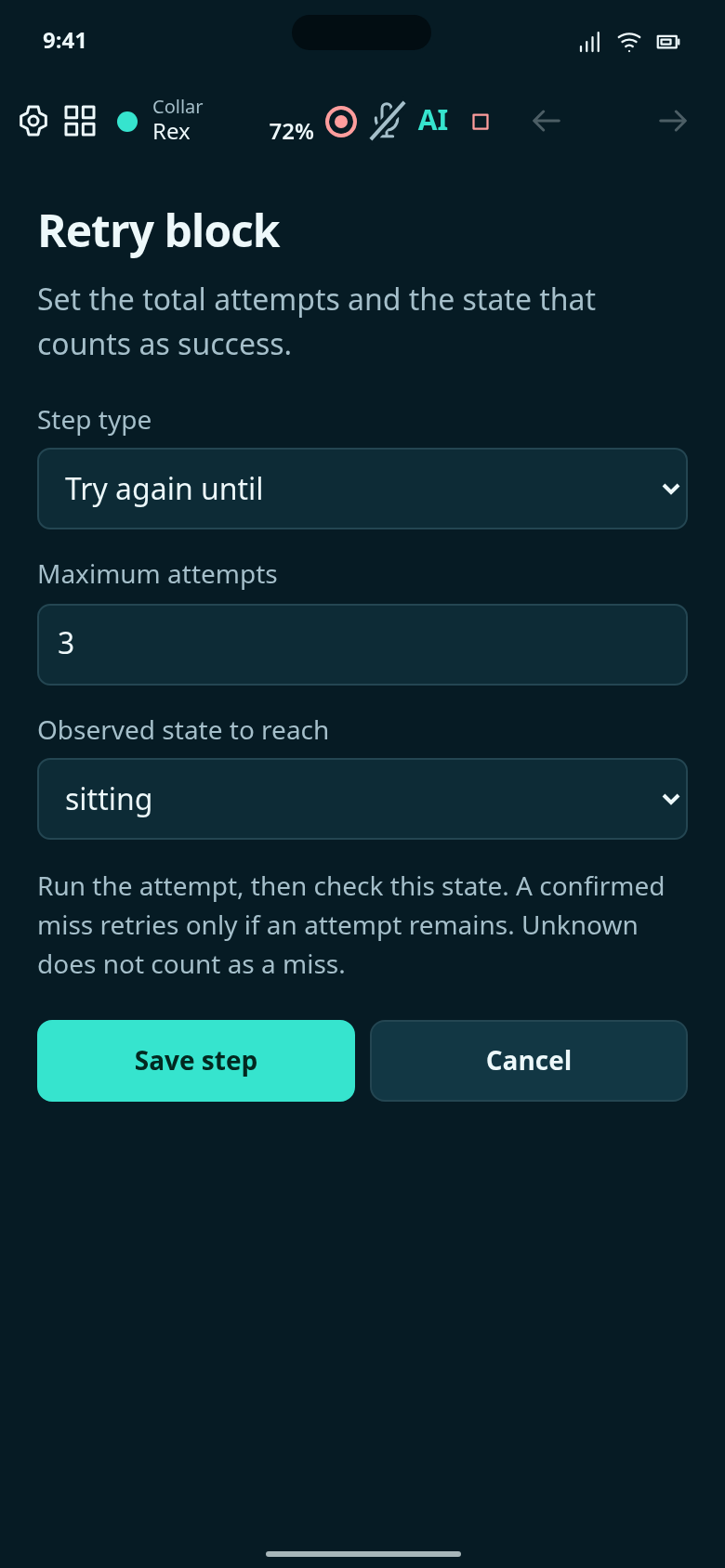
A bounded retry block keeps its actions and outcomes together in the steps.
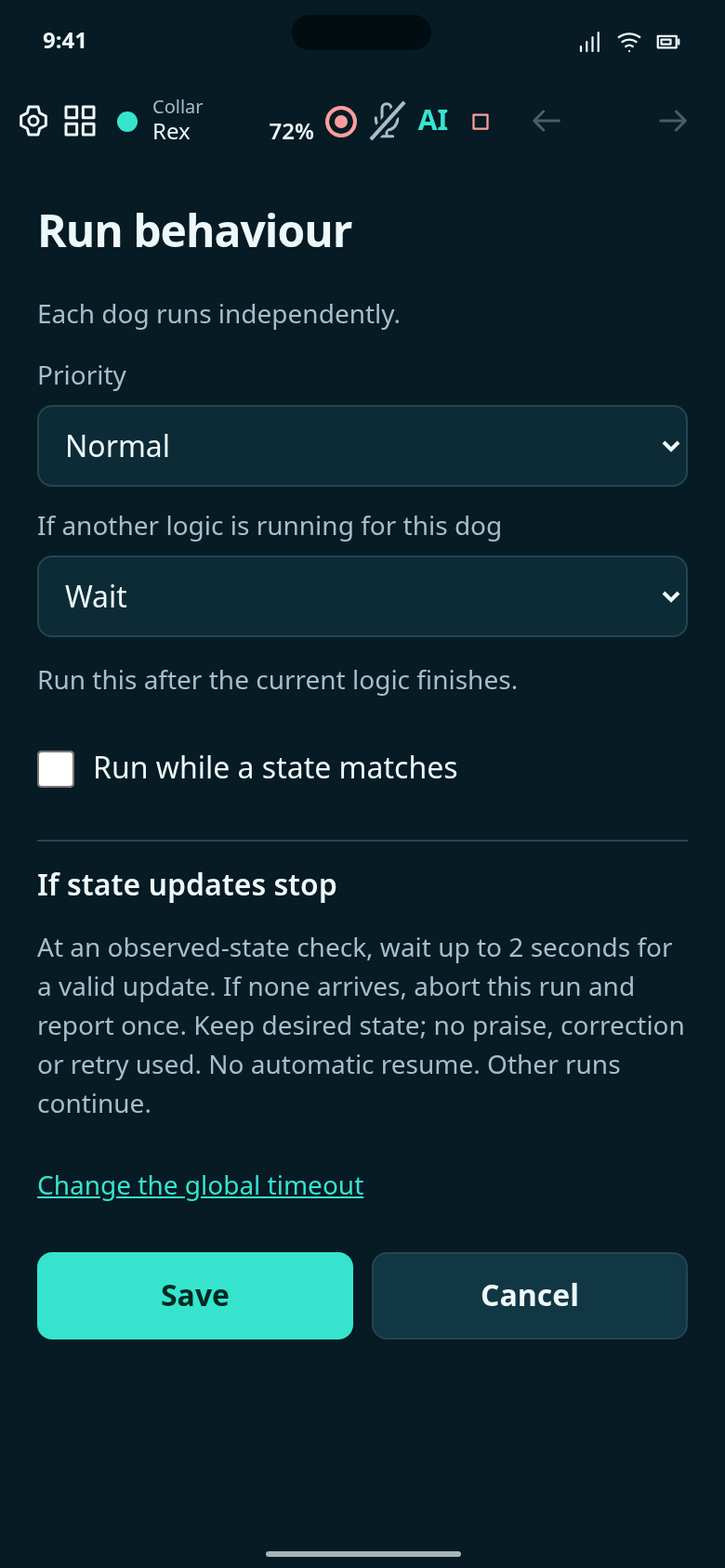
Choose what happens when another logic is already running for the same dog.
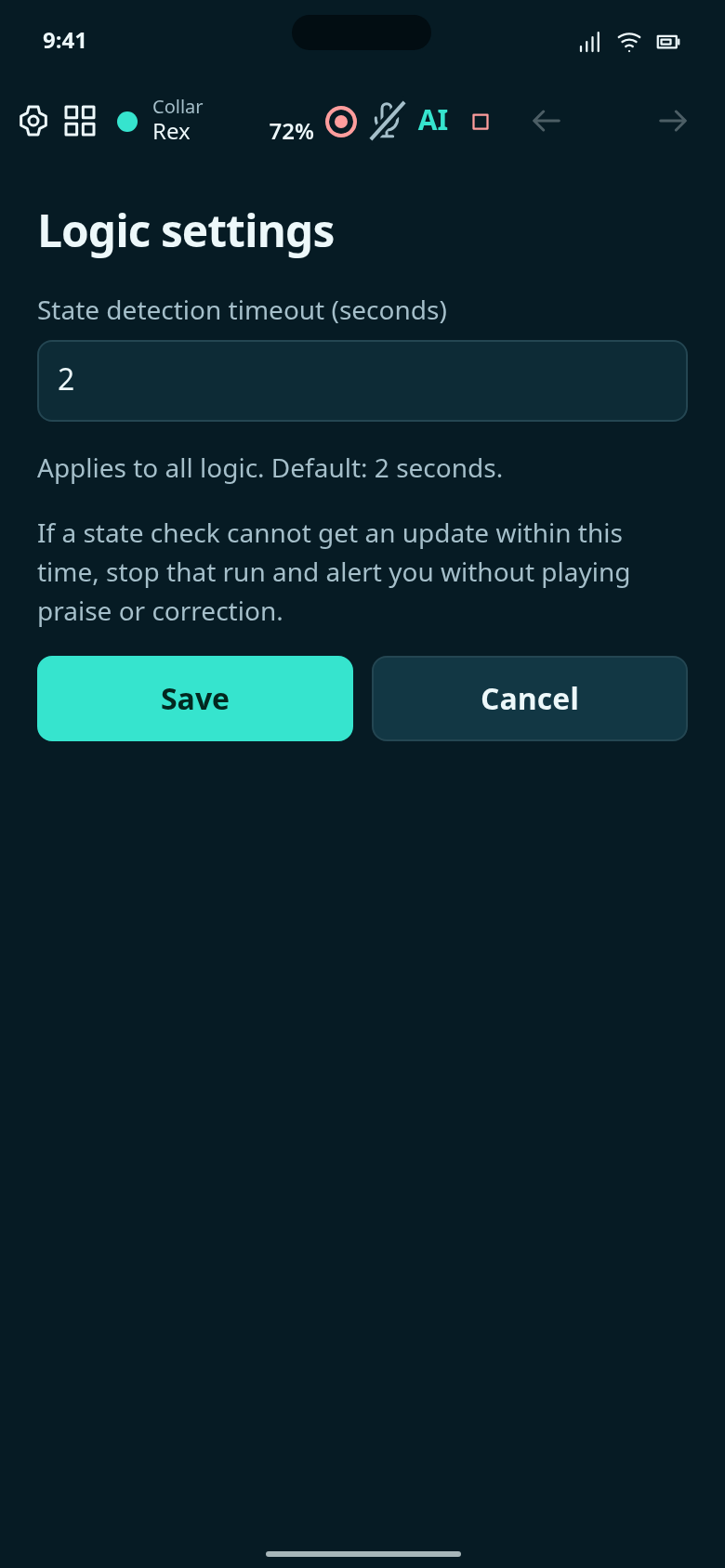
Choose how long a state-dependent step may wait for an available observation.
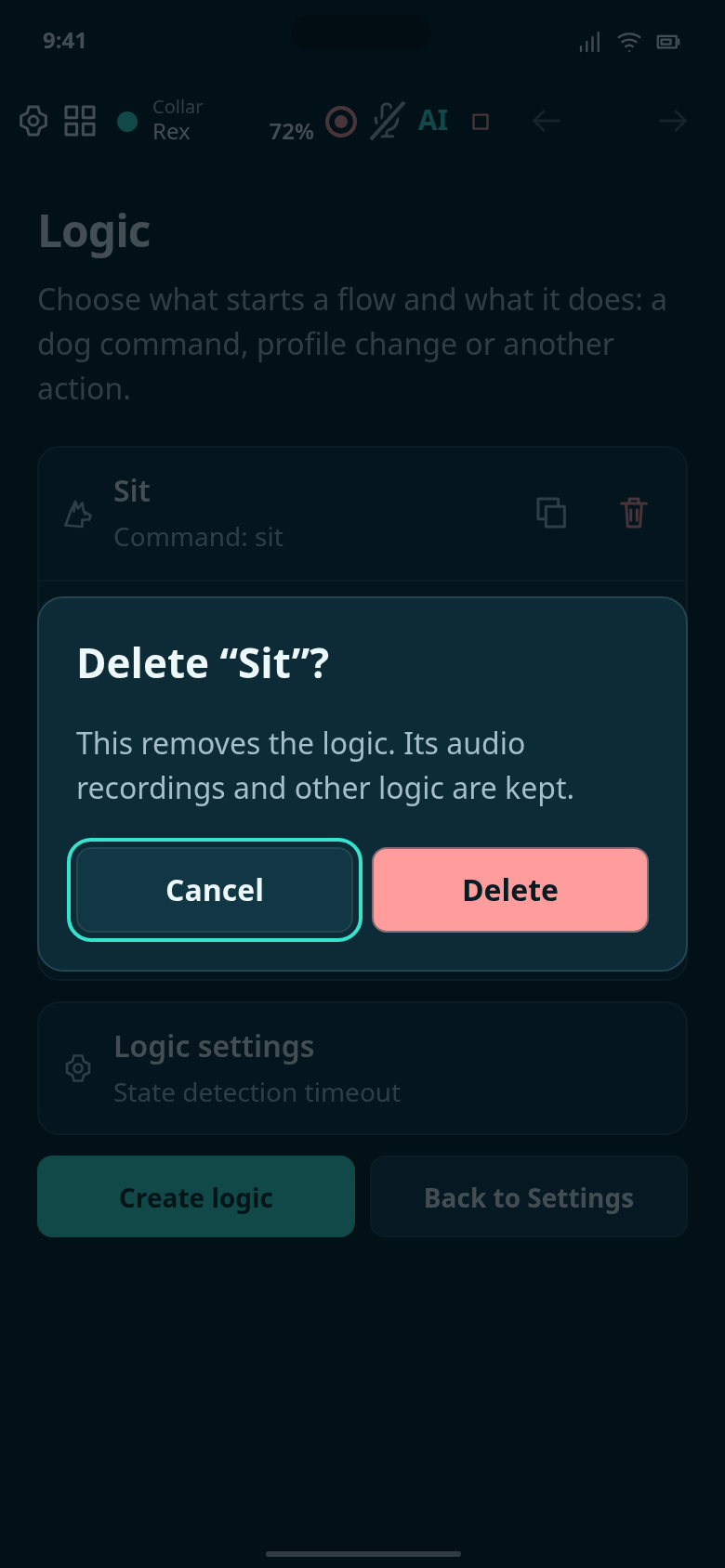
Confirm the named logic, or cancel and keep it.
Build each example from an empty logic to its completed configuration, simplest first.
Create Park training profile, configure its triggers and steps, then review the finished logic.
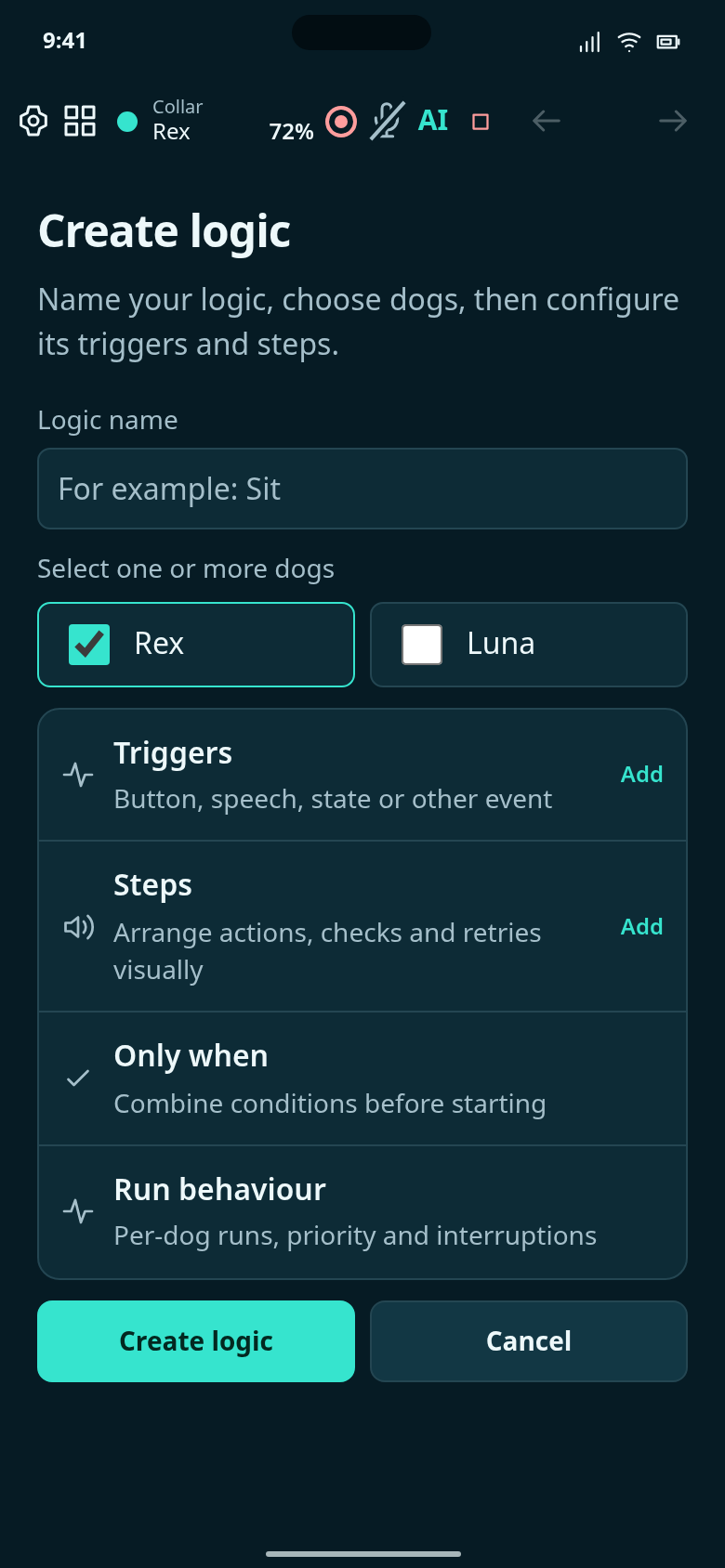
Start the Park training profile example with no triggers or steps.
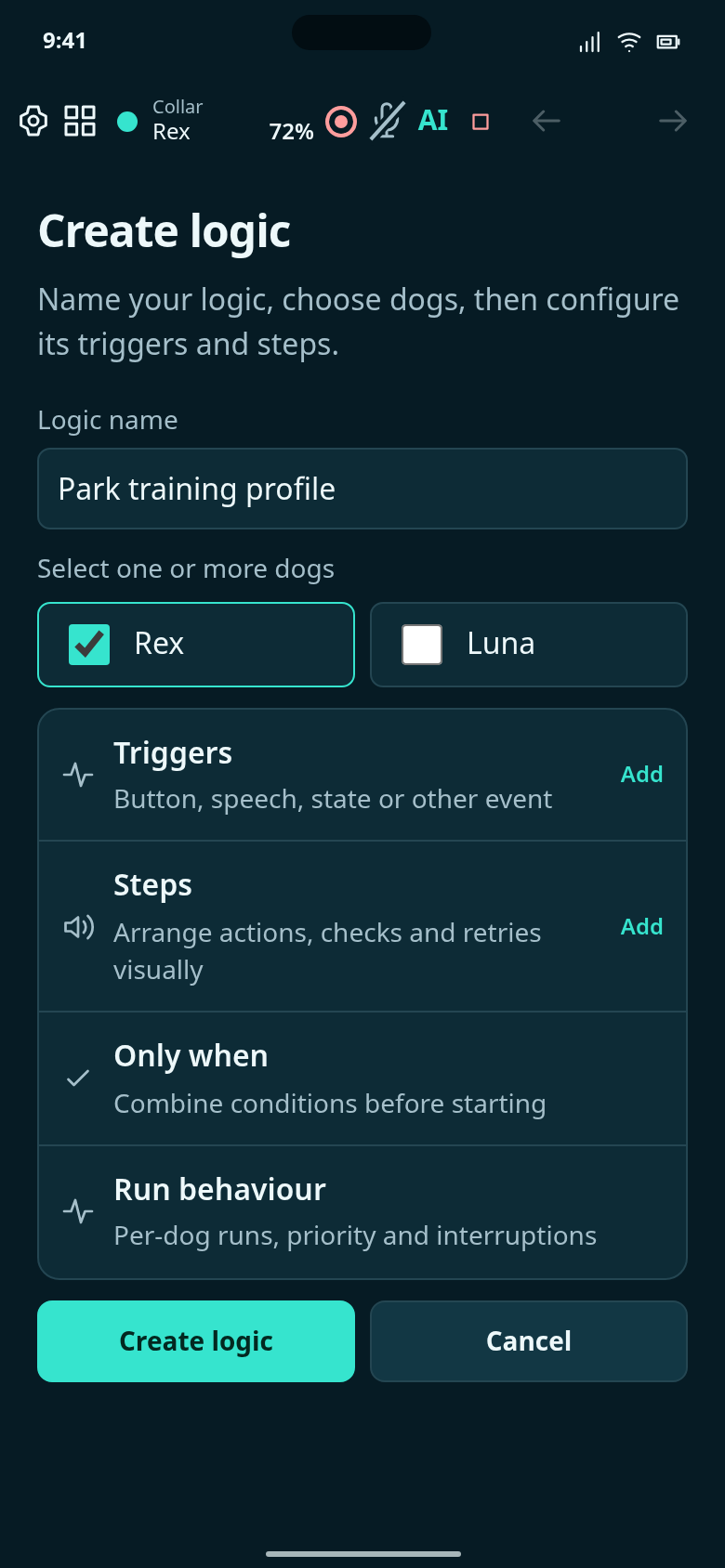
Name this logic Park training profile and choose Rex.
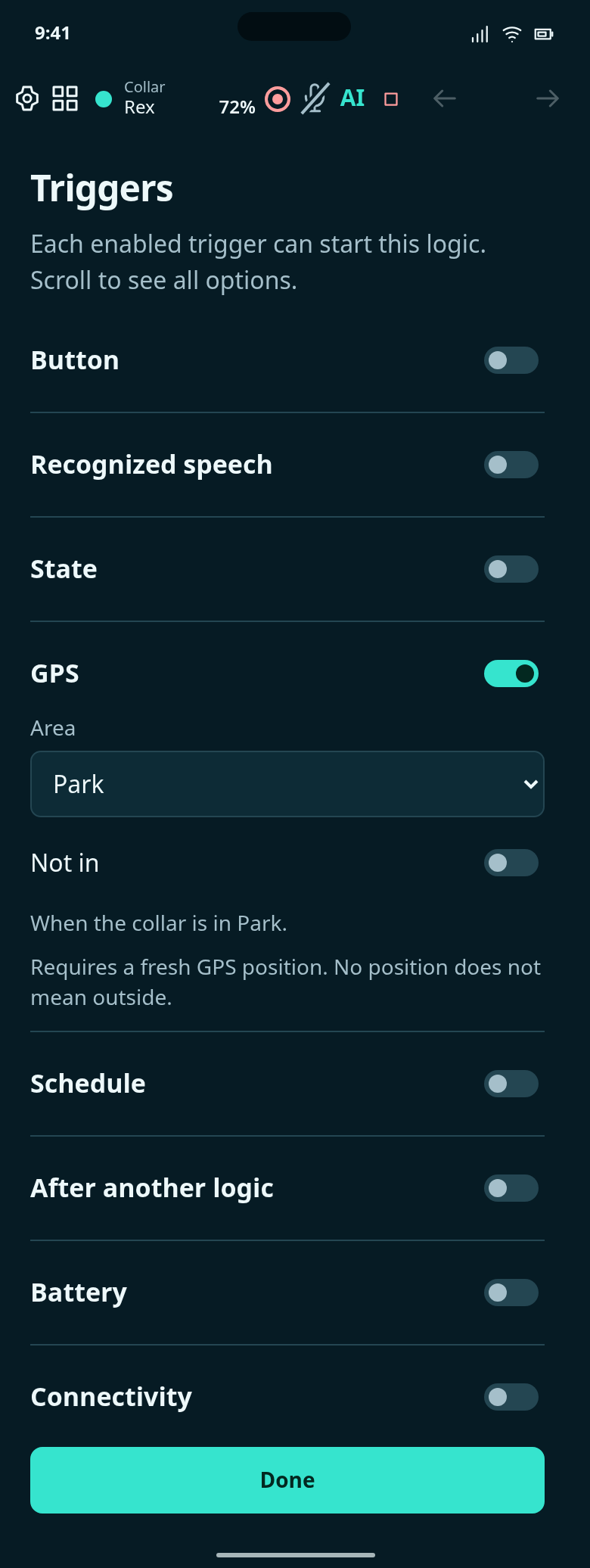
This logic’s enabled triggers, not the generic all-expanded form.
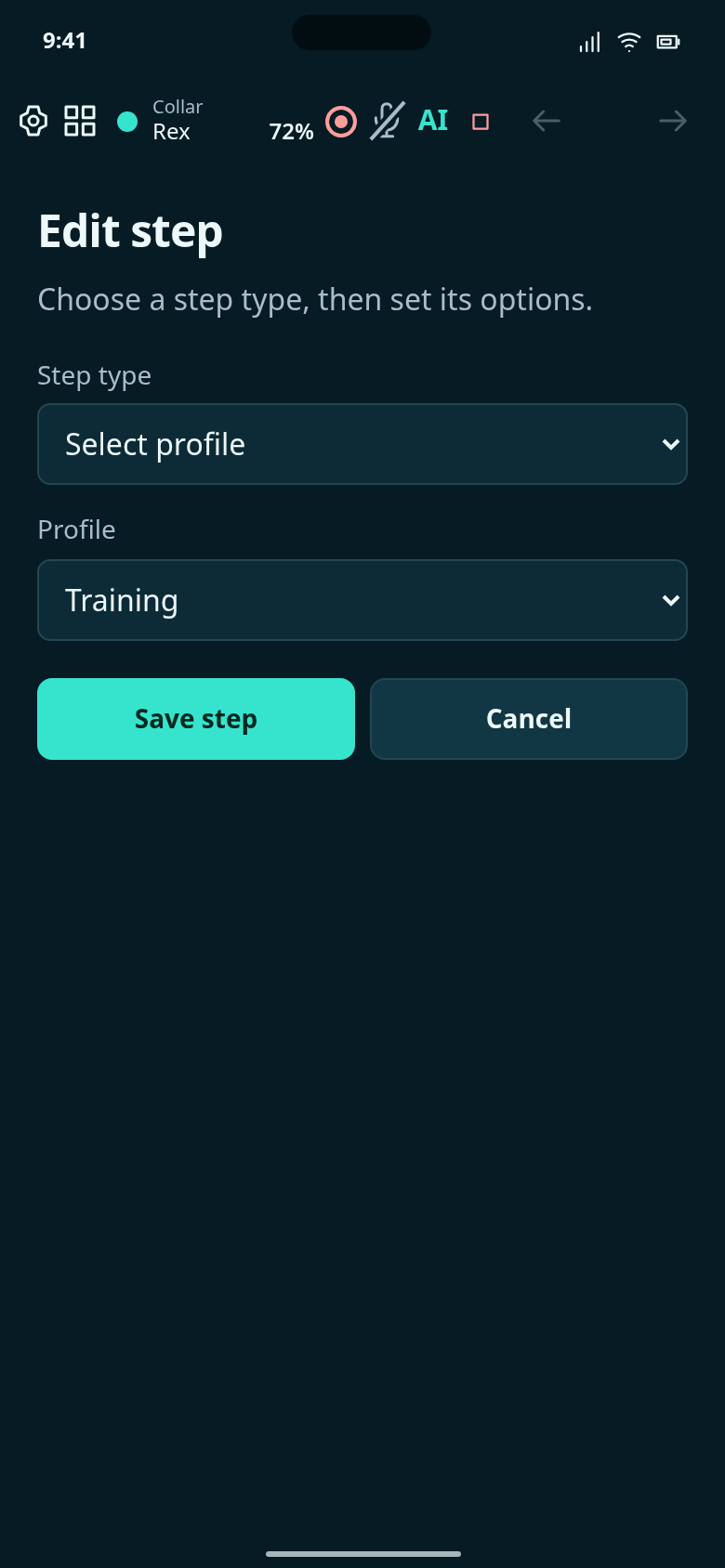
Edit This logic’s Select profile step.
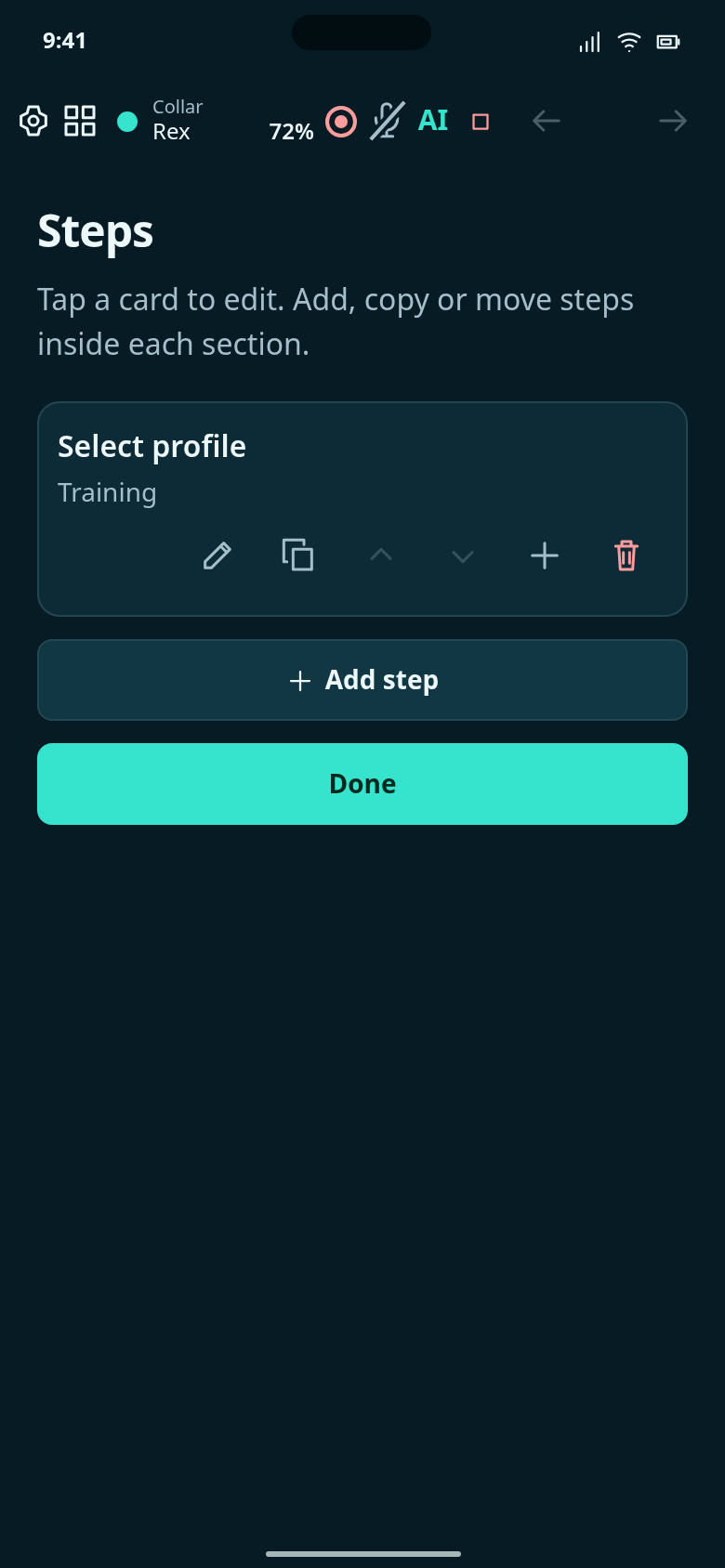
The only saved step selects the Training profile.
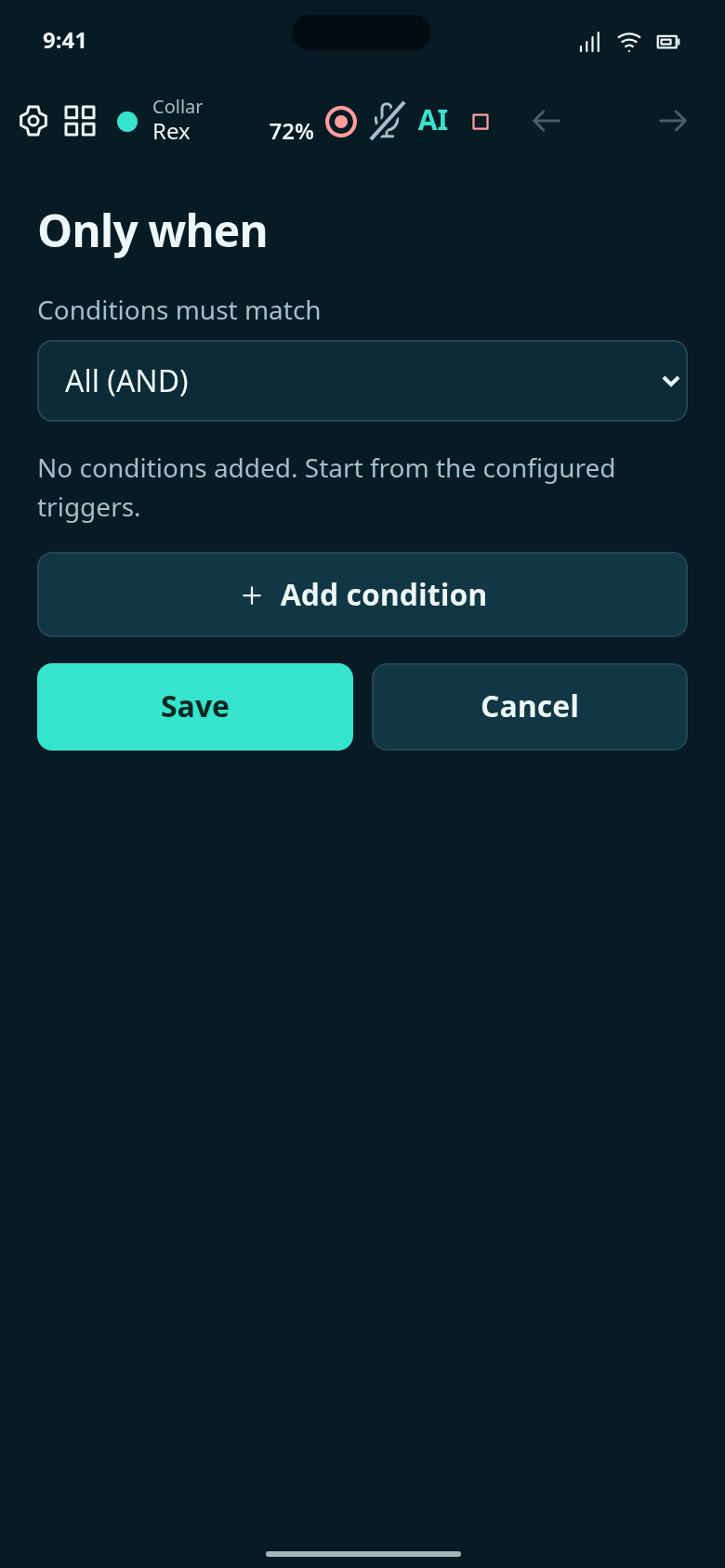
No extra condition is required for this example.
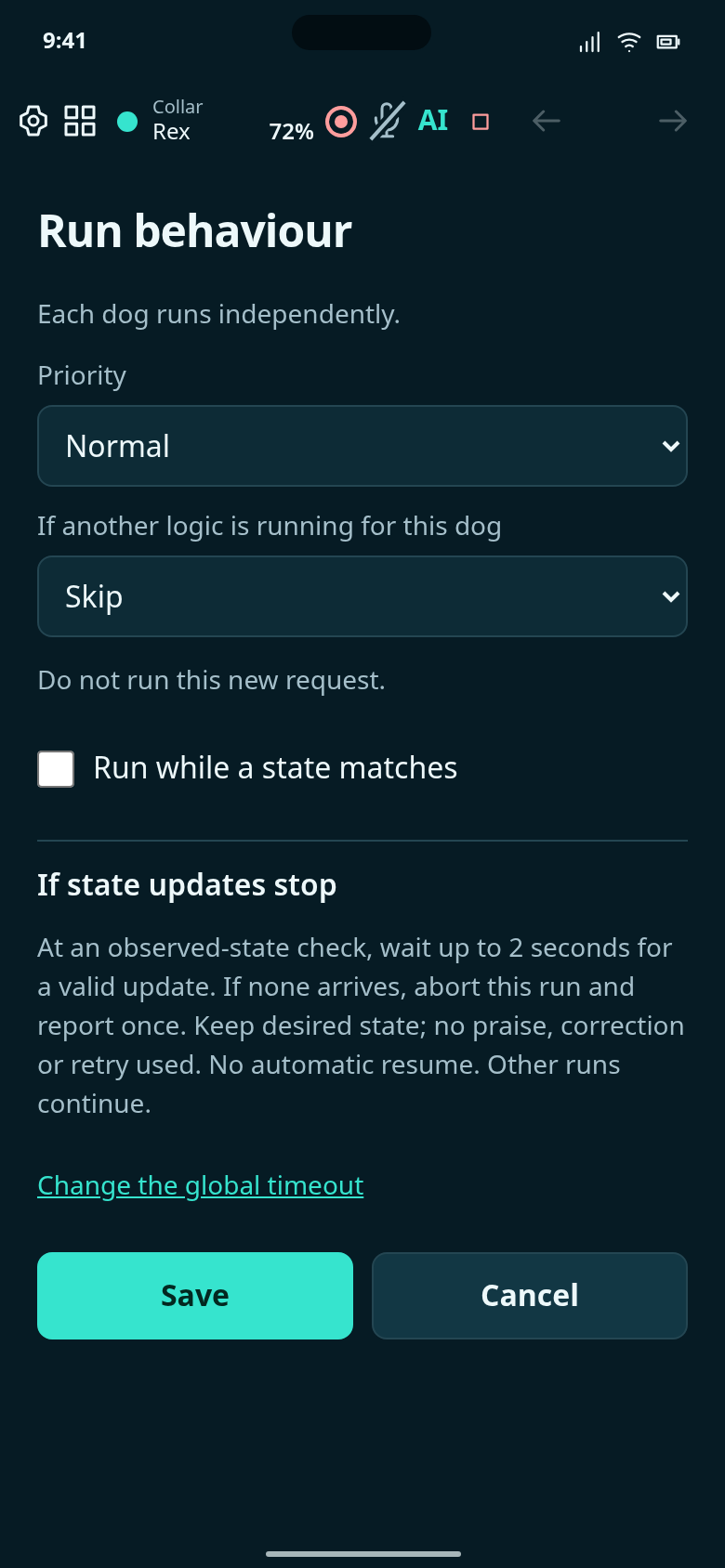
Choose what happens if another logic is running for Rex.
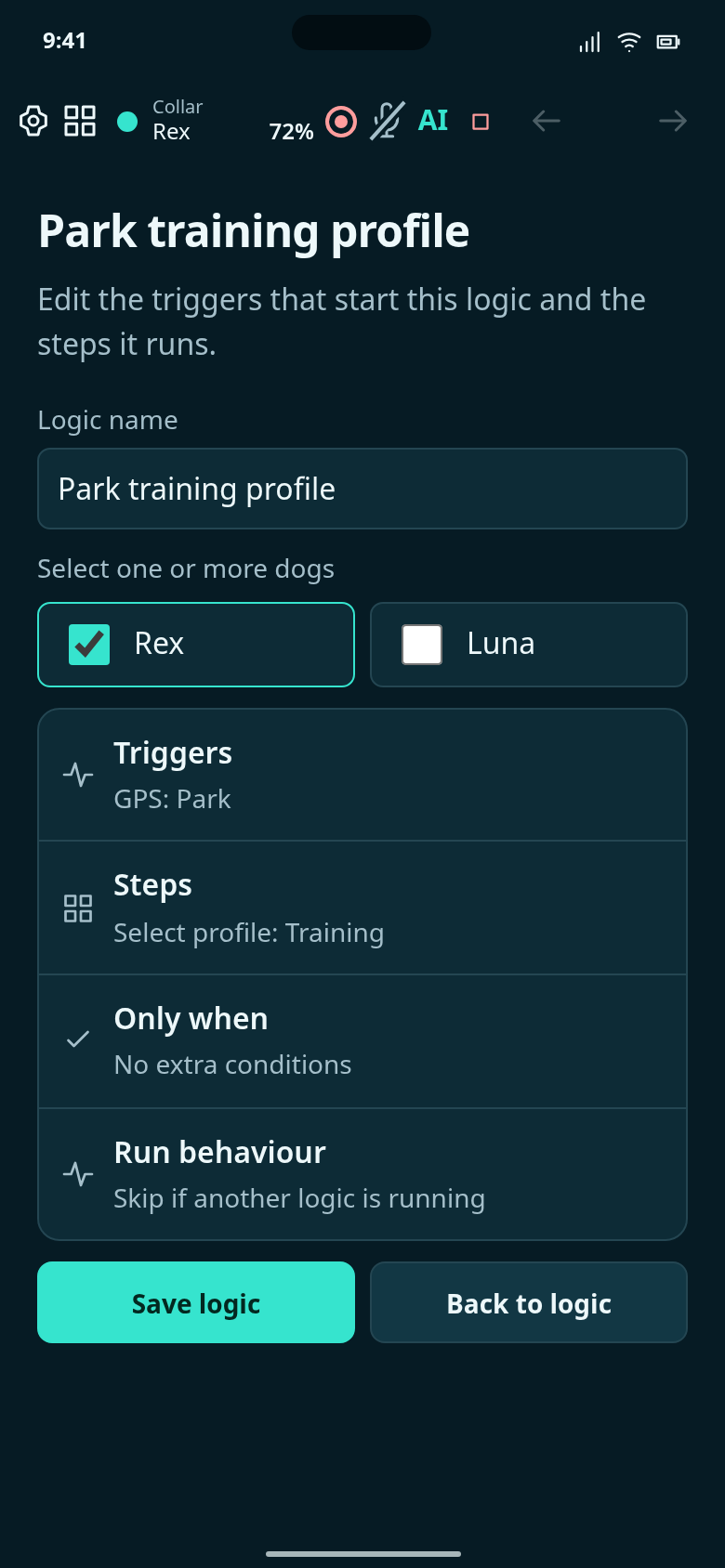
Finished example: Ordinary reusable logic example: collar location: park → select profile: training.
Configure a state trigger and an ordinary audio step; add your Aus recording before use.
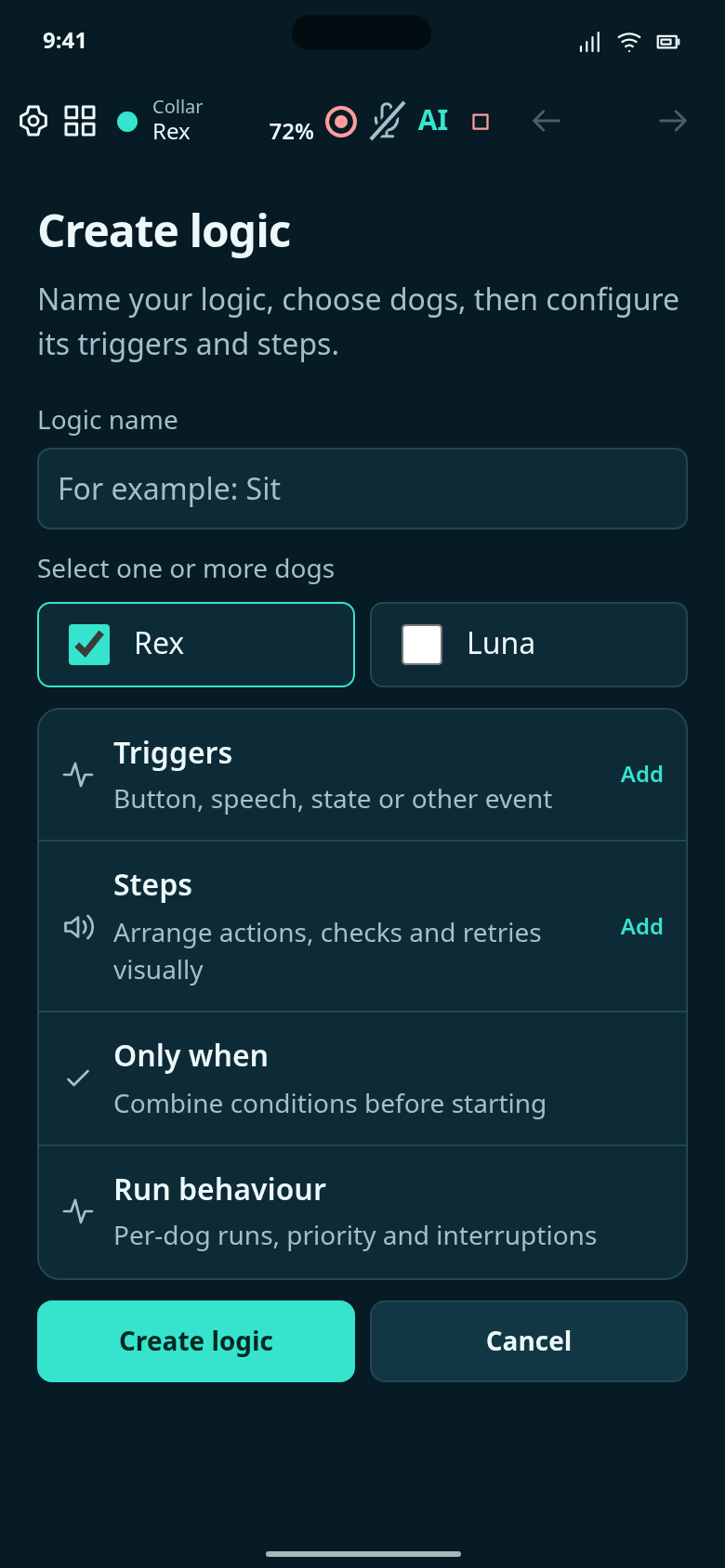
Start with a blank logic. No triggers or steps have been added.
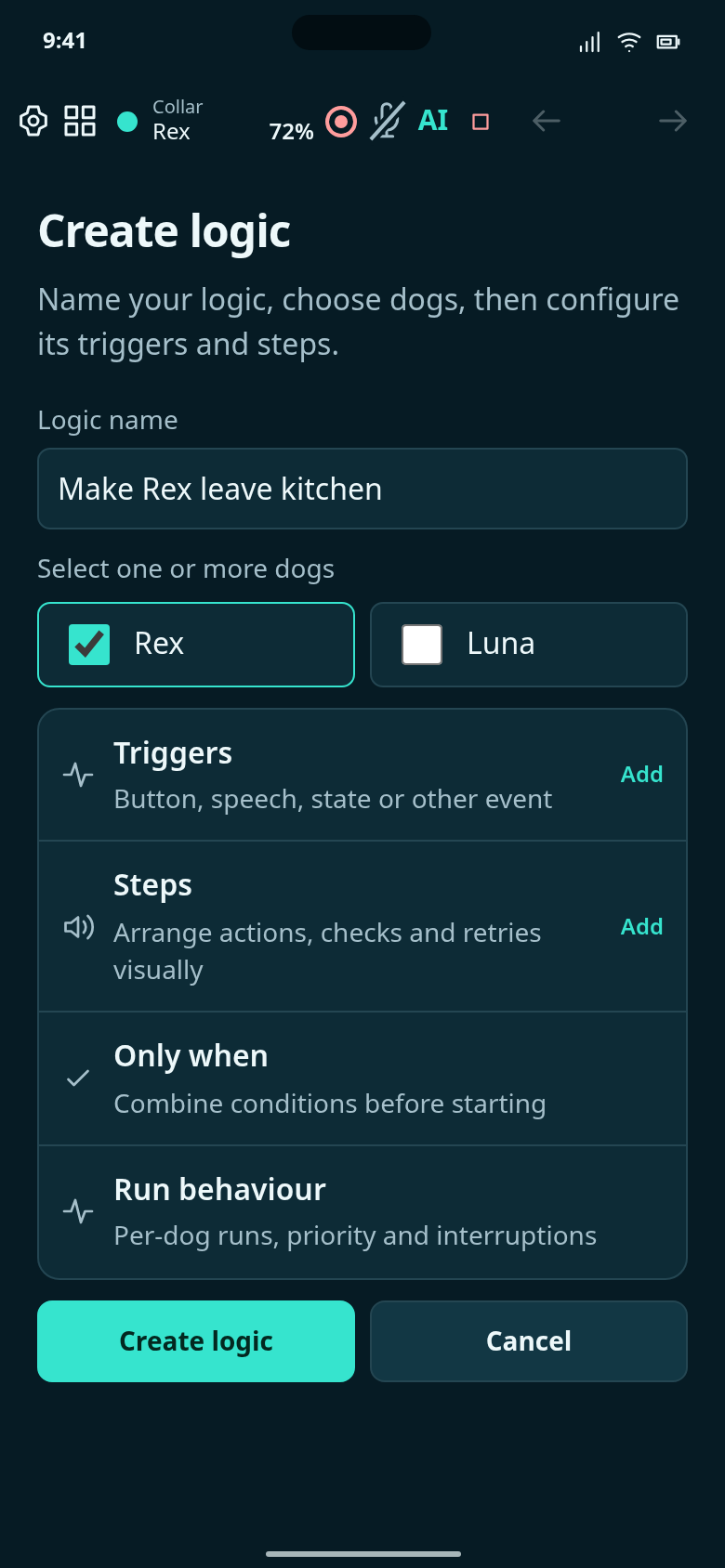
Name the logic Make Rex leave kitchen and select Rex. Next, configure what starts it.
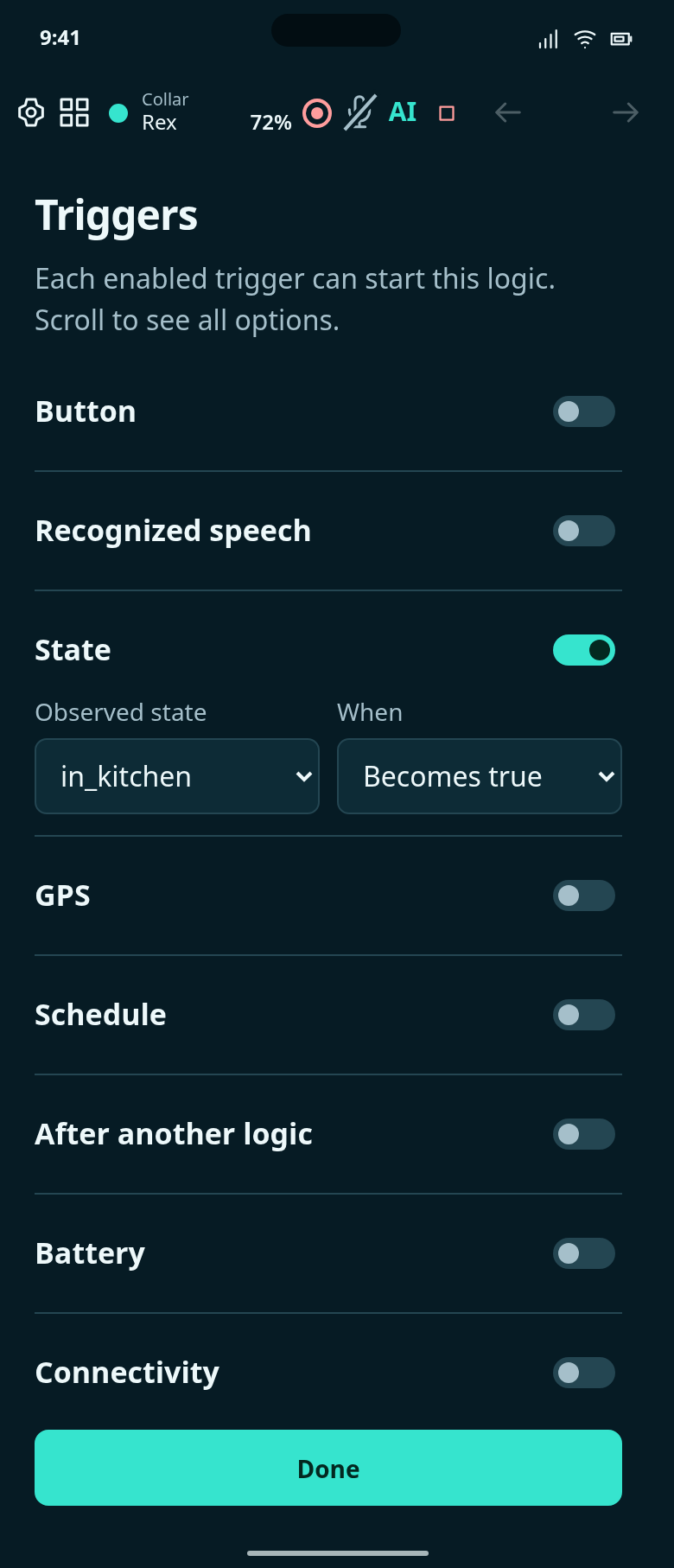
Enable only State: in_kitchen becomes true. A confirmed entry starts one run; repeated updates while inside do not start it again.
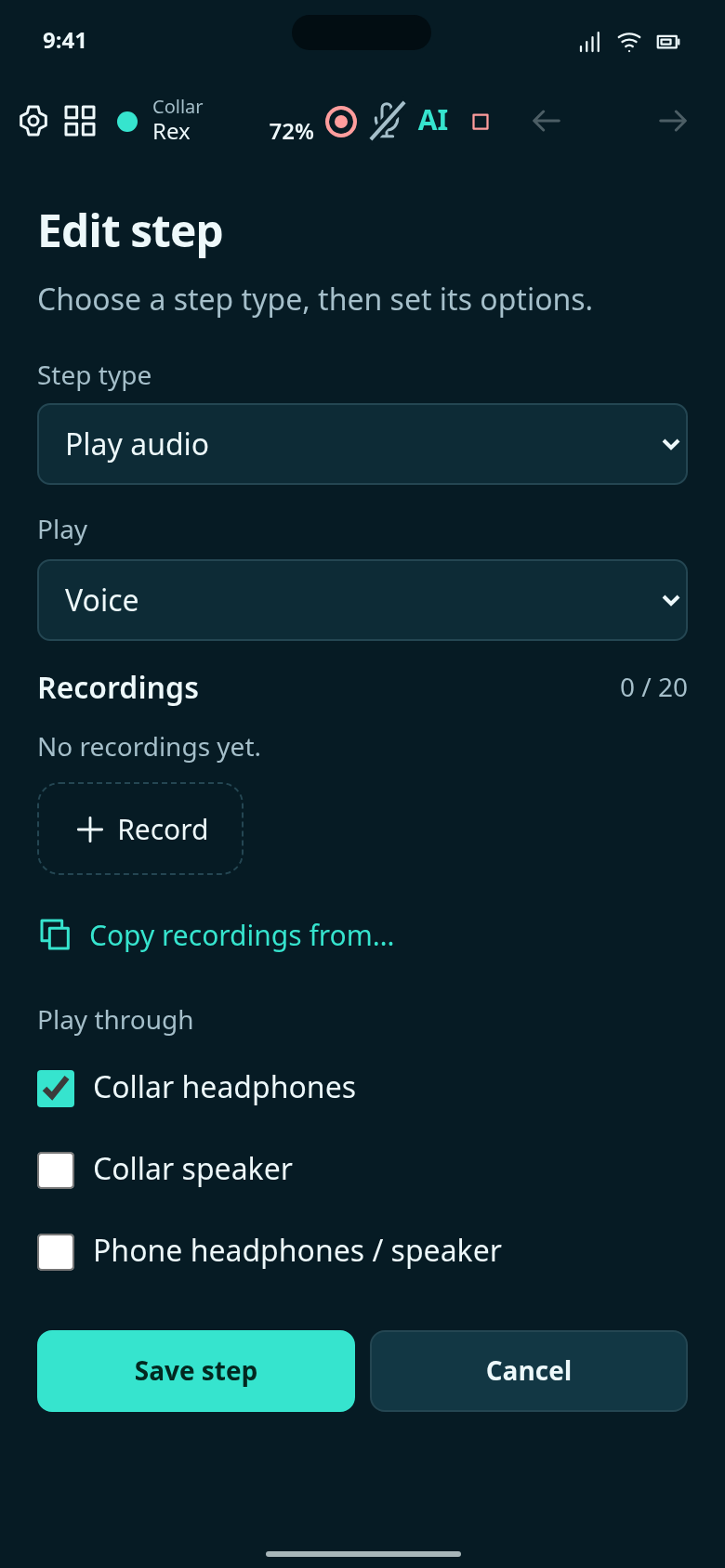
Choose Play audio and record Aus in this step. No recording has been supplied in this draft.
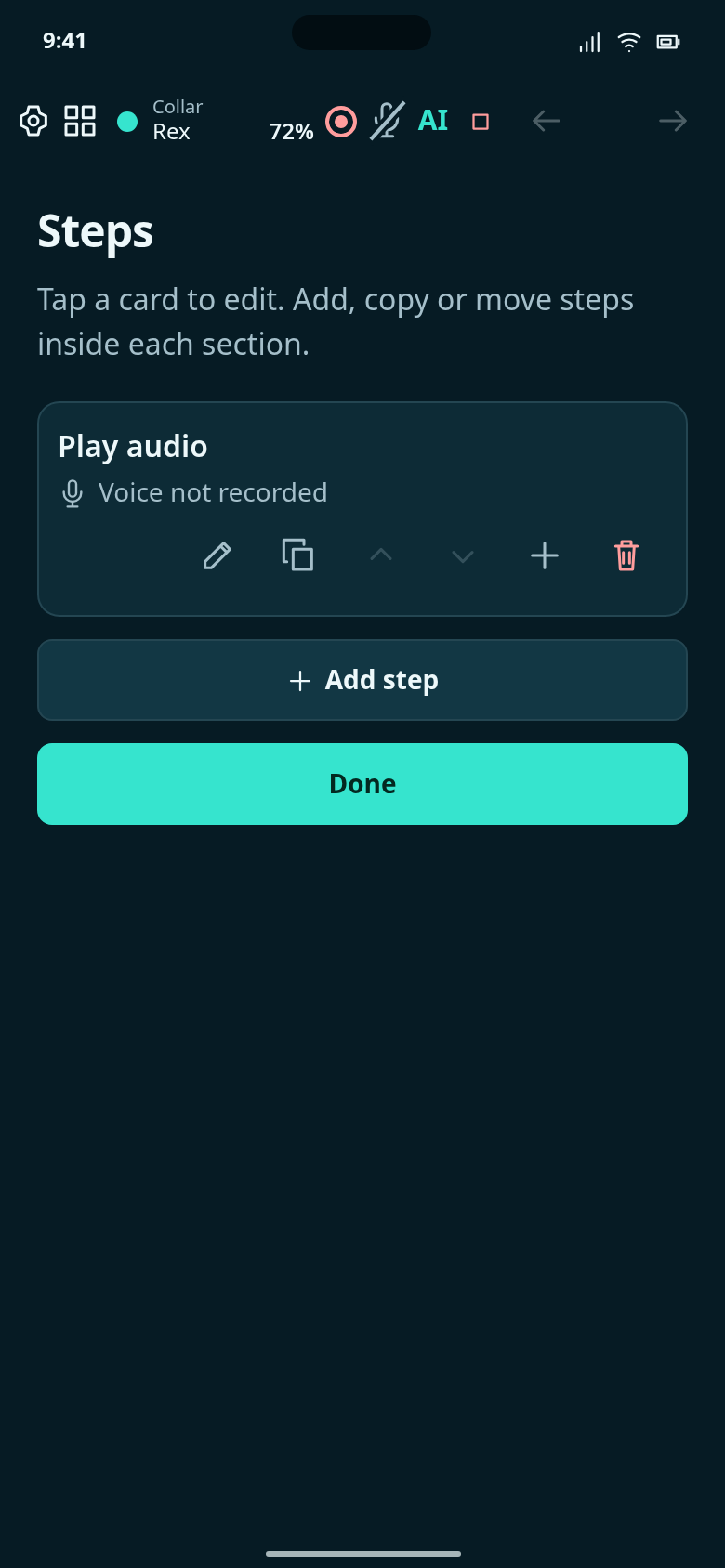
One ordinary Play audio step, with its Aus recording still to add.
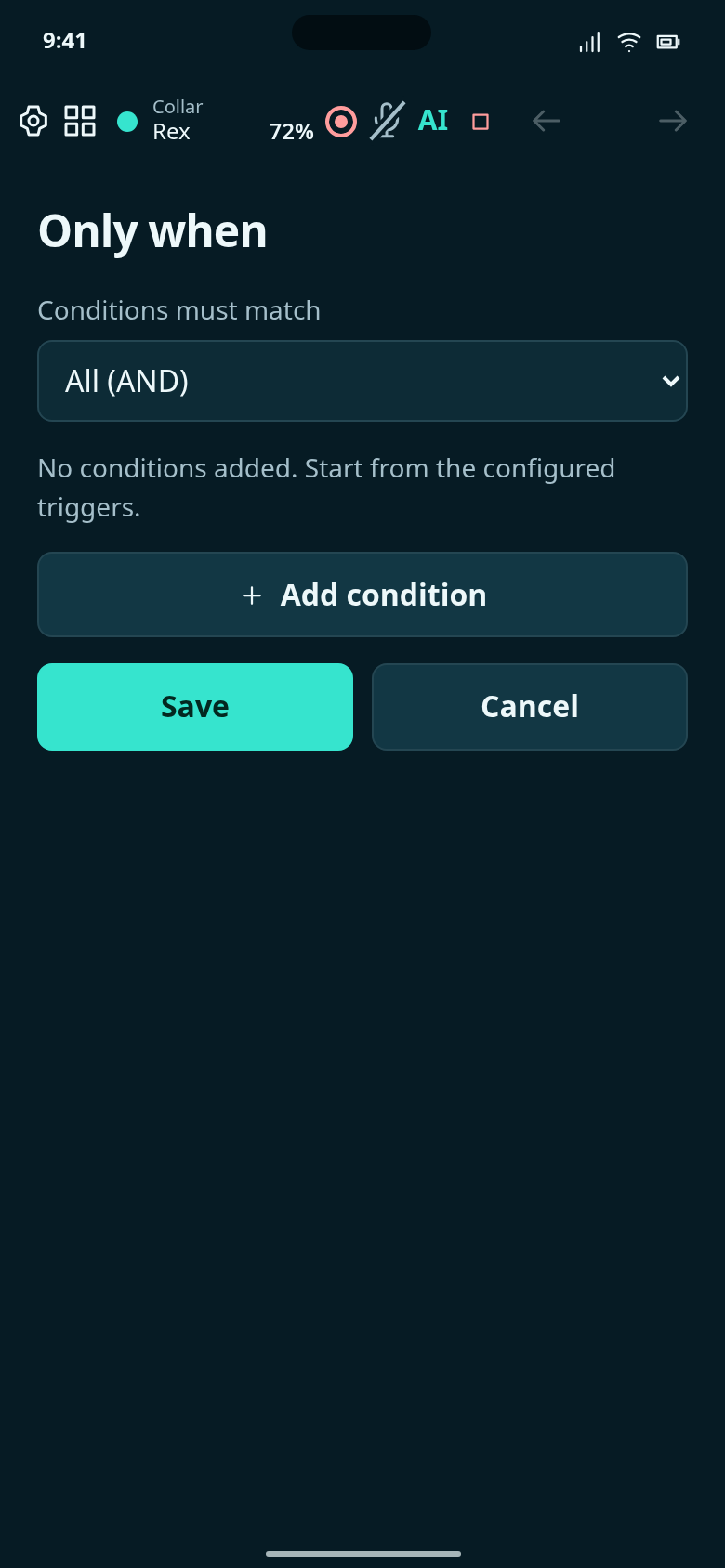
Leave Only when empty. The State trigger already waits for a confirmed kitchen entry; no extra location or time condition is needed.
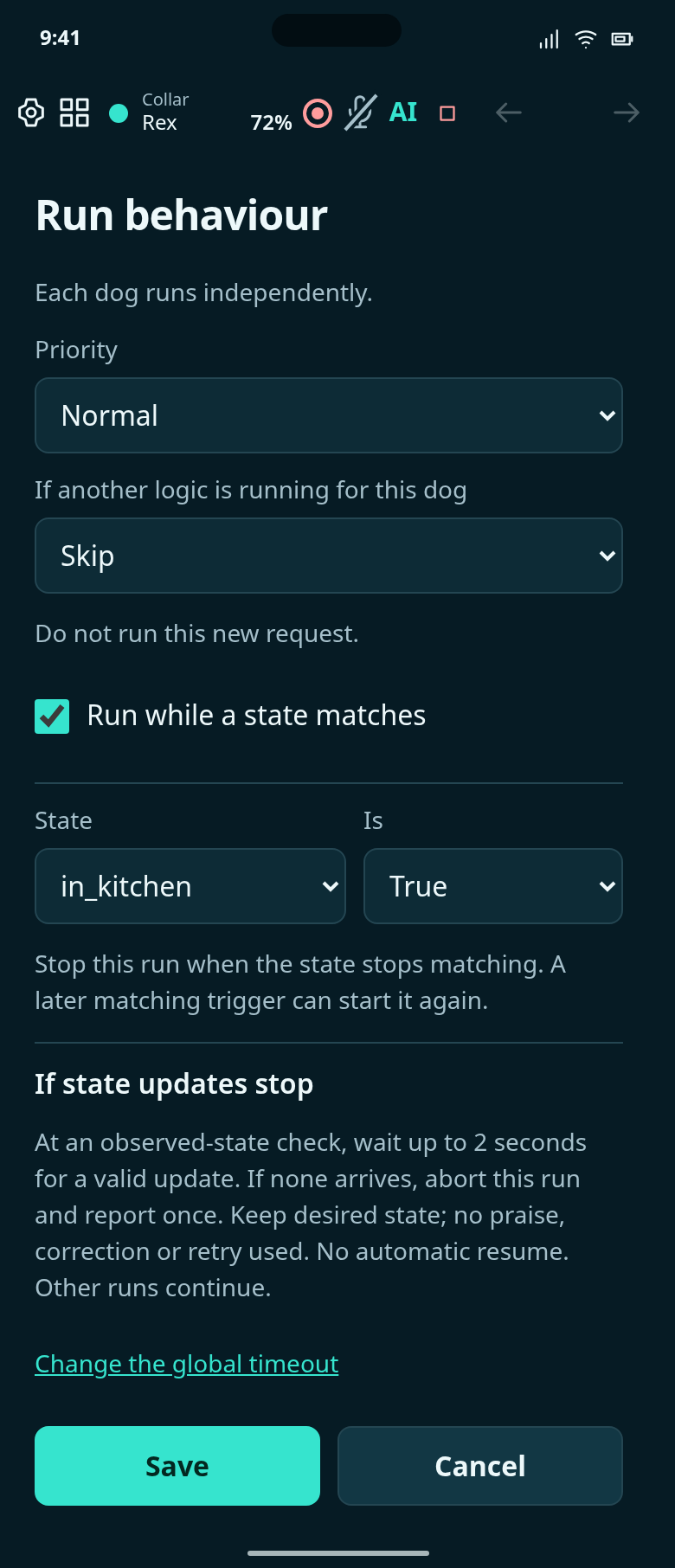
Normal priority, Skip if another logic is running, and Run while in_kitchen is true. This is the ordinary Run behaviour editor.
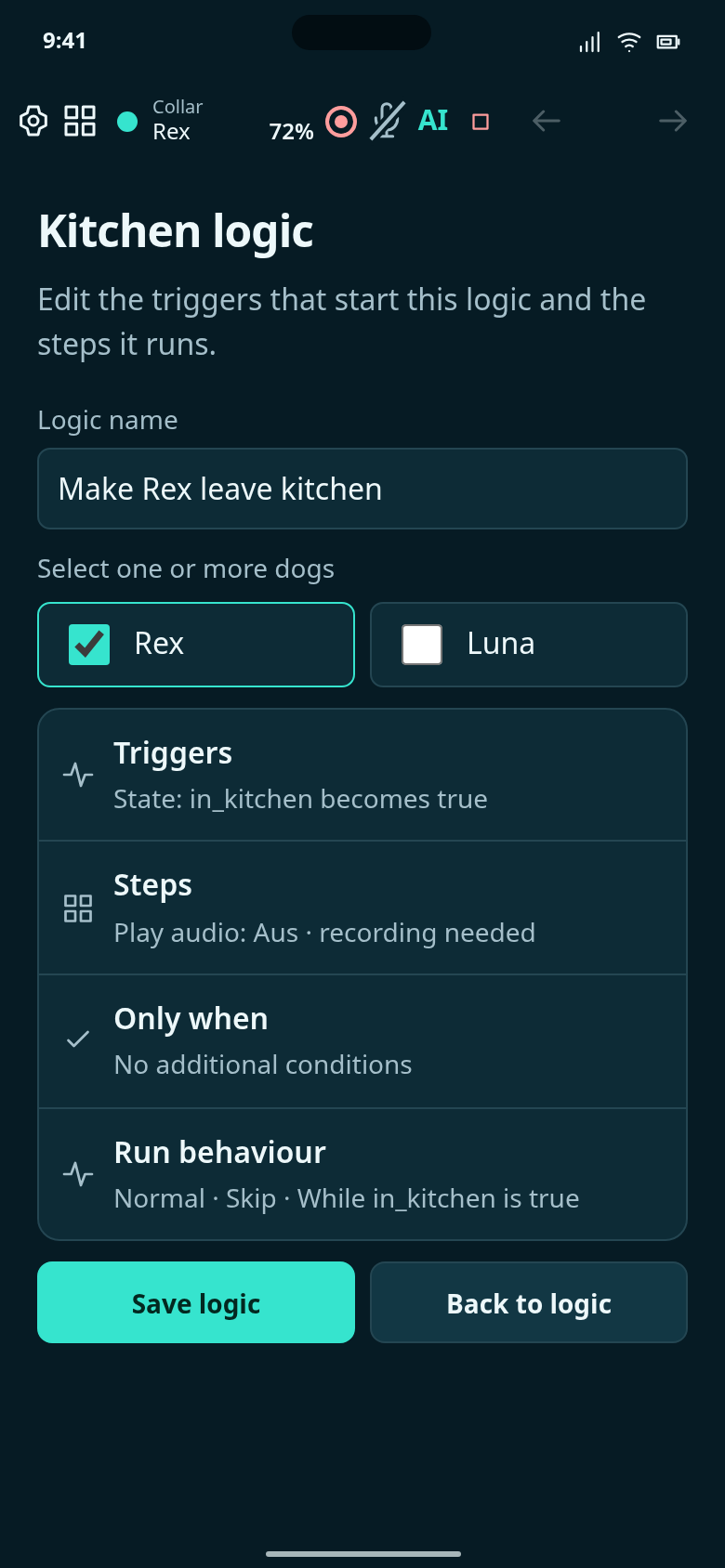
Configuration draft: in_kitchen becomes true → play your Aus recording. Record the audio before using this logic.
Configure a GPS trigger and an ordinary audio step; add your Here recording before use.
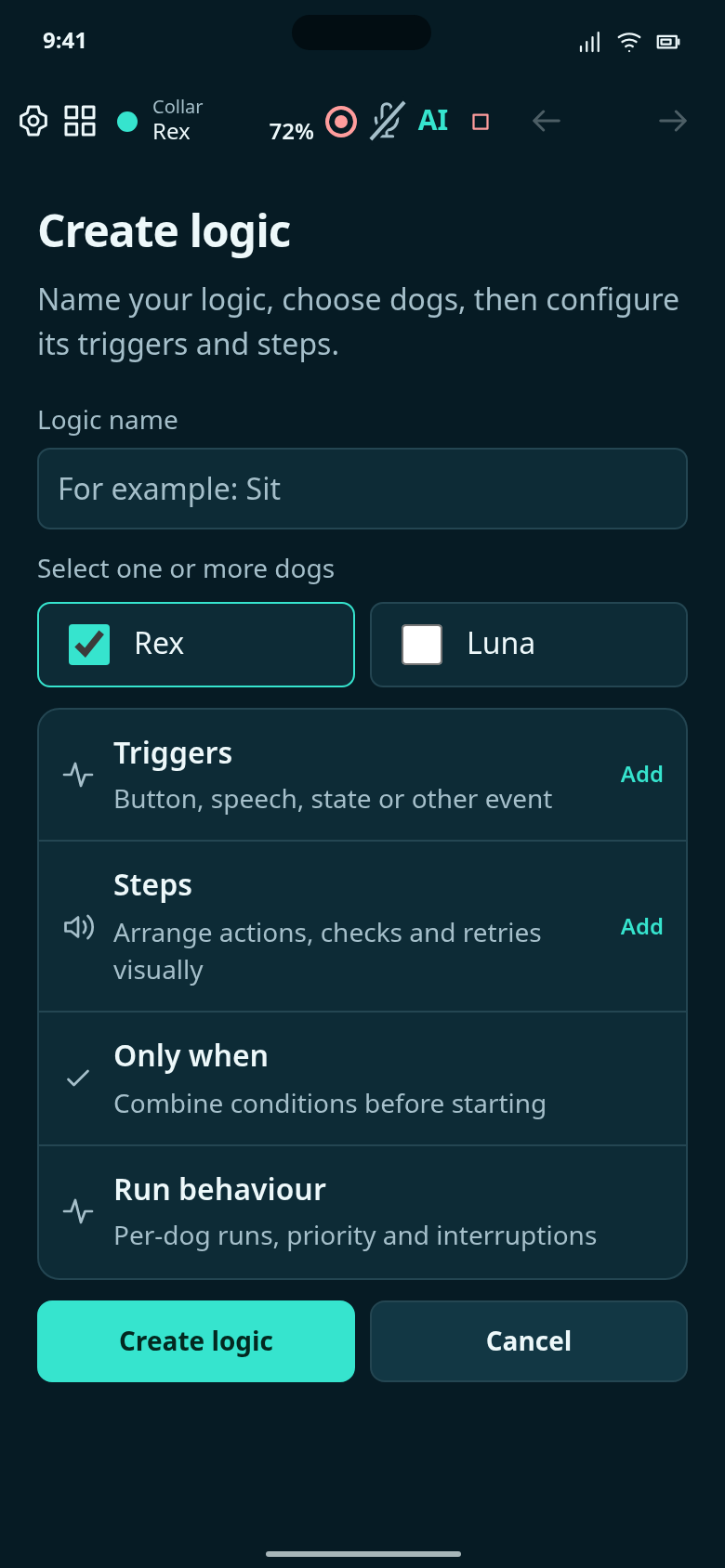
Start the Outside Park example with no triggers or steps.
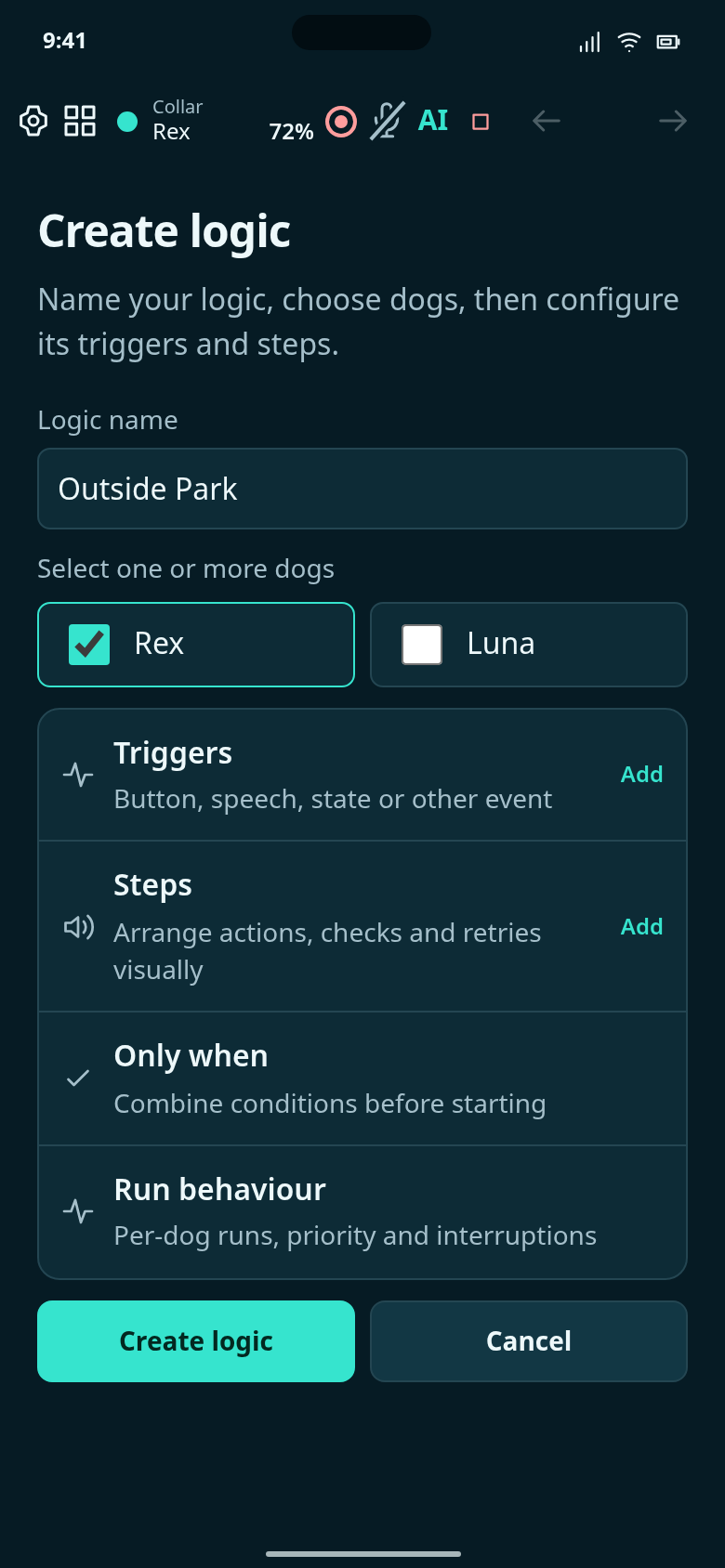
Name this logic Outside Park and choose Rex.
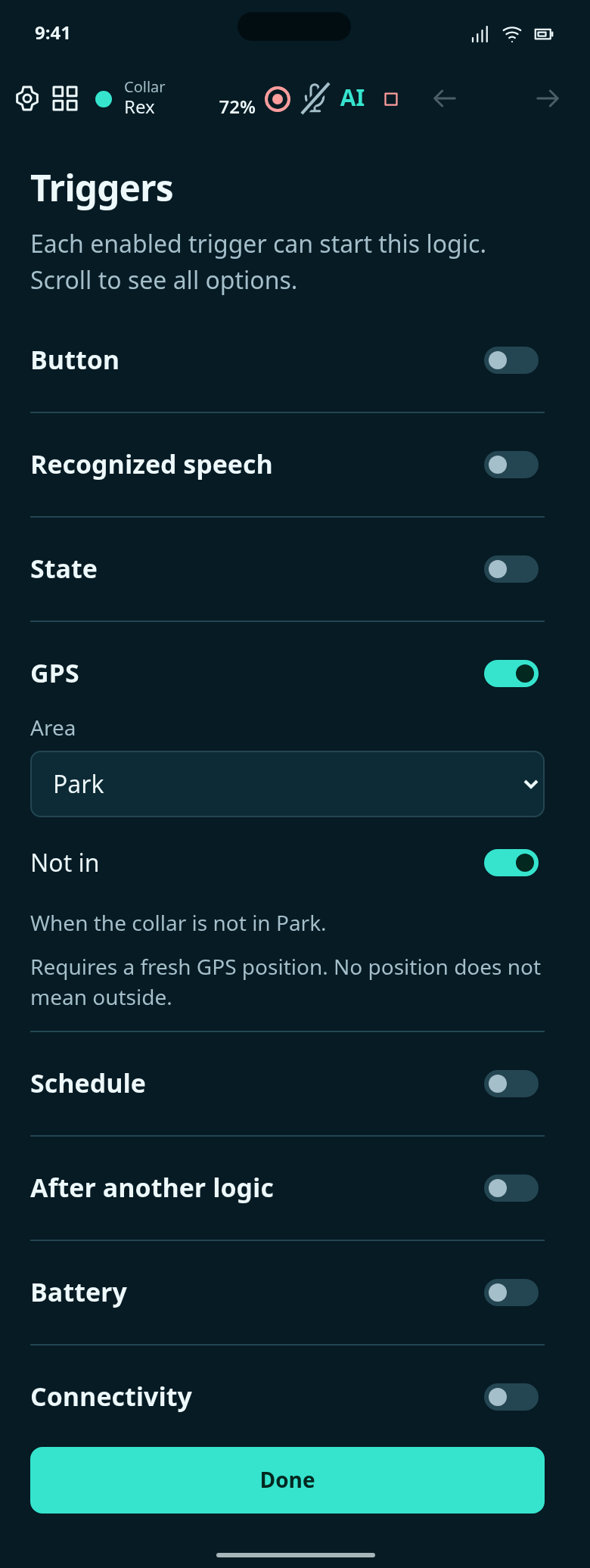
GPS with Park selected and Not in switched on.
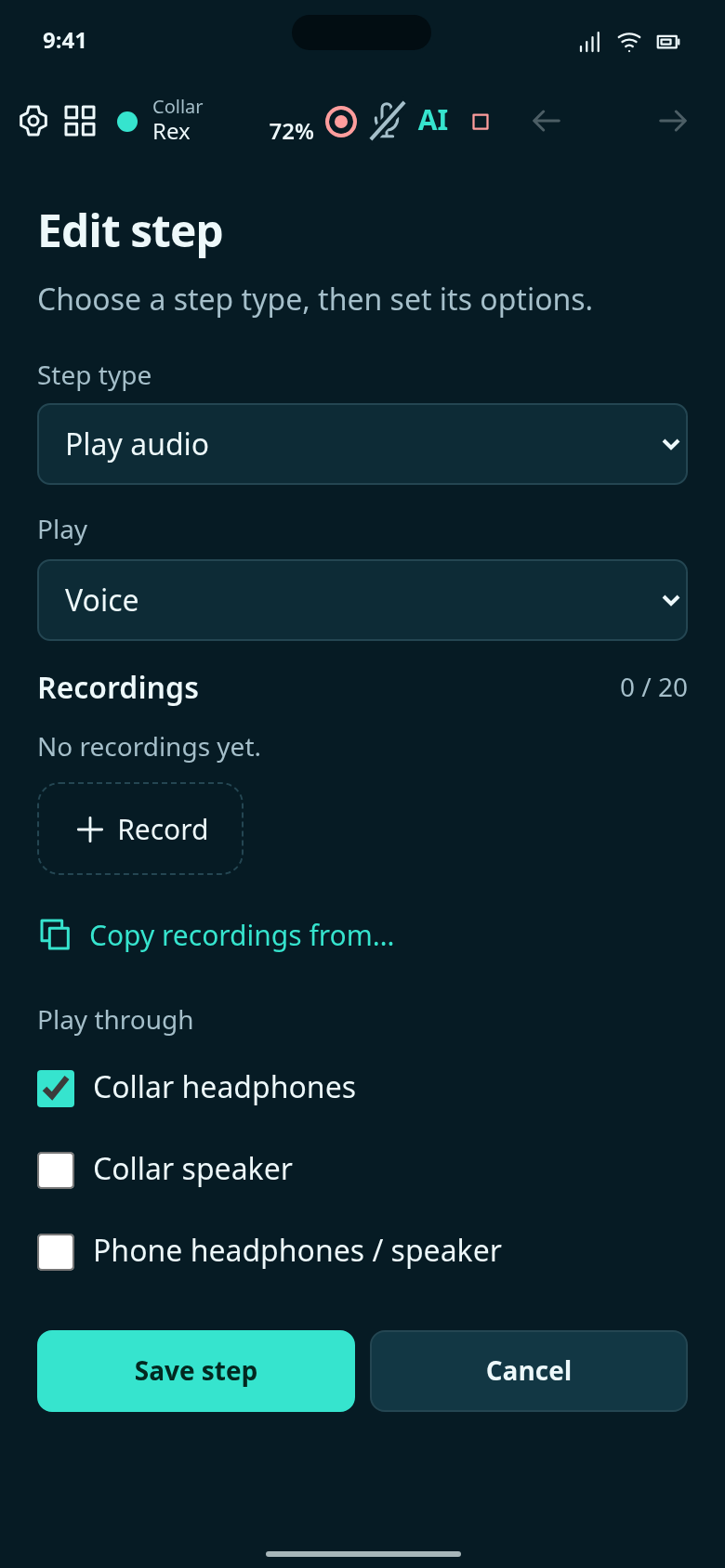
Choose Play audio and record Here in this step. No recording has been supplied in this draft.
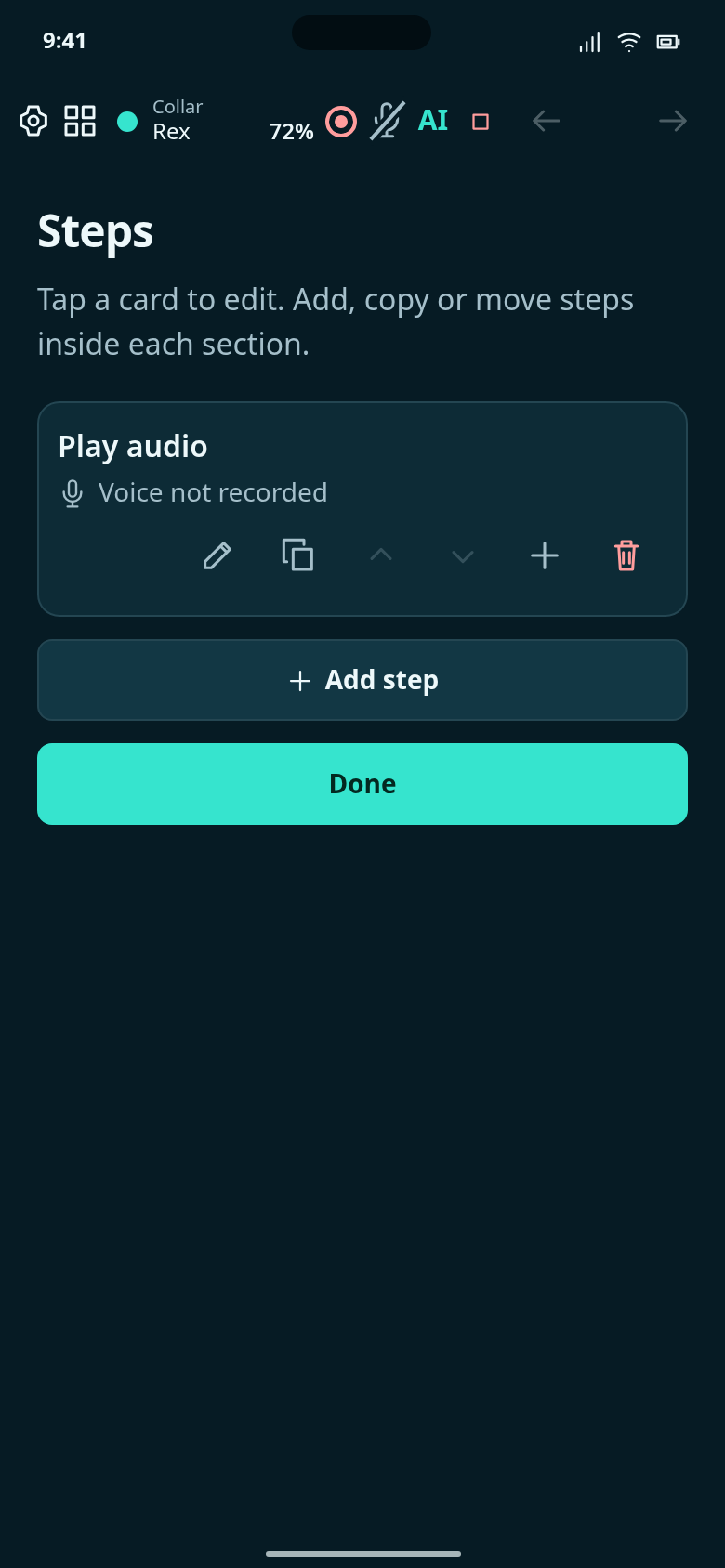
One ordinary Play audio step, with its Here recording still to add.
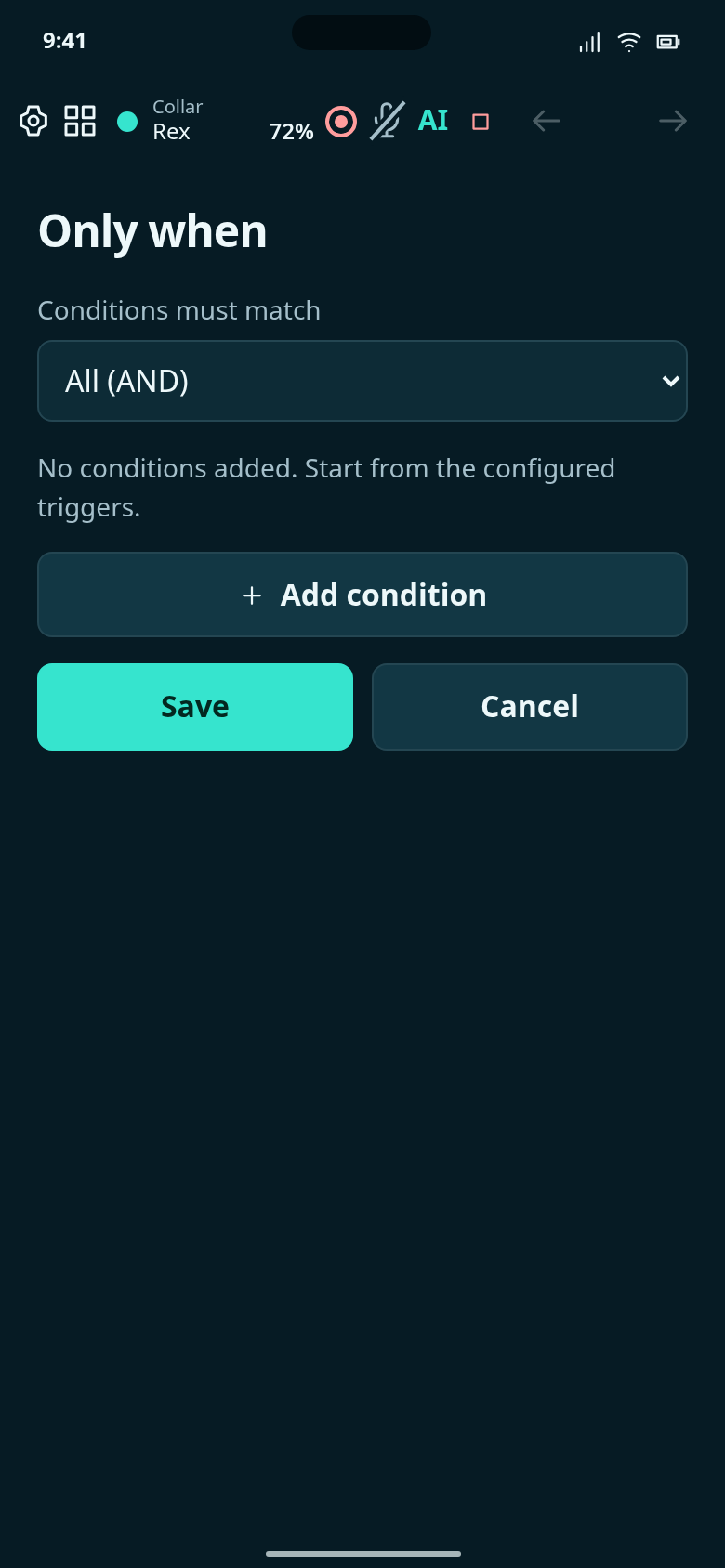
No extra condition is required for this example.
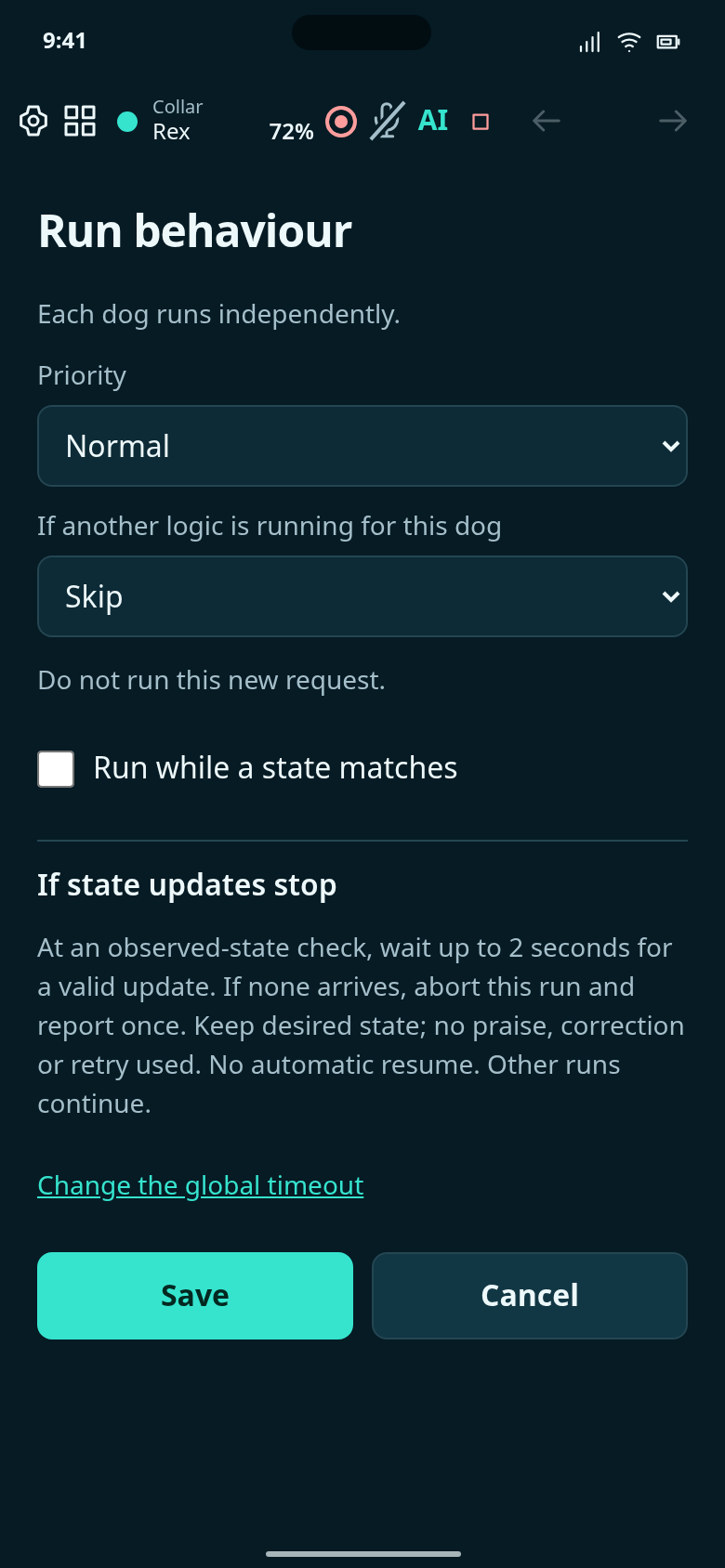
Choose what happens if another logic is running for Rex.
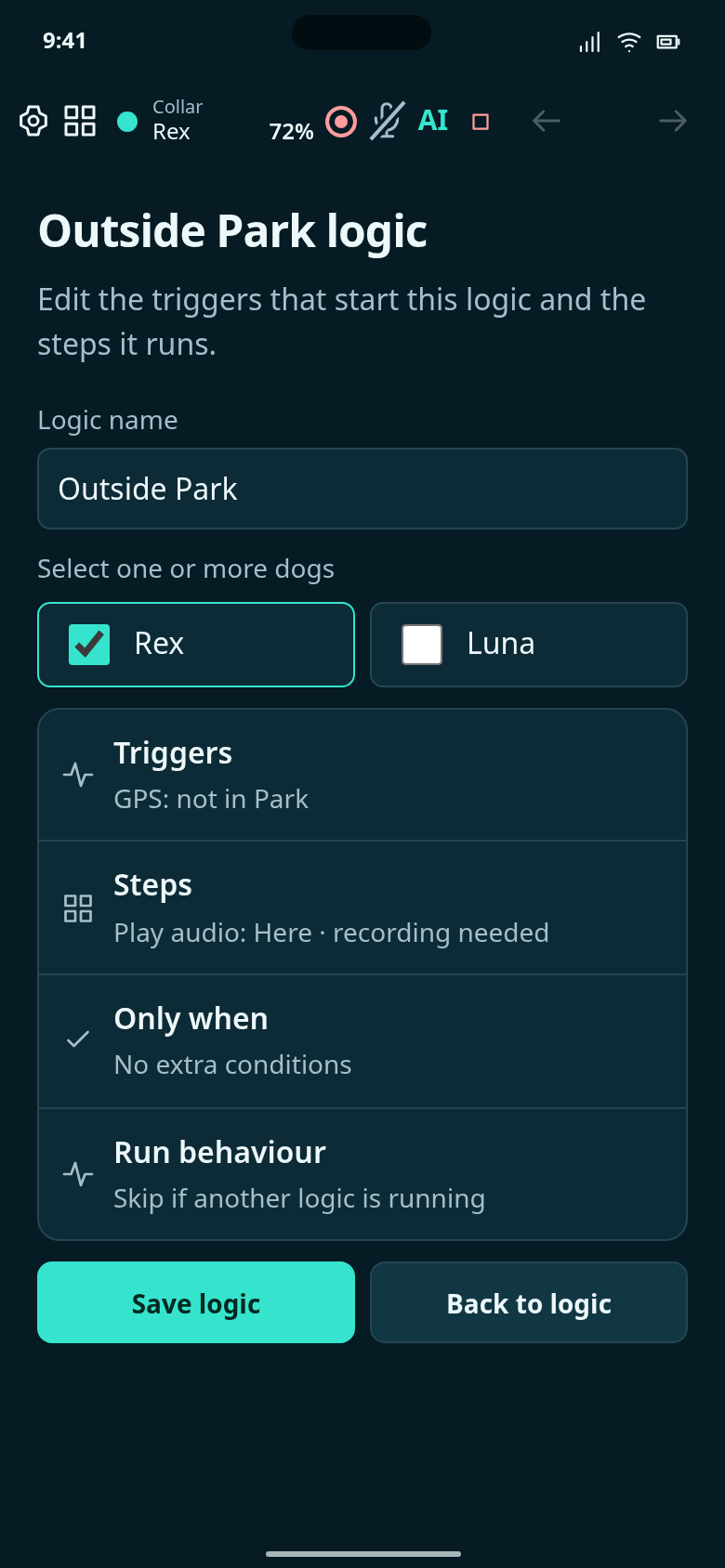
Configuration draft: GPS is outside Park → play your Here recording. Record the audio before using this logic.
Create Sit, configure its triggers and steps, then review the finished logic.
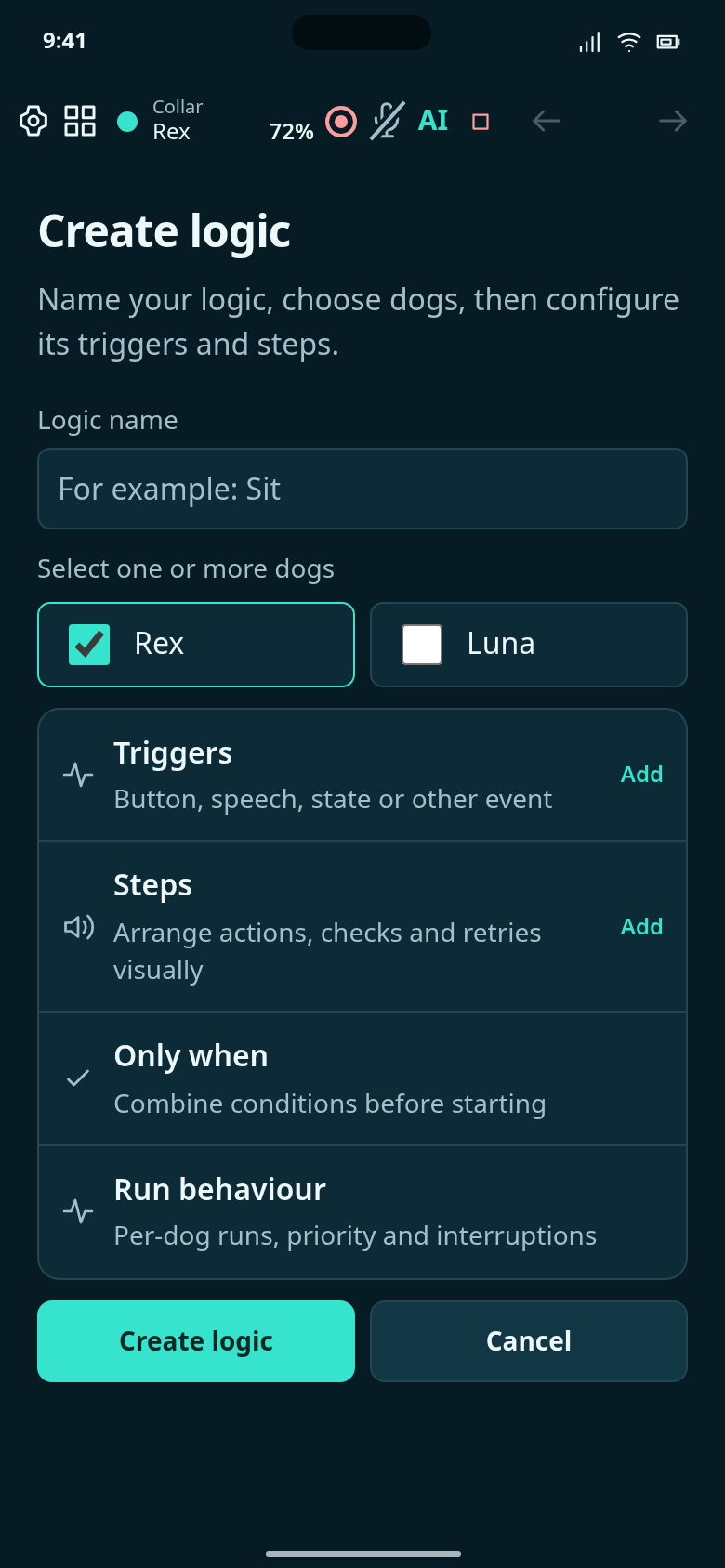
Start the Sit example with no triggers or steps.
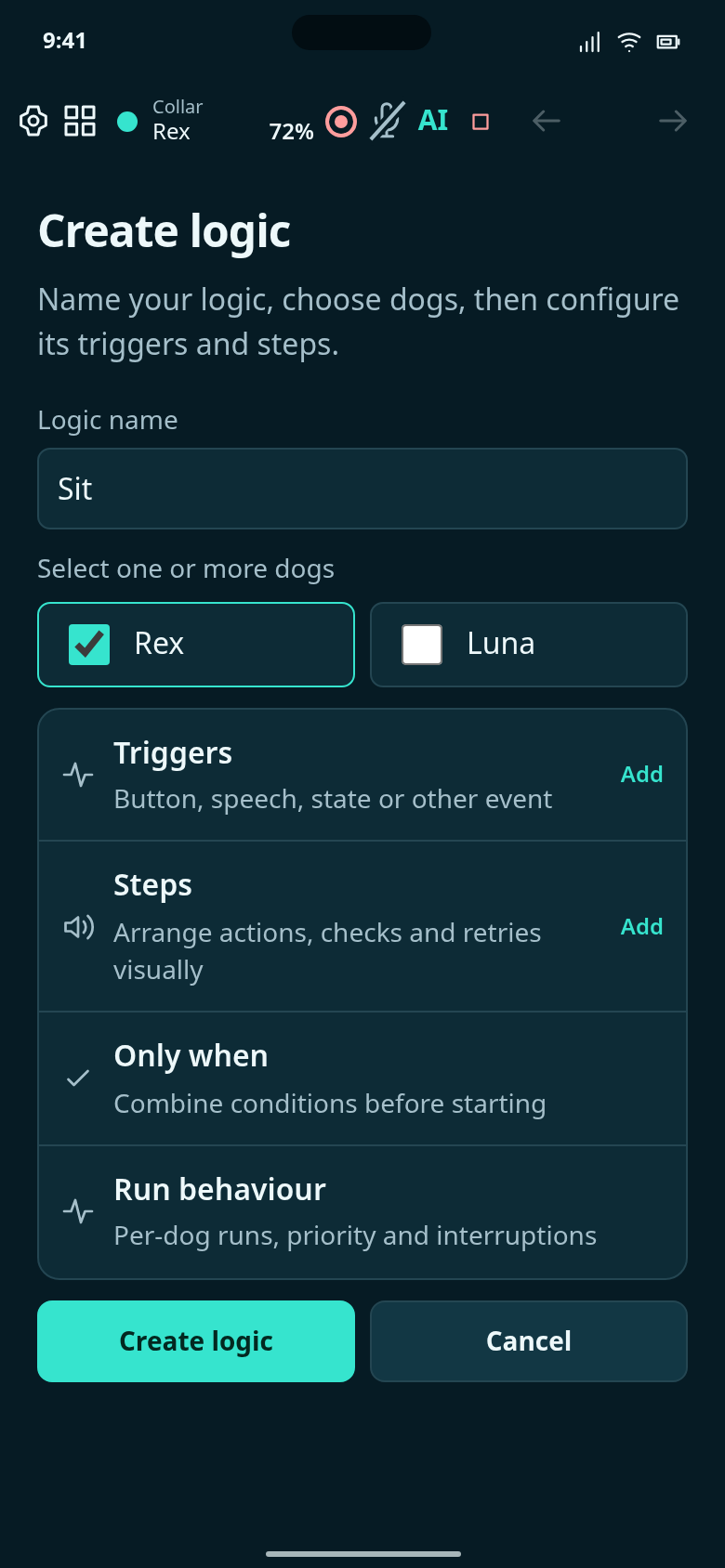
Name this logic Sit and choose Rex.
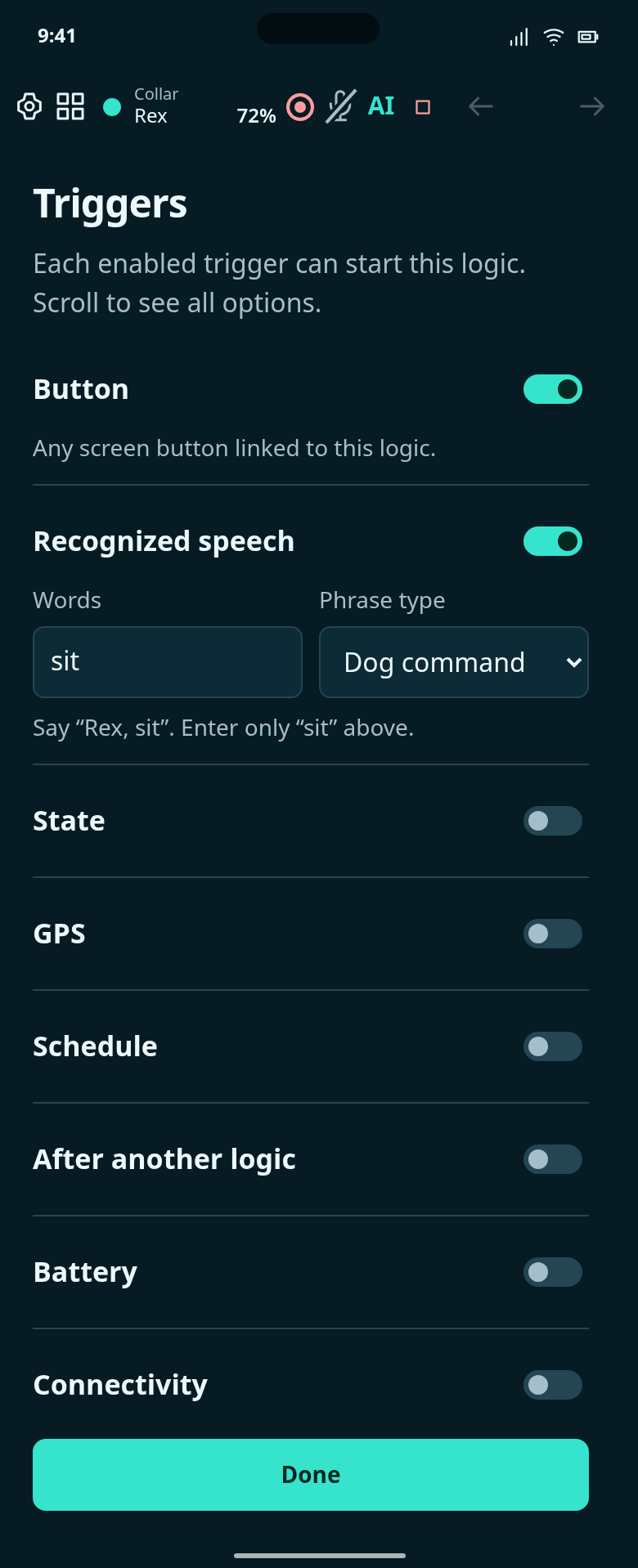
Button and spoken Sit are enabled in this example; other trigger options remain available below.
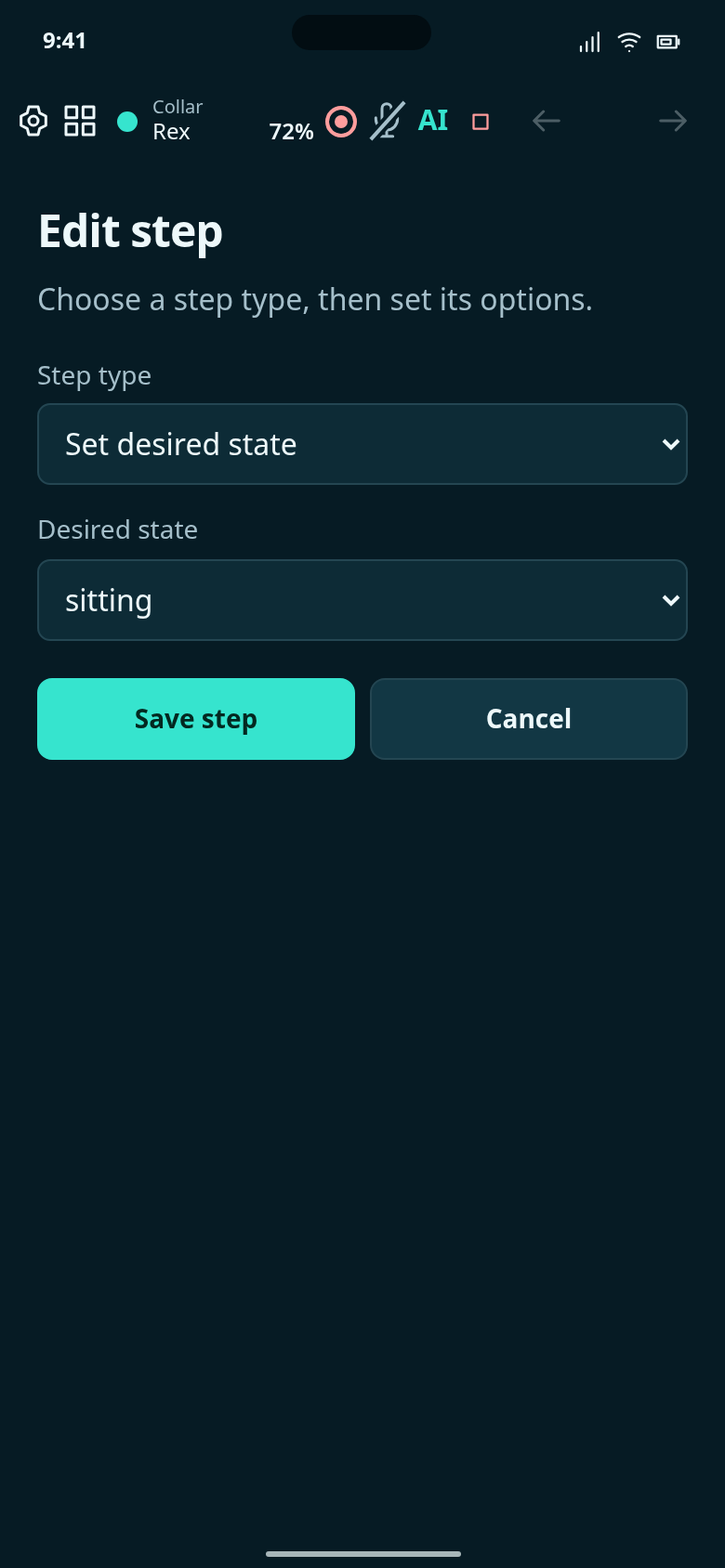
Edit Sit’s first step.
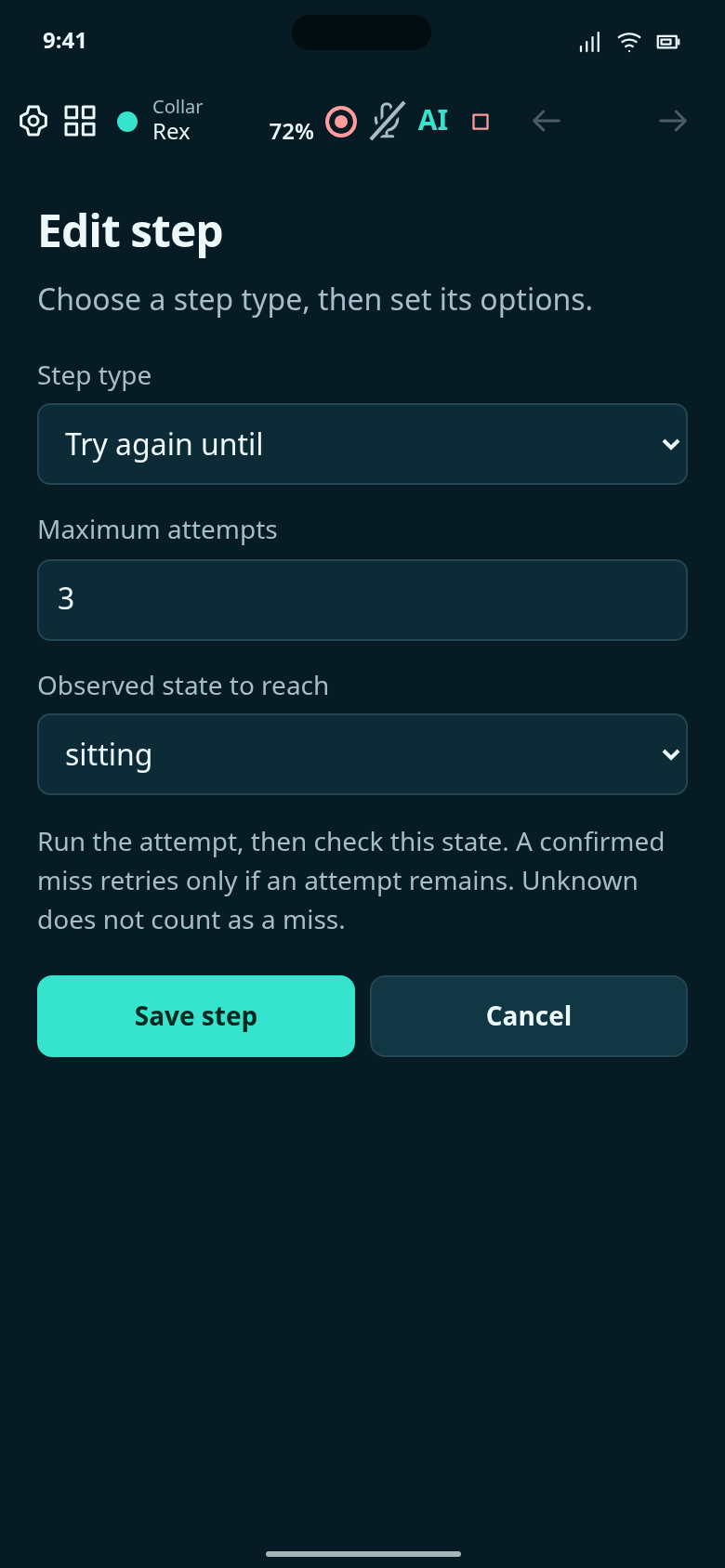
Three total attempts, with sitting as the success condition.
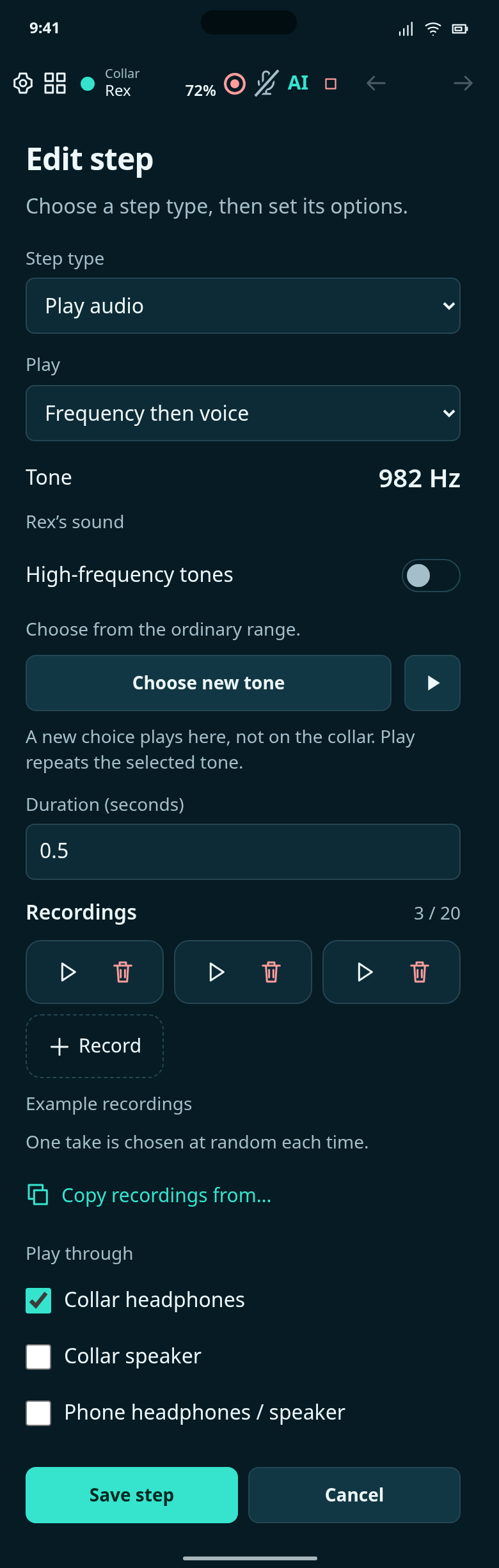
Edit the actual Sit cue step.
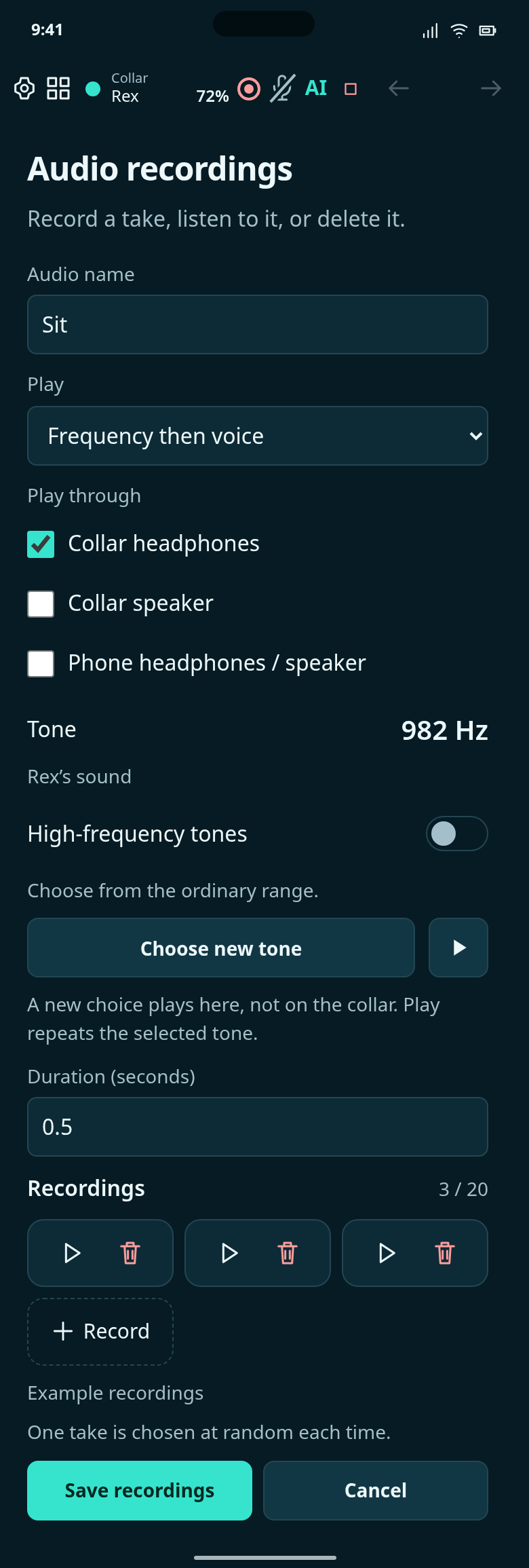
Keep up to 20 versions of Sit together; playback picks a random recording.
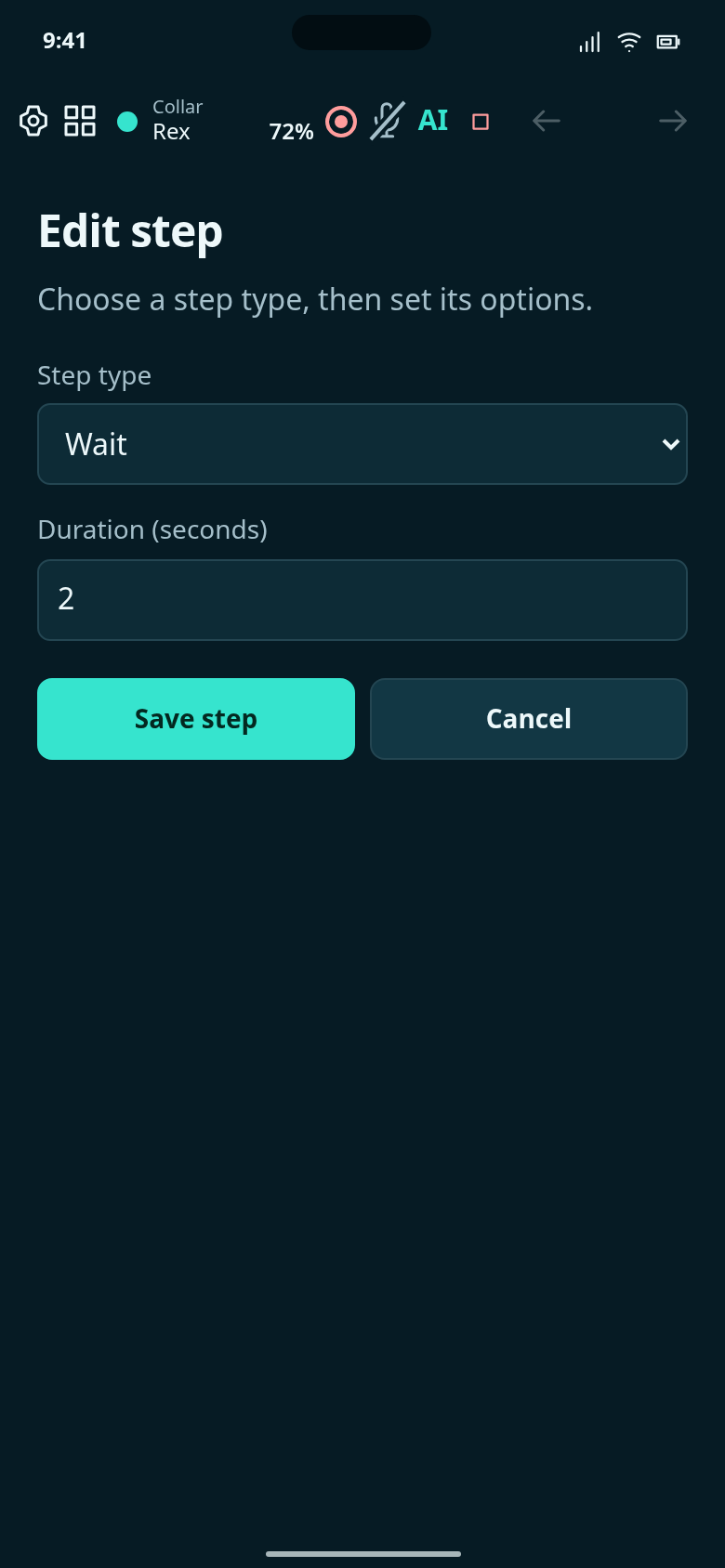
Edit the delay before checking sitting.
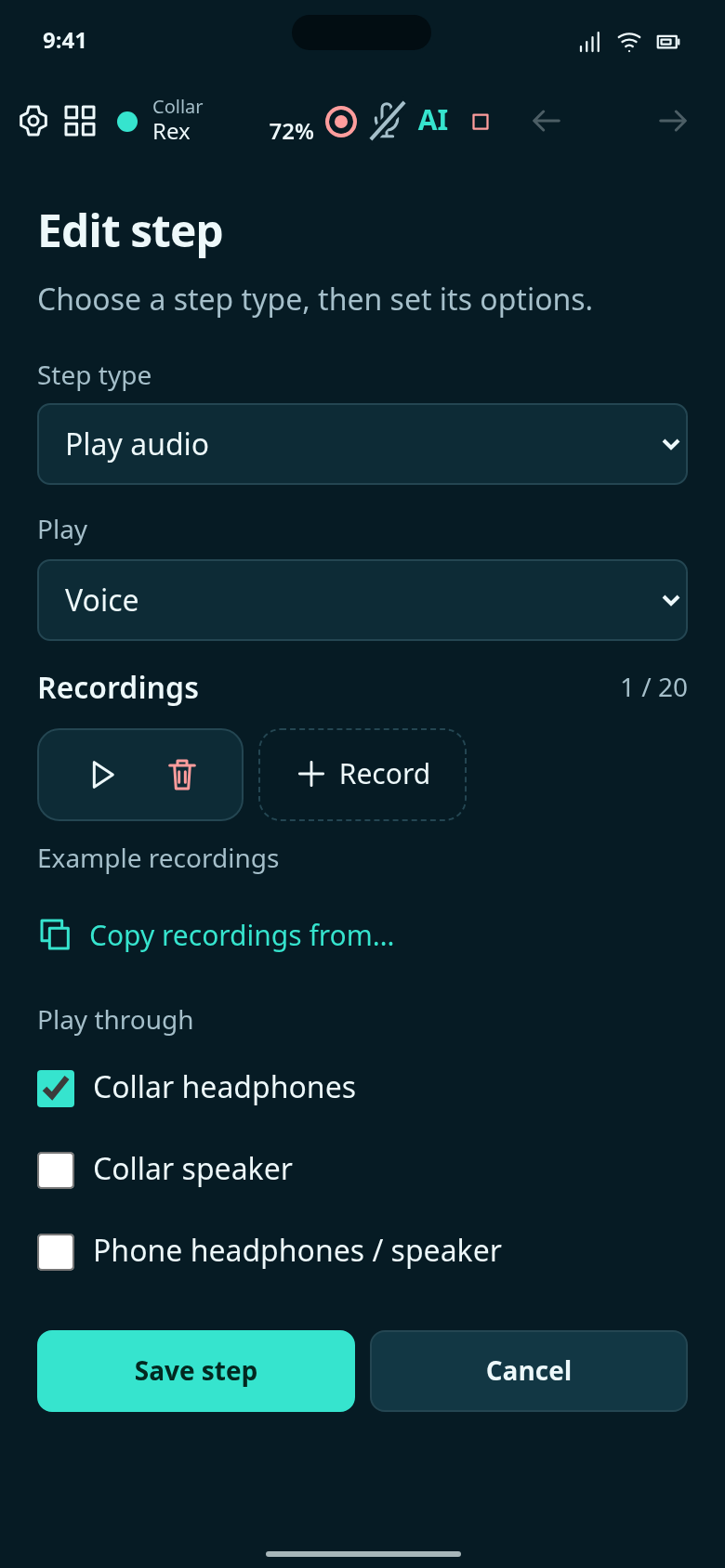
The Ah ah recording plays immediately before the next Sit attempt.
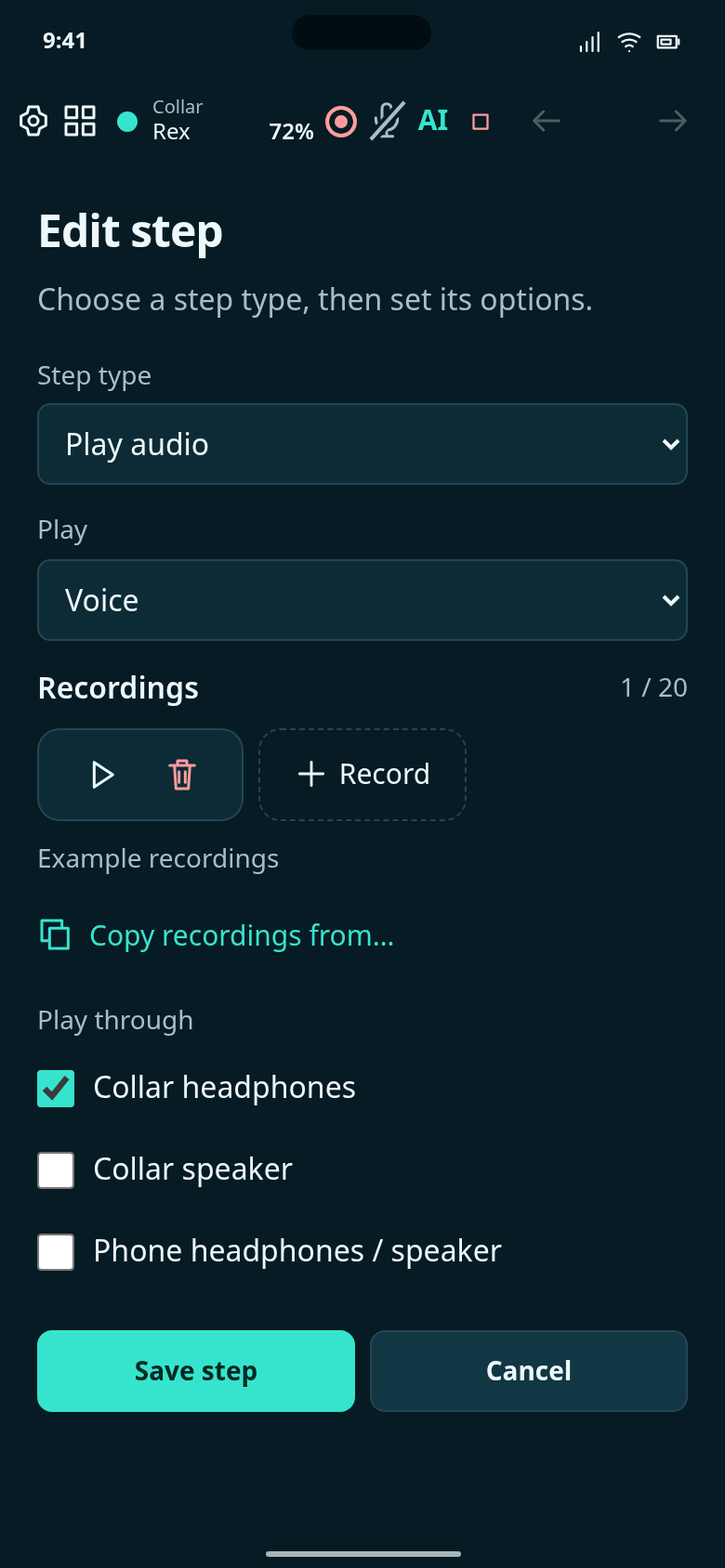
Edit Sit’s success audio step.
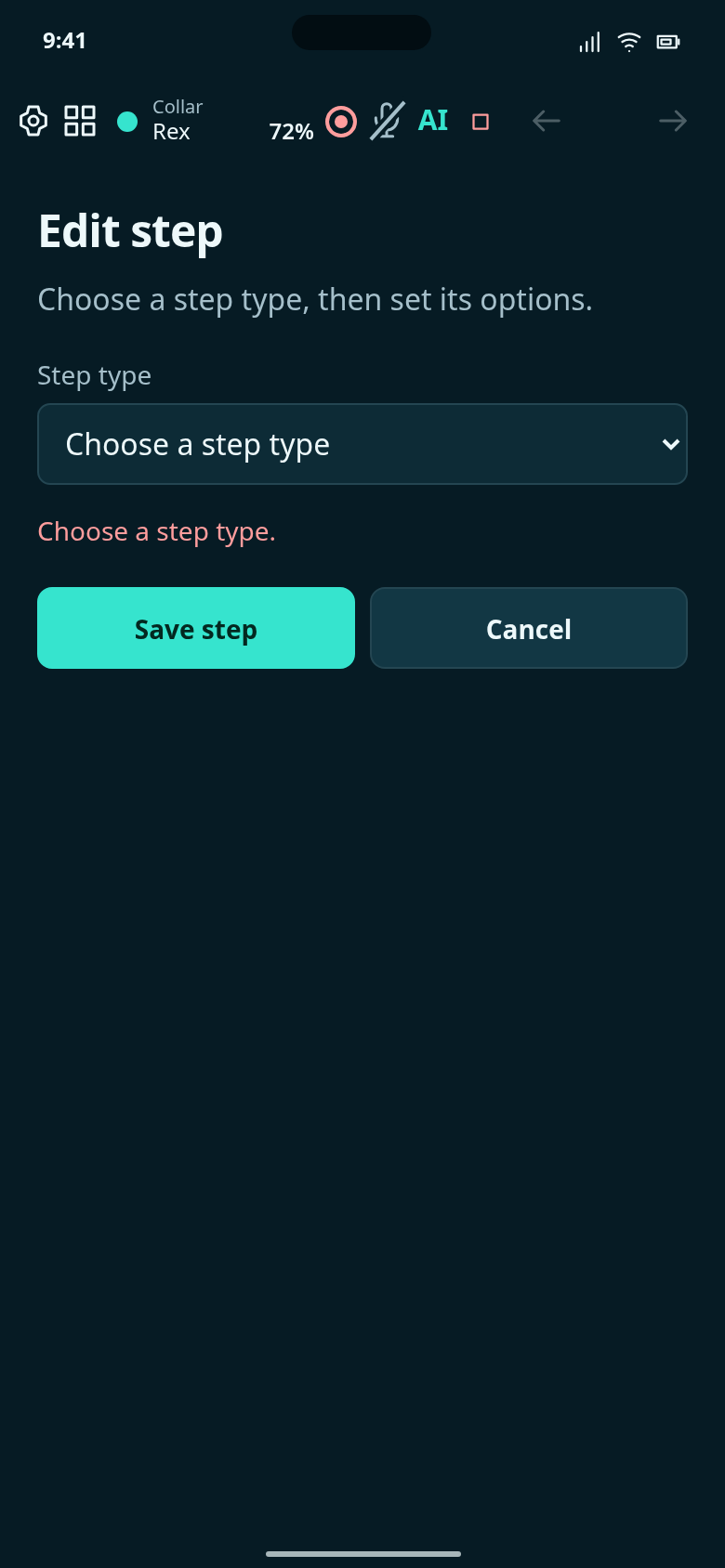
Add a step to Sit without preselecting its type.
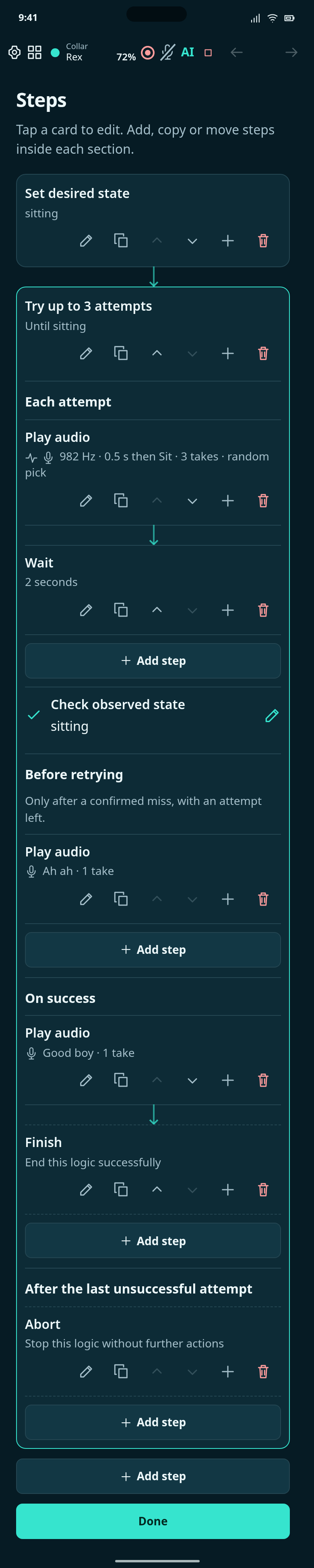
Set the desired state, then try the command at most three times.
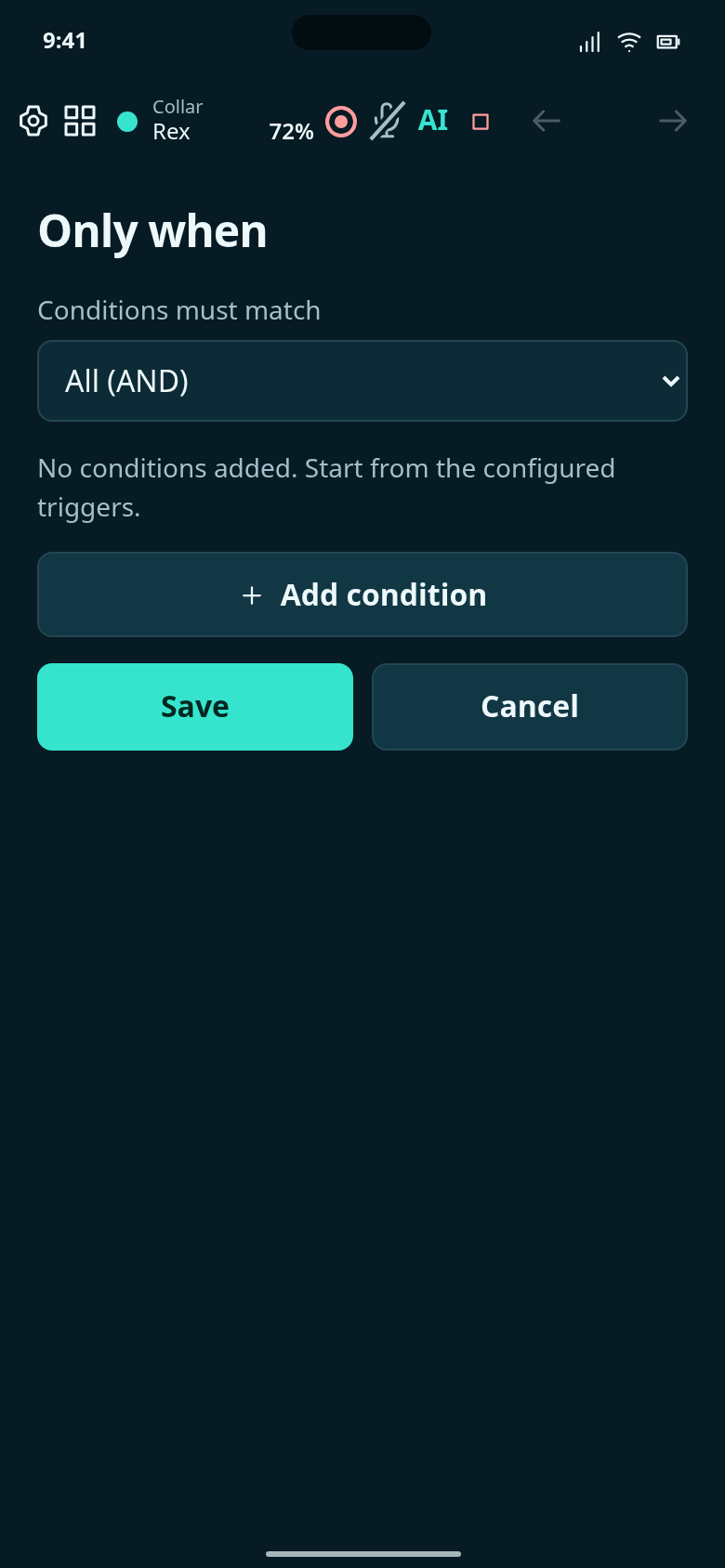
No extra condition is required for this example.
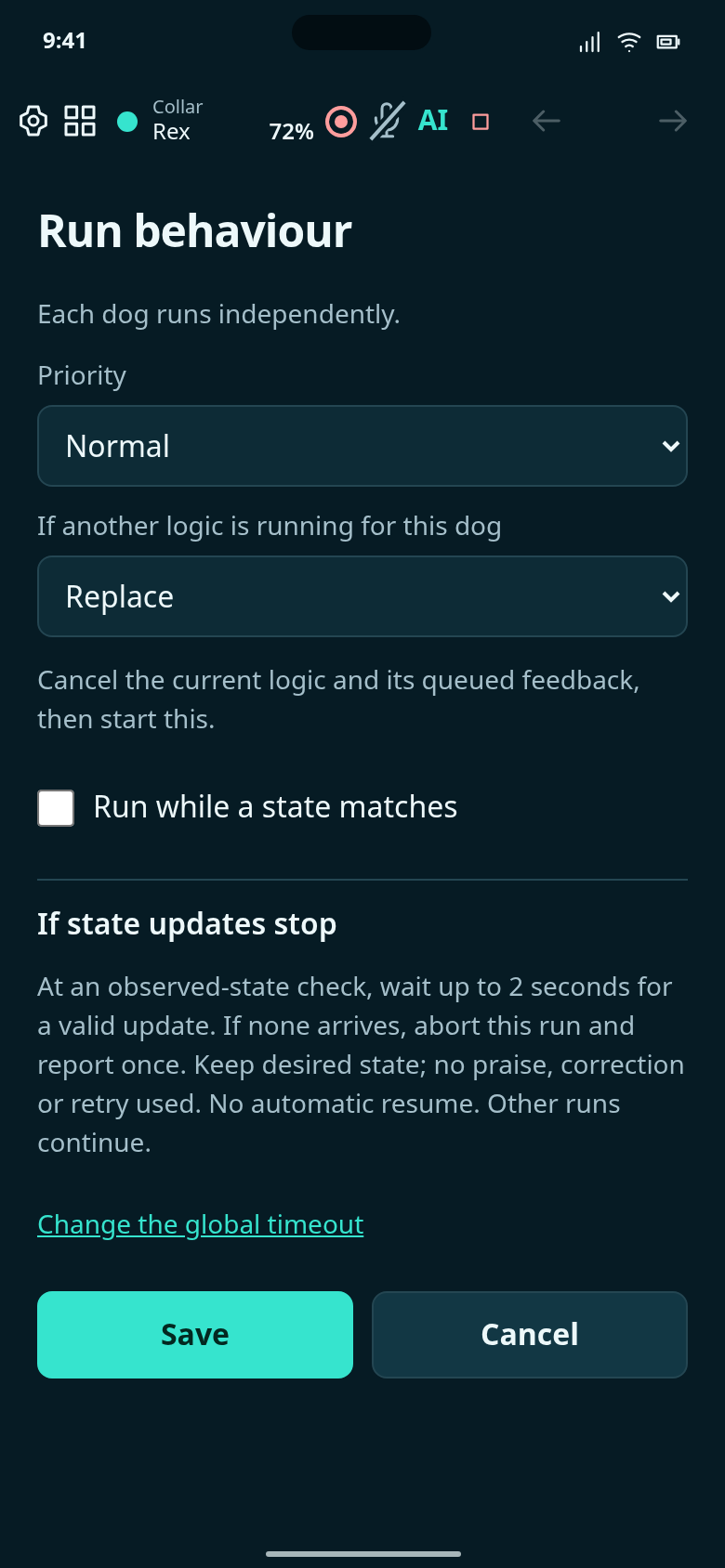
Choose what happens if another logic is running for Rex.
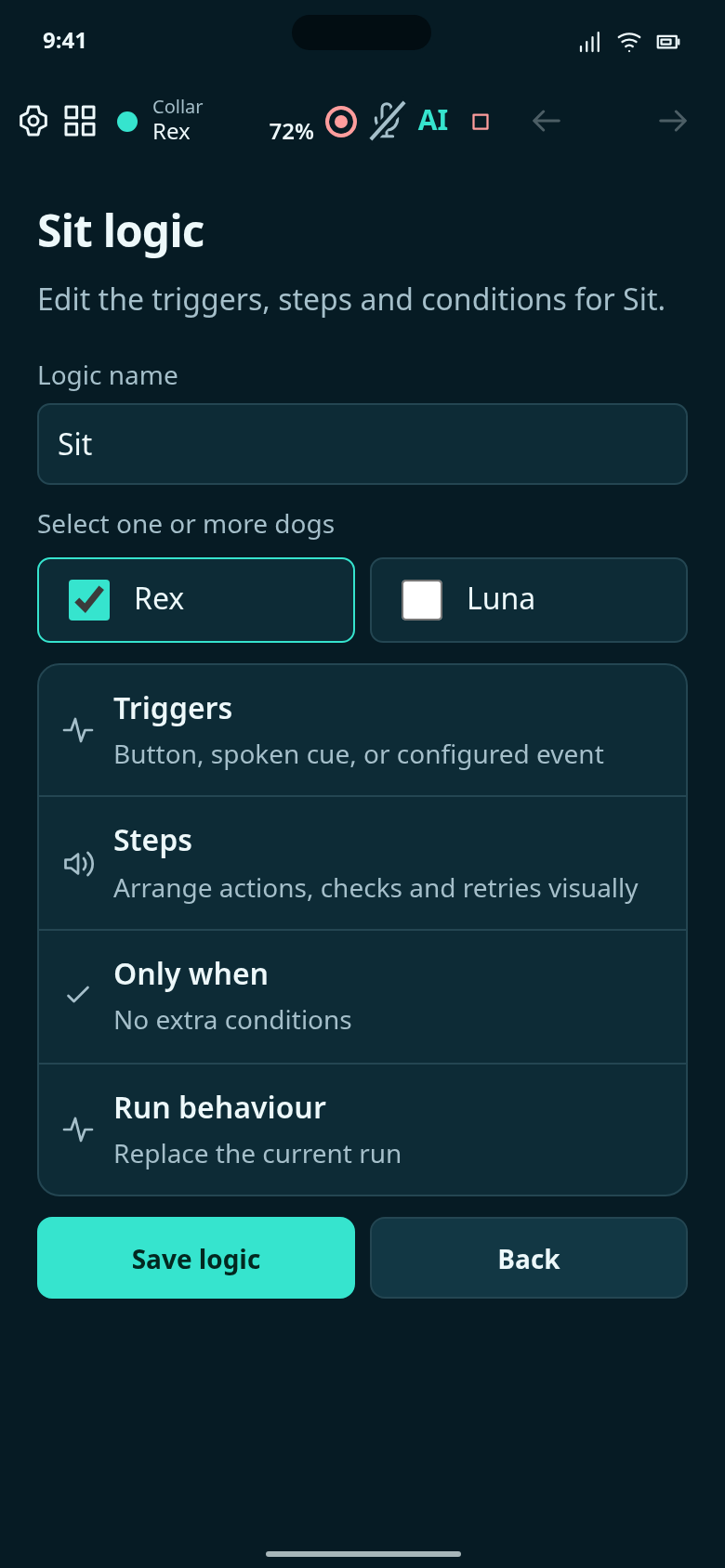
Finished example: Sit, then up to two retries with Ah ah before each retry. Success praises; the last failure aborts.
Add a question after two attempts and give each answer its own steps.
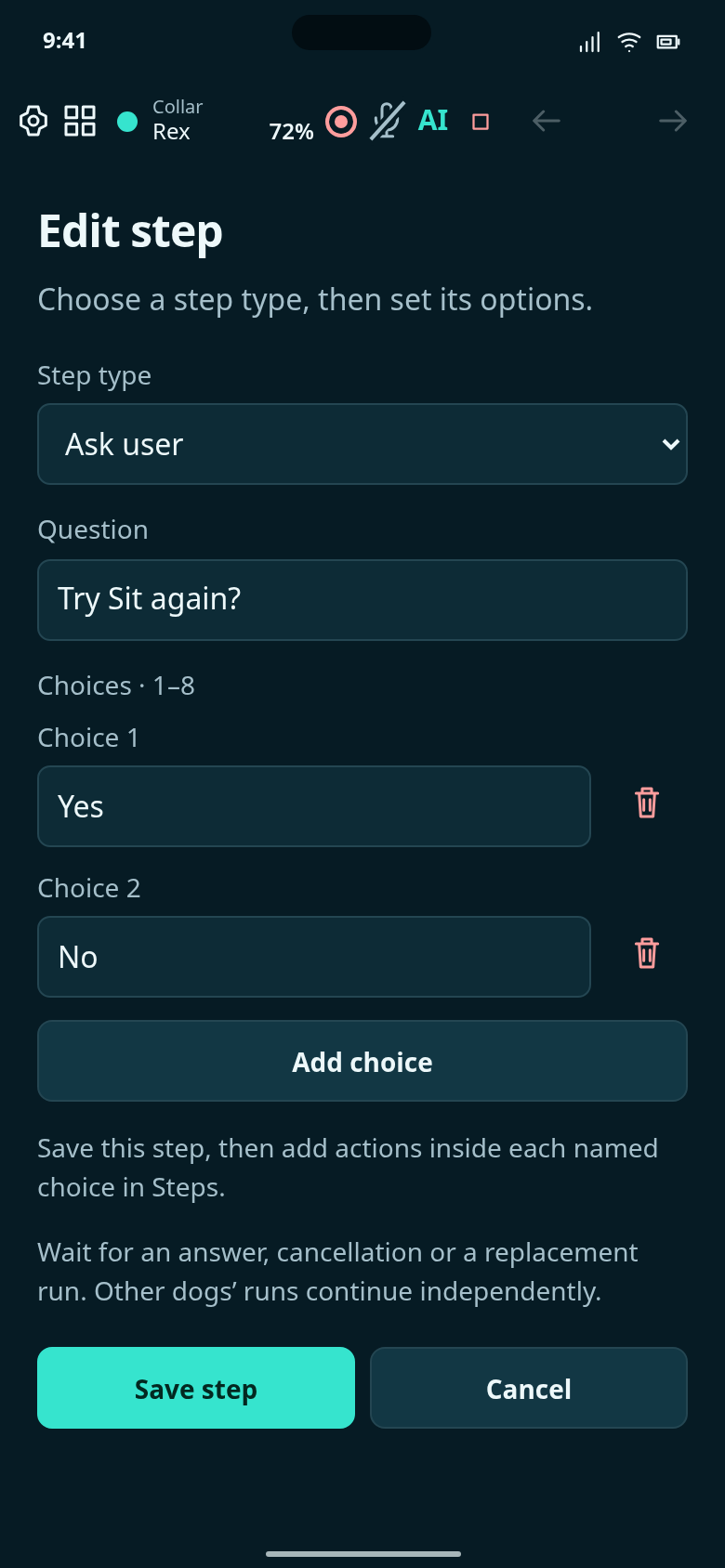
Configure “Try Sit again?” with Yes and No.

Try twice, then ask whether to attempt it once more or finish.
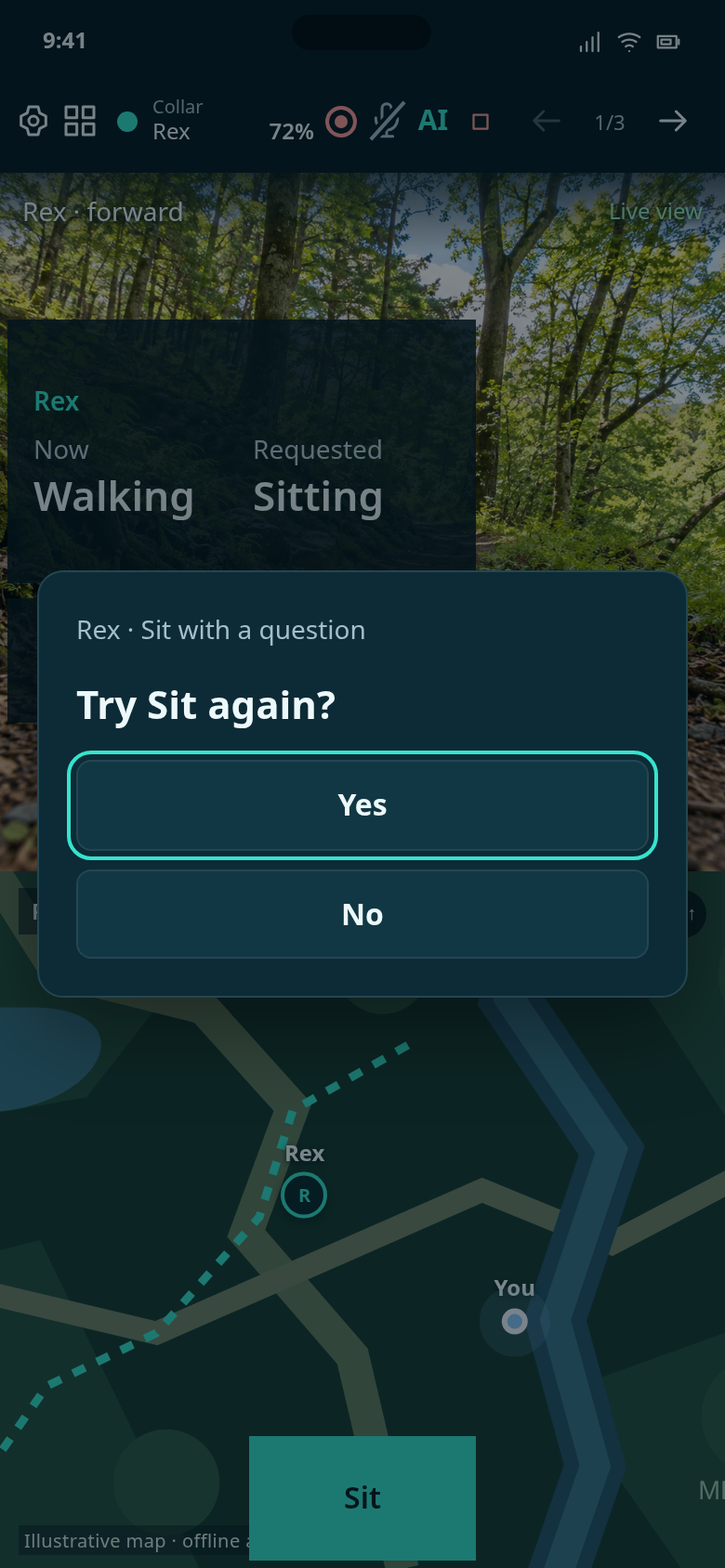
An explicitly configured question appears over the current view. This illustration sends no command.
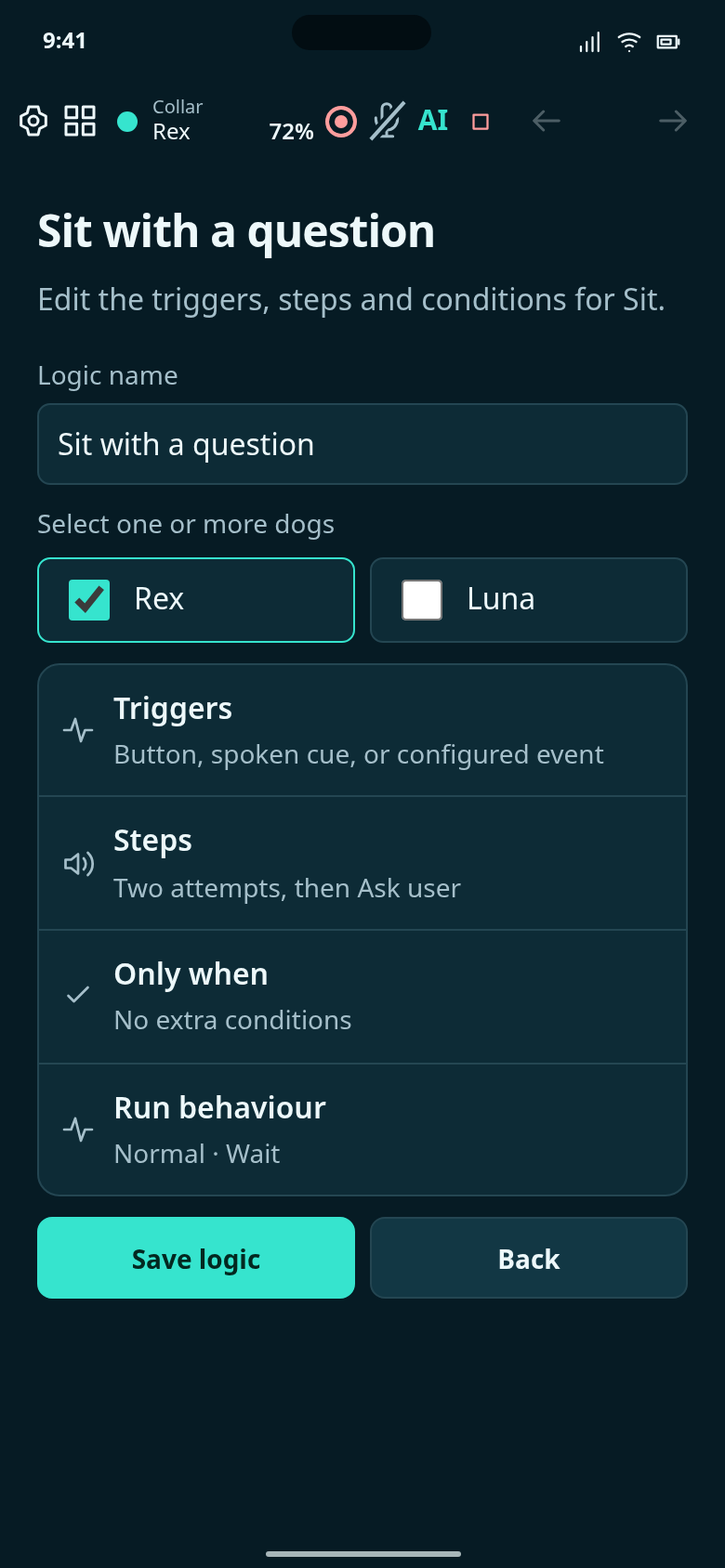
Configured example: try Sit twice, then ask whether to try once more. The question is an ordinary Ask user step.
Create Help, configure its triggers and steps, then review the finished logic.
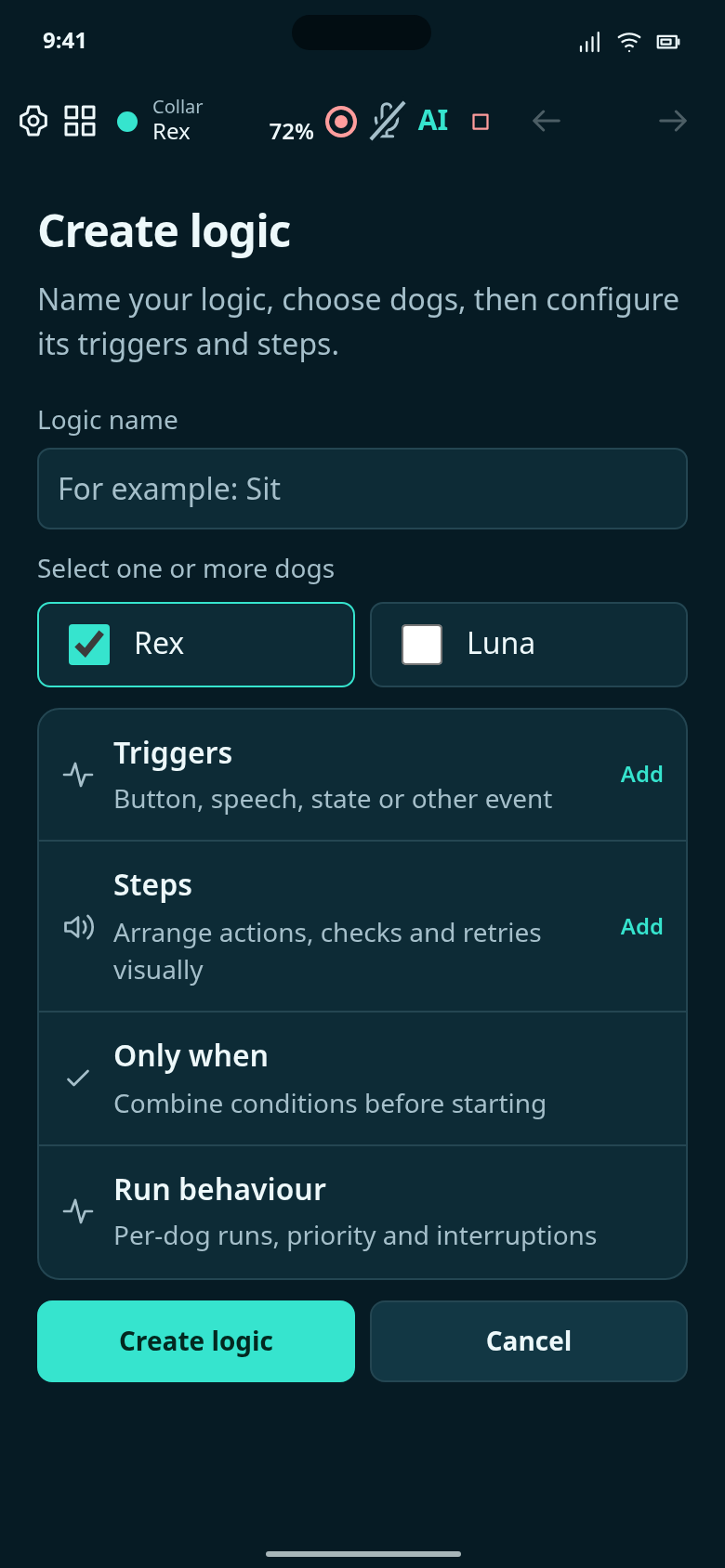
Start the Help example with no triggers or steps.
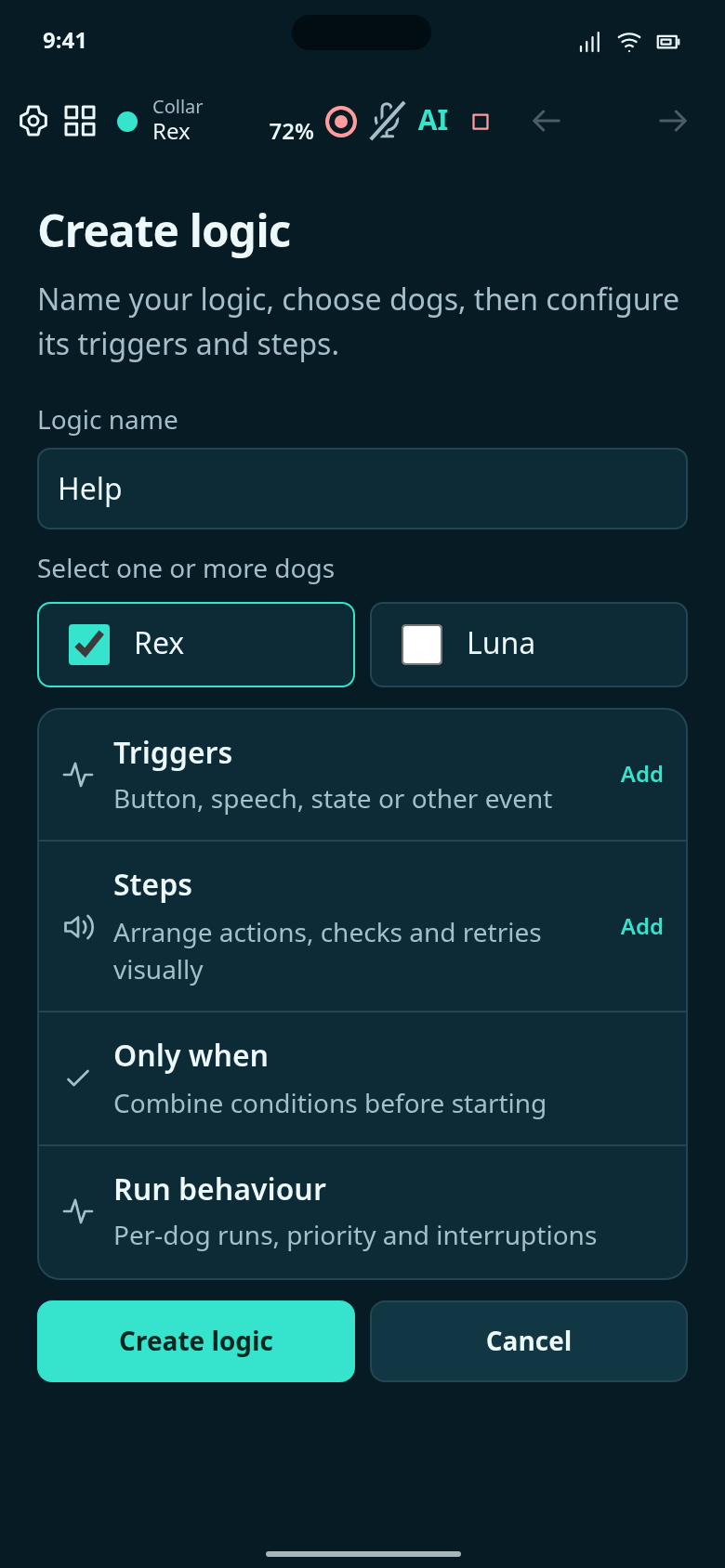
Name this logic Help and choose Rex.
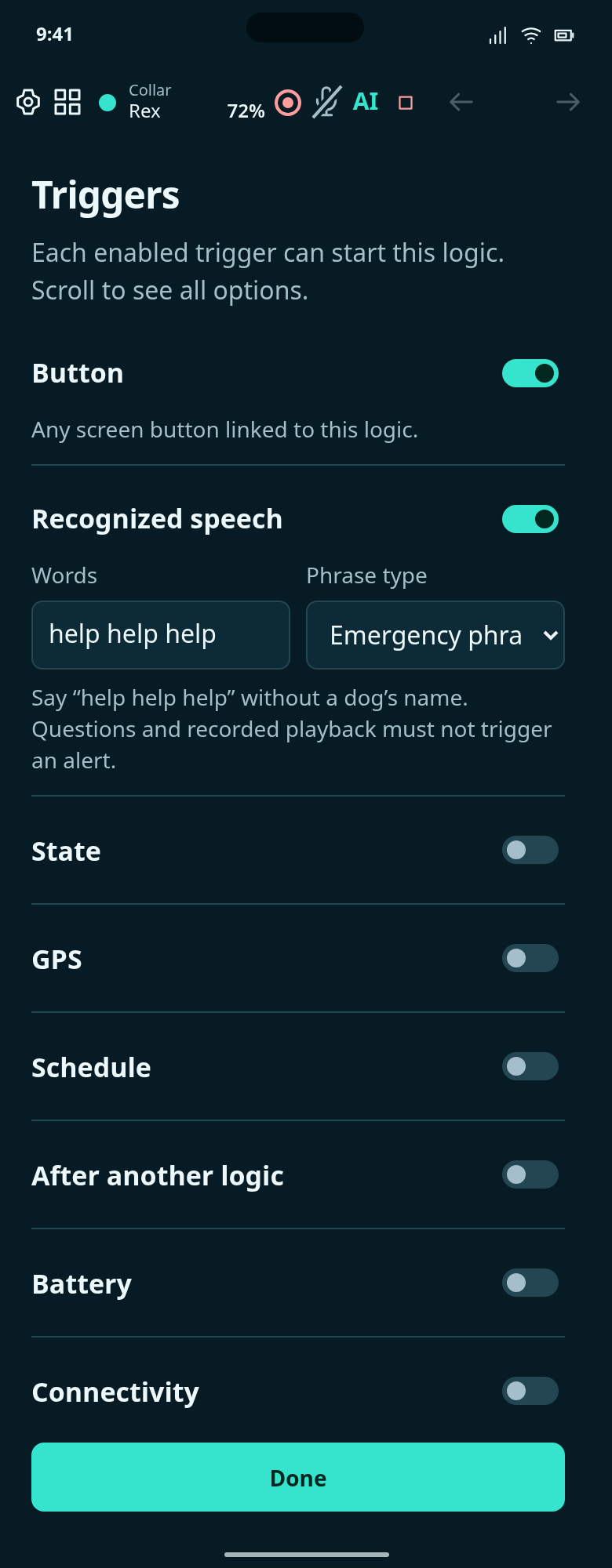
Start Help with its button or “help help help”. The emergency phrase is editable and does not need a dog’s name.
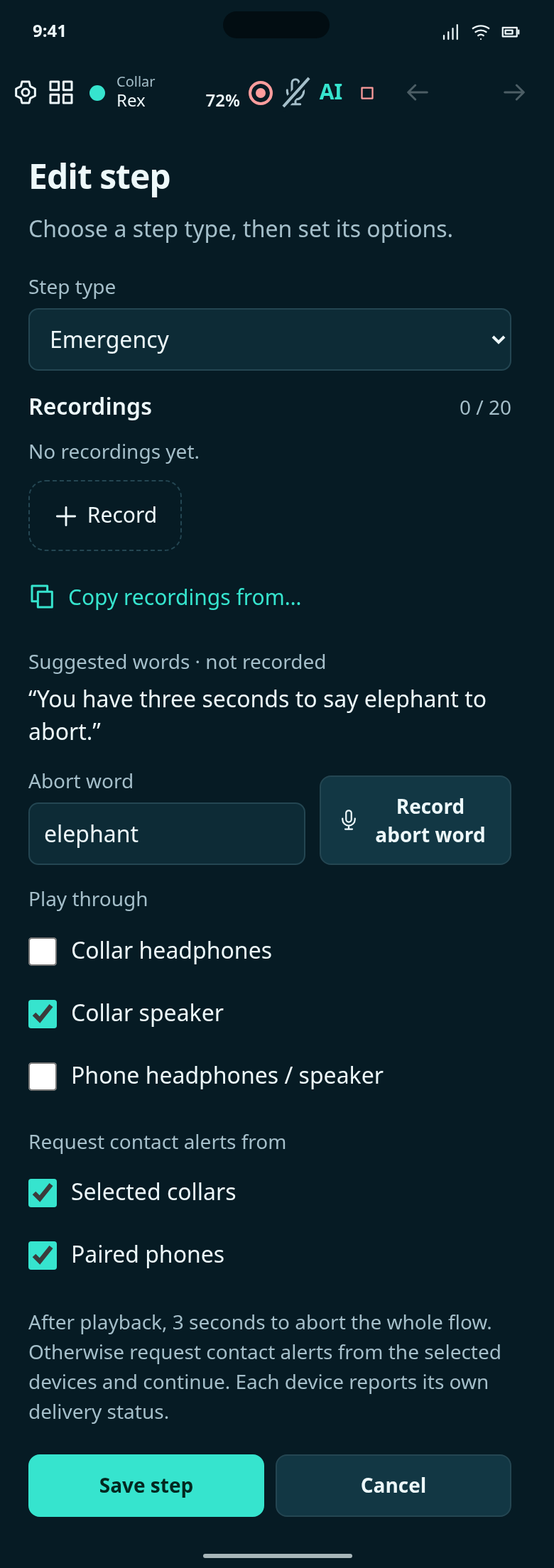
Record the warning, choose an abort word and select which collars and paired phones request contact alerts after the fixed three-second window.
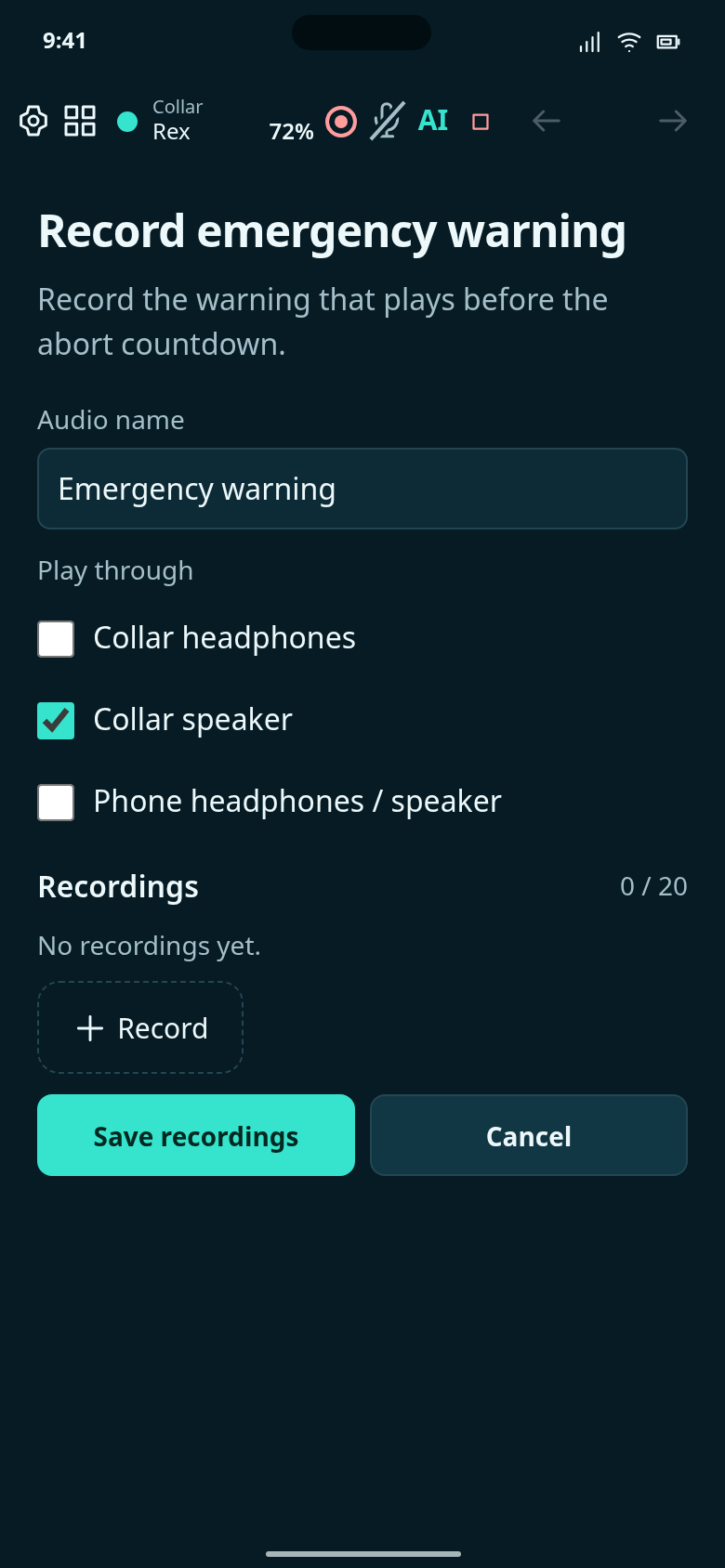
Record the spoken warning used before the emergency abort countdown. Warning and speaker recordings are not yet supplied.
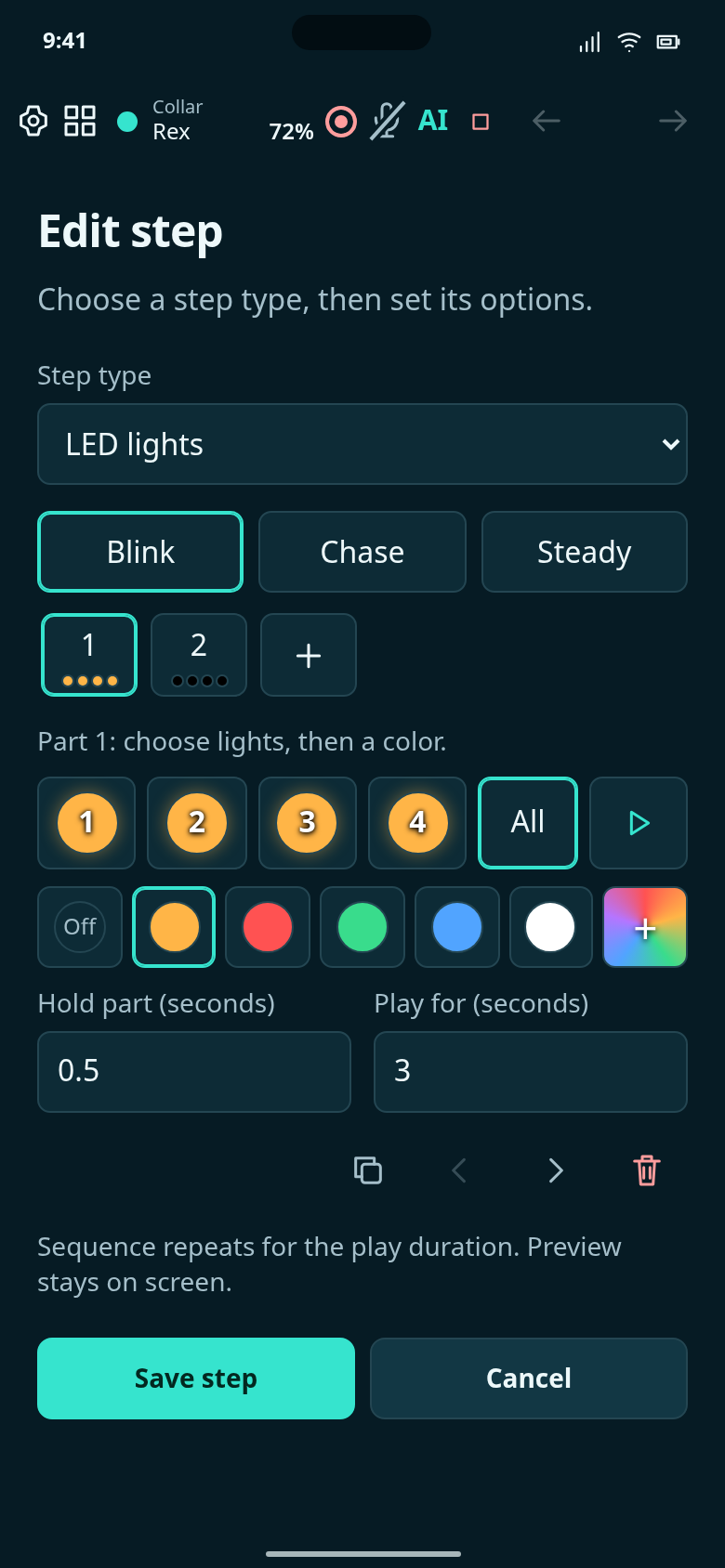
Use four RGB LEDs to make the collar visible with your chosen pattern.
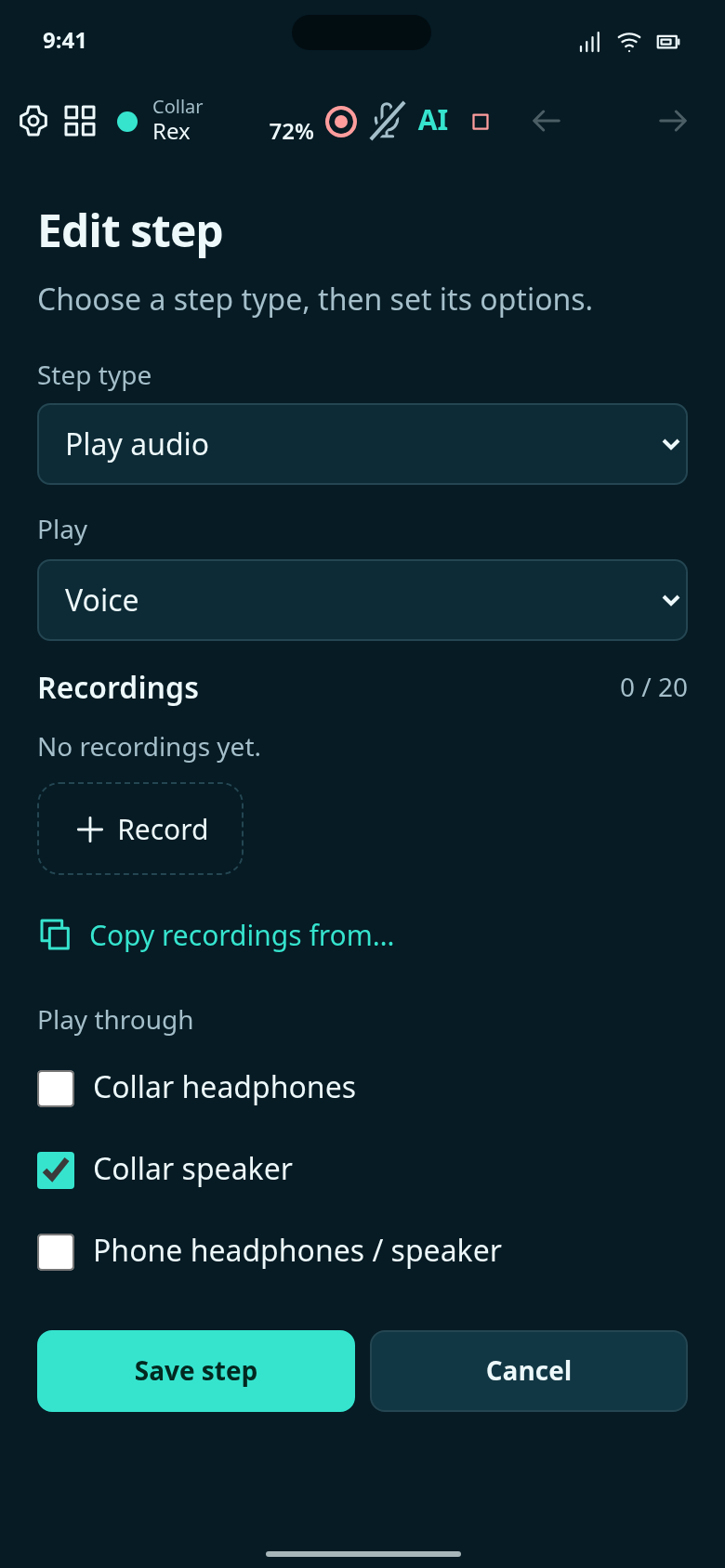
Play an assistance-request message through the collar speaker. Warning and speaker recordings are not yet supplied.
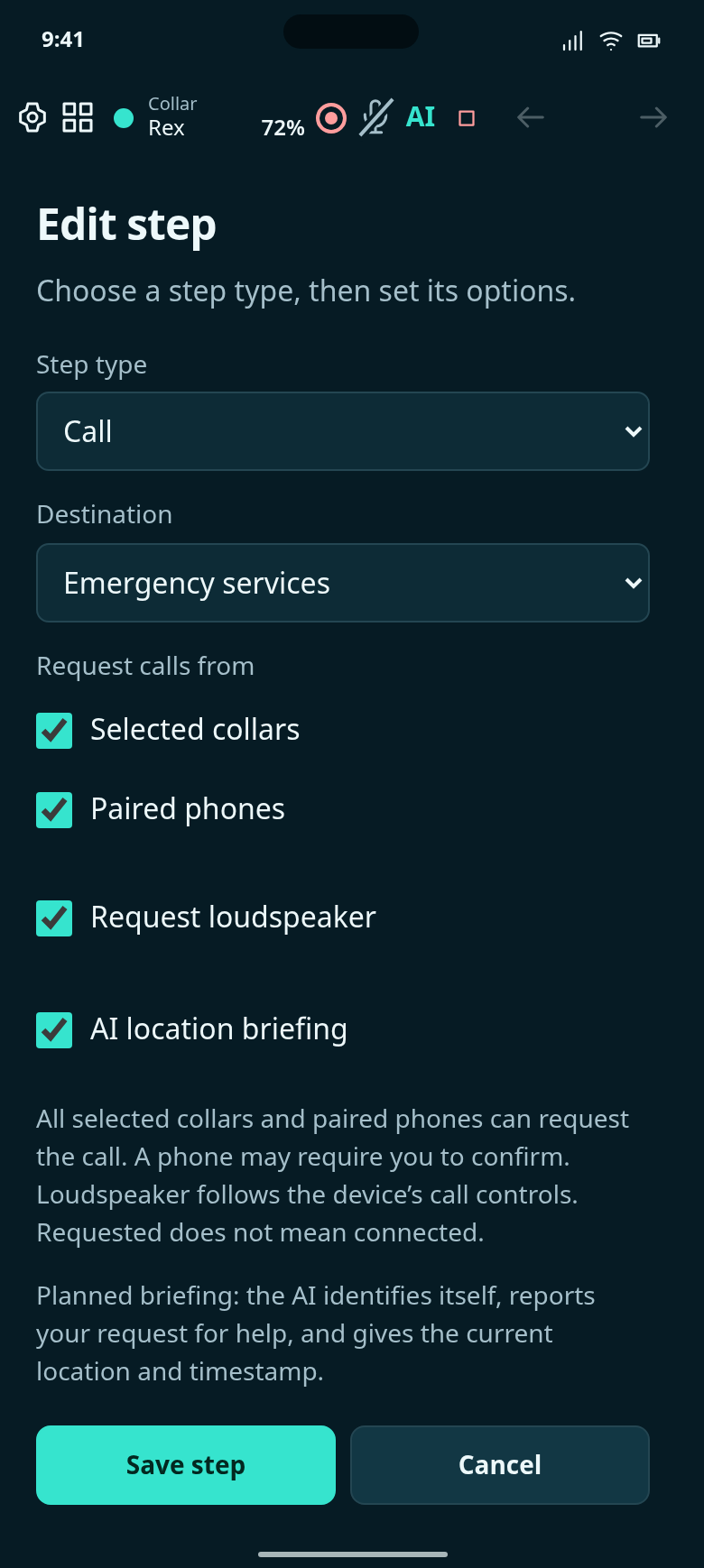
Request calls from selected collars, paired phones or both, with loudspeaker where supported. Each device reports its own call status.
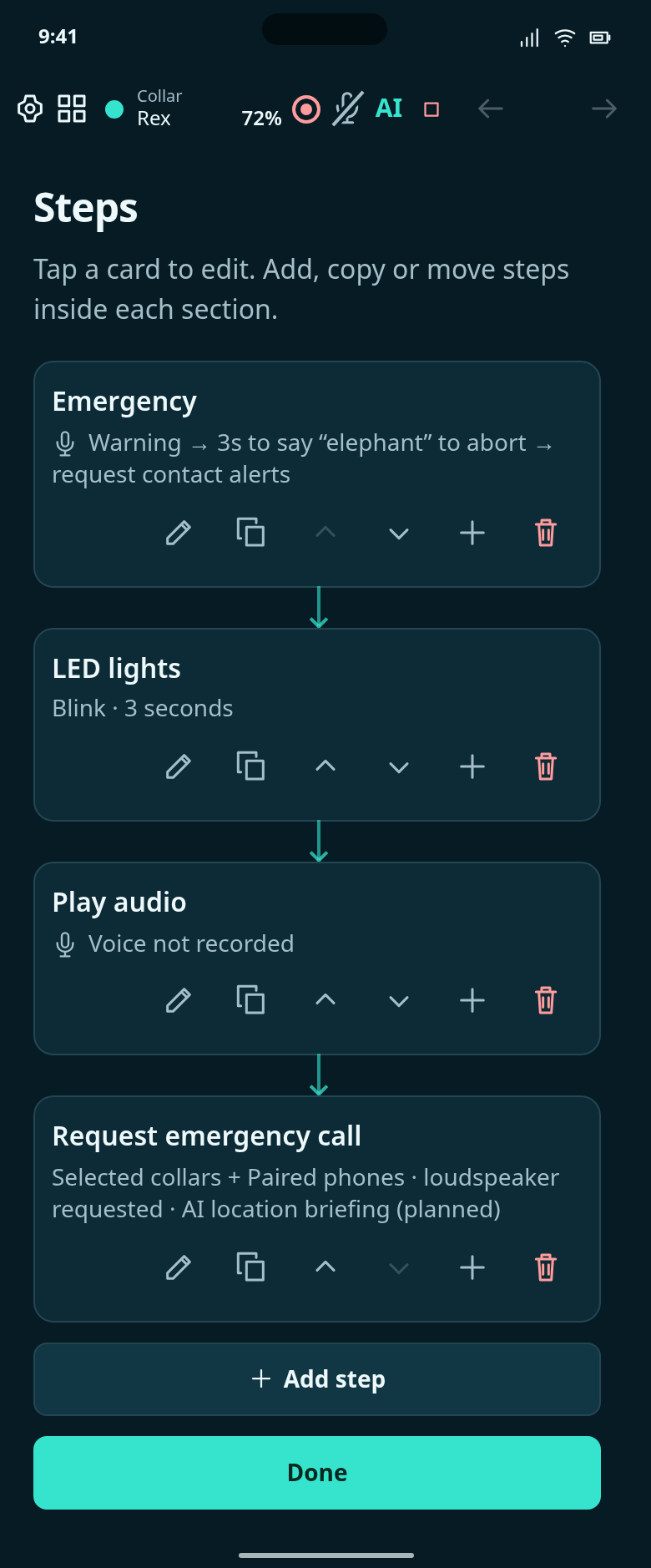
Help configuration: recorded warning and three-second abort guard, contact-alert requests, lights, speaker announcement and call requests.
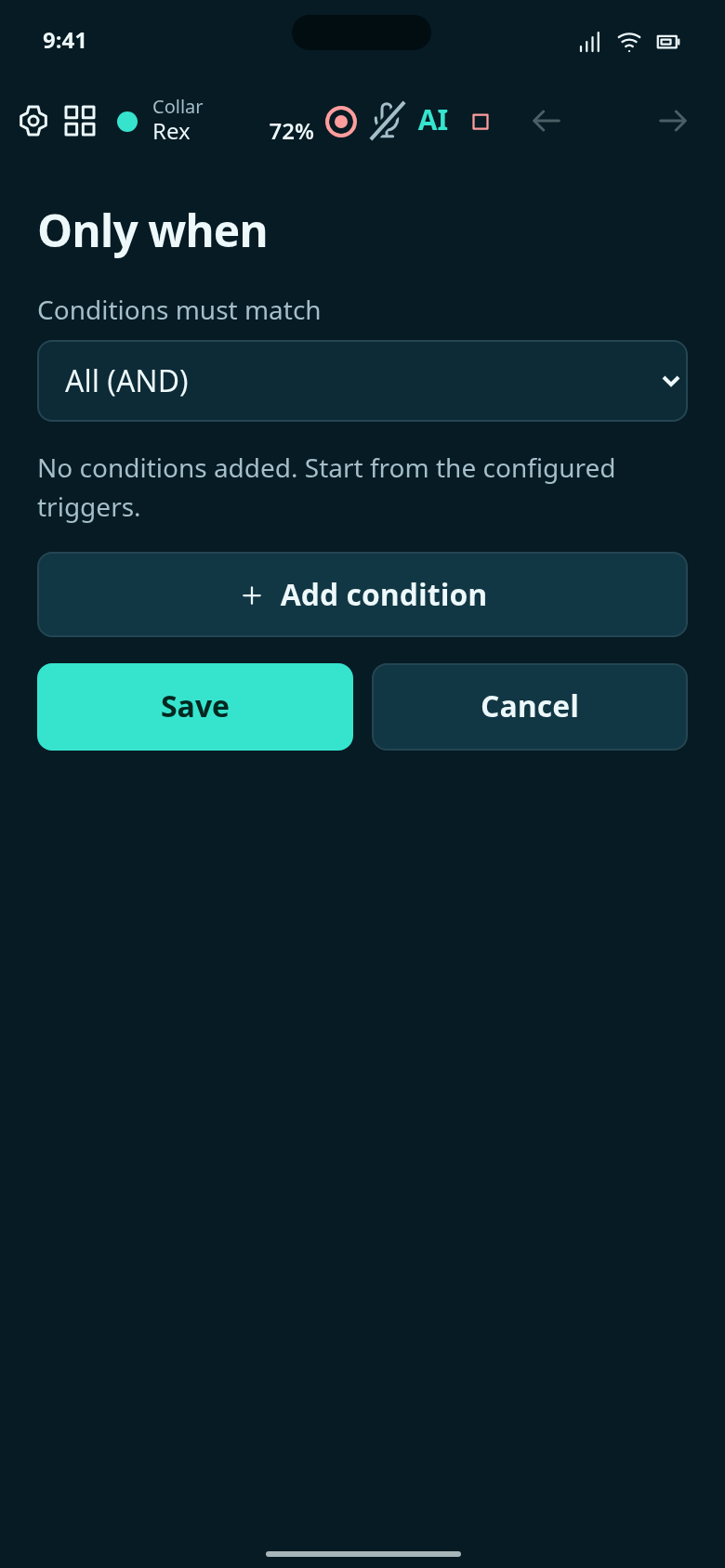
No extra condition is required for this example.
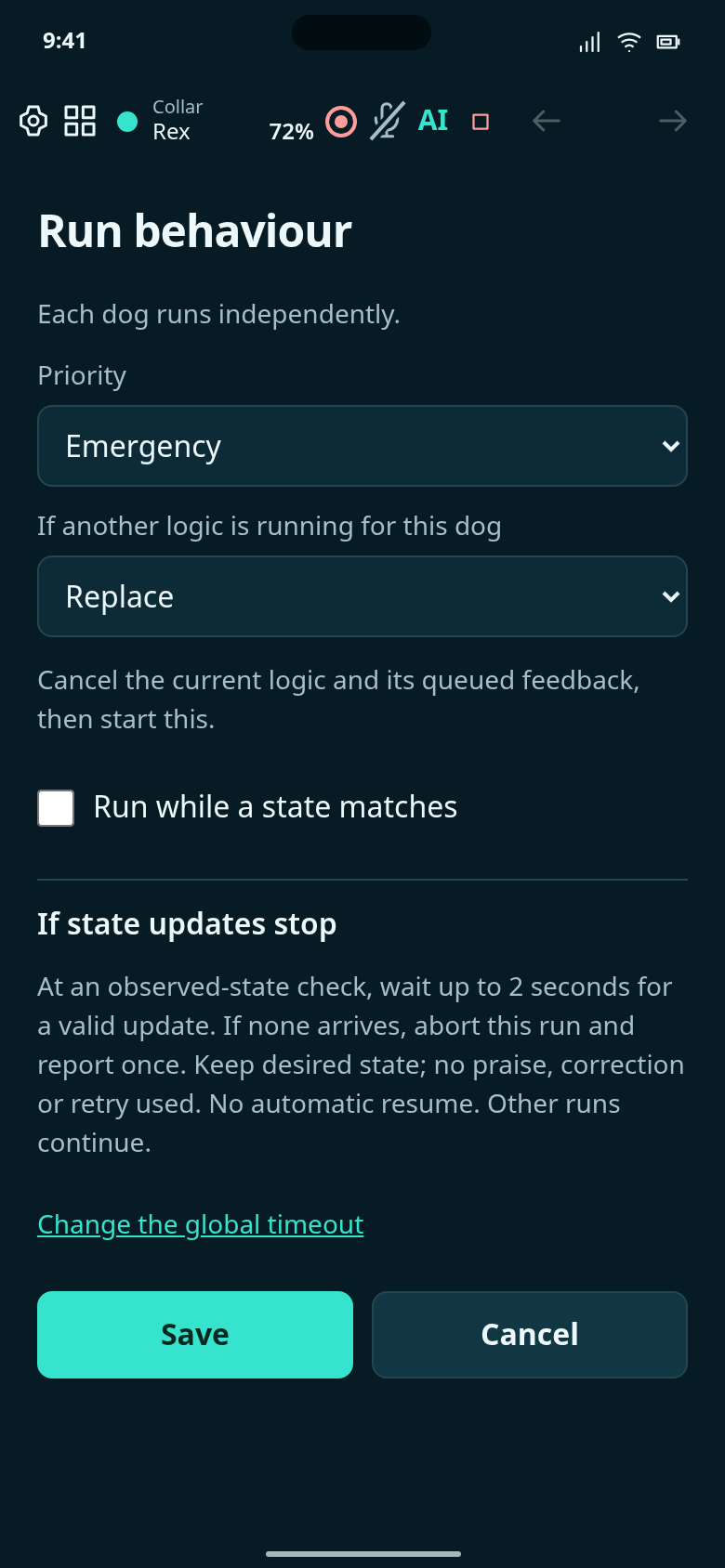
Choose what happens if another logic is running for Rex.
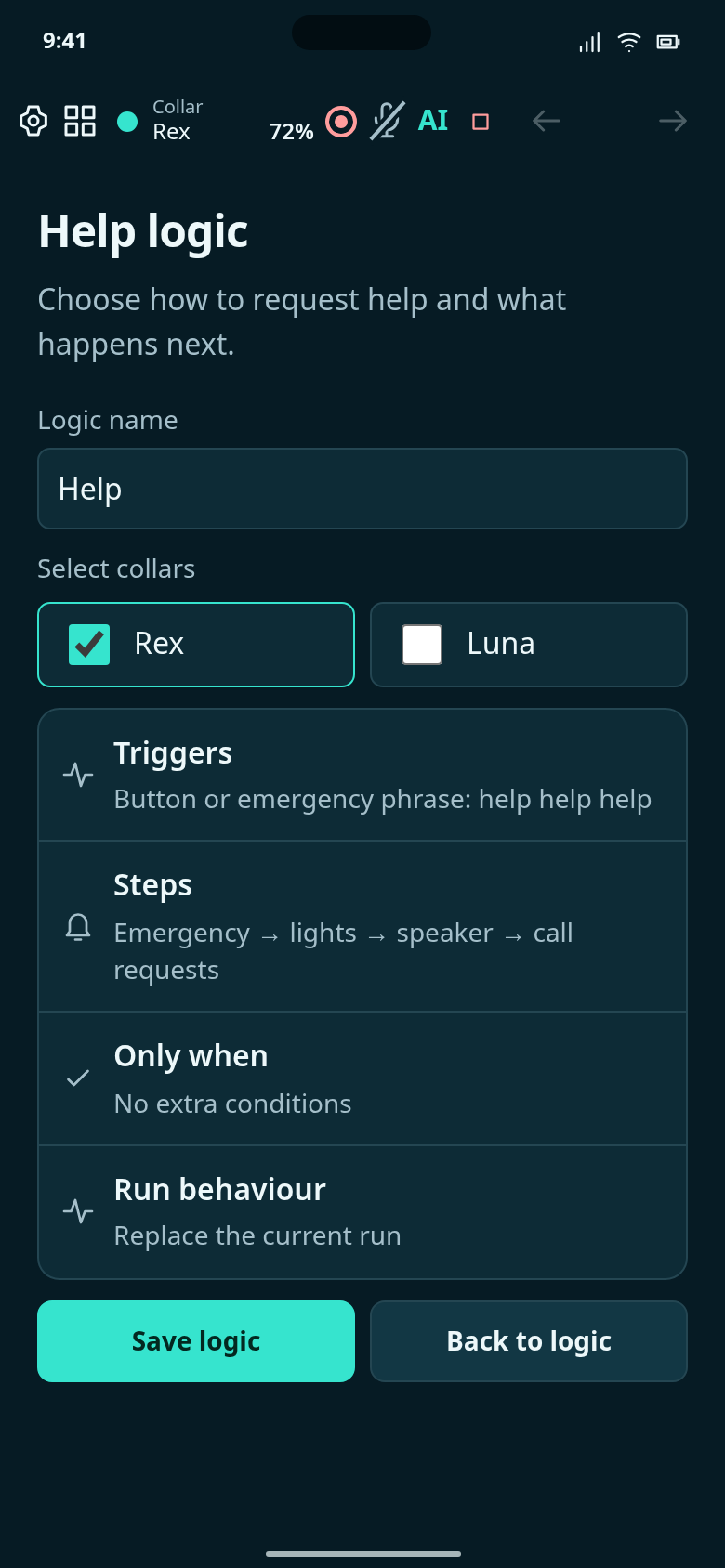
Configuration draft: “help help help” starts a warning and abort window, then contact-alert requests, lights, speaker audio and call requests. Add the warning and speaker recordings before use.

Choose Rex, Luna or All dogs, then open a state to manage its training data. Custom states stay private.
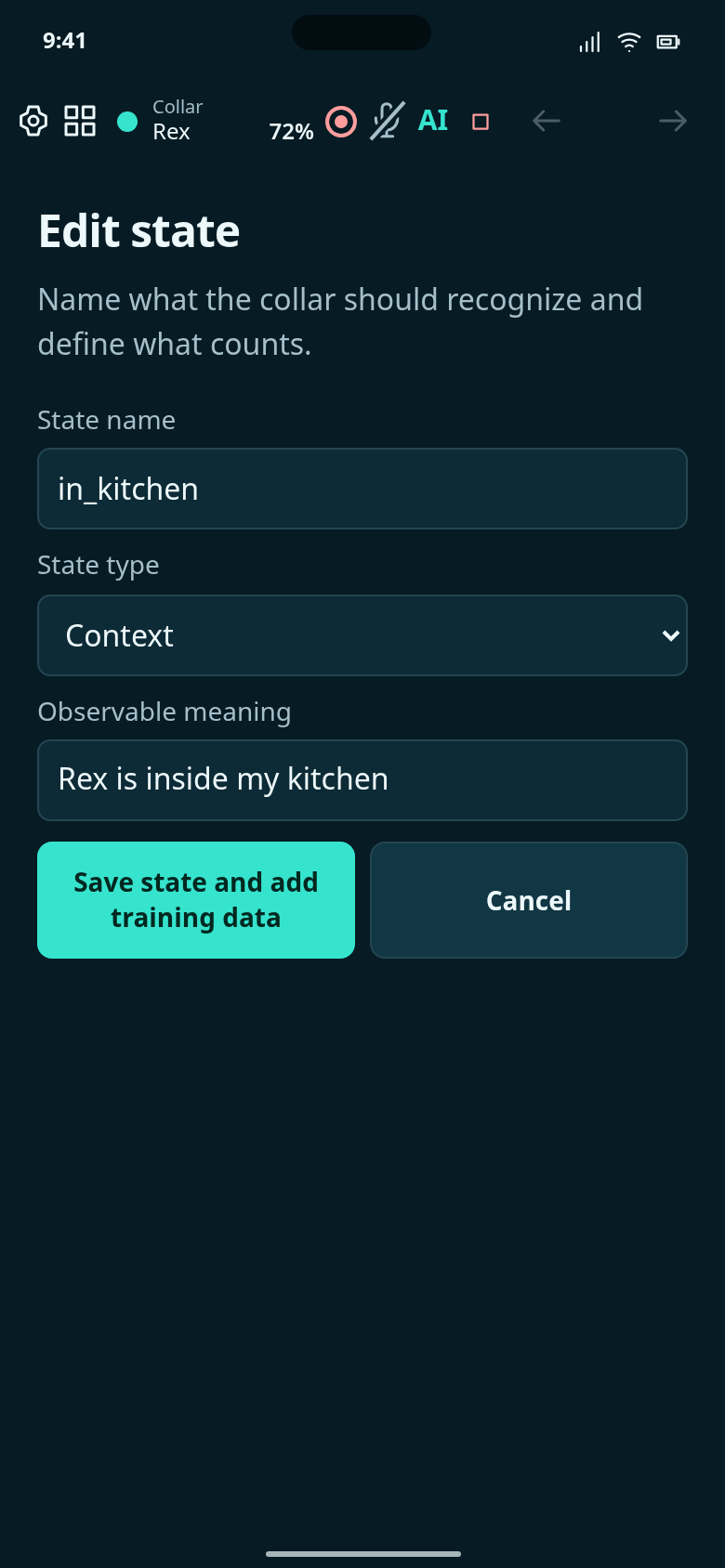
Name a custom state or edit its definition, then save and add training data.
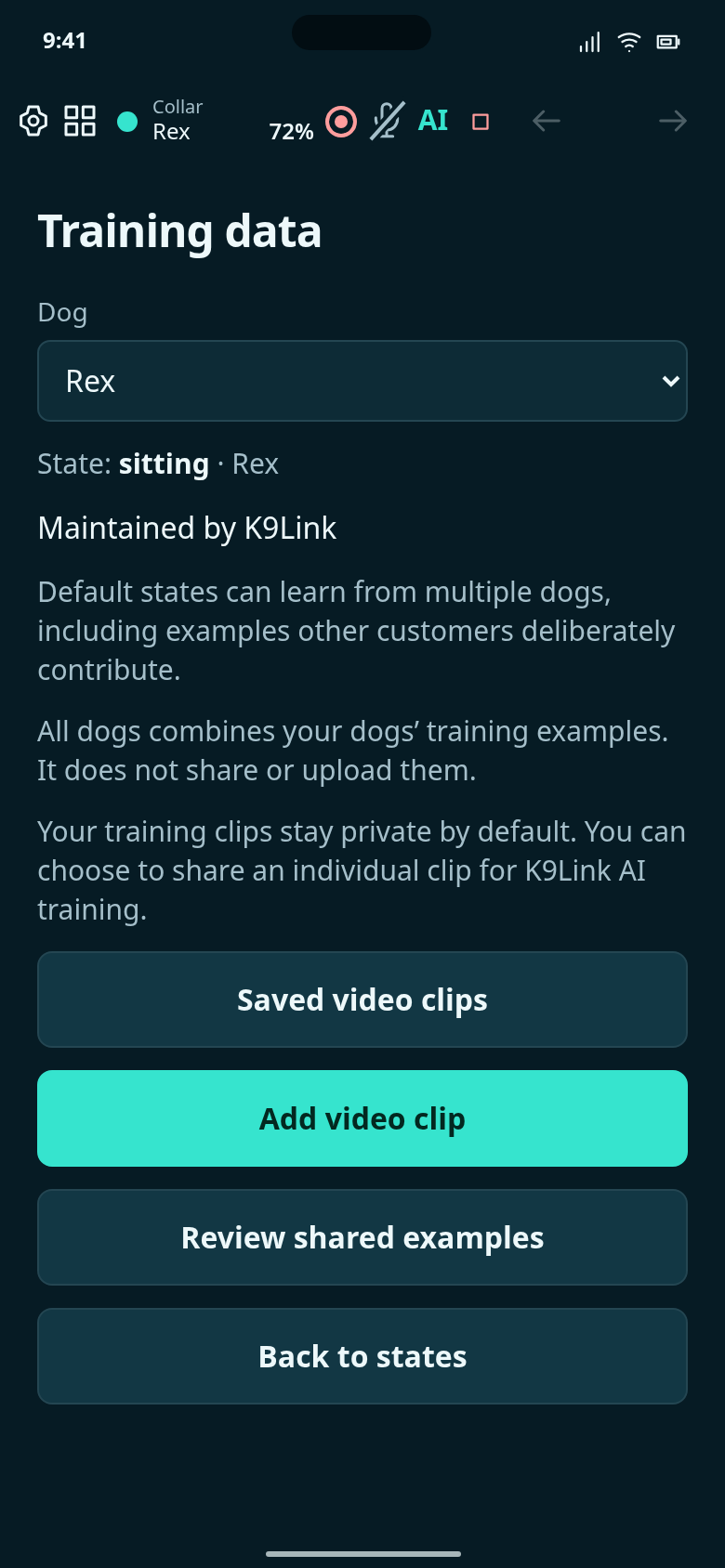
Manage training examples for one dog or All dogs. Default states can also learn from deliberately contributed examples.
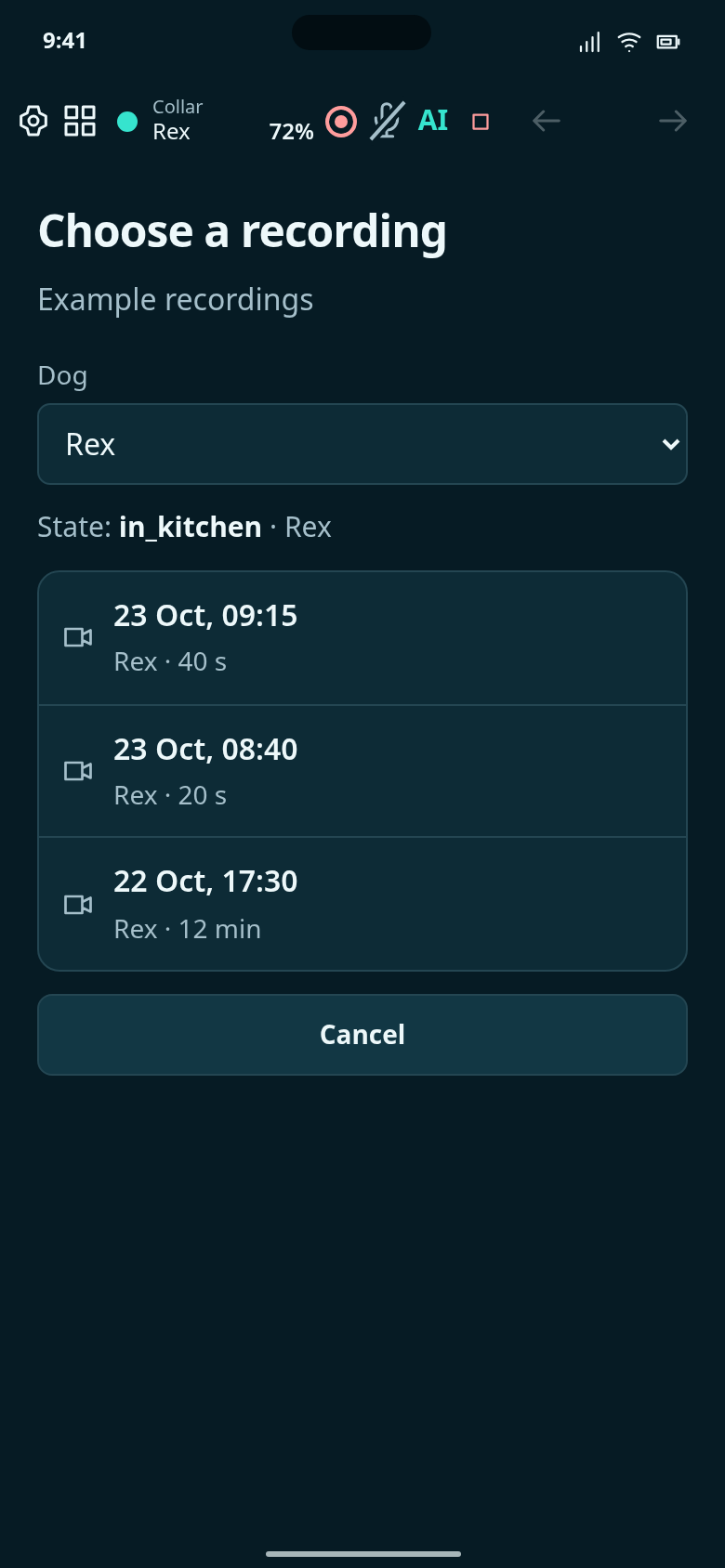
Choose an original recording for the selected dogs; every entry identifies its source dog.
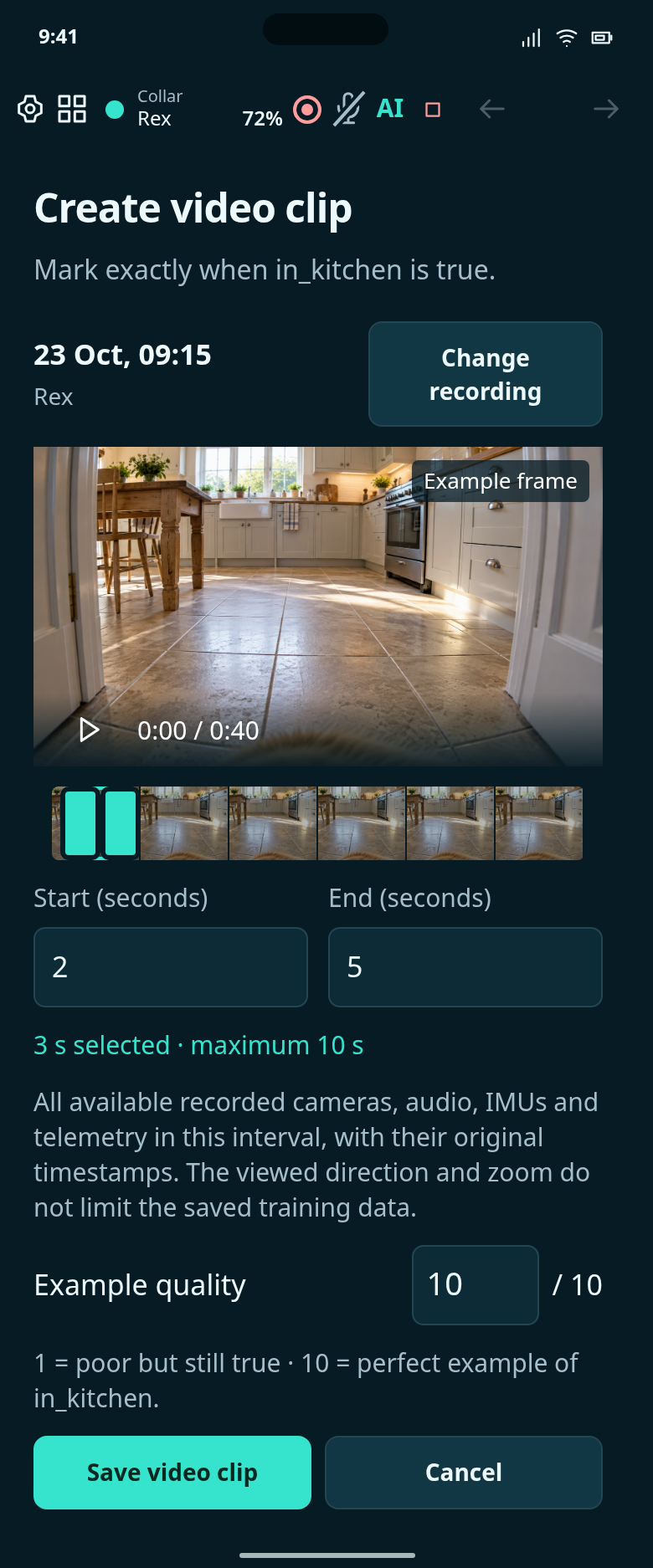
Choose up to 10 seconds where this state is true, and rate the example from 1 to 10.
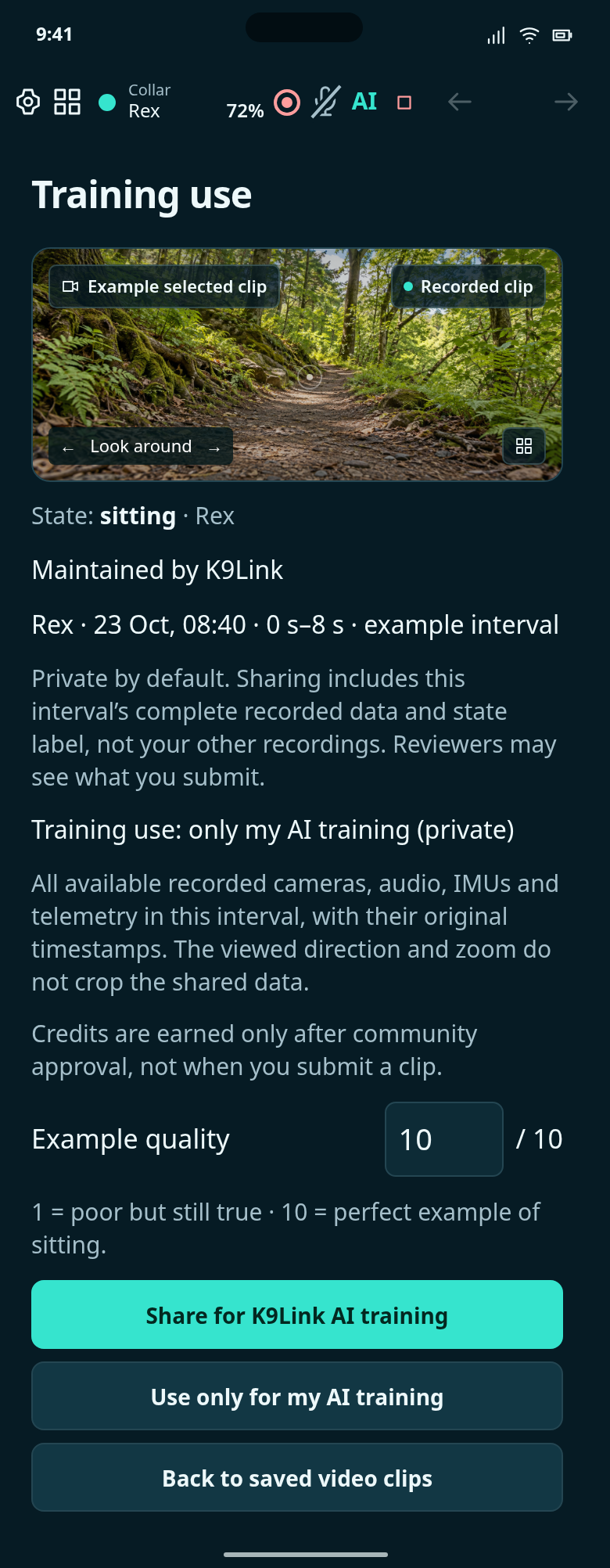
Keep a selected clip private or explicitly choose to share it for K9Link AI training.
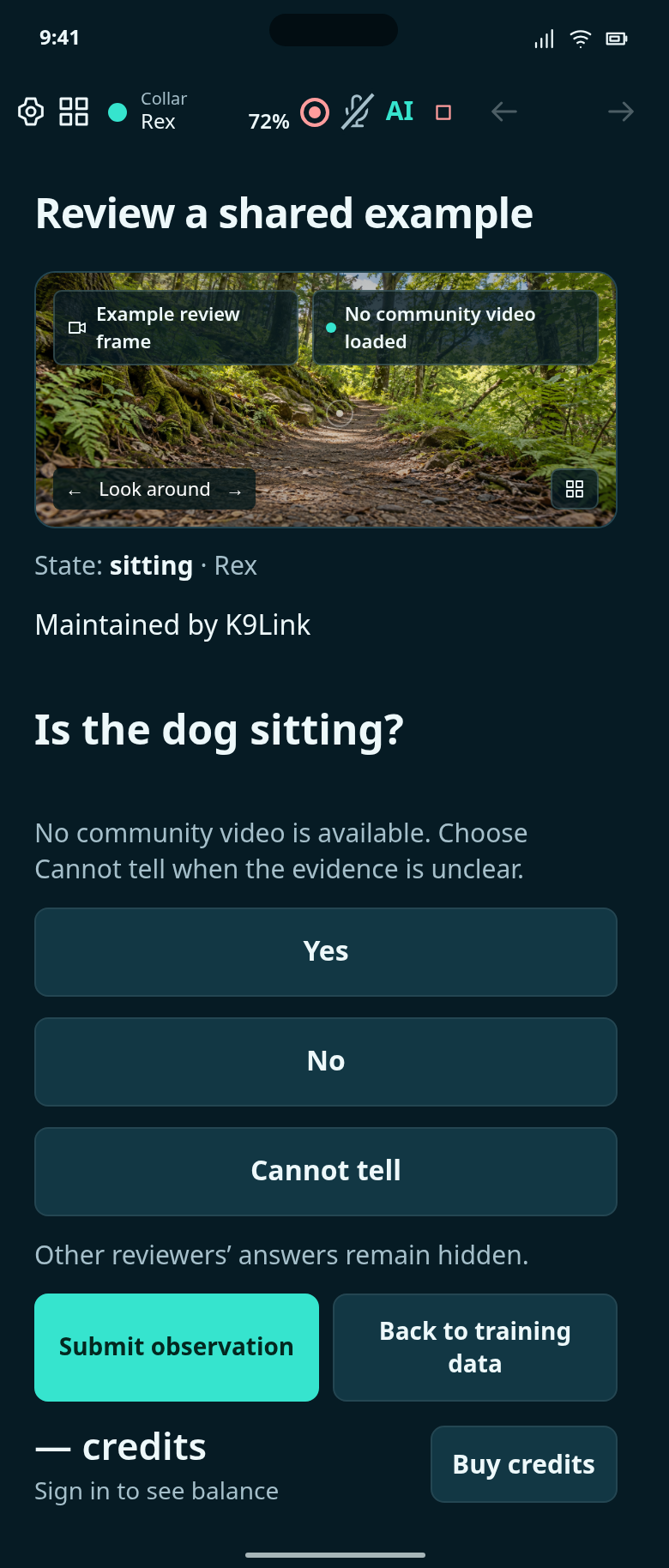
Review one deliberately shared example of the selected K9Link-maintained state.
Create a custom state, collect training clips and inspect one-dog or All dogs collections.
Follow the empty starting point, each setup step and the completed result.
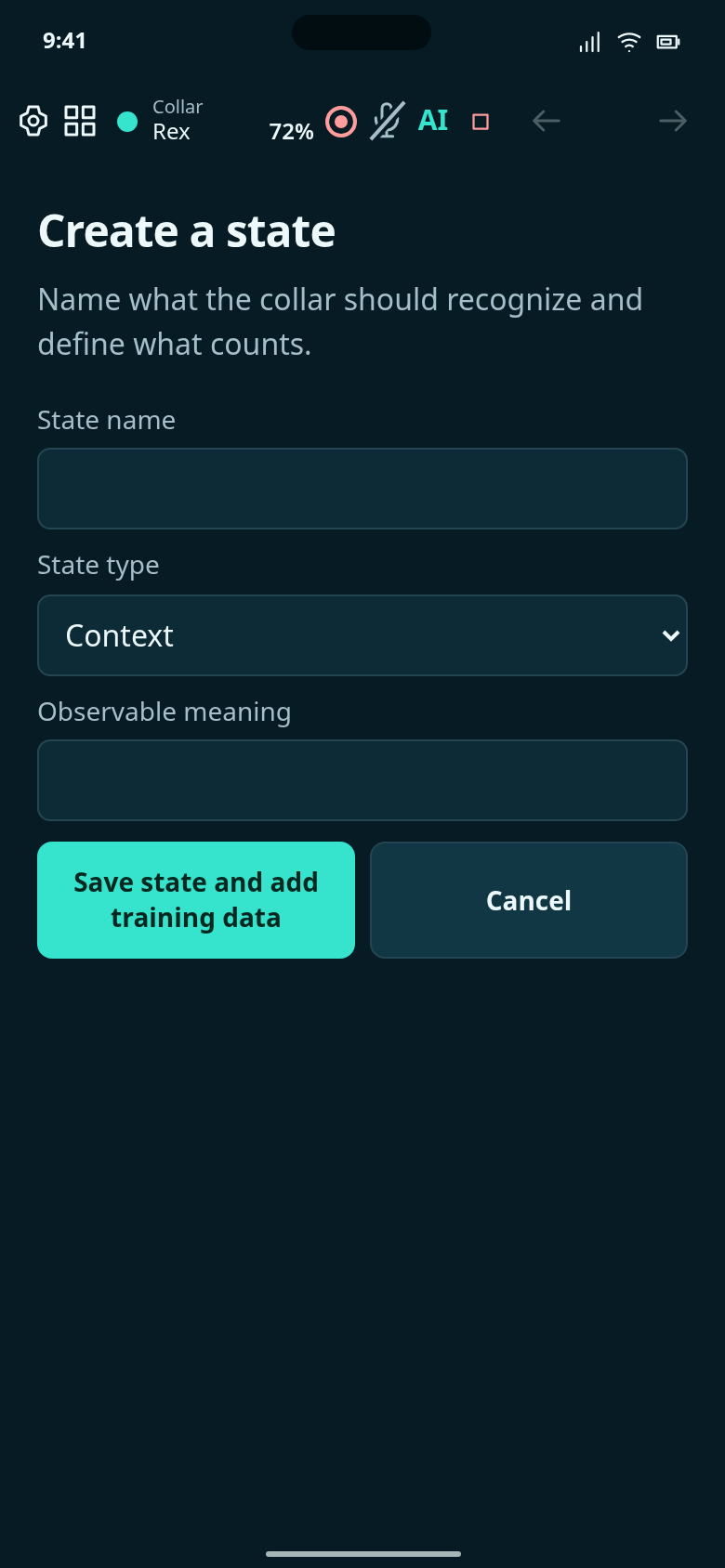
Start with no in_kitchen definition: its name and observable meaning are blank.
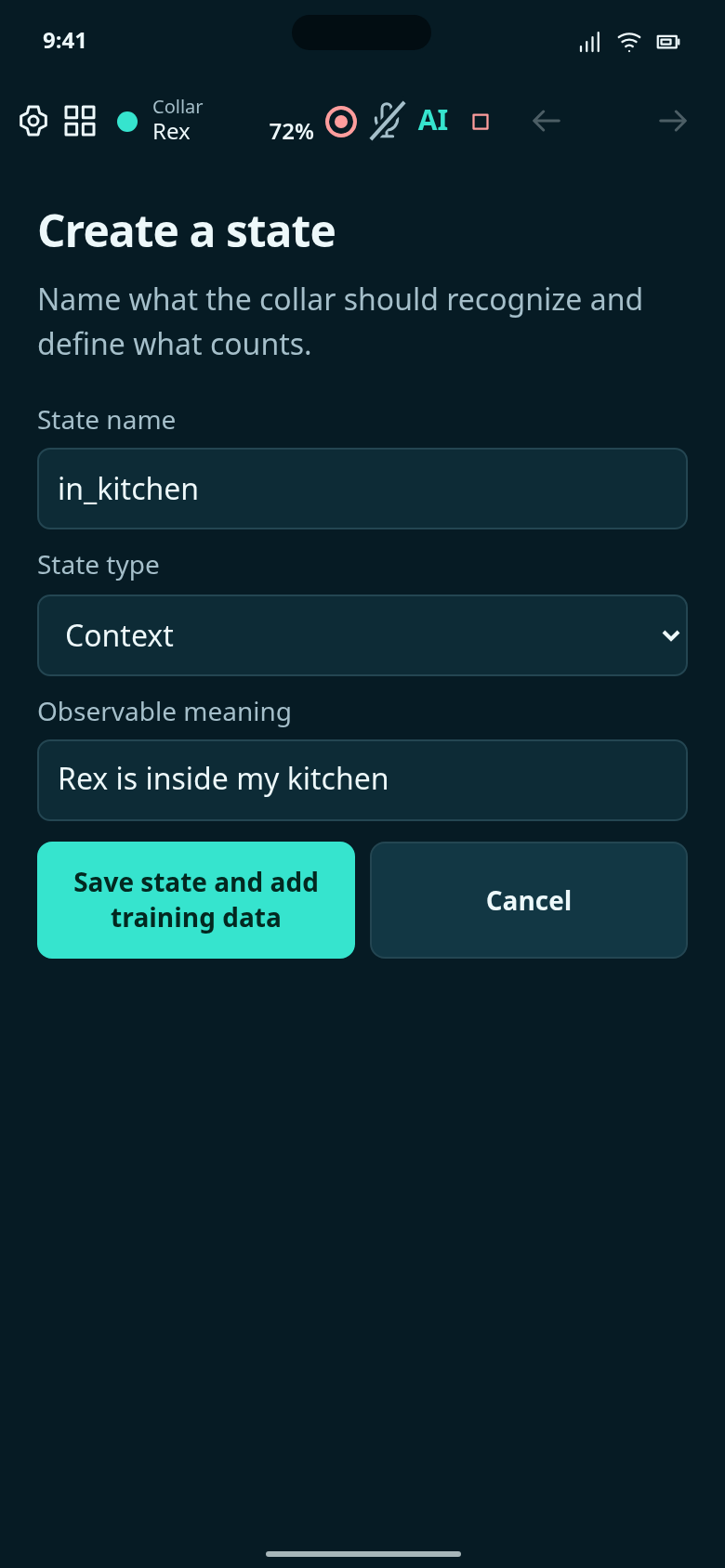
Name the context state in_kitchen and define it as Rex being inside your kitchen; it is not saved yet.
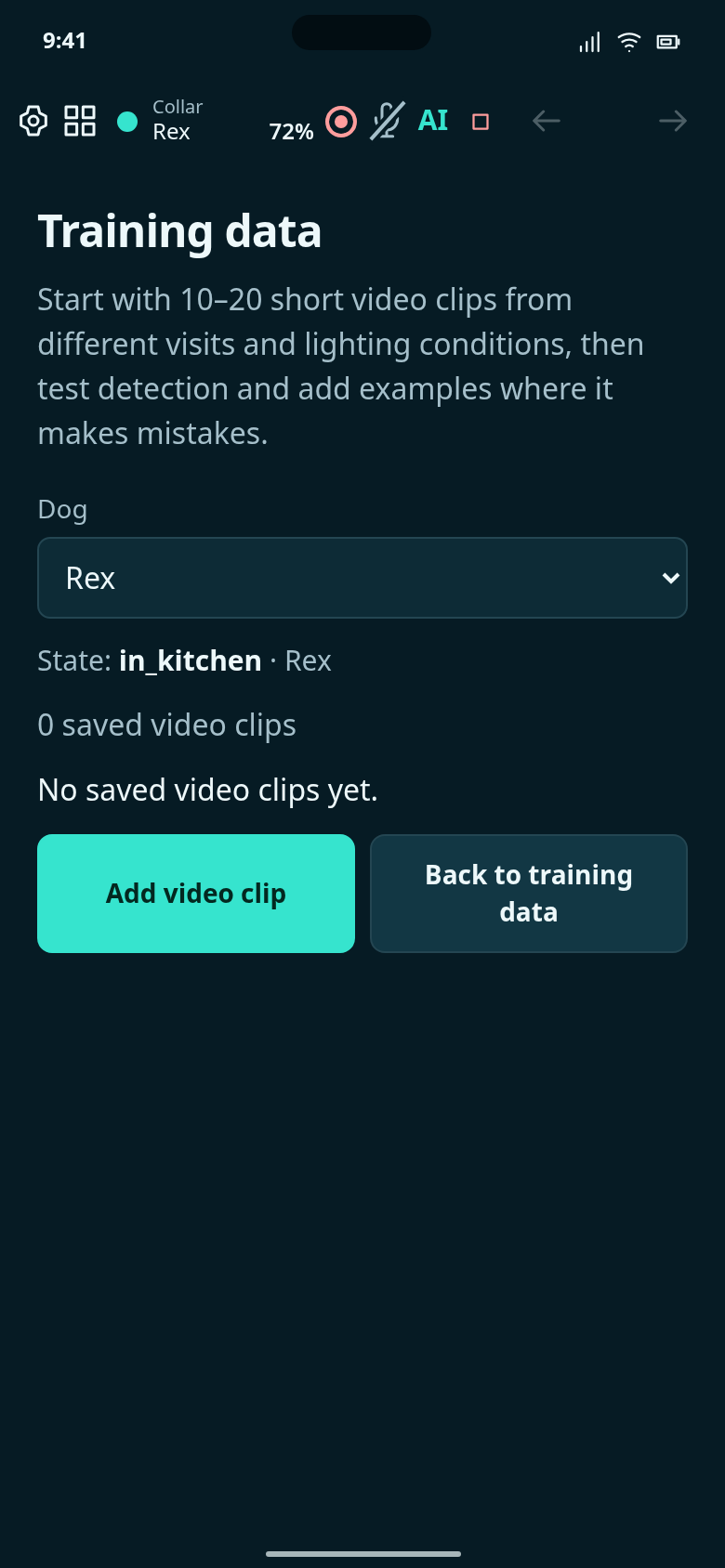
The state is saved. Its private training collection is still empty.
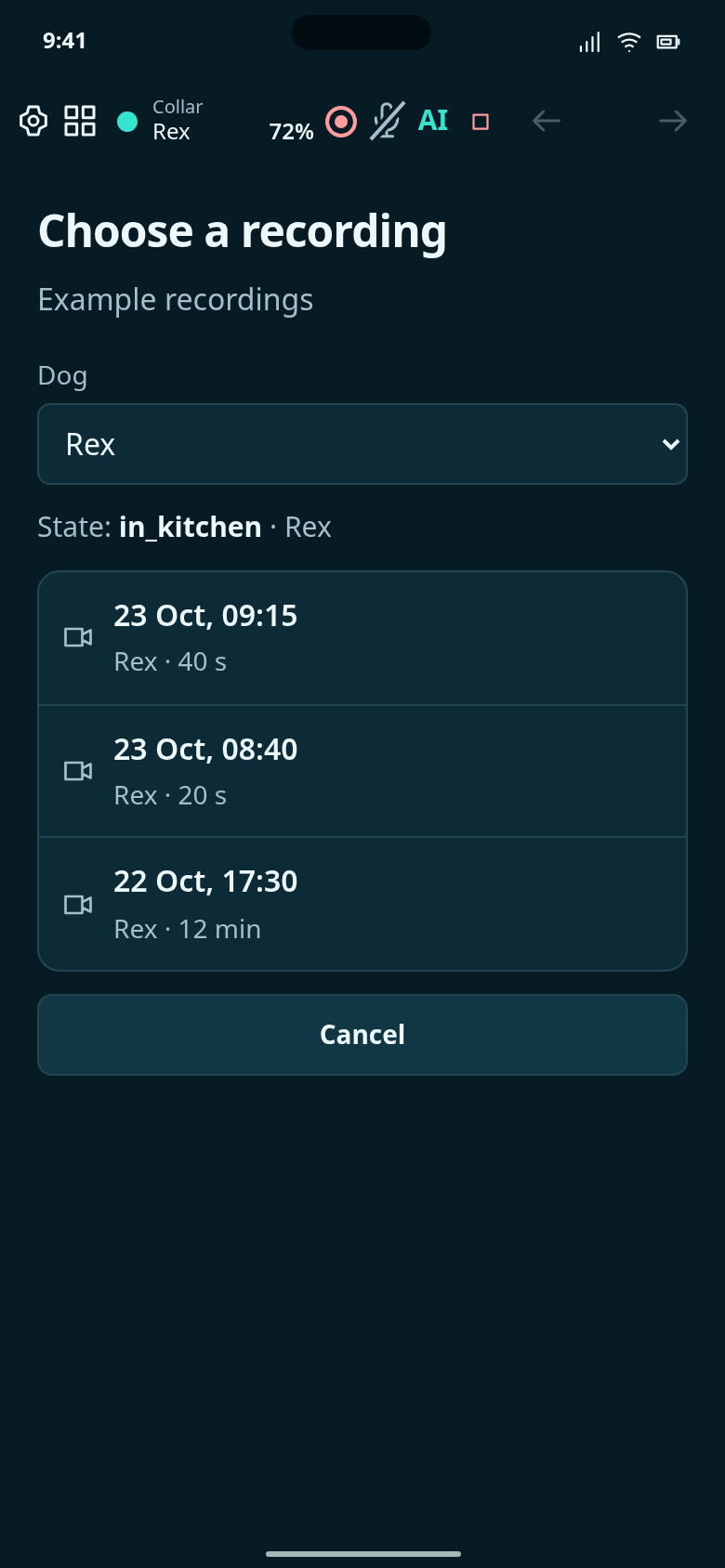
Select a normal recording to cut a training video clip; these dated entries are fictional examples.
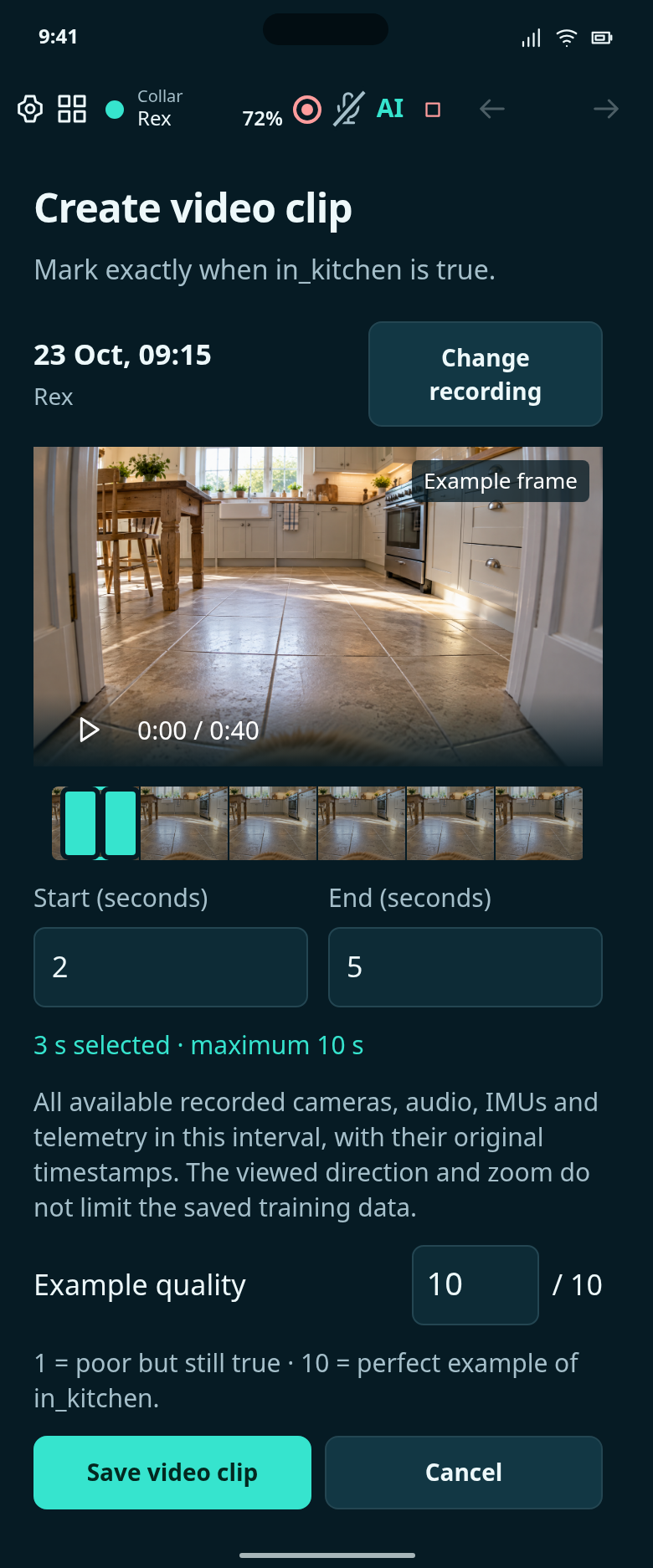
Choose up to 10 seconds where this state is true, and rate the example from 1 to 10.
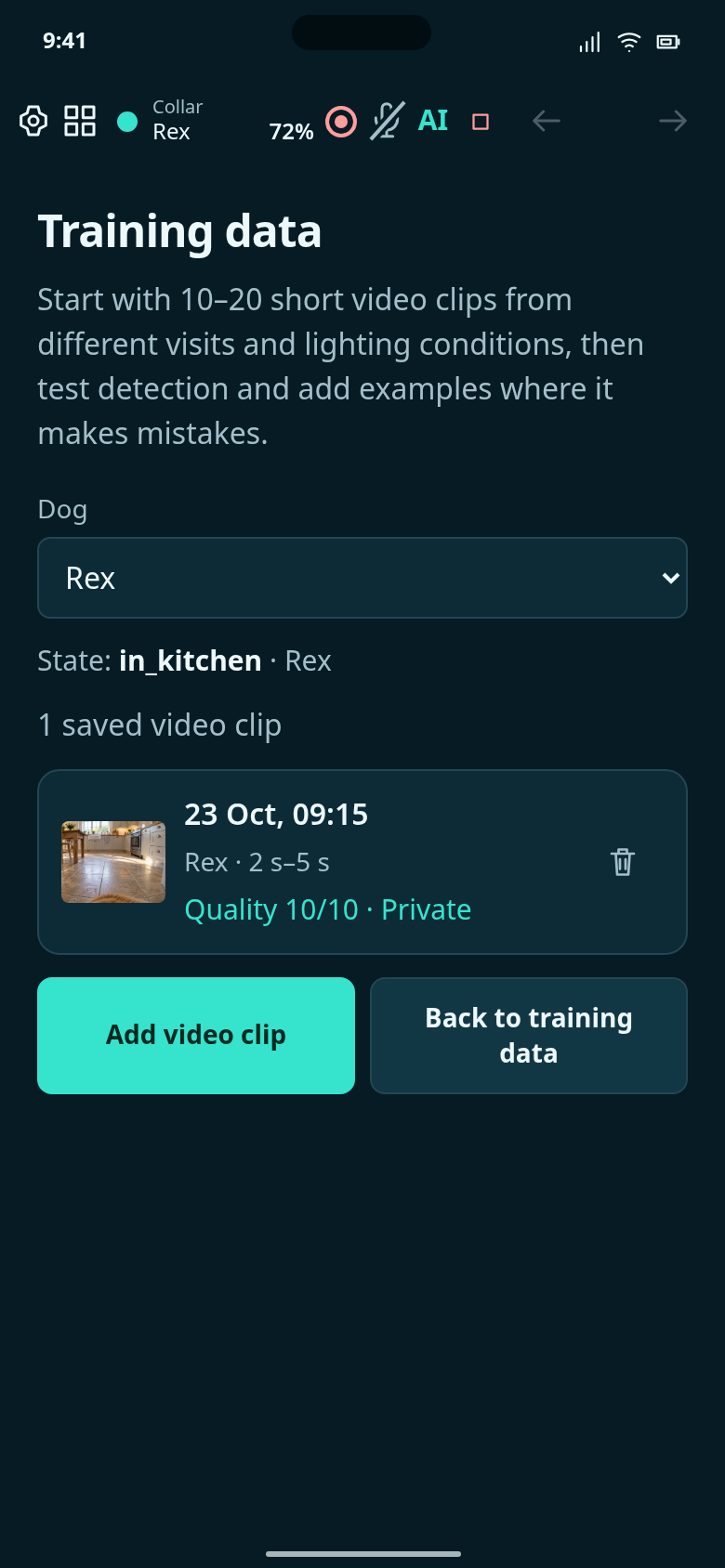
The 2–5 second interval from the example recording is saved privately with quality 10/10; no detector has been trained or enabled.
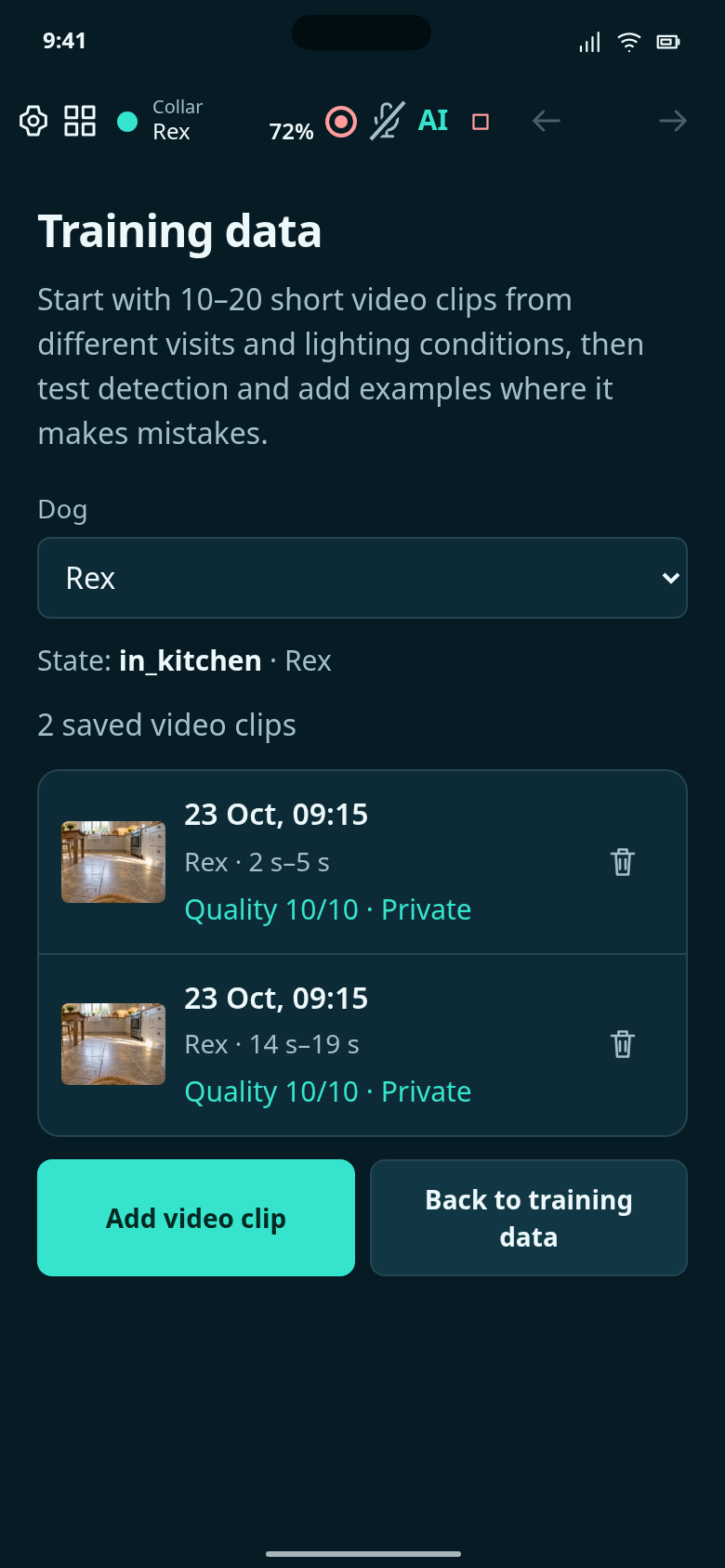
Filter this state’s saved training clips by dog or All dogs, and edit their 1–10 example ratings.
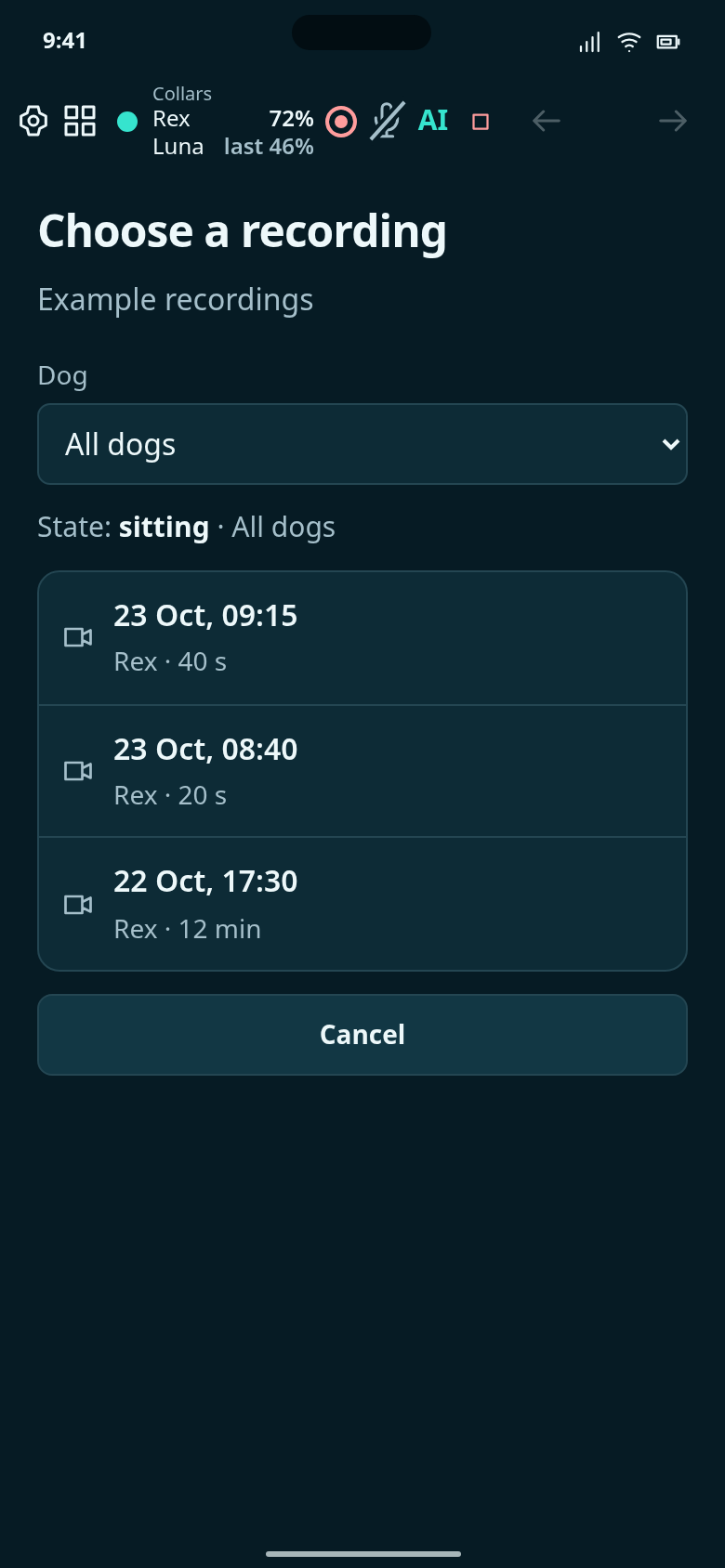
All dogs combines your dogs’ available recordings. These existing example recordings belong to Rex; no Luna recording is supplied.
Edit dog details, hardware and state history.
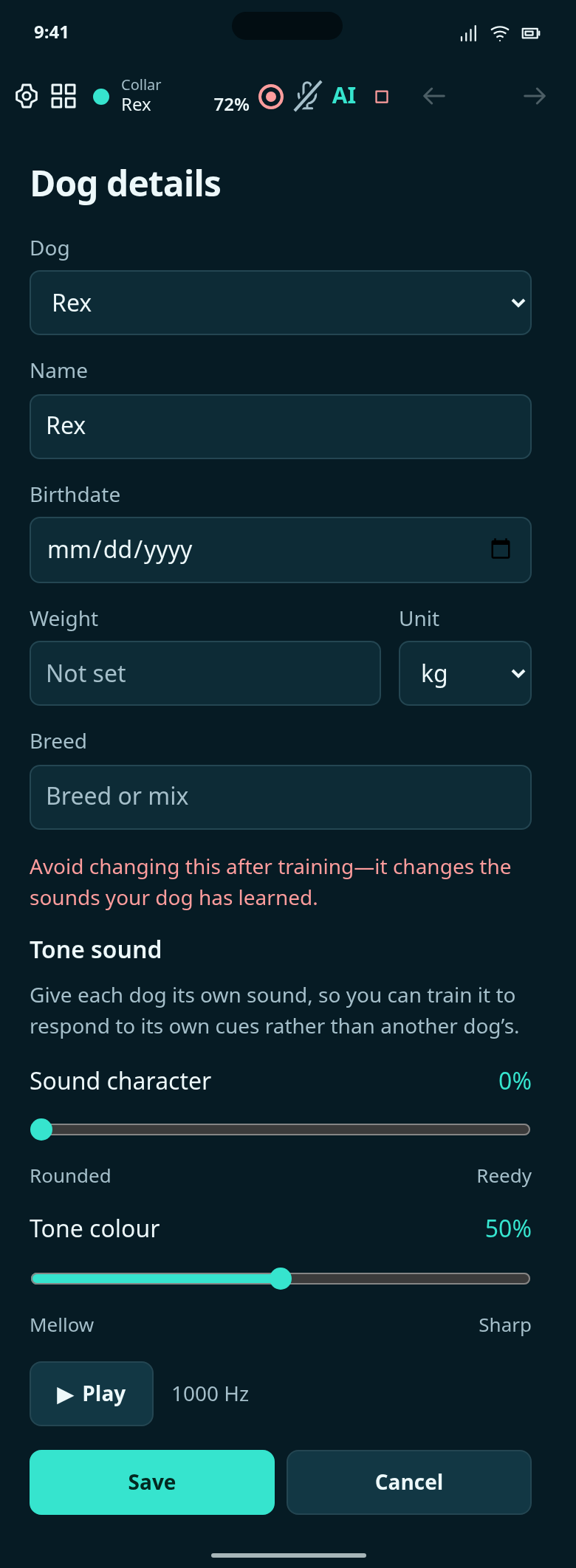
Edit your dog’s details and tone sound. Avoid changing the tone after training: it changes the sounds your dog has learned.
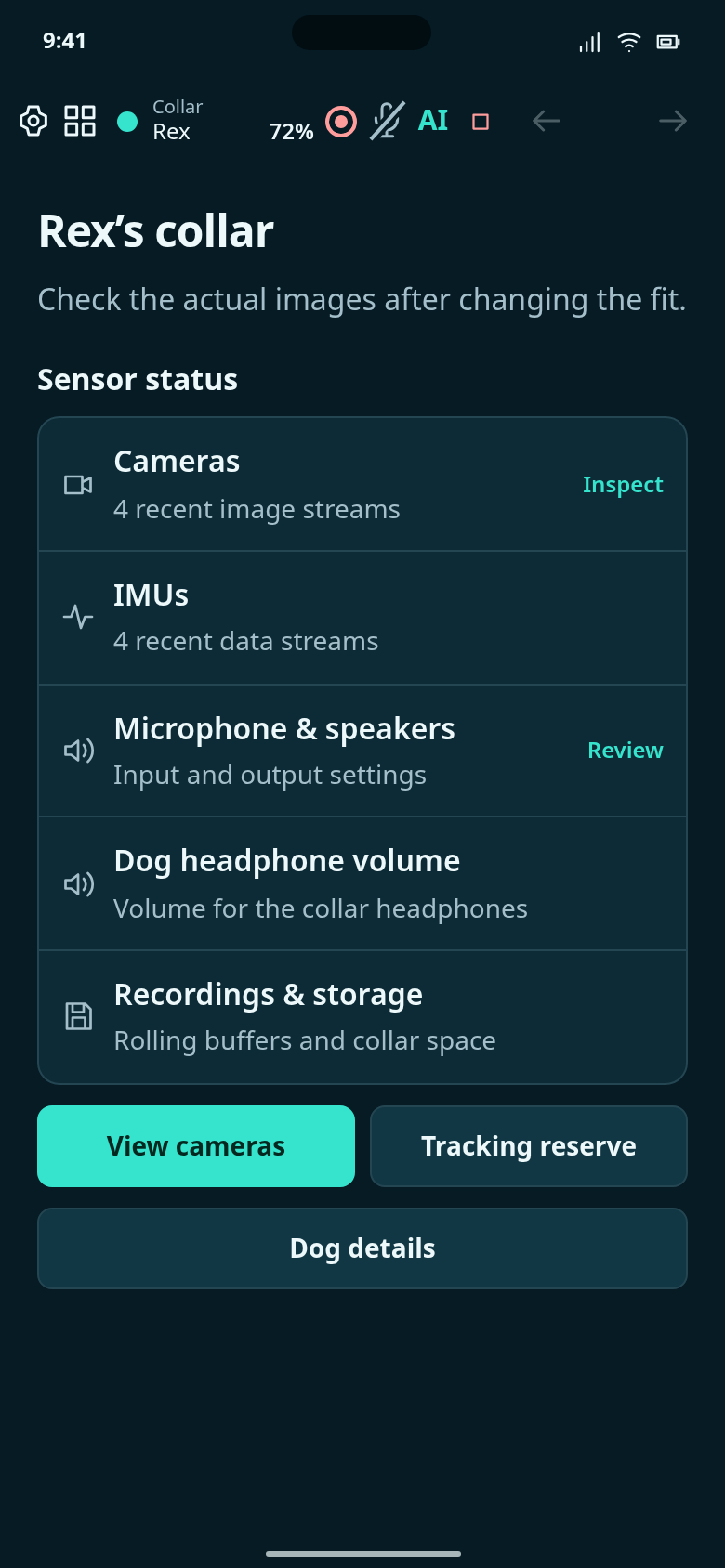
Inspect the cameras, movement sensors, audio, battery, and storage on Rex's collar.
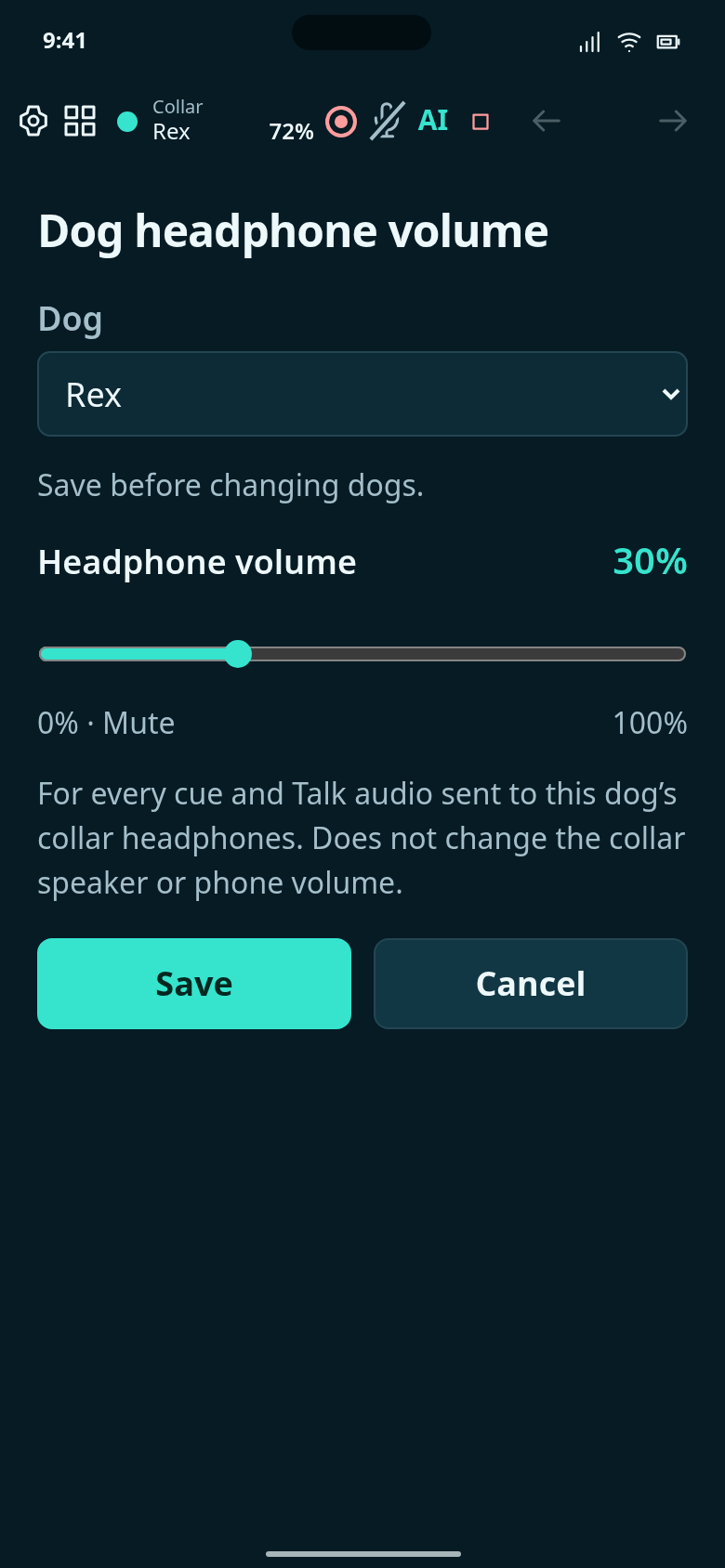
Set the volume for each dog’s collar headphones. Phone and collar-speaker volume stay unchanged.
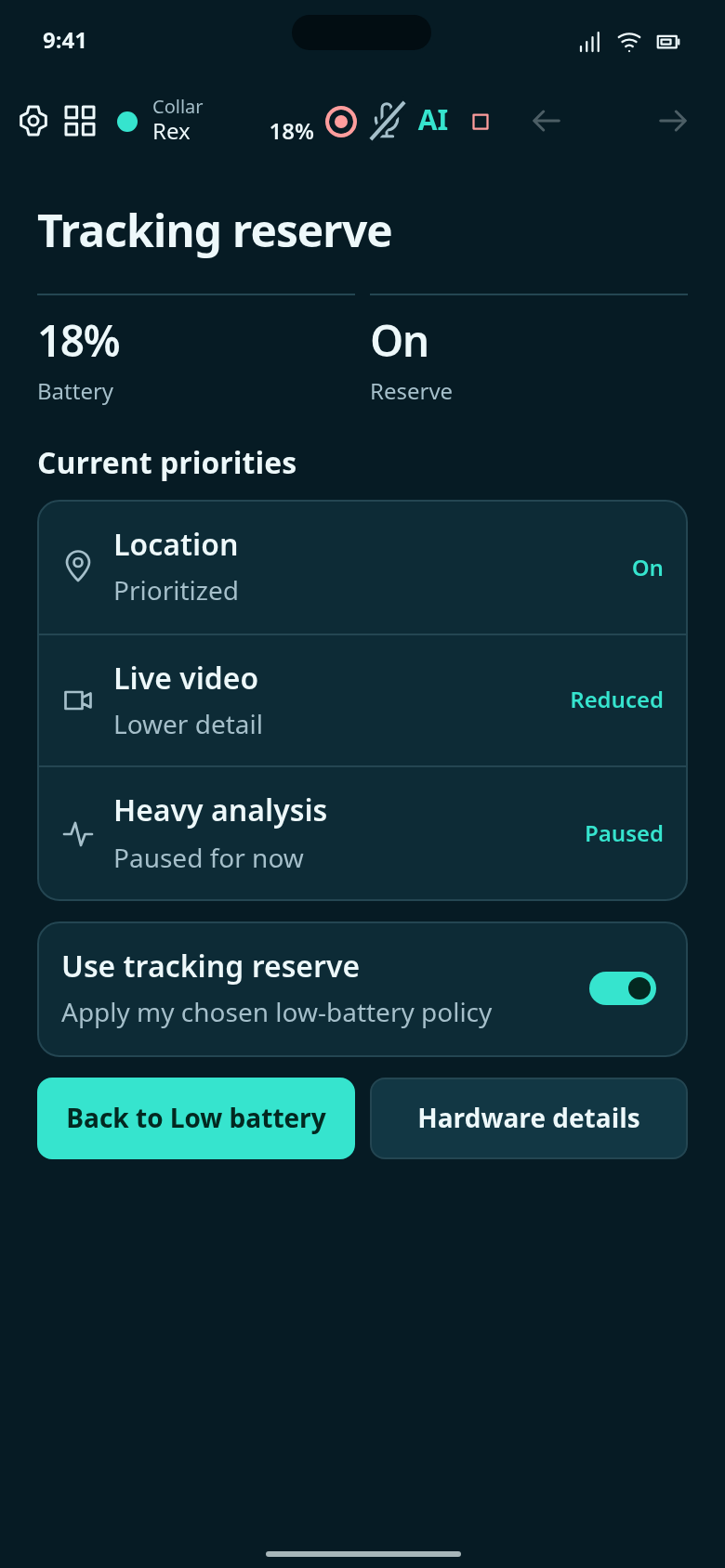
Review the functions reduced by your chosen low-battery tracking reserve setting.
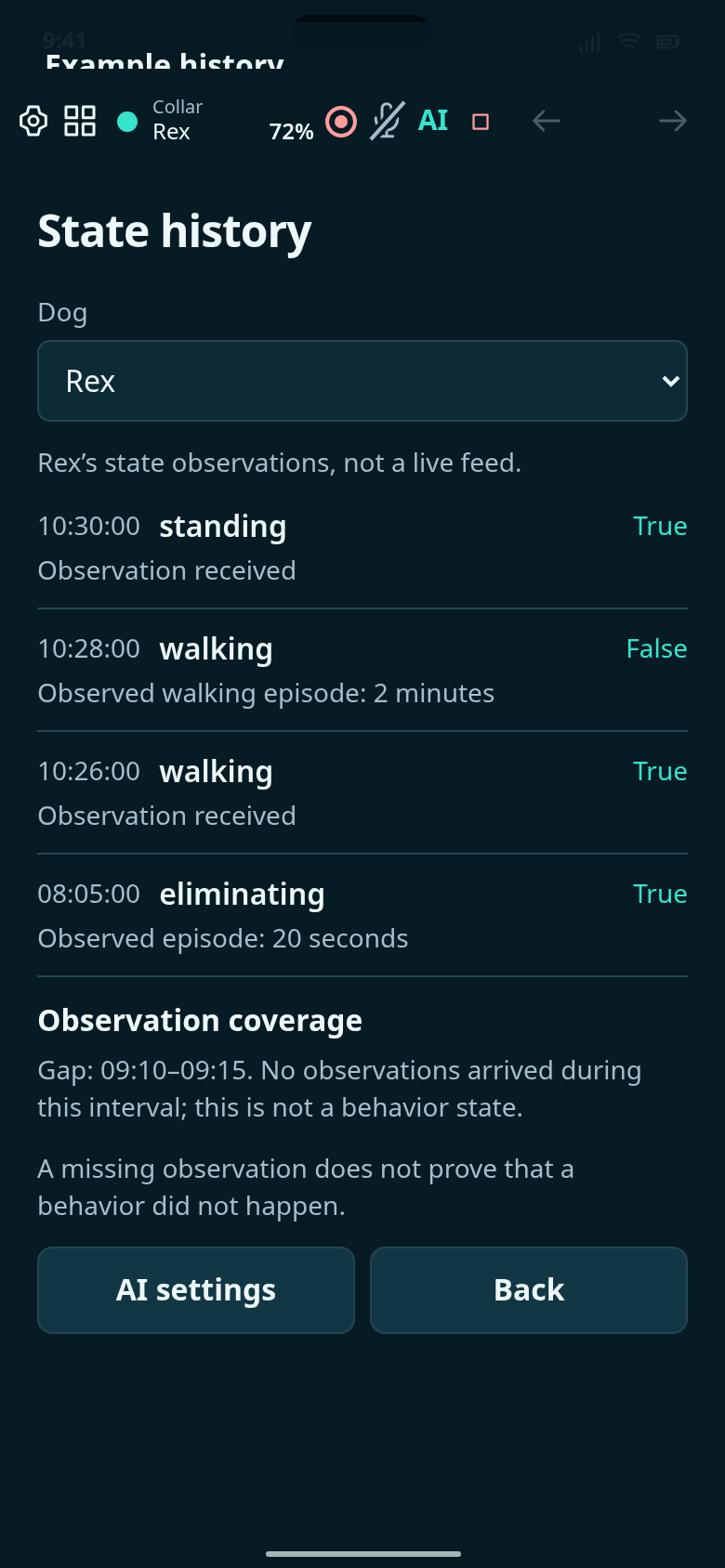
Review the timestamped behaviour history kept separately for each dog.
Manage emergency contacts, privacy and trusted devices.
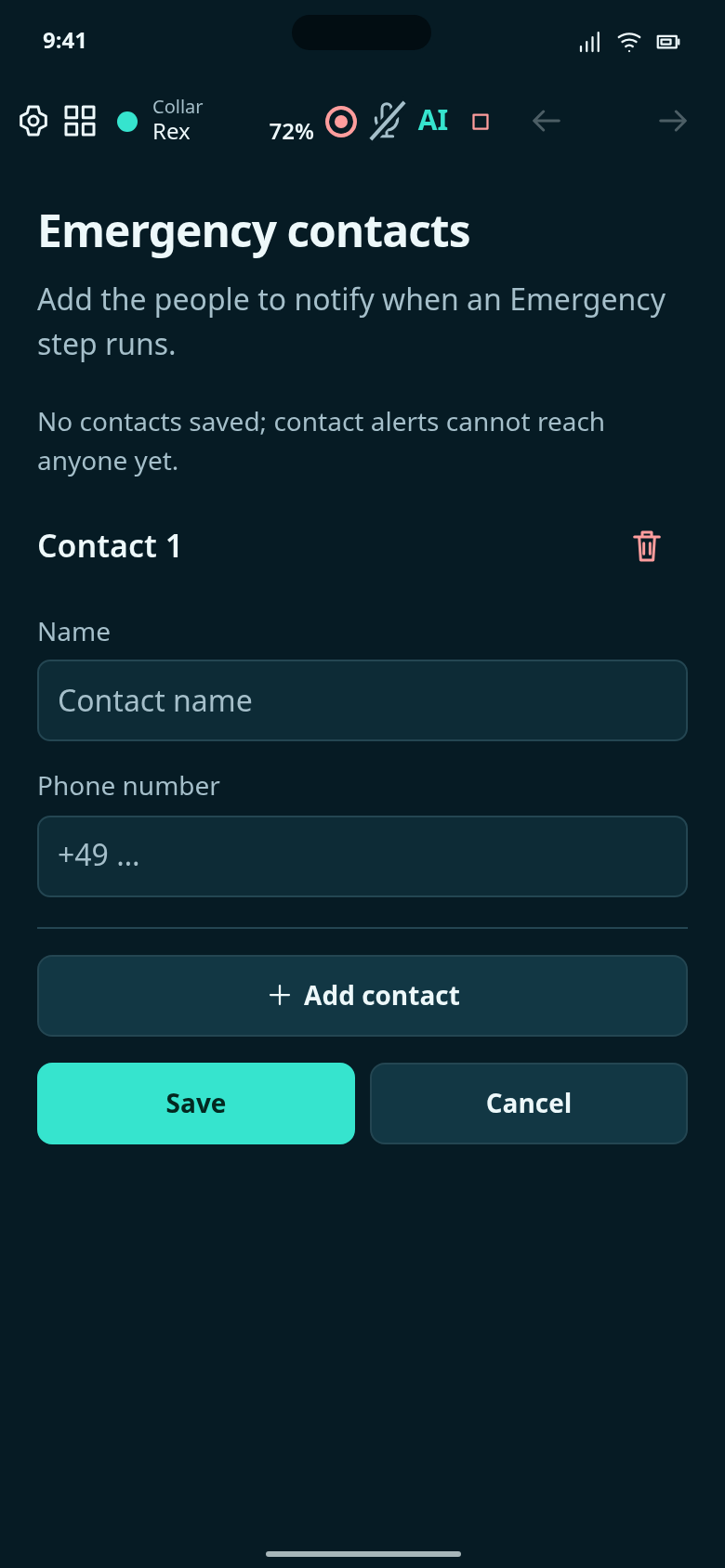
Choose who receives emergency alert requests from the collars and paired phones configured in the Emergency step.
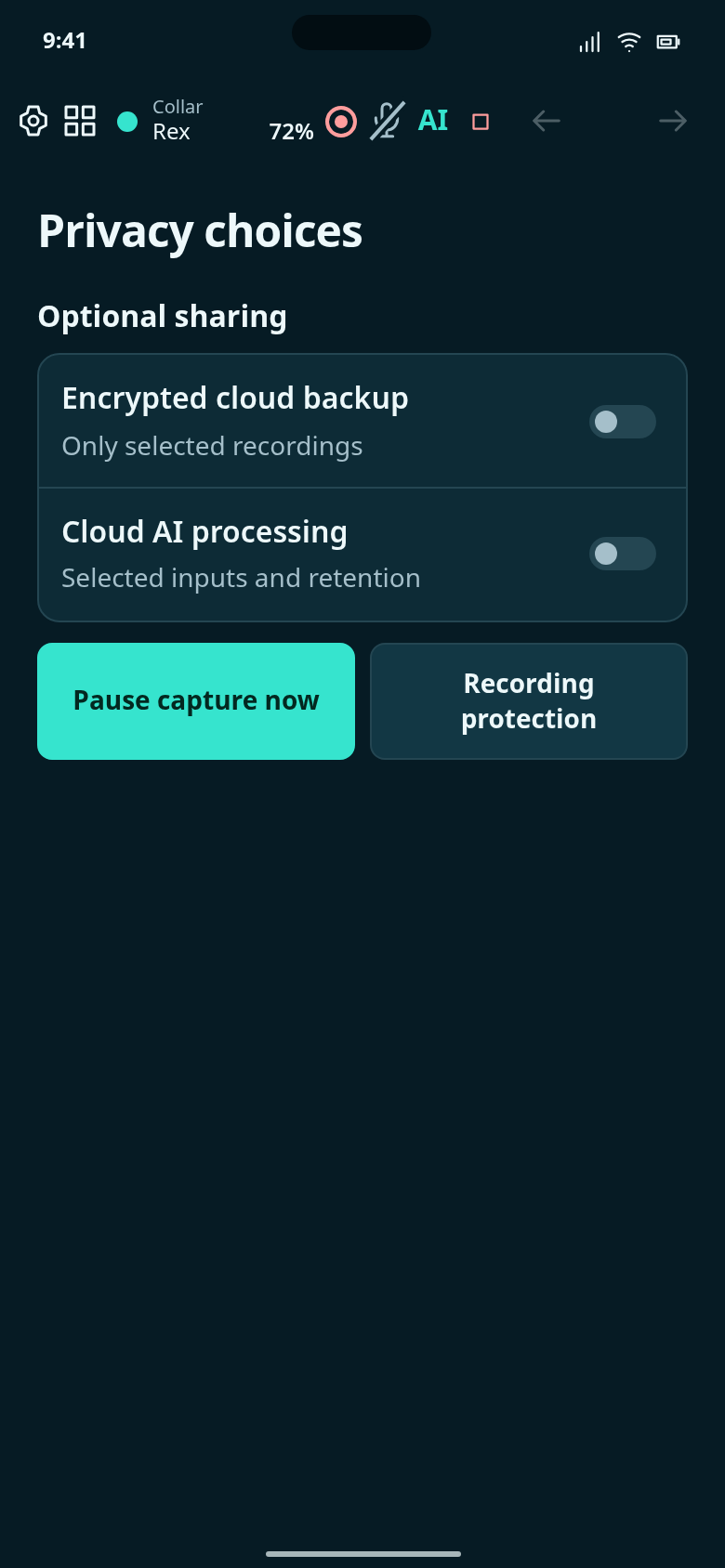
Choose cloud backup and cloud AI separately. Training contributions are selected per clip under States.
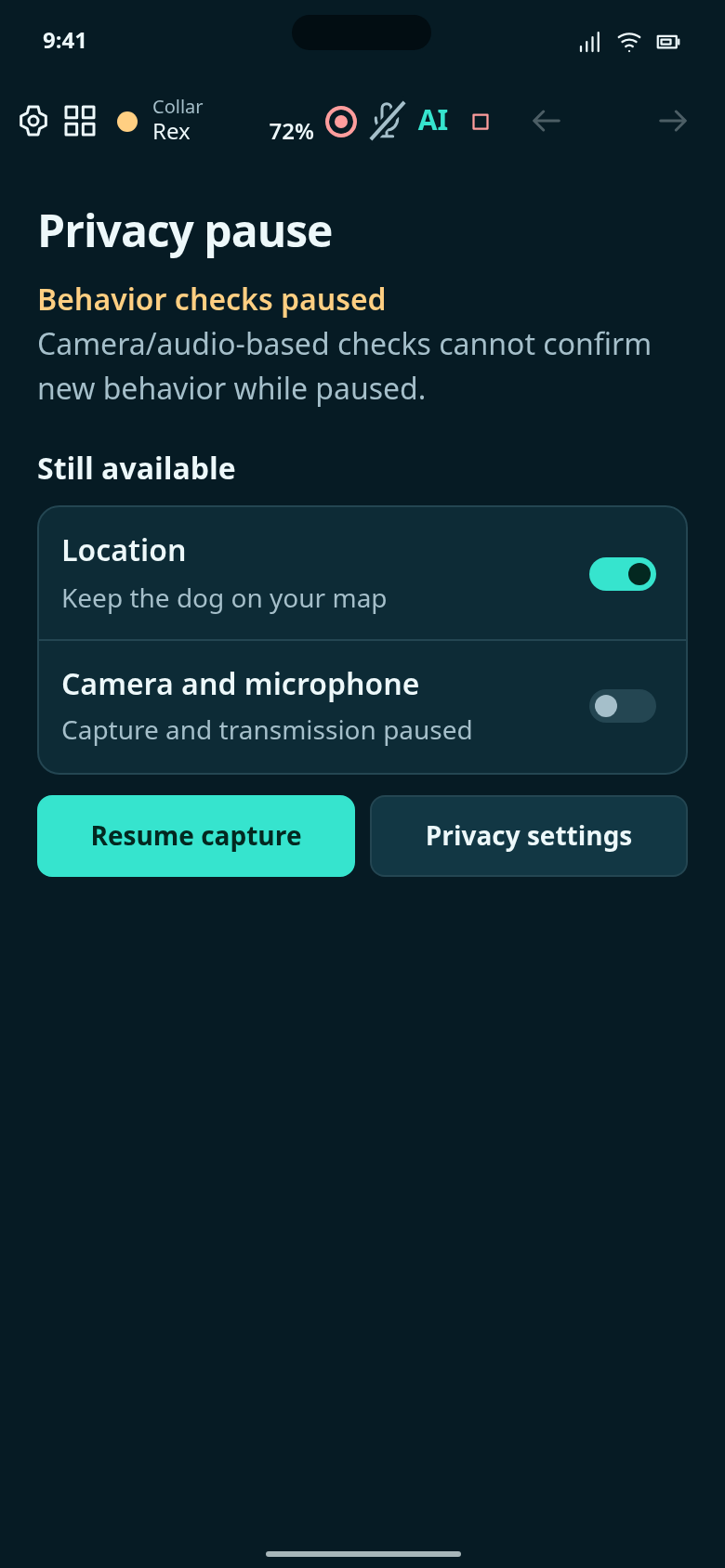
Shown while collar camera and microphone capture and transmission are paused.
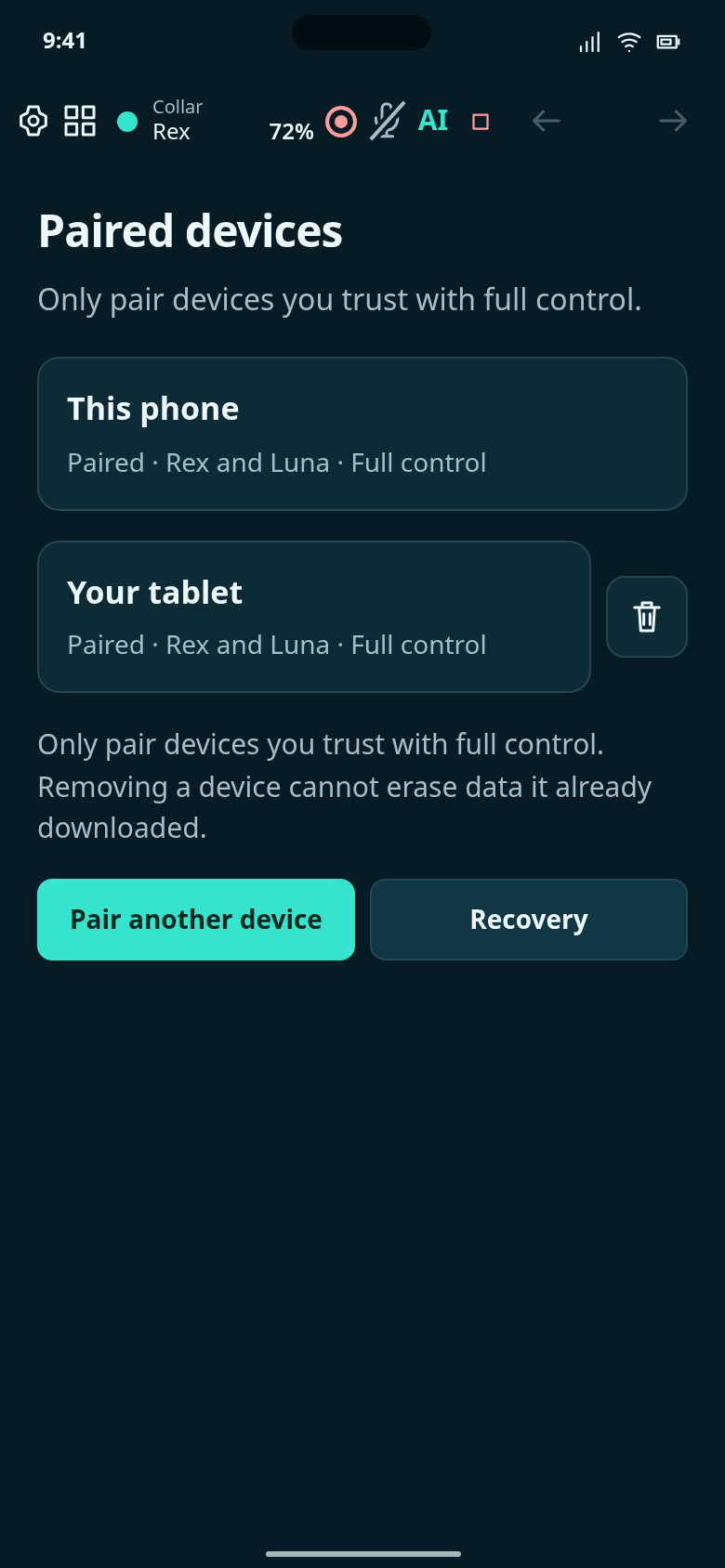
Manage paired phones and tablets. Each has full control; removing one revokes future access.
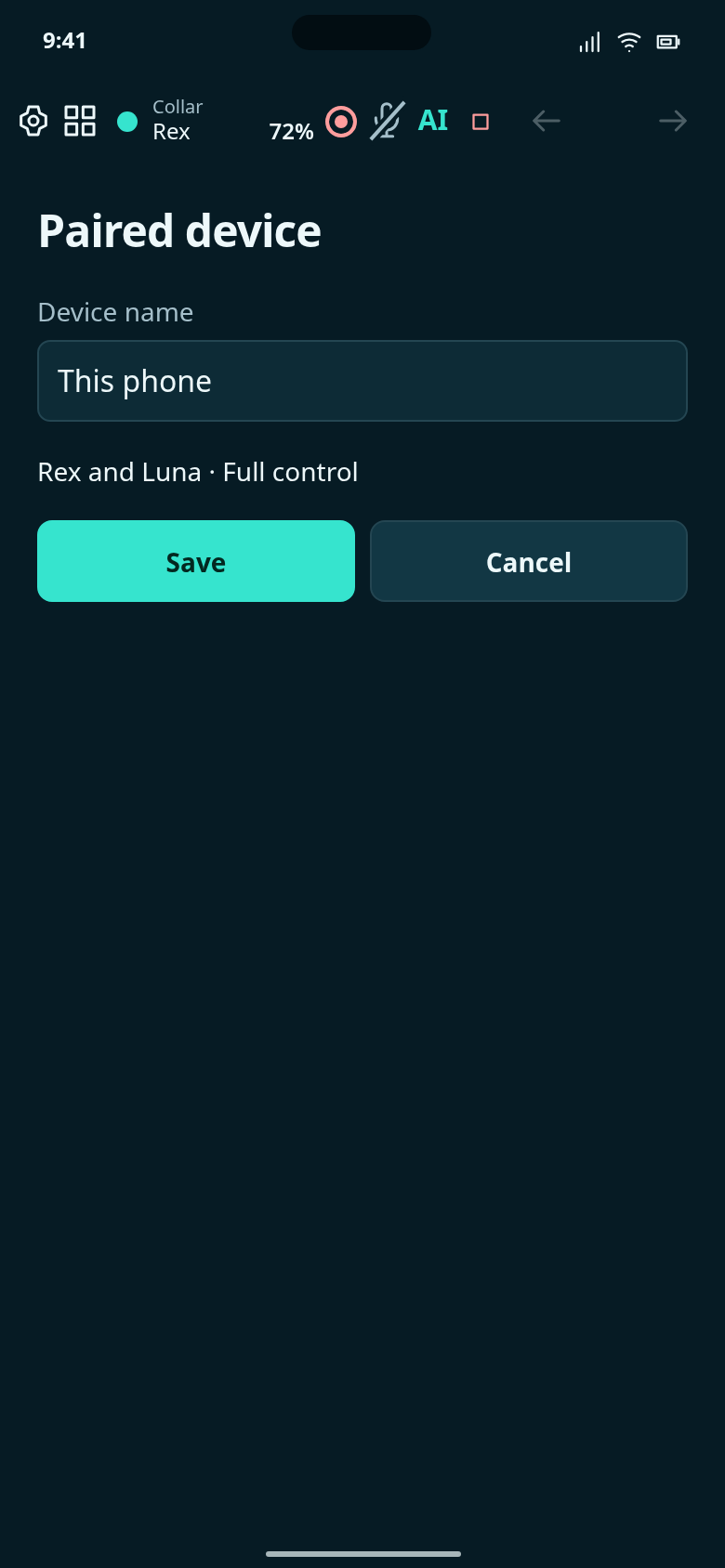
Rename a device or revoke its access; every paired device has full control.
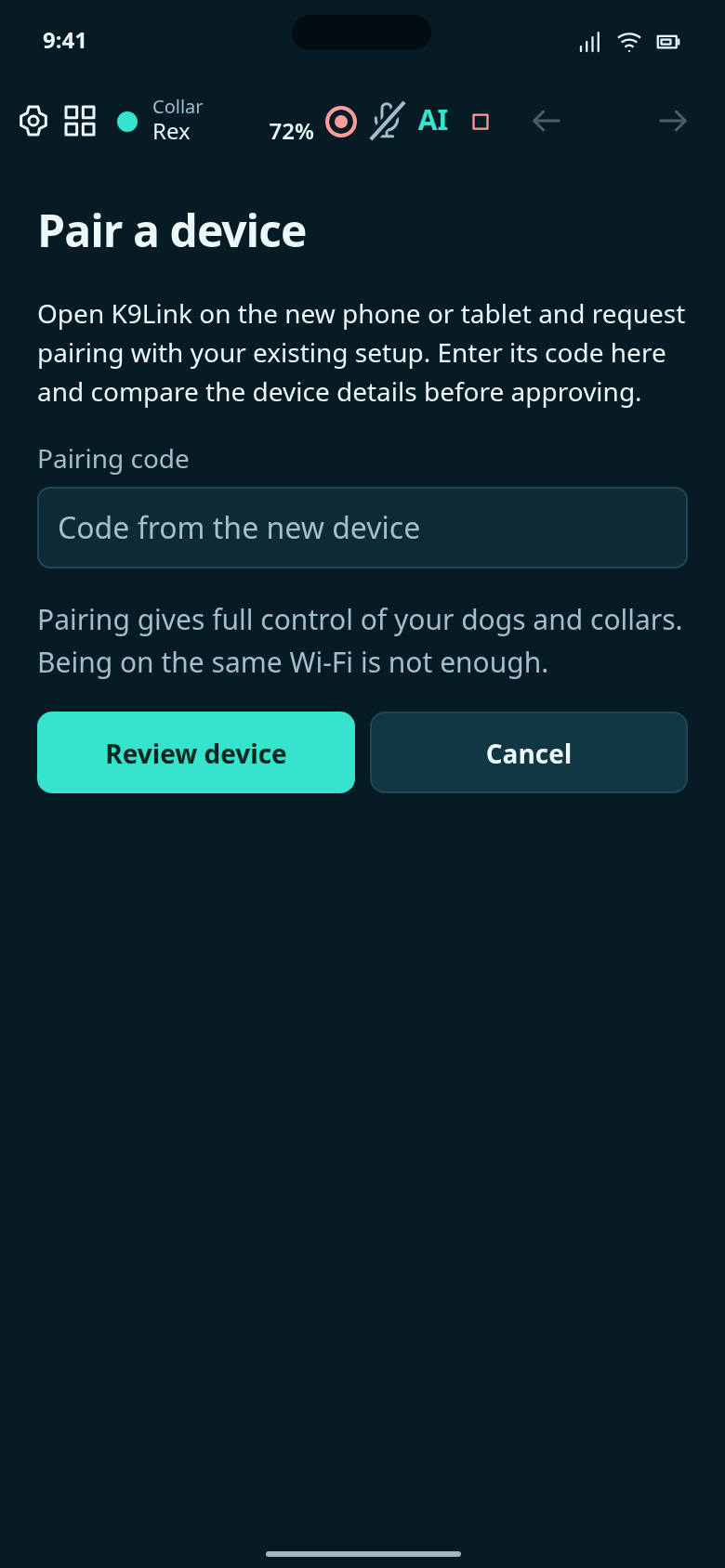
Approve another phone or tablet using the pairing code shown on that device.
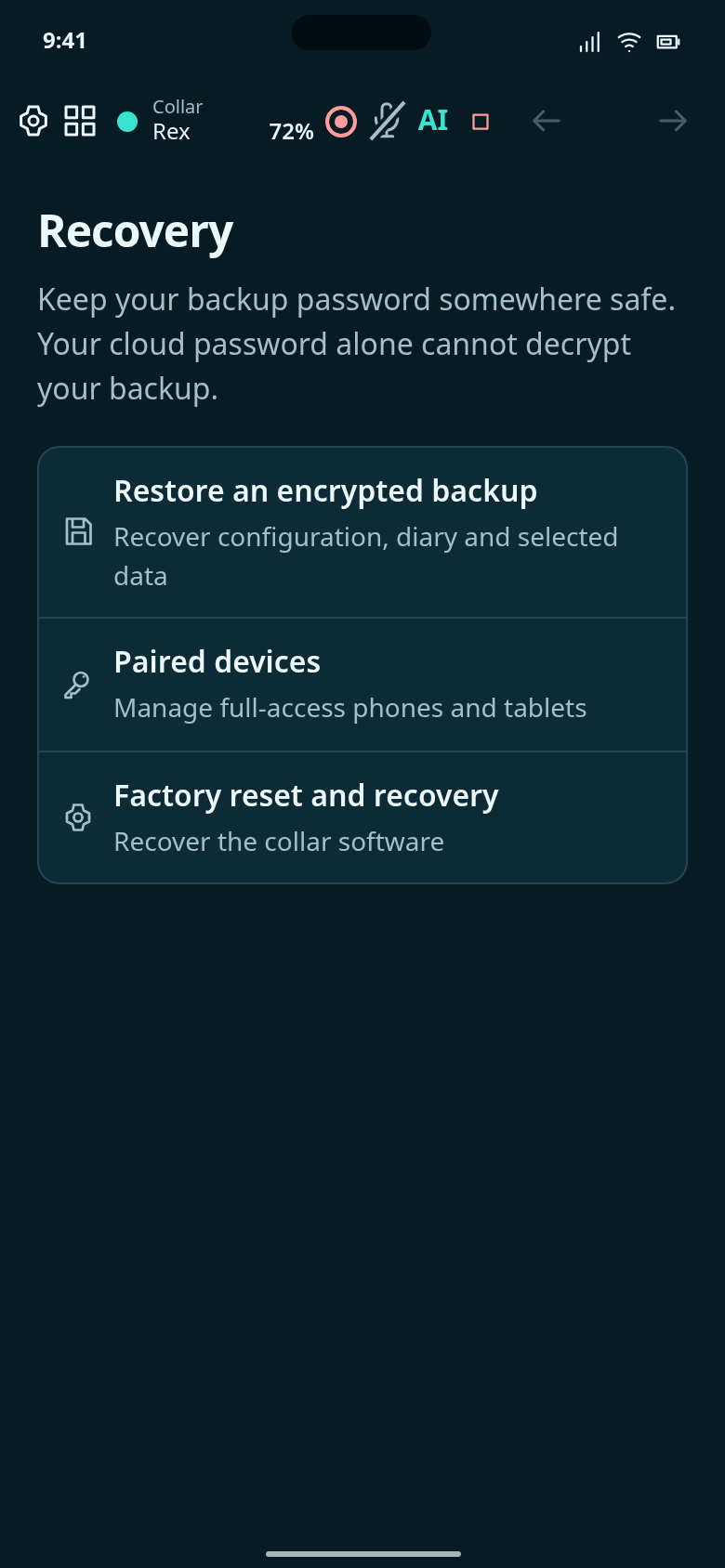
Restore from an encrypted backup or use another paired device.
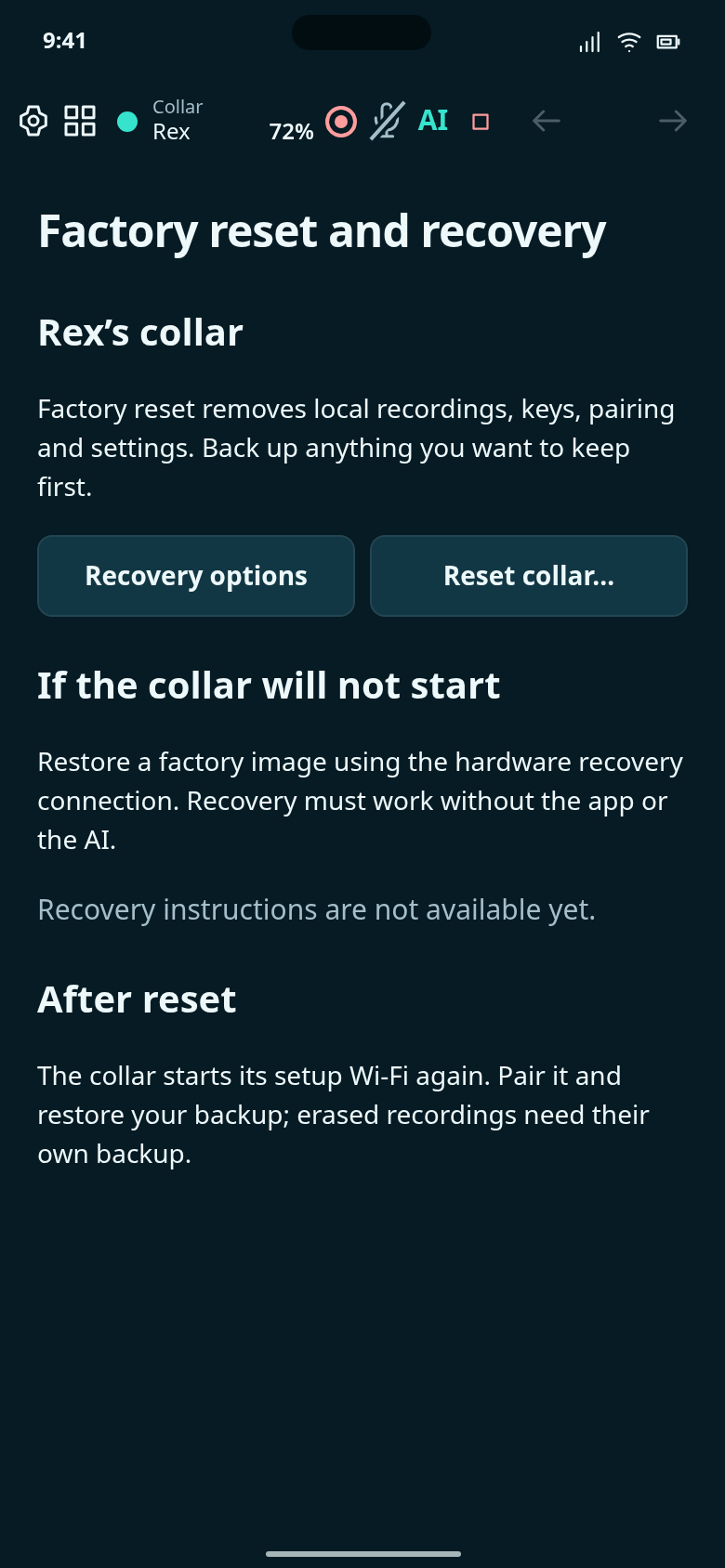
Reset a connected collar or recover one that will not boot.
Download map areas for offline use.
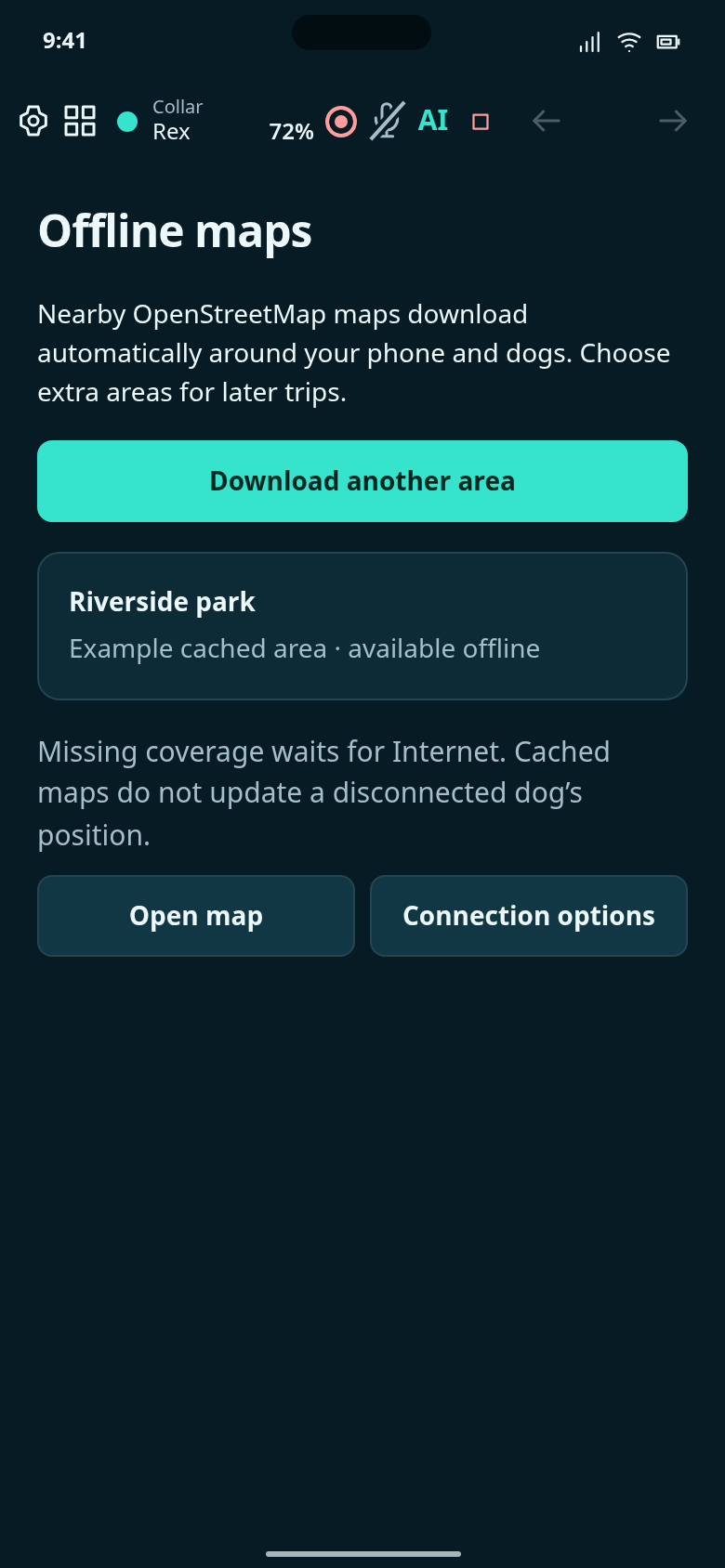
Cache nearby OpenStreetMap maps automatically, or download another area before a trip.
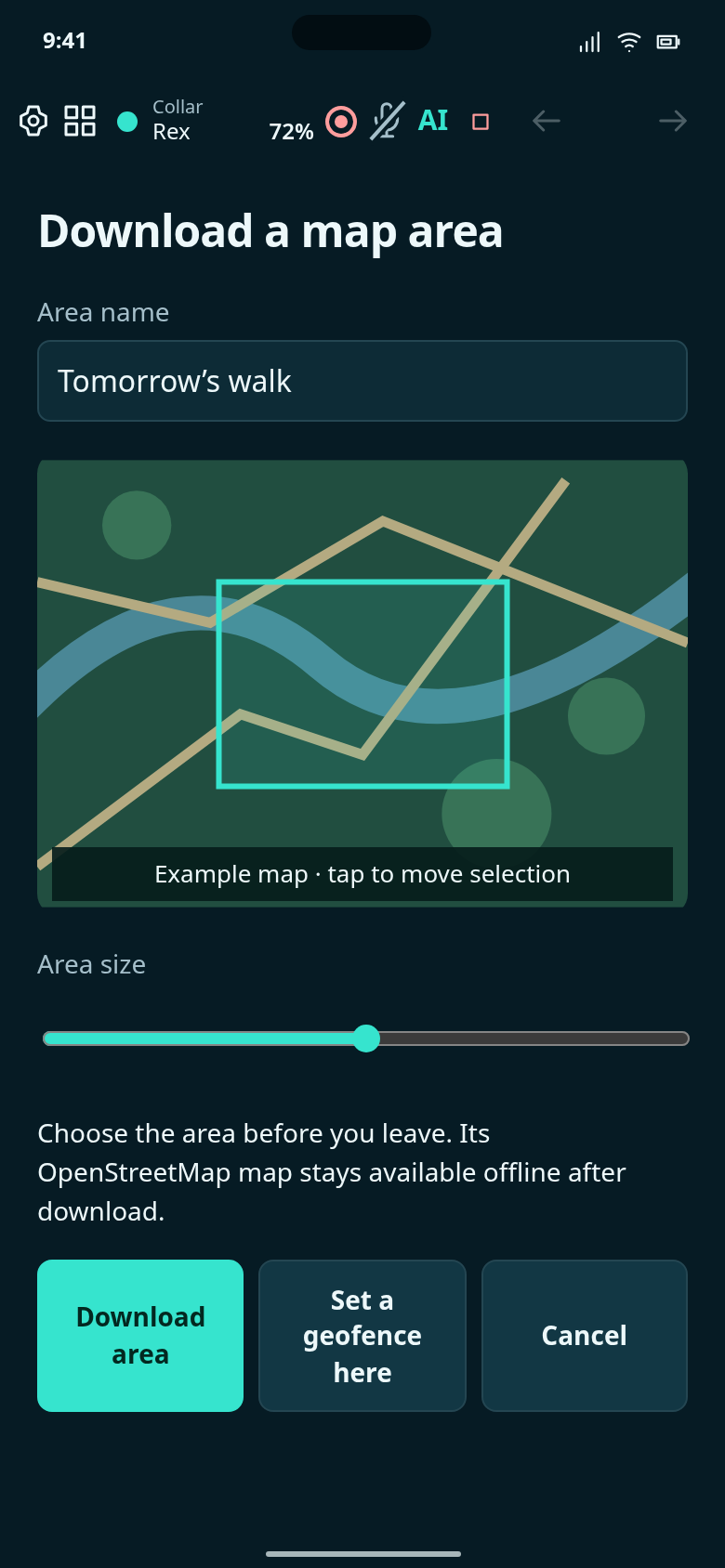
Choose an extra OpenStreetMap area for a future trip and prepare its geofence.
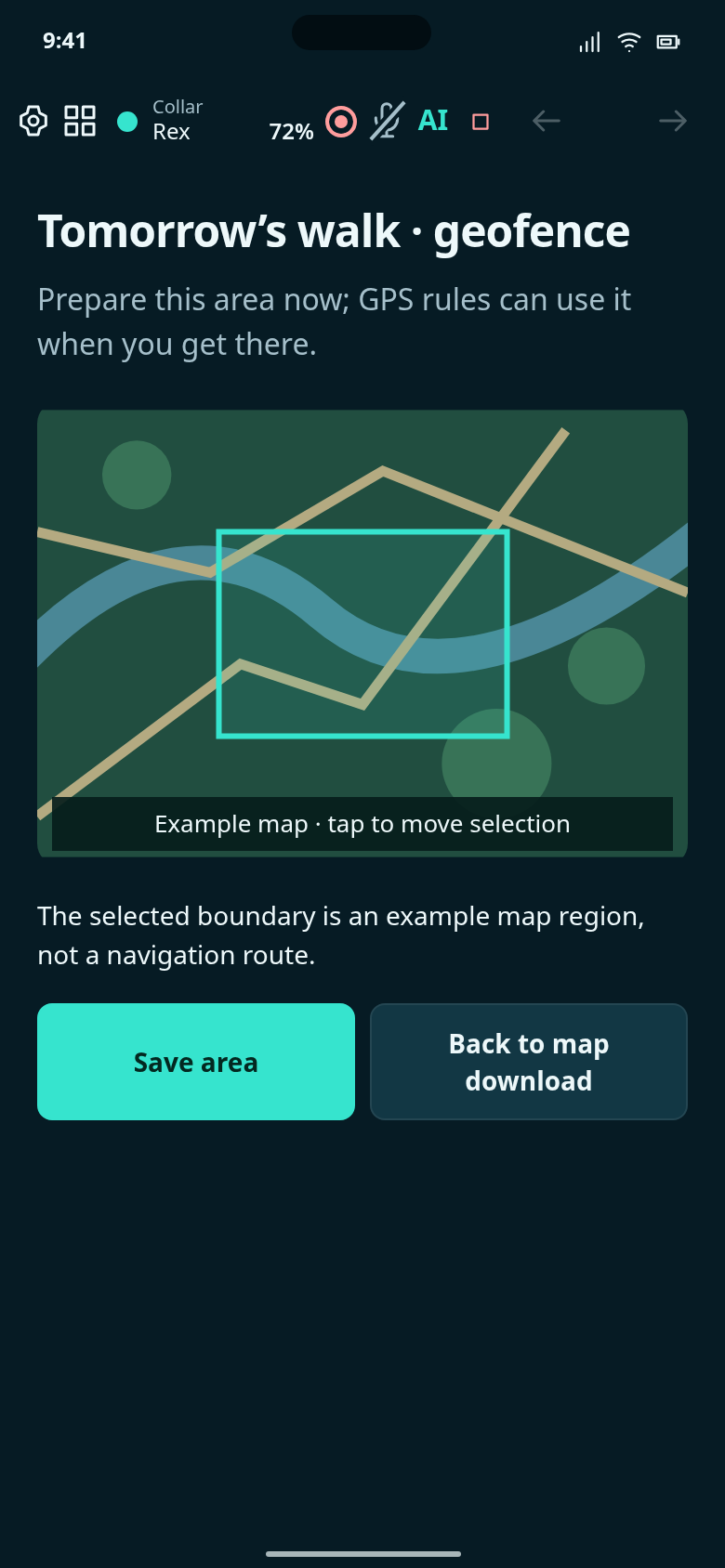
Prepare a geofence for the selected offline-map area.
Manage stored data, recording space and encrypted backups.
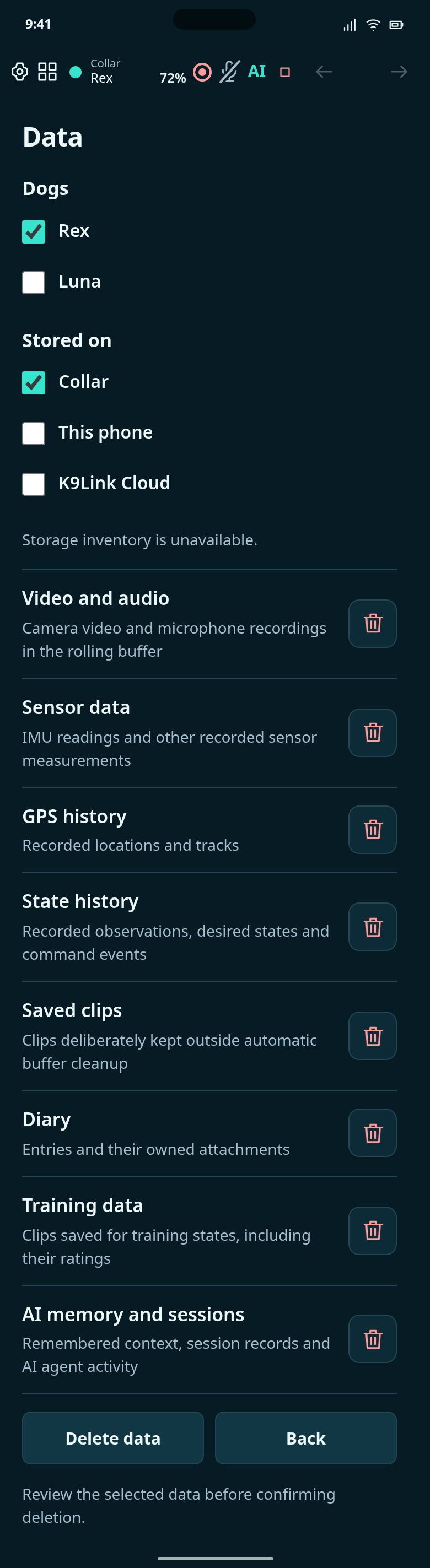
See stored data by dog and location, then choose what to delete.
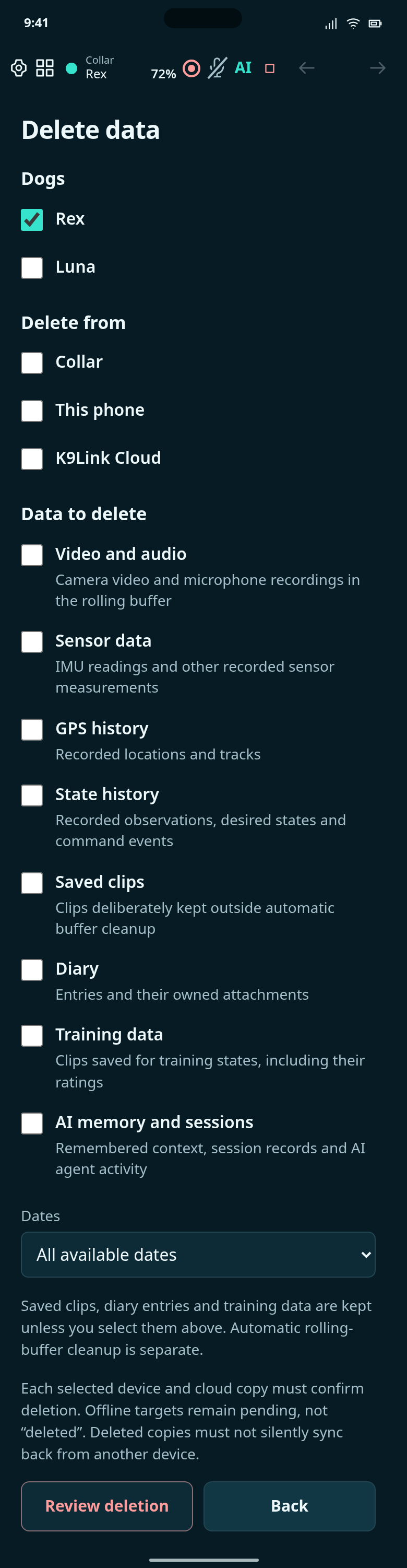
Choose dogs, storage locations, data types and dates, then review the exact deletion scope.
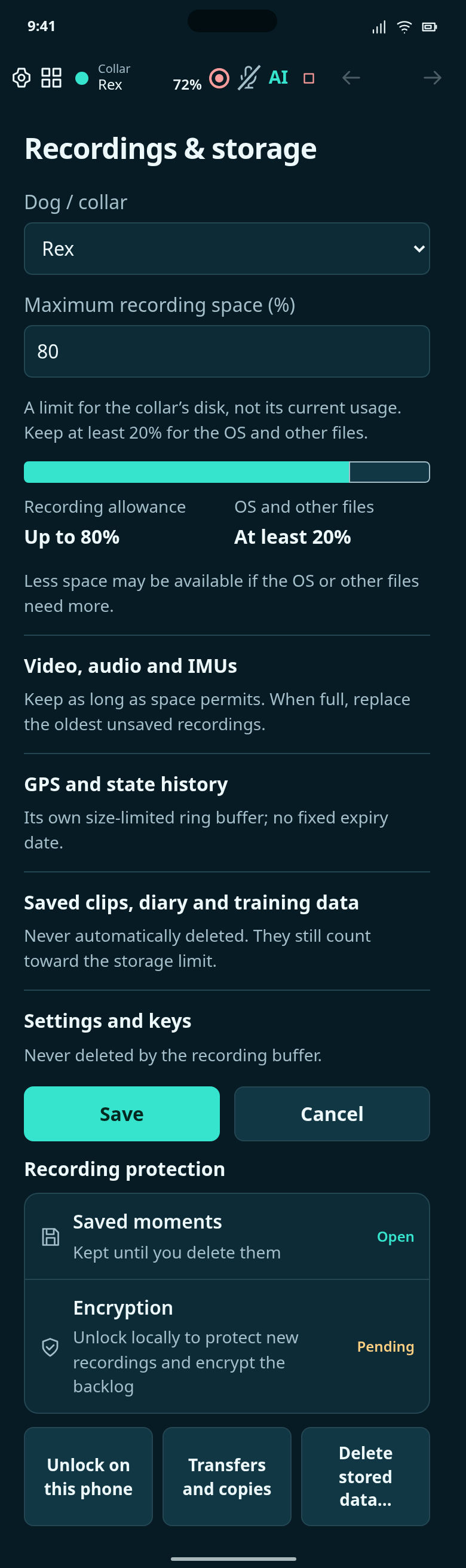
Keep data as long as its storage budget allows; manage protected data and deletion separately.
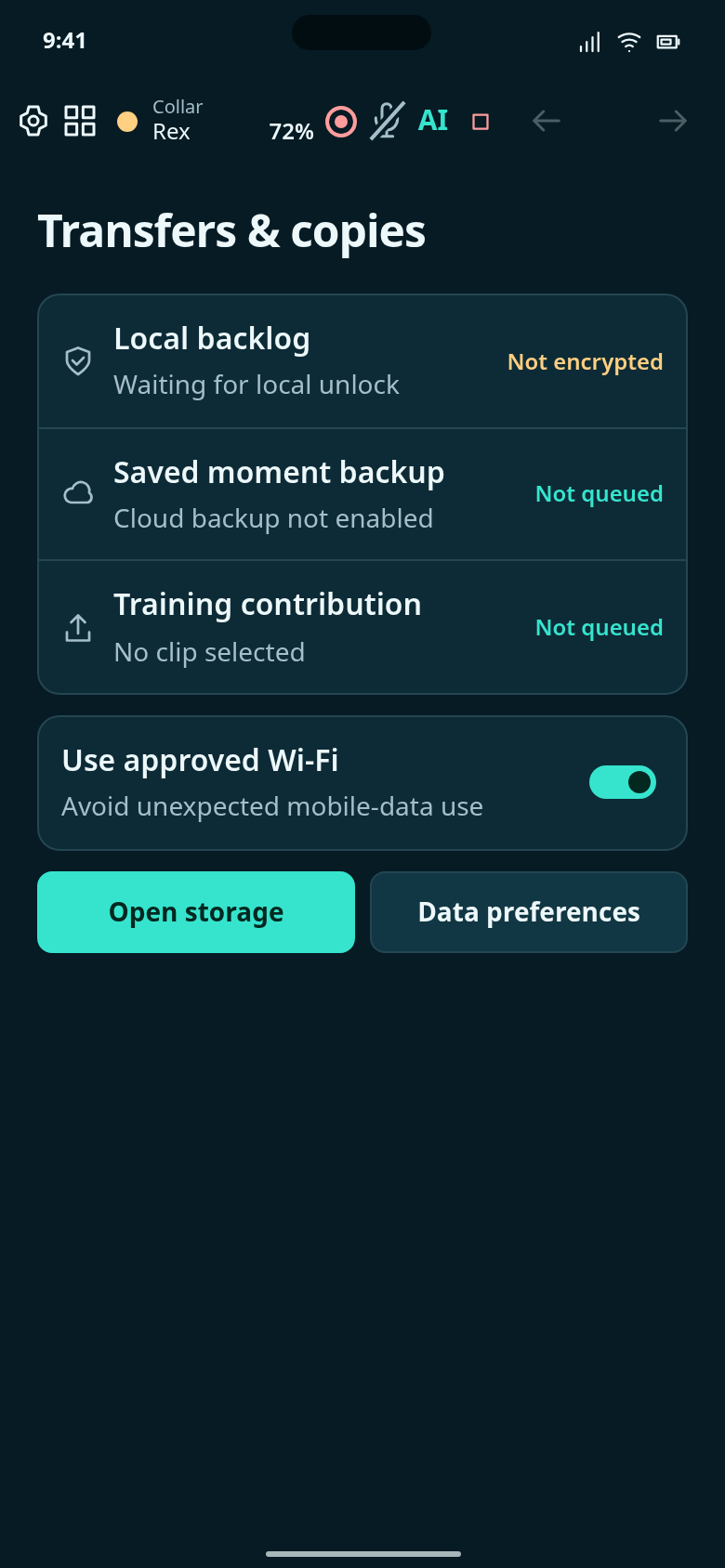
Check local recording protection and any selected copies waiting to be transferred.
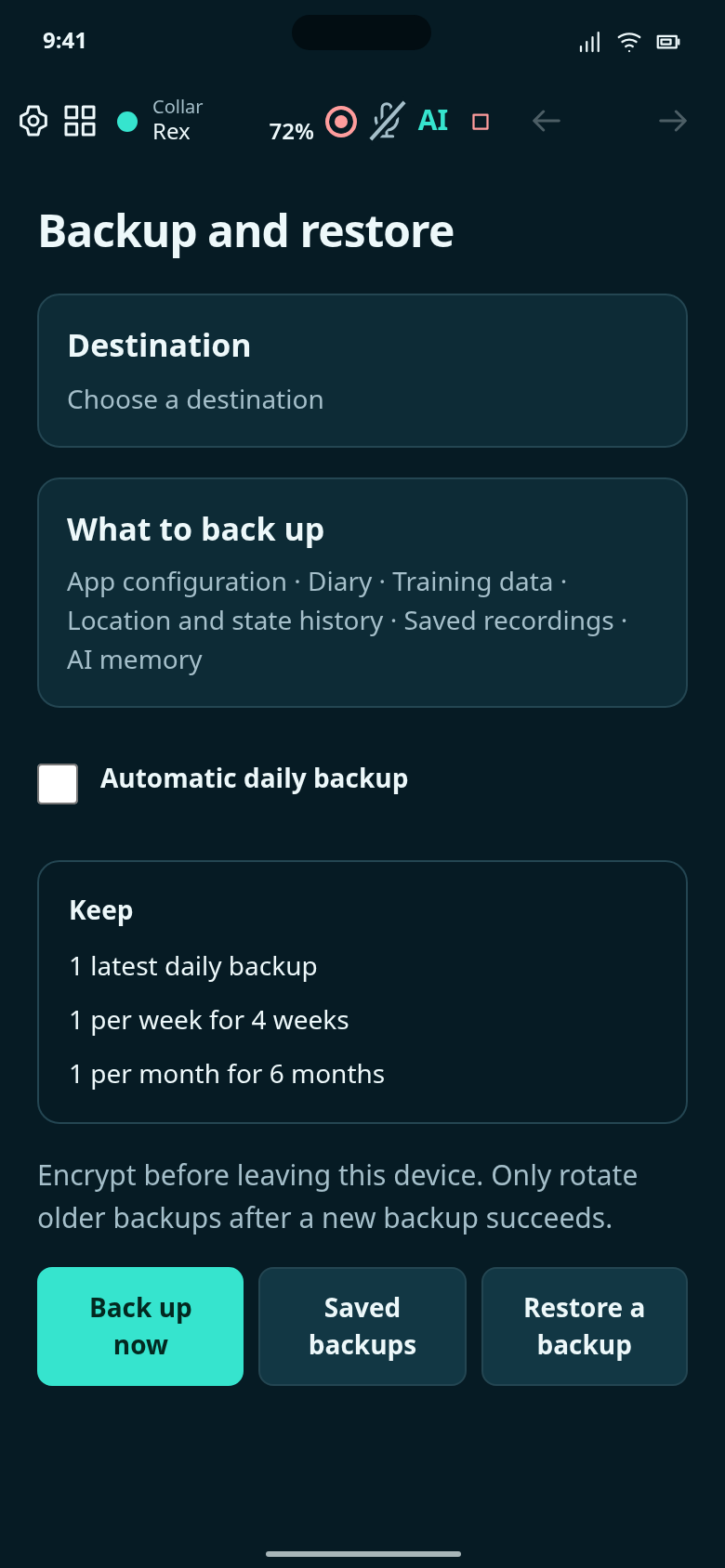
Choose encrypted backups, what to include, and where to keep them.
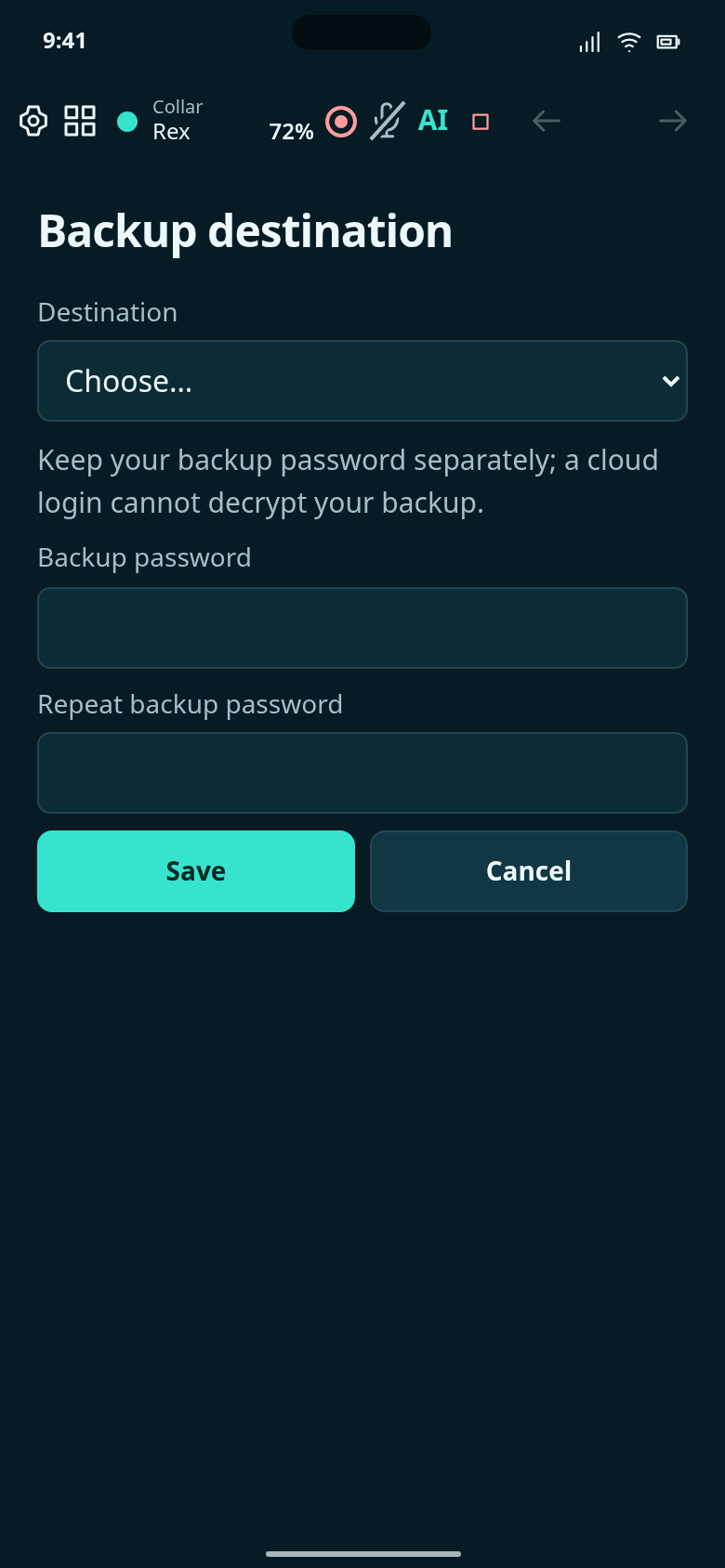
Use K9Link Cloud, your own storage, or an available file provider.
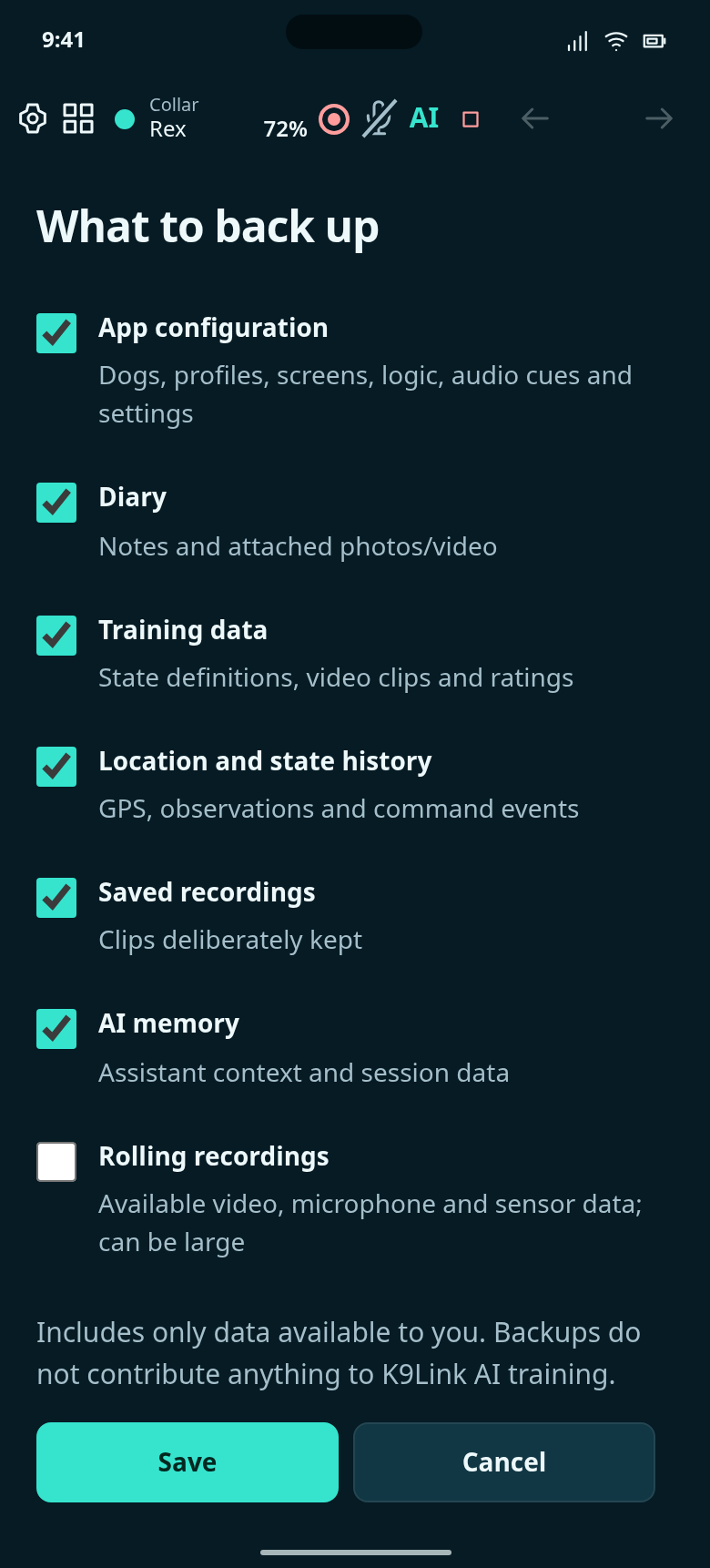
Keep configuration and diary, and choose which other data to include.
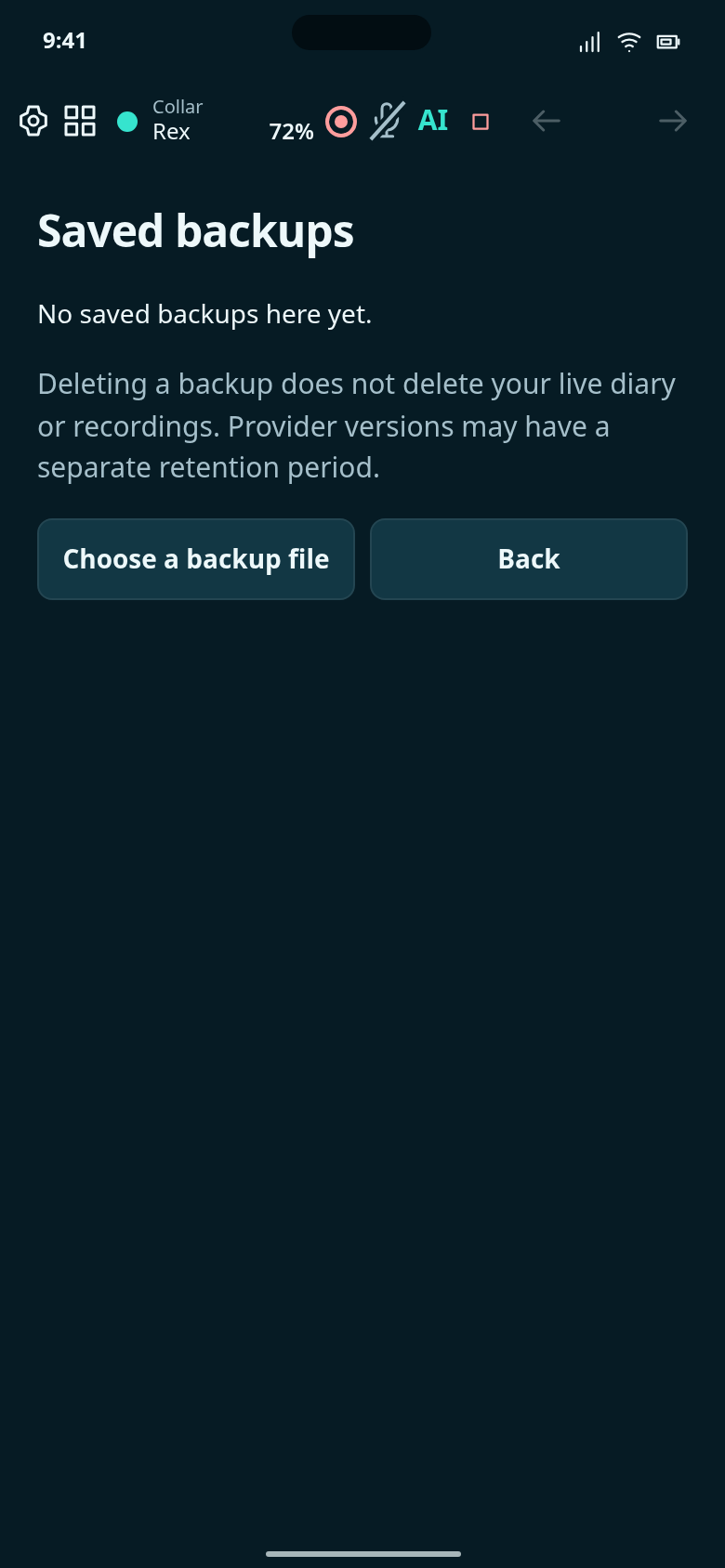
Restore or delete a backup from the selected destination.
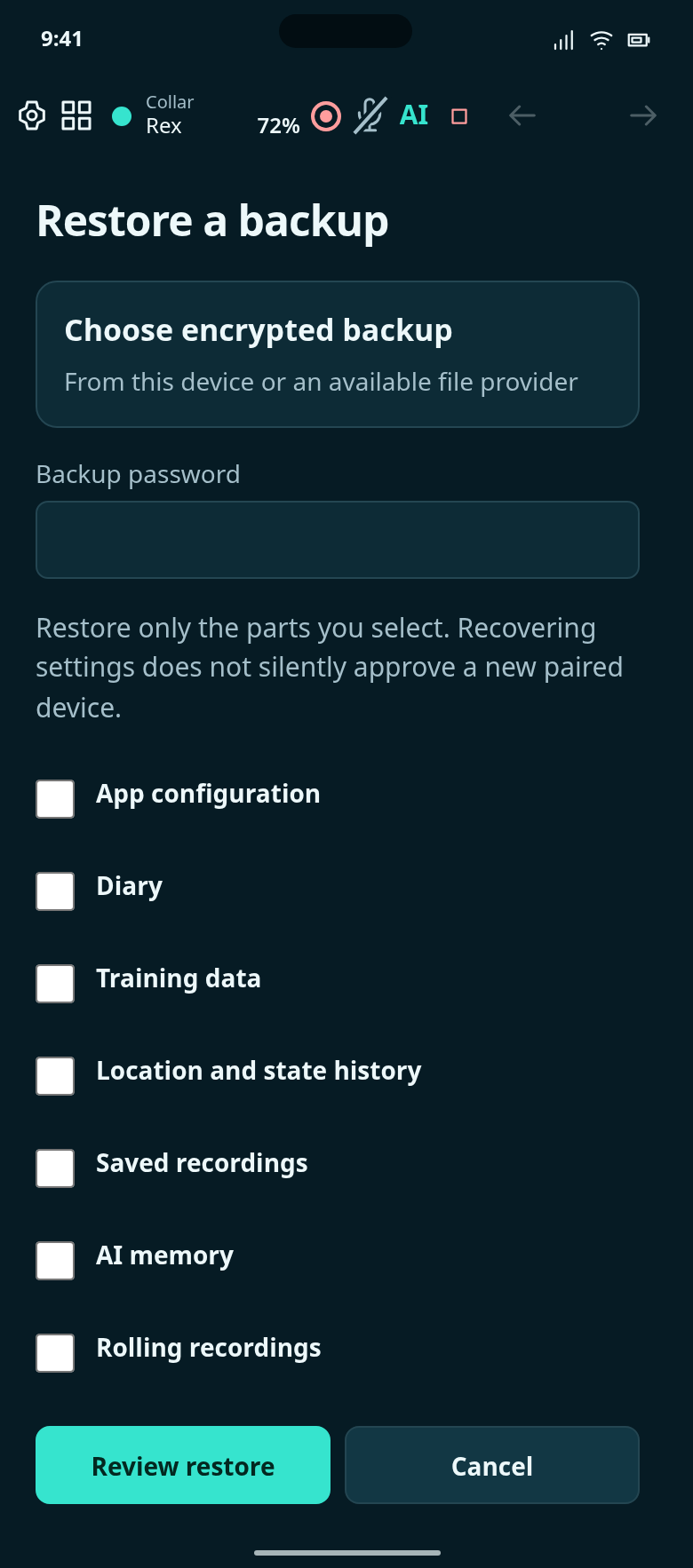
Choose an encrypted backup and recover selected data on this device.
Inspect saved encrypted backups and their rotation schedule.
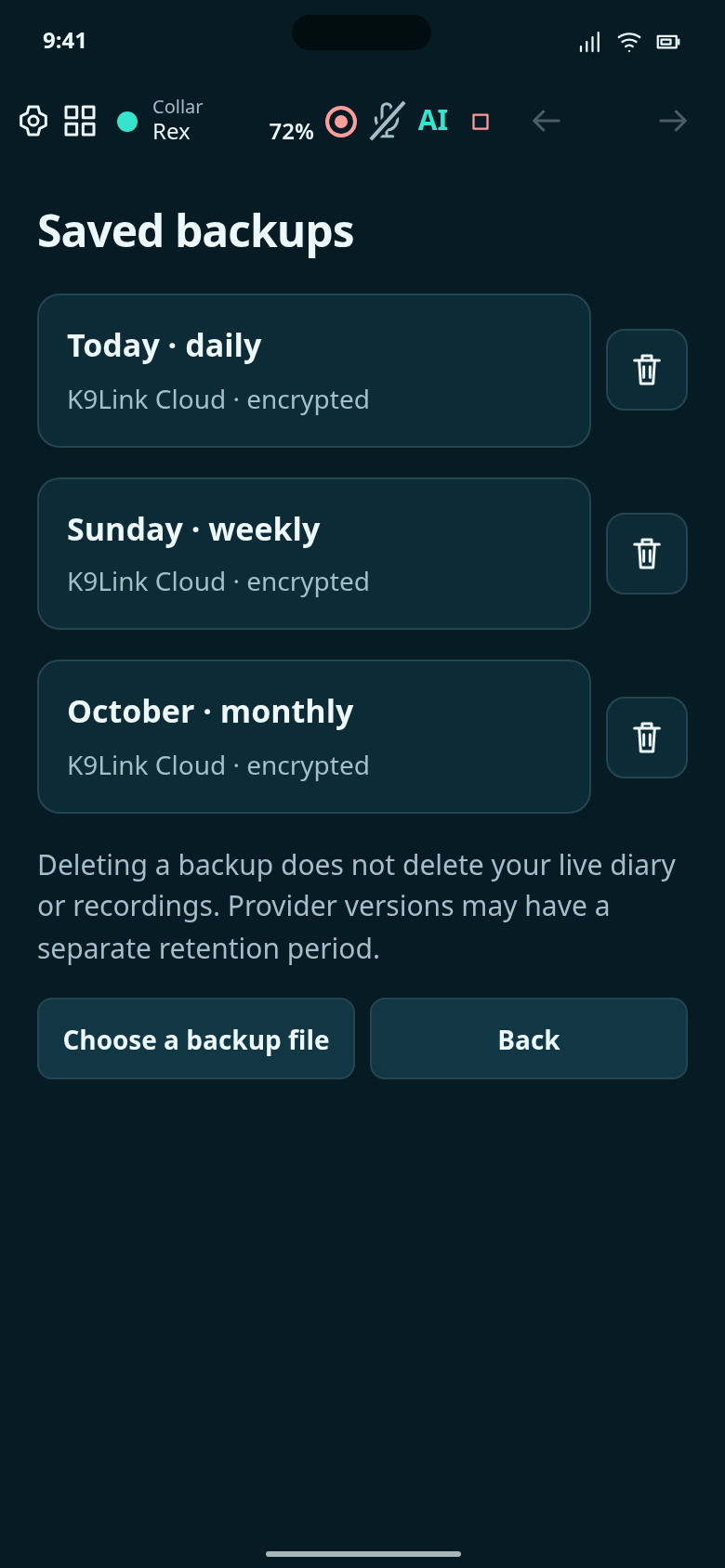
Illustrative backups with daily, weekly and monthly retention. Select one to restore or delete.
Choose a theme and light or dark mode.
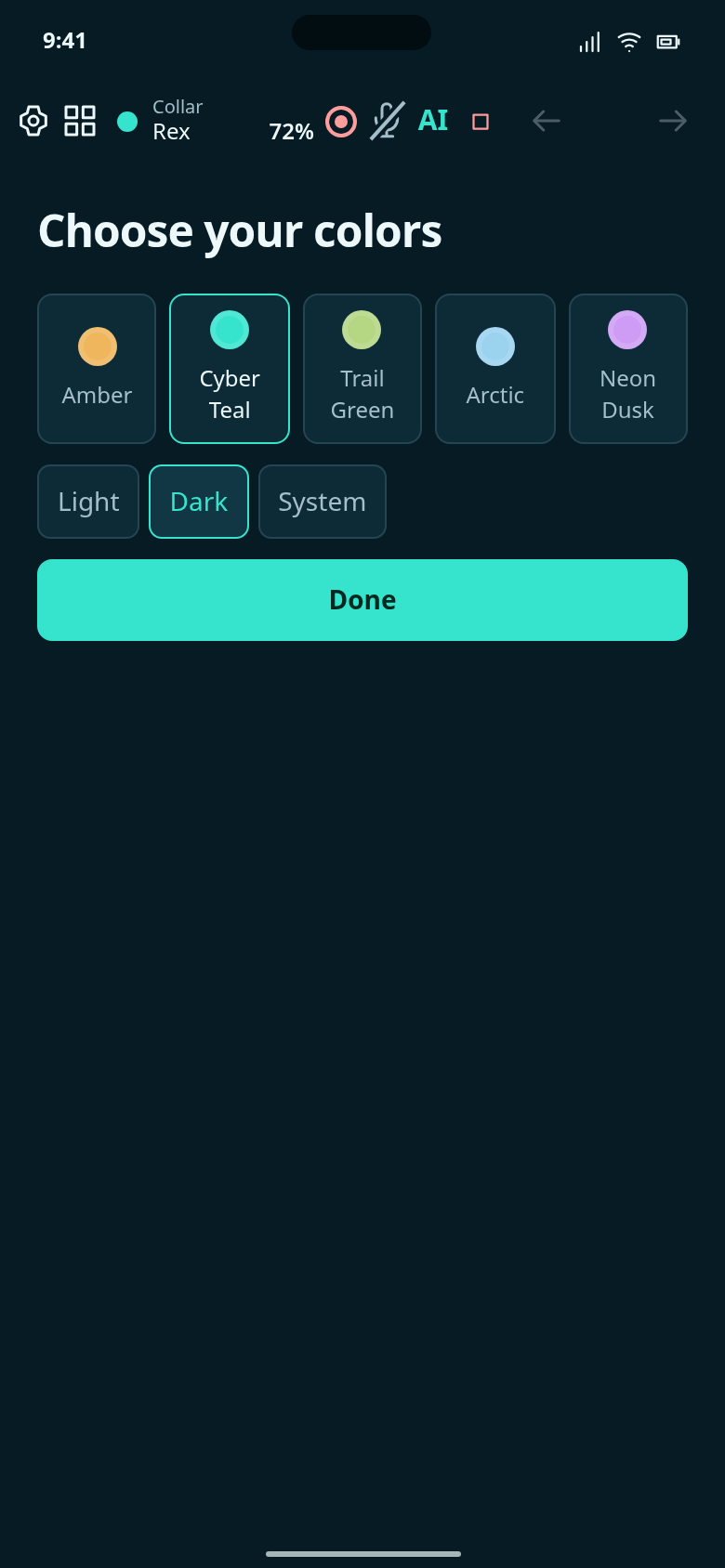
Choose the app's color palette and its light or dark appearance.
Manage saved collar Wi-Fi networks and mobile data.
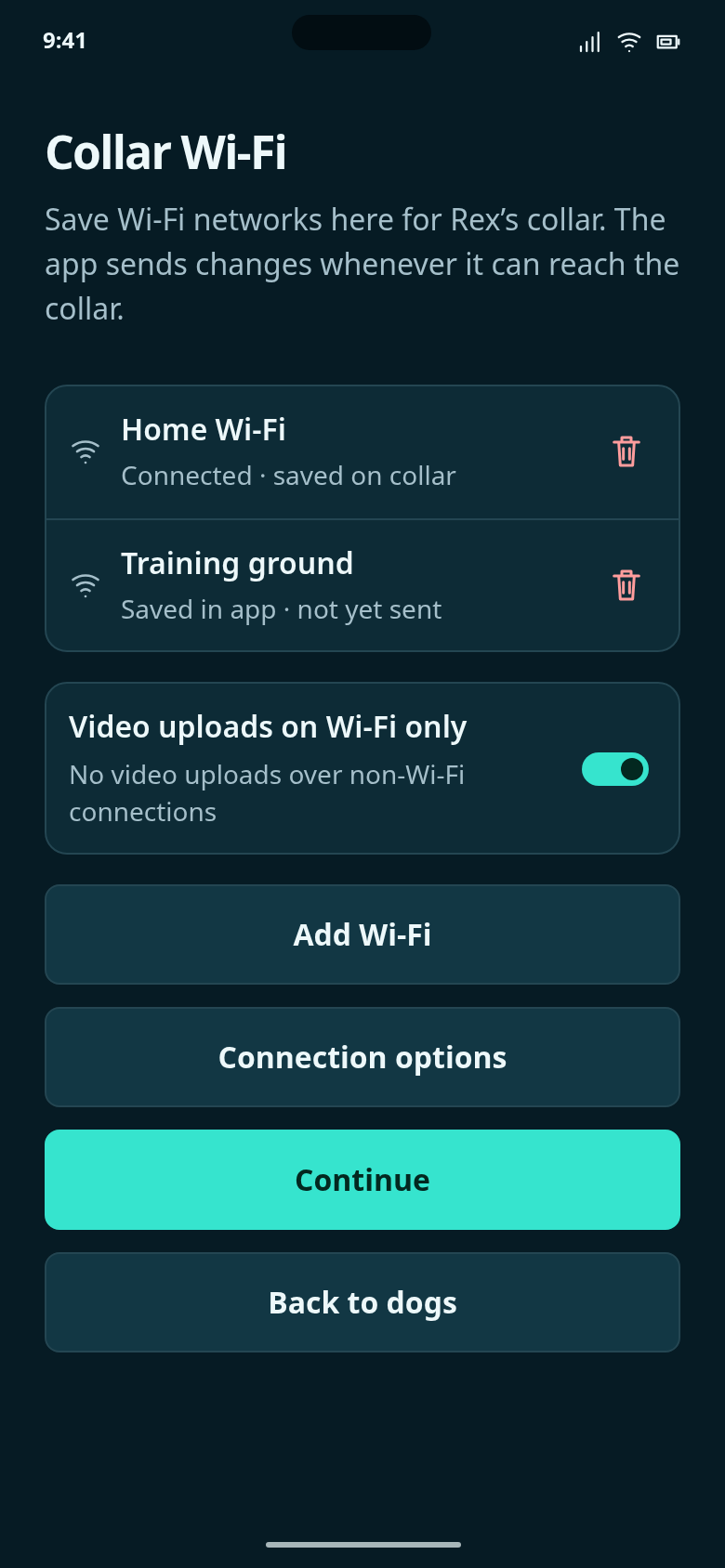
Manage the networks Rex’s collar may join. Changes are saved in this app first, even while the collar is unreachable.
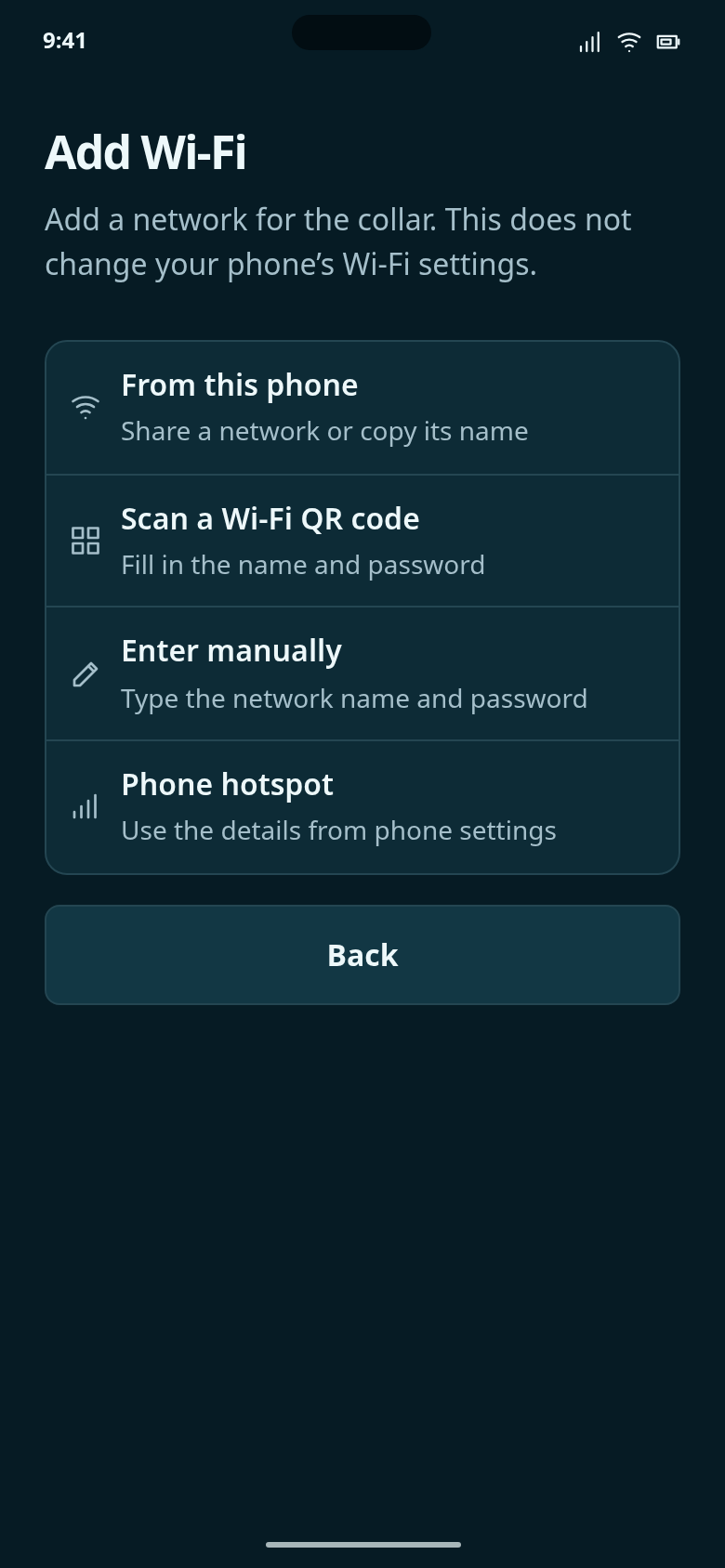
Choose how to supply a network name and password for the collar.
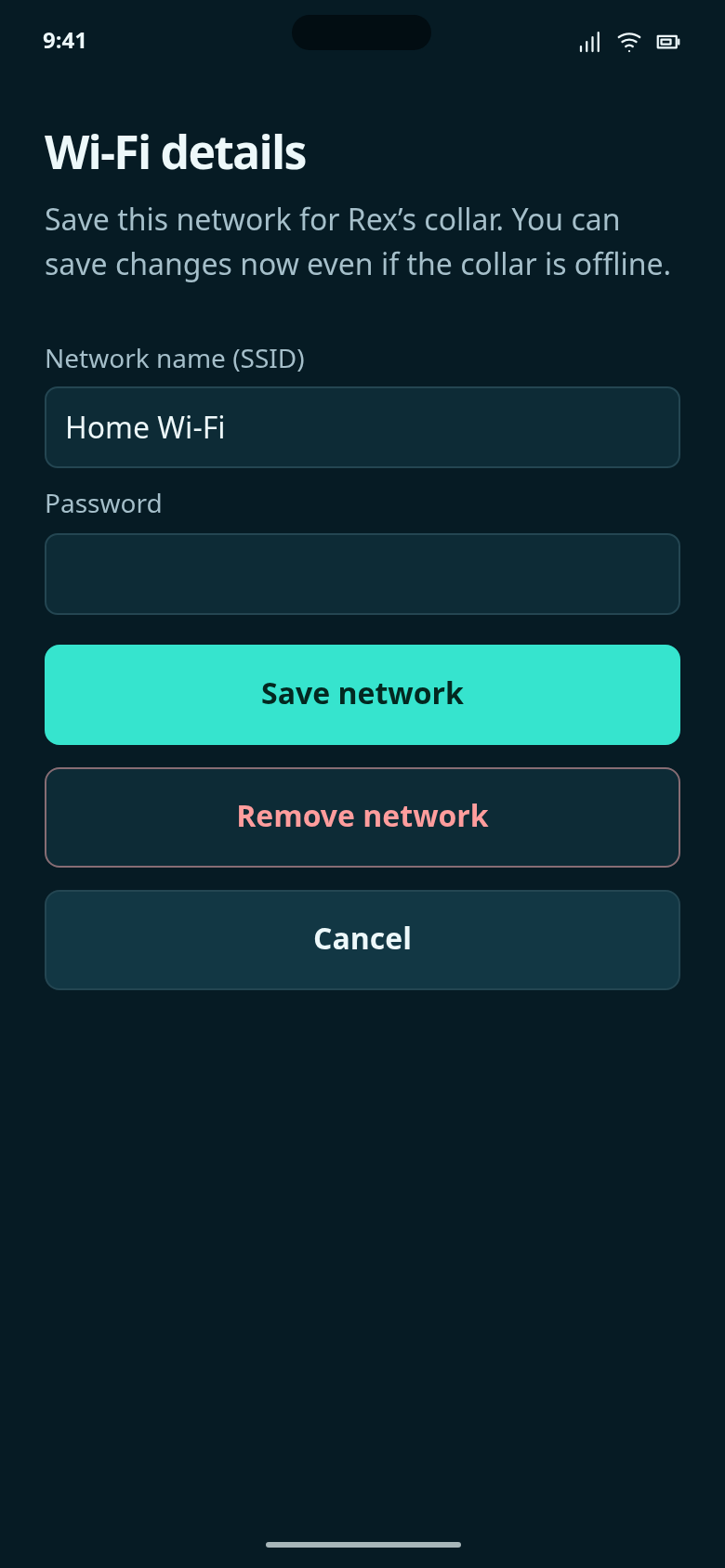
Review or edit a network before saving it to the app’s collar configuration.
Save a network locally before it is delivered to a collar.
Follow the empty starting point, each setup step and the completed result.
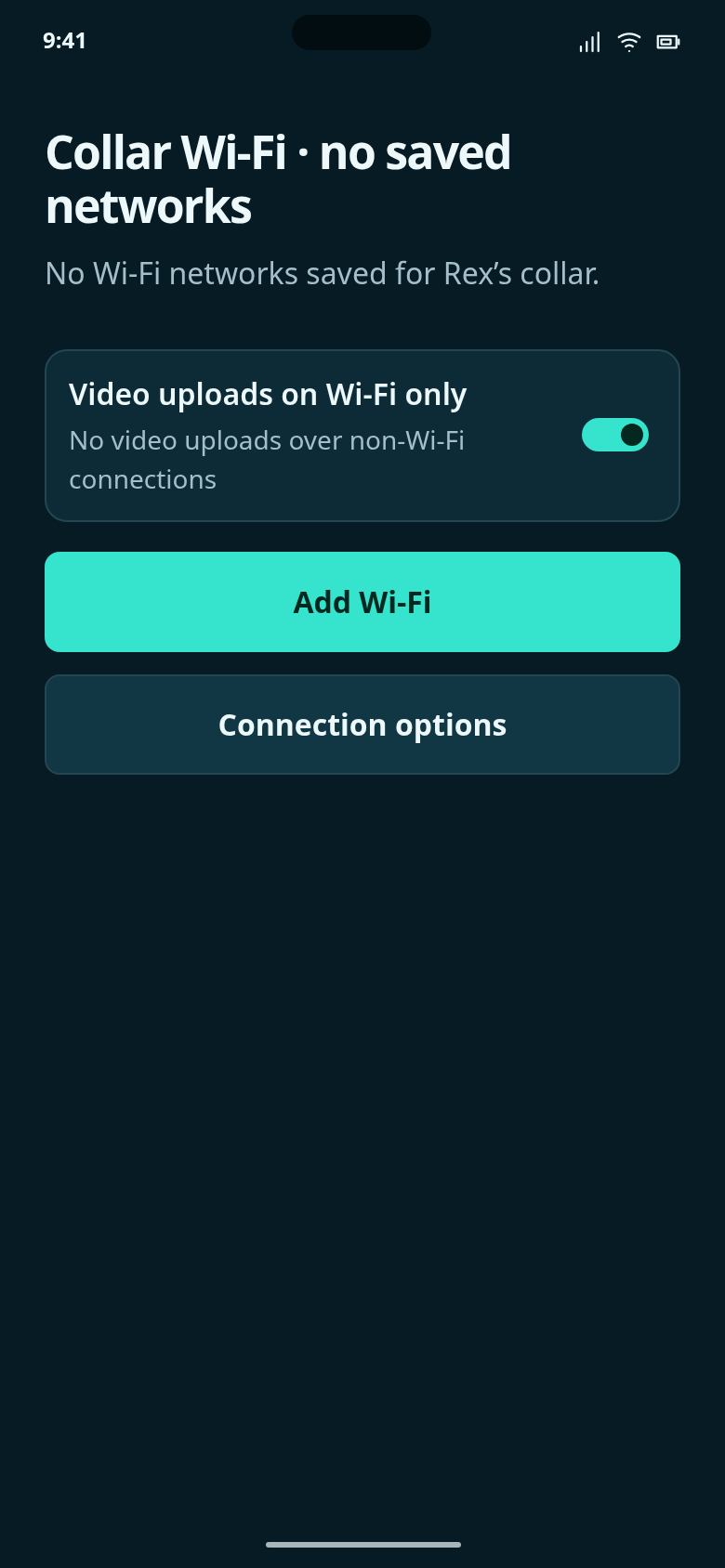
Start before any network has been saved for Rex’s collar; the phone’s own Wi-Fi configuration is separate.
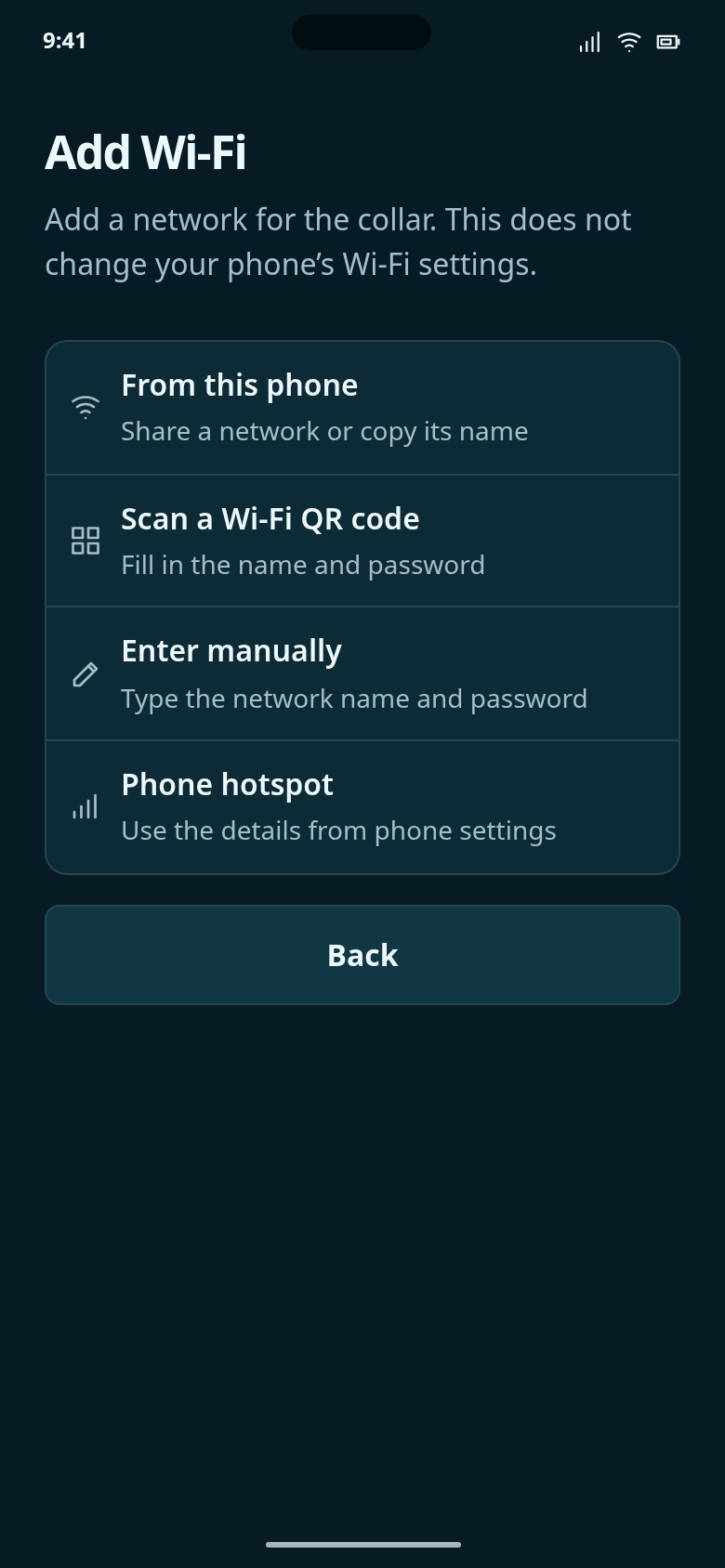
Choose how to supply a network name and password for the collar.
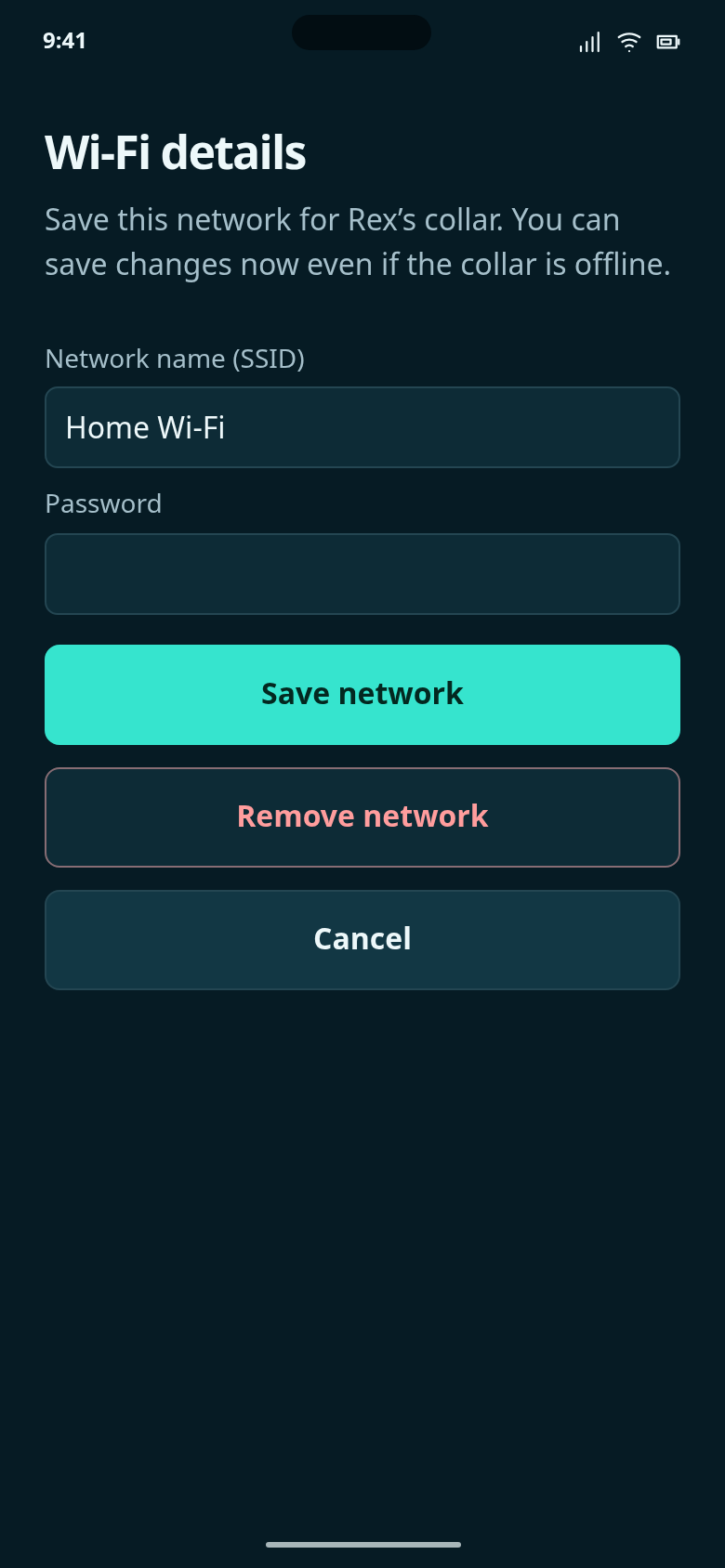
Review or edit a network before saving it to the app’s collar configuration.
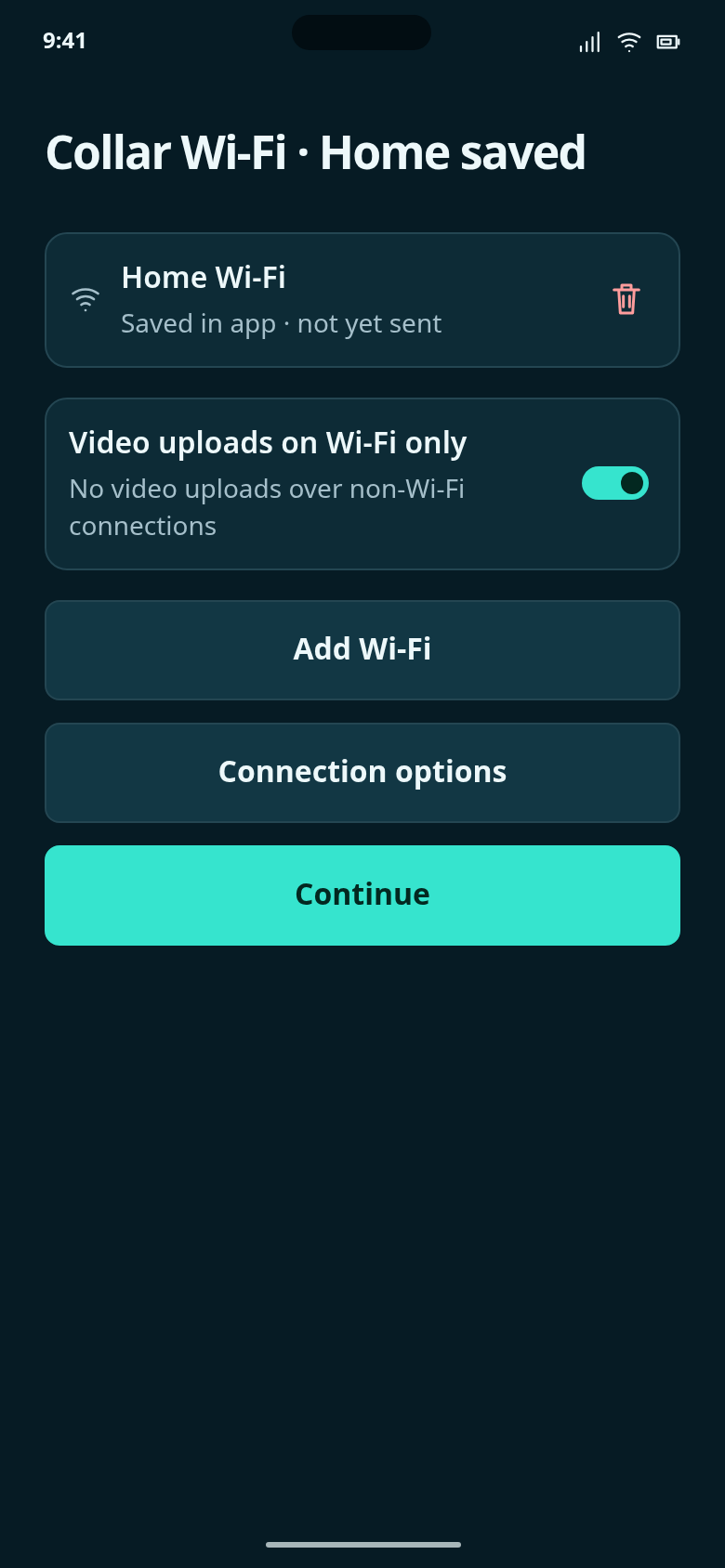
Home Wi-Fi is saved in the app and waiting to be sent; this does not claim that the collar has joined the network.
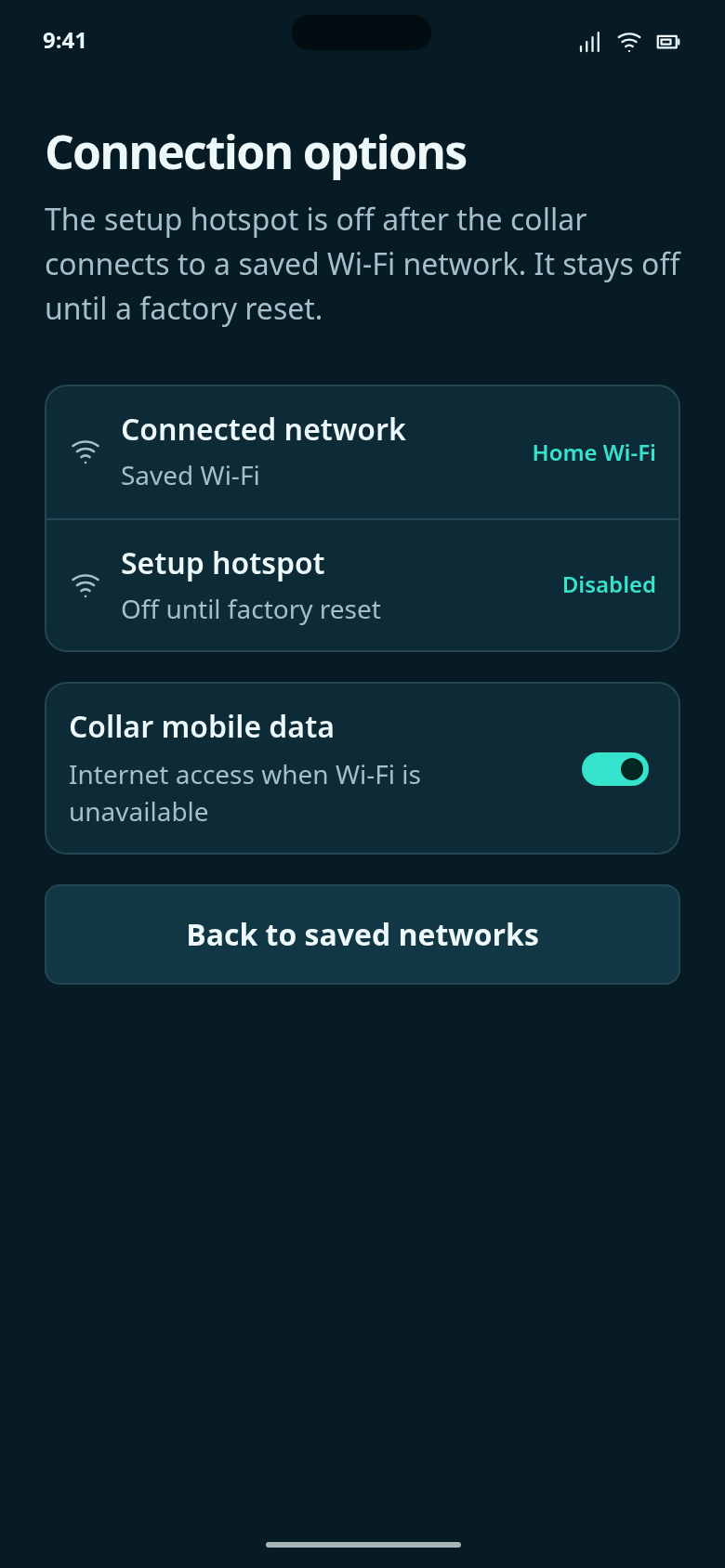
Once setup succeeds, use saved Wi-Fi networks or enabled mobile data. The setup hotspot stays disabled.
Manage app and collar software updates.
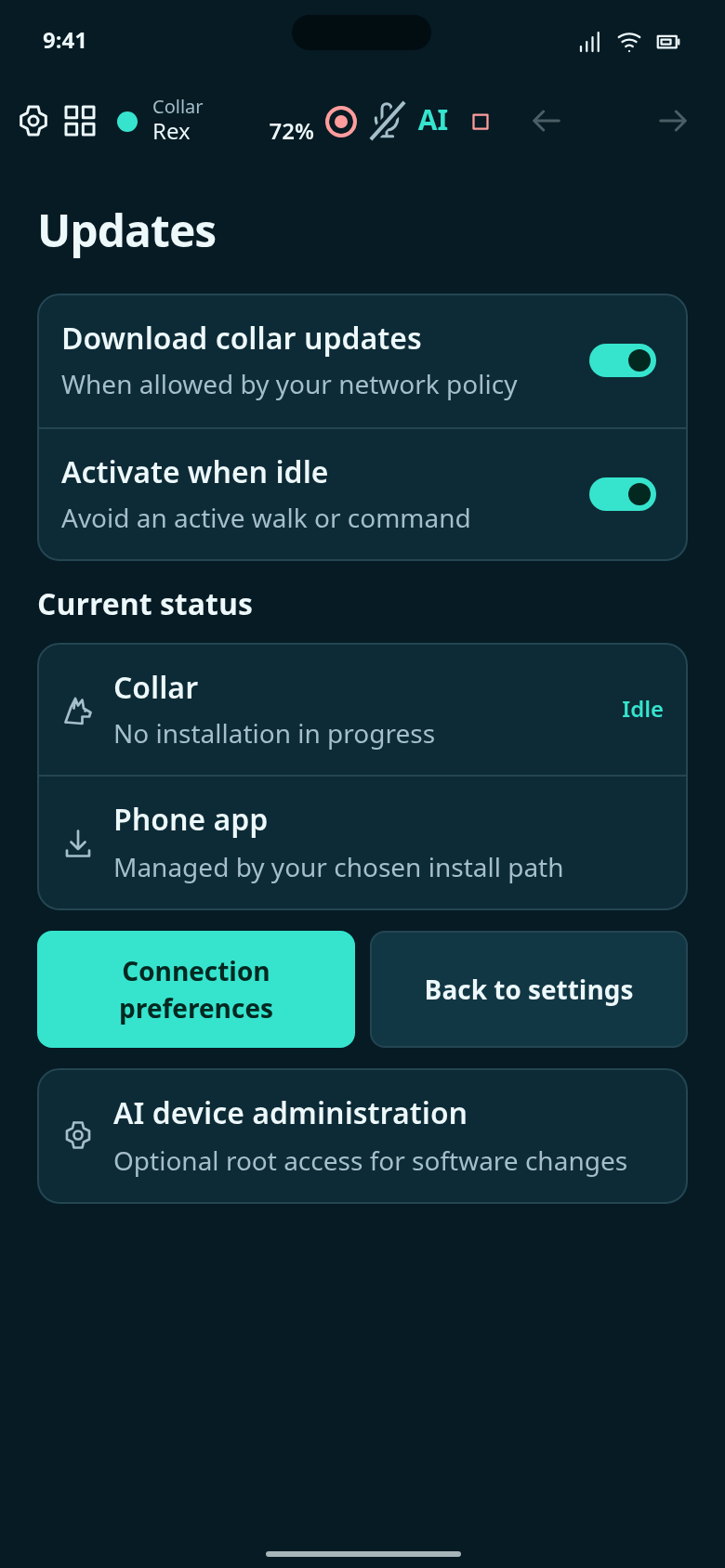
Choose when collar updates download and when an update may take effect.
Choose which alerts reach your phone.
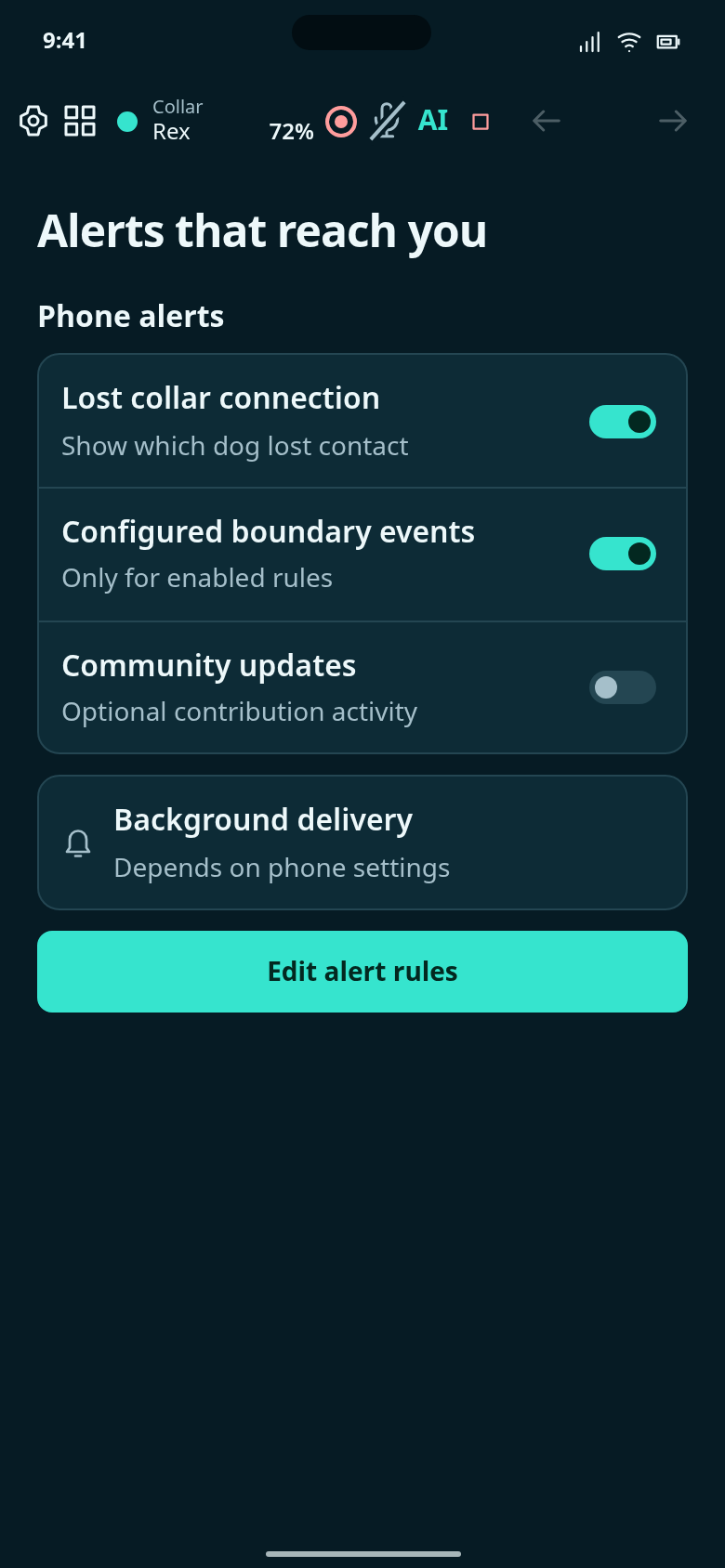
Choose which events should create alerts on your phone.
Change the app language or manage your K9Link Cloud account.
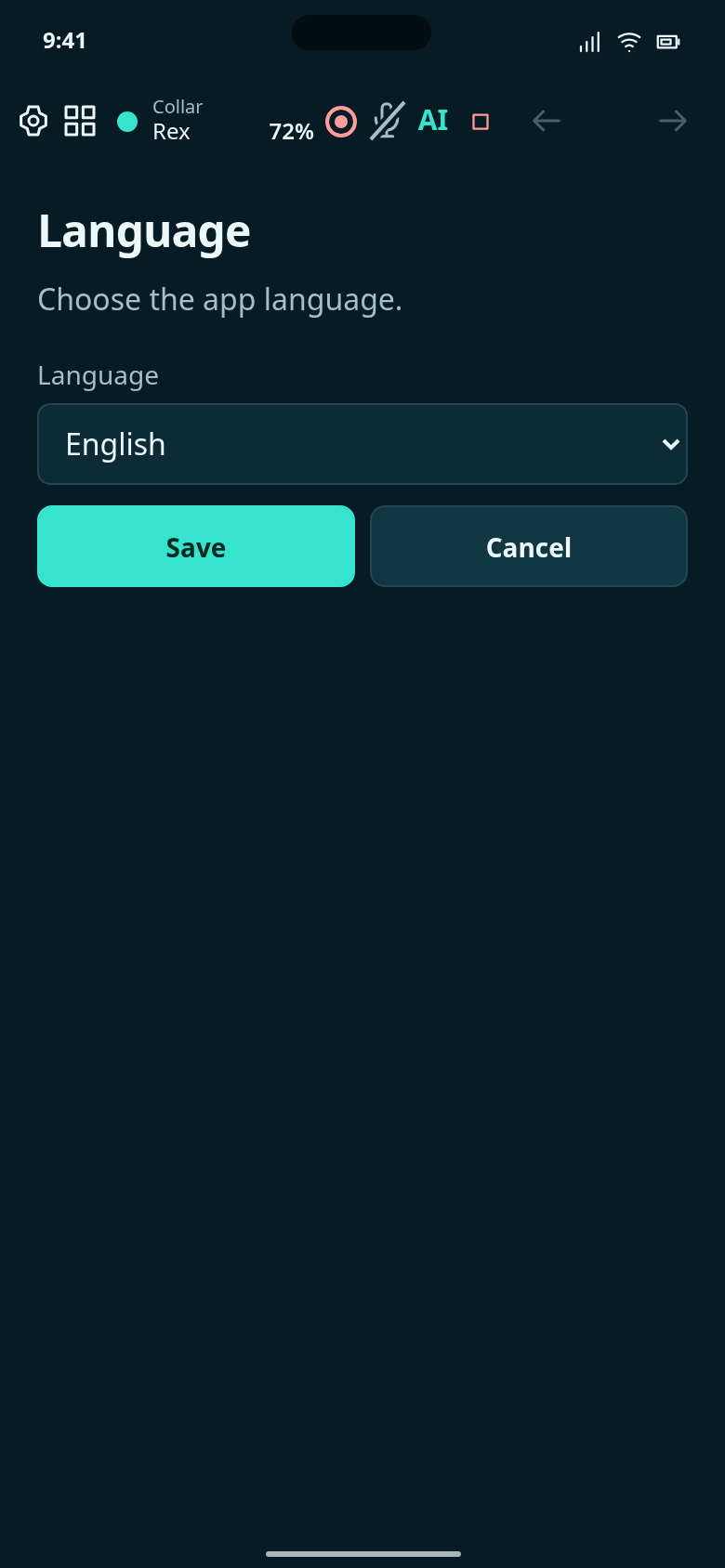
Change the app language from Settings. These planned language choices do not translate the walkthrough.
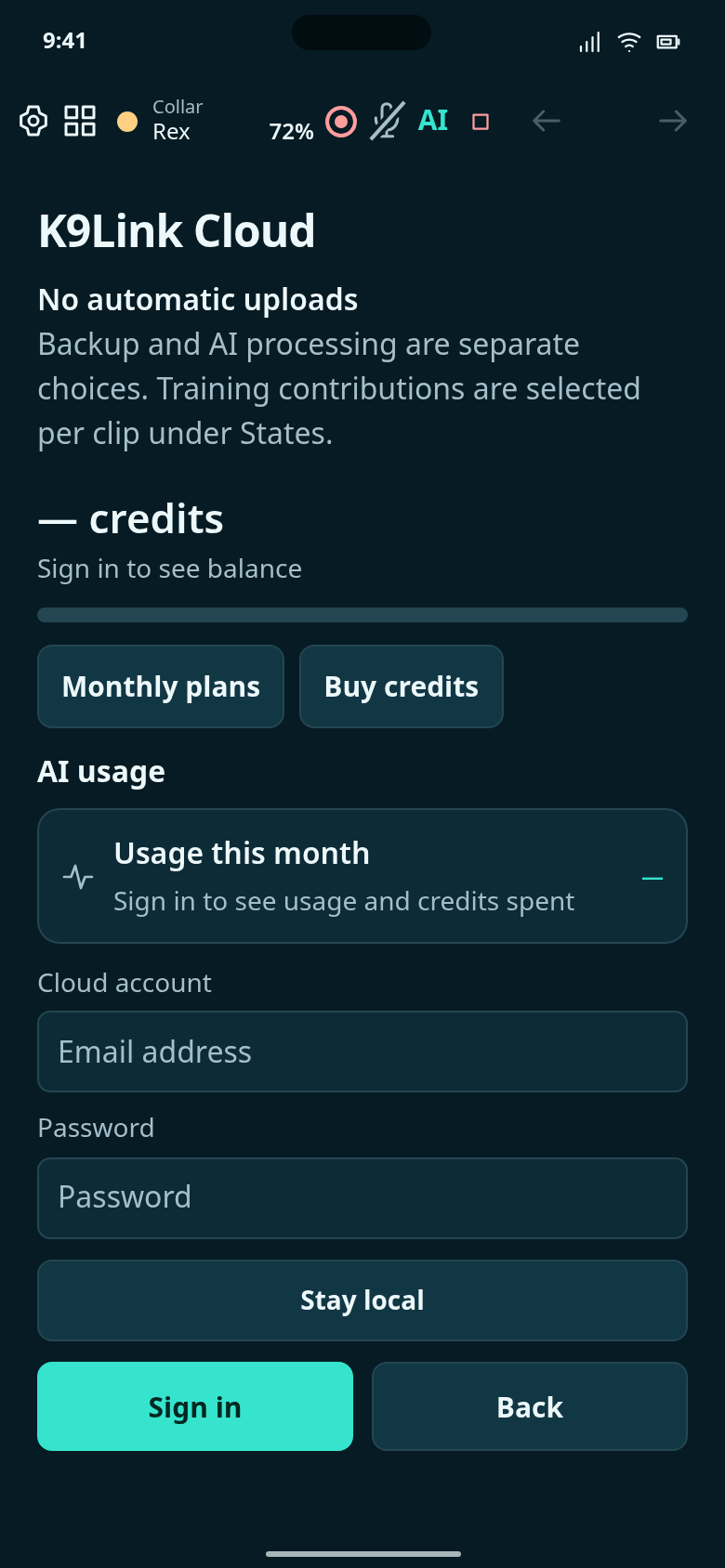
Manage your K9Link account, AI credits, usage, monthly plan and top-ups.
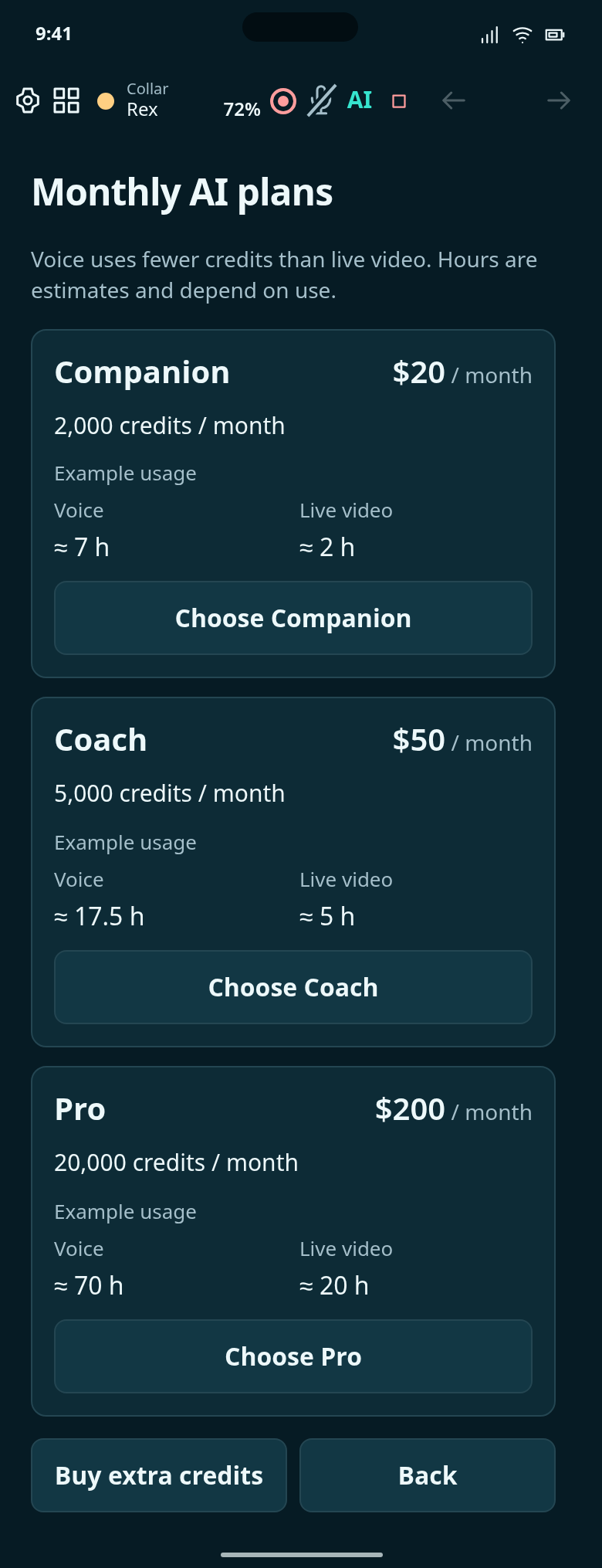
Compare monthly plans; the example hours are alternative uses of the same credits, not measured guarantees.
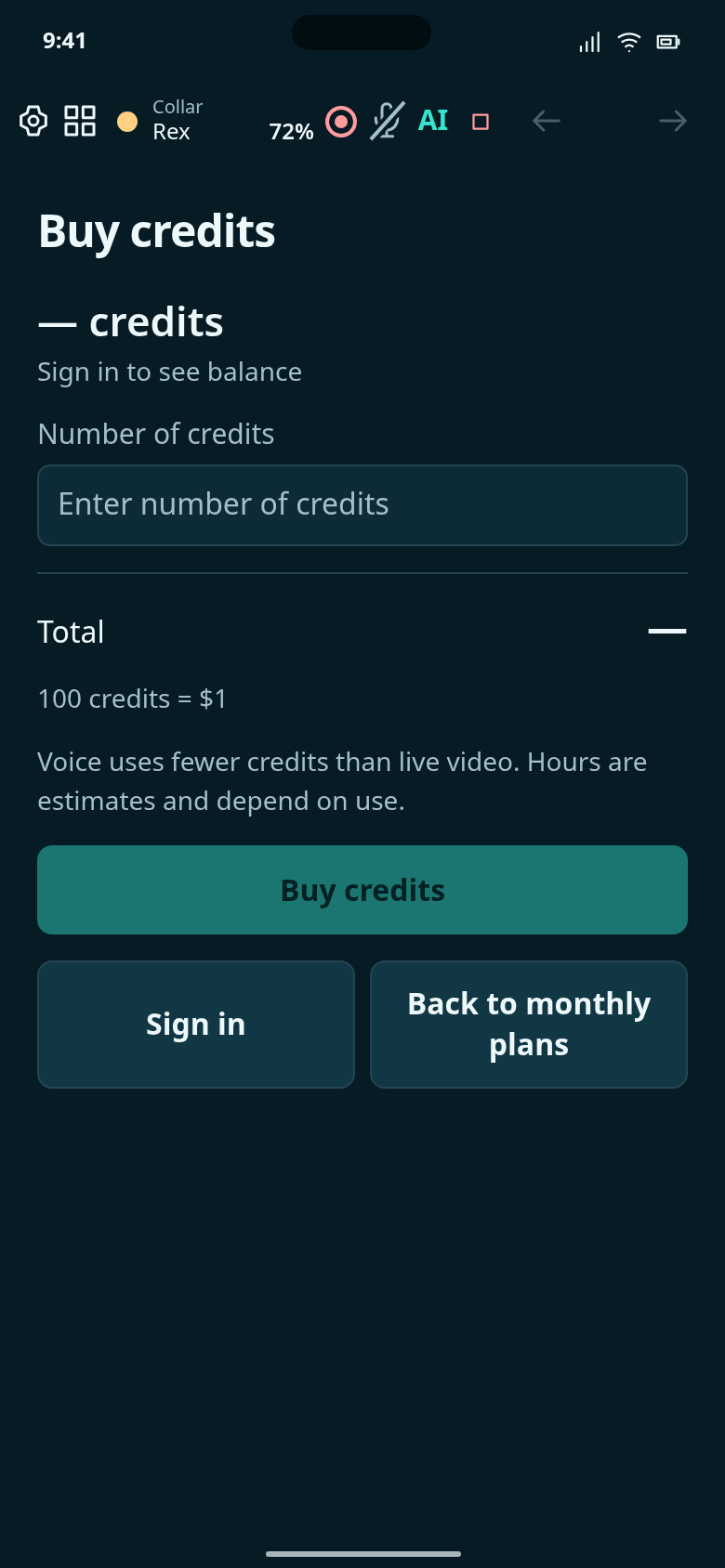
Choose how many extra credits to buy at the proposed price of $1 per 100 credits.
See K9Link Cloud signed in with an active Coach plan and its remaining monthly credits.
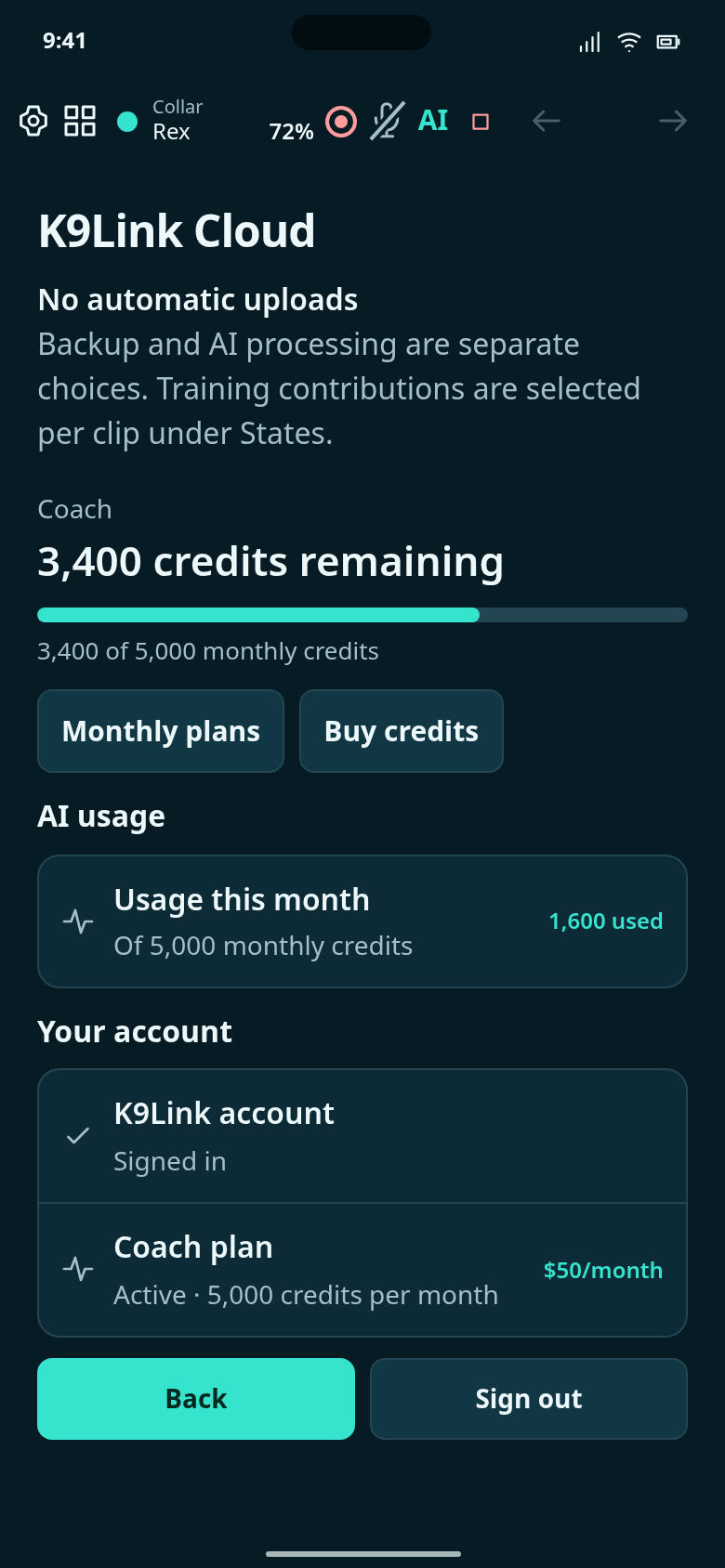
Signed-in example with the Coach plan: 3,400 of 5,000 monthly credits remain.
View live cameras, dog locations and map alerts.
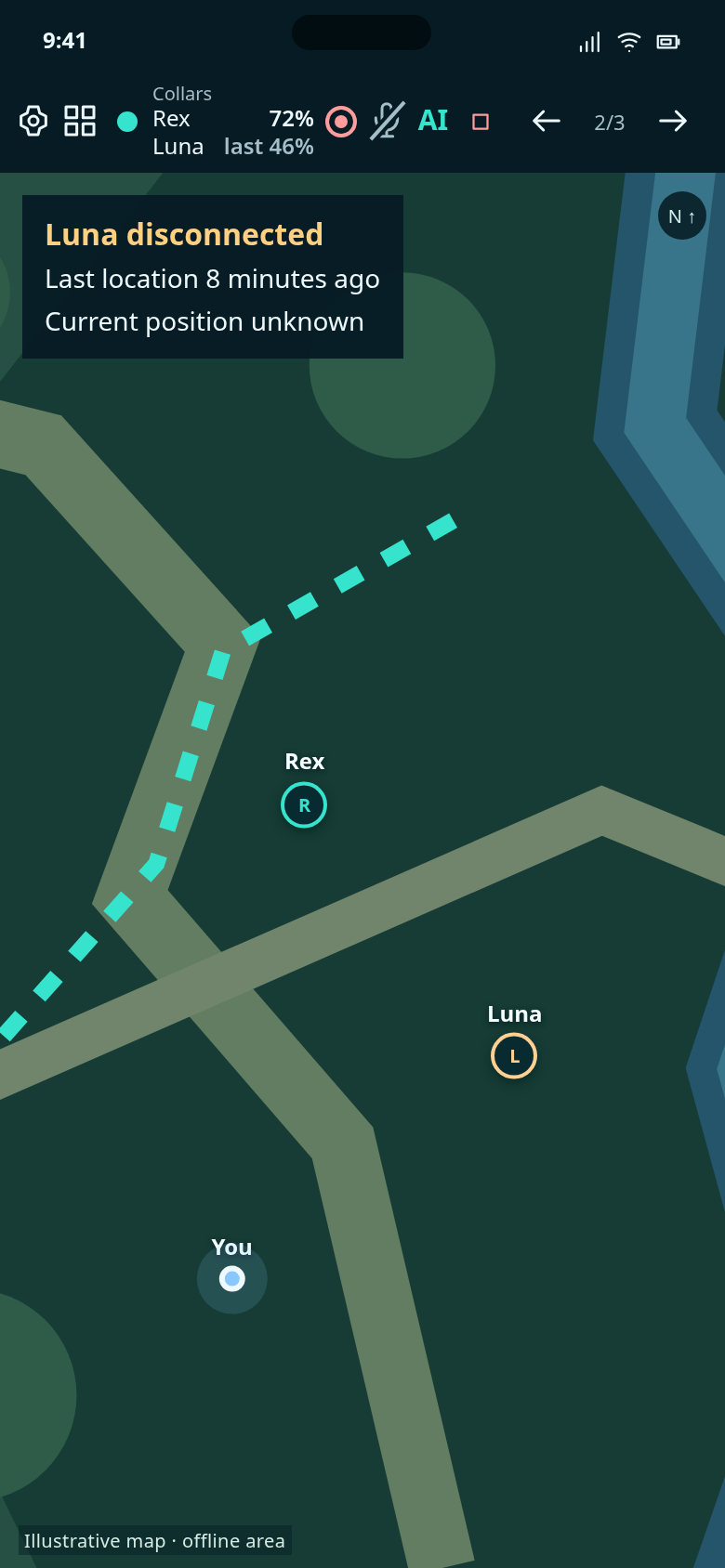
The same full-screen map background, with pins for both dogs and no separate dog panels.
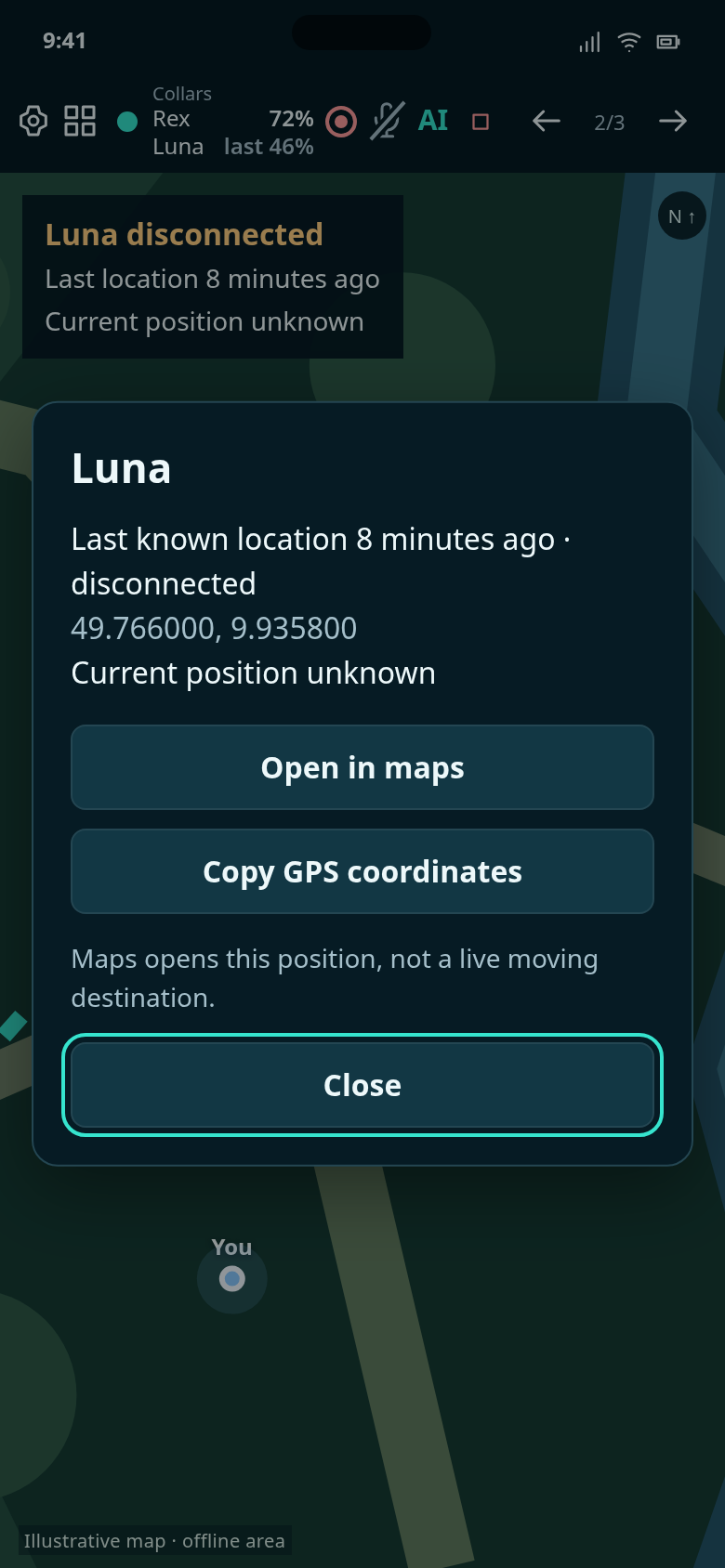
Tap Luna’s pin to see her last-known location, open it in another map app or copy its coordinates.
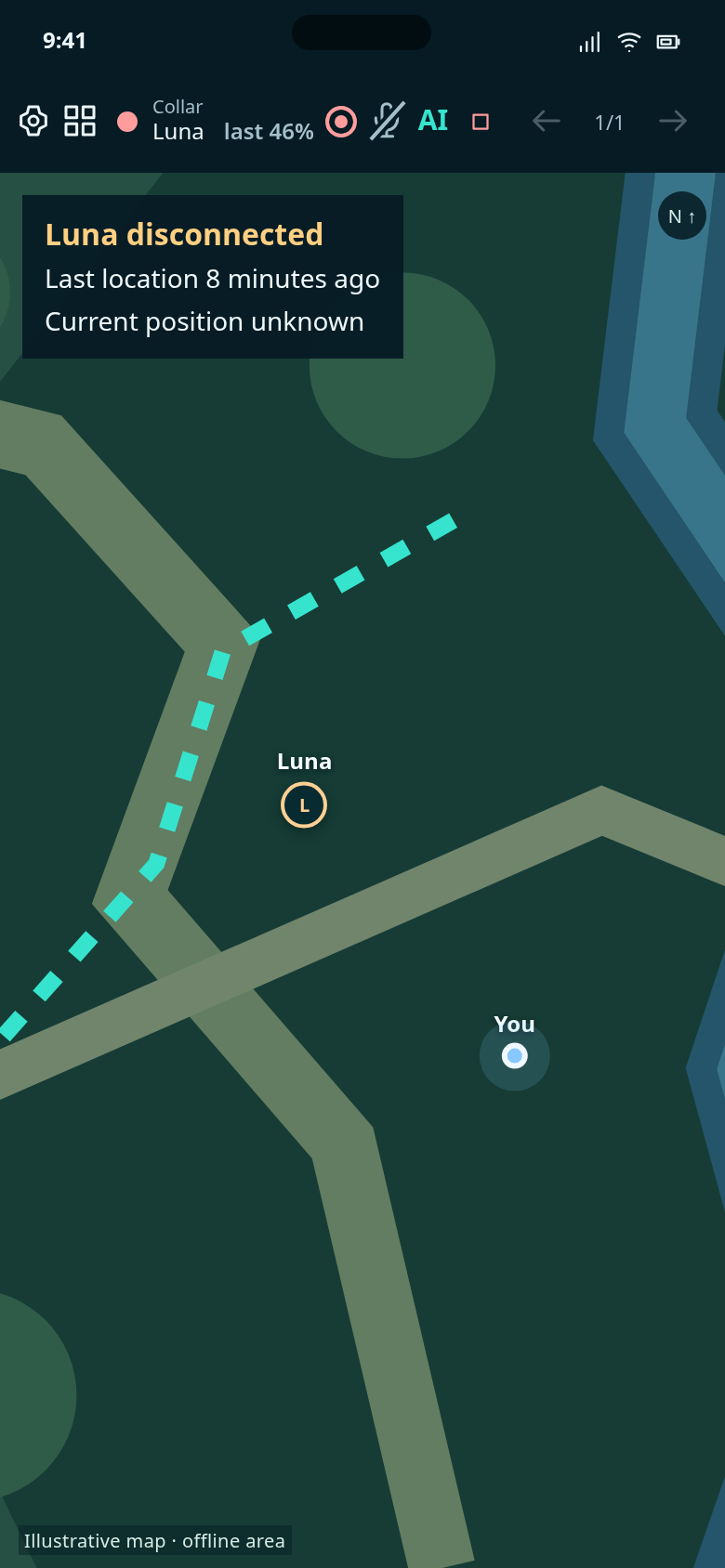
Luna’s disconnected status appears at the map’s top-left. Her last-known pin stays visible.
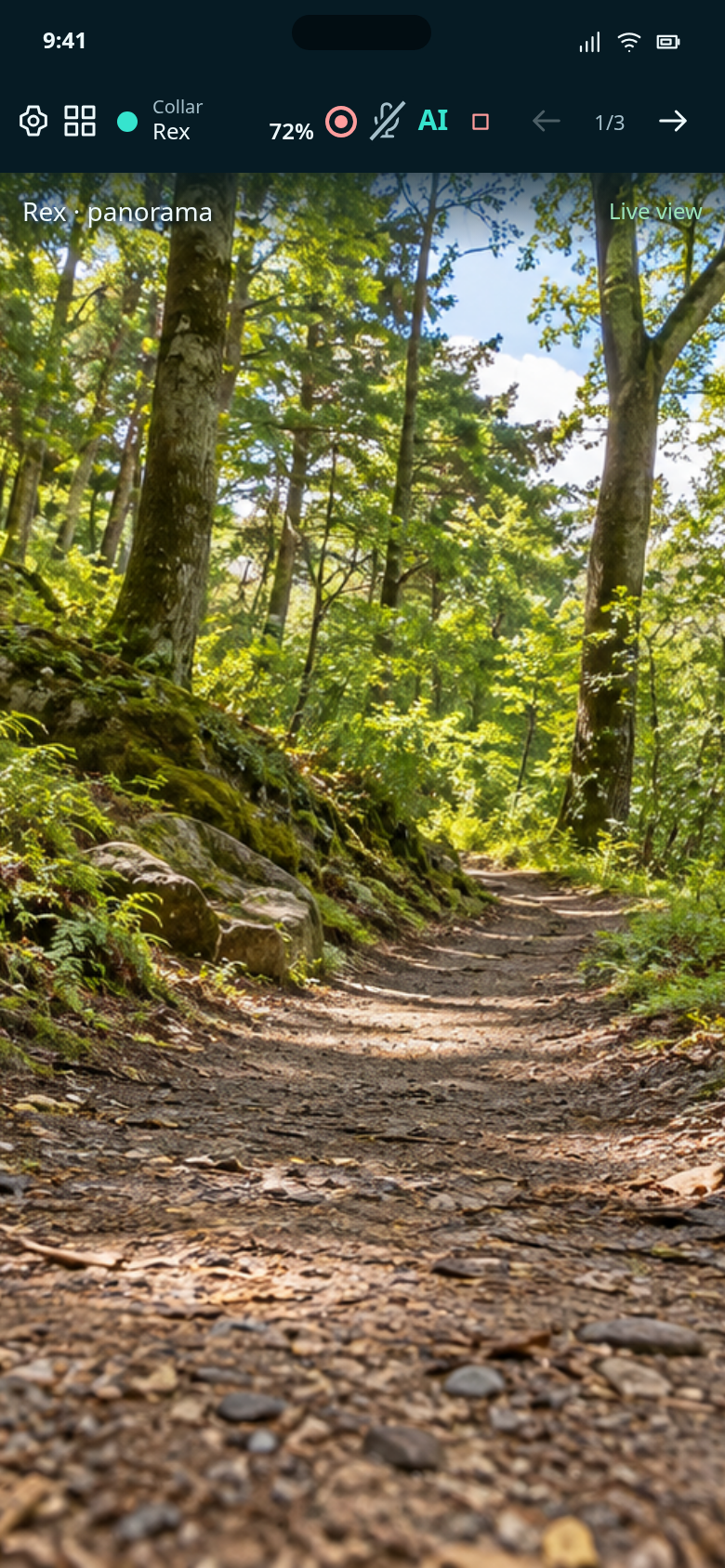
A full-screen camera background. Swipe to look around and pinch to zoom.
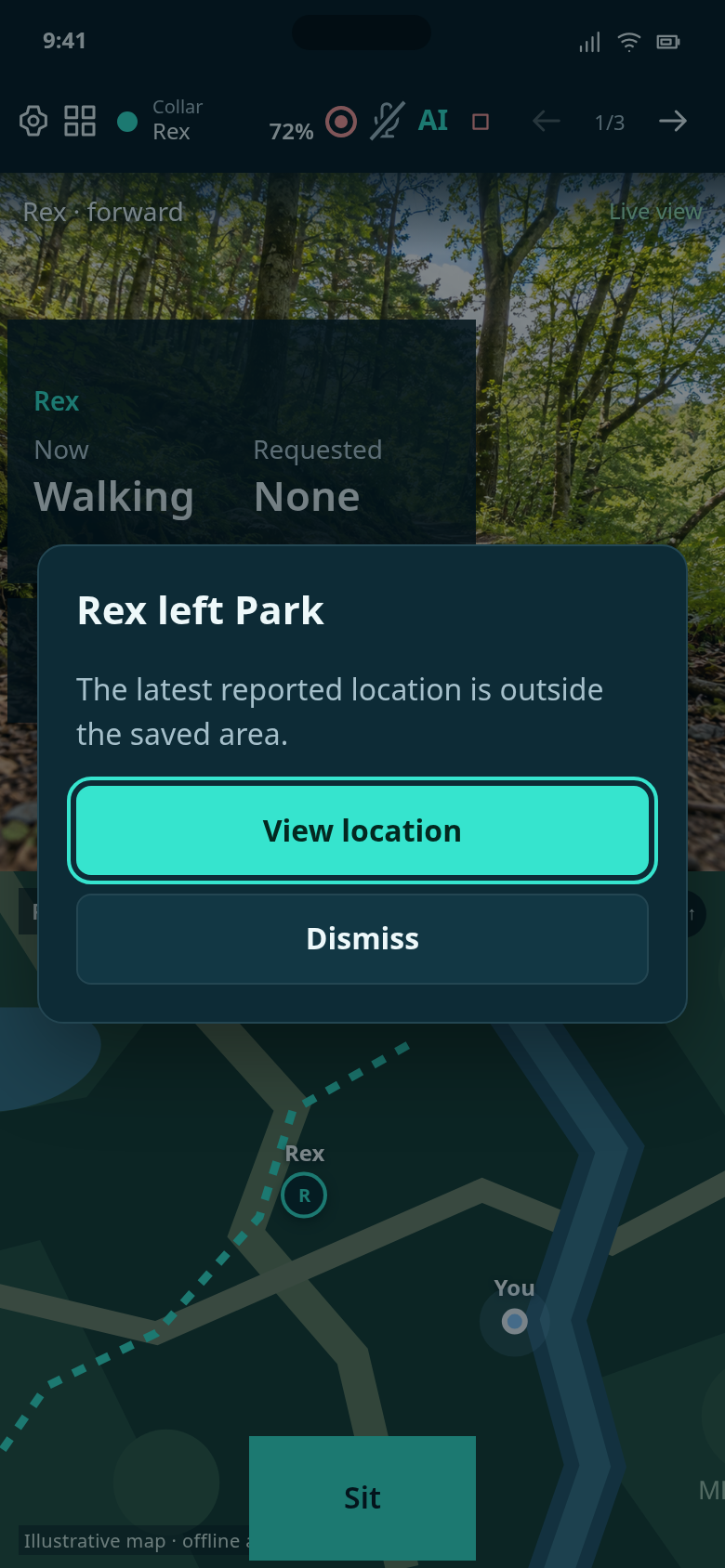
A boundary alert appears over the current view. Open the location or dismiss the popup.
No matches
Try a different phrase or clear the search.